
Managing your digital subscriptions and purchases starts with keeping your billing details up to date. Whether you're switching credit cards, canceling a service, or simply securing your account after losing a wallet, knowing how to modify or remove payment methods from your App Store account is essential. Apple makes this process straightforward across iPhone, iPad, and Mac — but only if you know where to look. This guide walks you through the exact steps, common pitfalls, and best practices for managing your App Store billing information securely and efficiently.
Why Updating Your Billing Information Matters
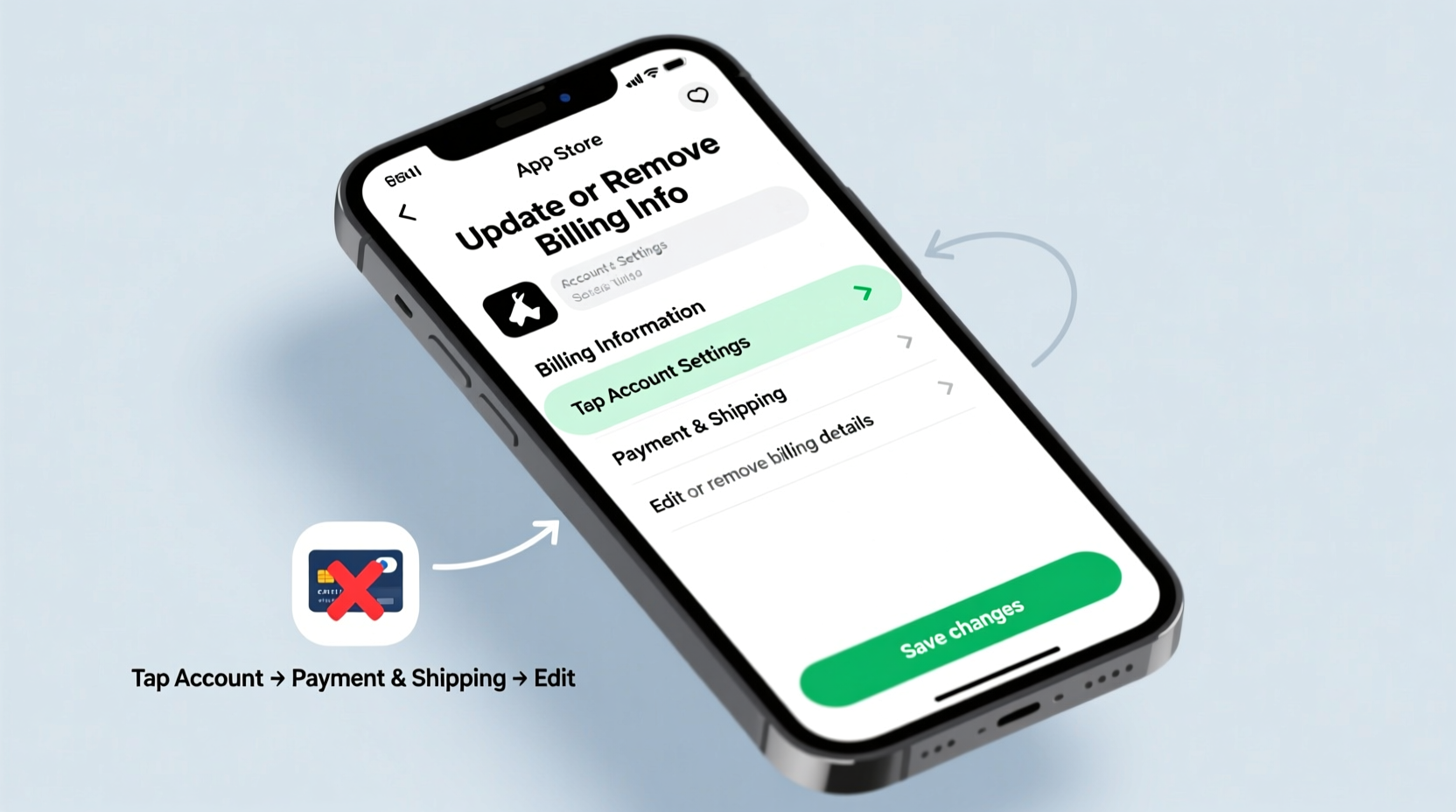
Your App Store account is linked to various services: iCloud+, Apple Music, apps with auto-renewing subscriptions, and in-app purchases. If your credit card expires, gets canceled, or is compromised, outdated billing info can lead to interrupted service, failed renewals, or even unexpected charges.
Updating or removing payment methods ensures continuity of service and protects your financial data. It also helps avoid confusion when family members share an Apple ID under Family Sharing, where one person’s outdated card could affect everyone’s access.
Step-by-Step: How to Update or Remove Payment Info on iPhone or iPad
The fastest way to manage your App Store billing details is directly from your iOS device. Follow these steps carefully:
- Open the Settings app.
- Tap your name at the top to enter your Apple ID settings.
- Select Payment & Shipping.
- If prompted, authenticate using Face ID, Touch ID, or your passcode.
- To update your card: Tap the current card, then edit any field (card number, expiration date, CVV, billing address).
- To remove your card: Tap Edit in the top-right corner, then tap the red minus icon next to the payment method and confirm deletion.
Note: You may not be able to remove all payment methods if you have active subscriptions. In such cases, you must first change the payment method or cancel the subscription.
When You Can’t Remove a Payment Method
Apple requires a valid payment method on file if any of the following apply:
- You have an active subscription (e.g., Apple One, fitness apps, streaming services).
- You’ve made recent purchases that are pending.
- Your account has a negative balance or outstanding charges.
In these situations, you can still update your card details, but removal will be blocked until obligations are resolved.
How to Manage Billing on Mac
If you prefer using a larger screen, managing your App Store payment information on macOS is just as effective.
- Click the Apple menu in the top-left corner and select System Settings (or System Preferences on older versions).
- Click your name to access your Apple ID settings.
- Go to Media & Purchases > View Account. You may need to sign in.
- Under the Settings section, click Manage Payments.
- Here, you can add a new card, edit existing ones, or remove them by clicking the minus (-) button.
As with iOS, removal will be restricted if active subscriptions are tied to the card.
“Keeping your App Store payment method current prevents service lapses and reduces the risk of unauthorized use.” — David Lin, Cybersecurity Consultant
Using iTunes on Windows? Here’s What to Know
Though Apple discontinued the standalone iTunes app on newer macOS versions, many Windows users still rely on it for media and purchases. To update billing info via iTunes:
- Open iTunes and sign in with your Apple ID.
- Click Account > View My Account. You may need to re-enter your password.
- Scroll down to the Settings section and click Edit next to Payment Type.
- Update your card details or select “None” if eligible.
- Click Done to save changes.
Note: The “None” option appears only when no active subscriptions or unpaid balances exist.
Checklist: Managing Your App Store Billing Safely
Before making changes, ensure you’re doing so securely and effectively. Use this checklist:
- ✅ Review all active subscriptions before removing a payment method.
- ✅ Confirm your new card details are entered correctly (number, expiry, CVV).
- ✅ Update your billing address if your card issuer requires it.
- ✅ Sign out of shared devices after editing sensitive information.
- ✅ Enable two-factor authentication for added account security.
Mini Case Study: Resolving a Failed Subscription Renewal
Sophia had been using a premium meditation app for over a year. When her bank replaced her debit card due to fraud, she forgot to update her App Store payment method. A week later, her subscription lapsed, and she lost access during a critical stress-management phase.
After contacting support, she learned her old card was still listed, and no backup payment method existed. She updated her card through her iPhone settings, restored her subscription, and set a calendar reminder to review her digital payments quarterly. Since then, she hasn’t missed a renewal.
This scenario highlights how easily overlooked billing updates can disrupt digital wellness tools — and why proactive management matters.
Do’s and Don’ts of App Store Billing Management
| Do’s | Don’ts |
|---|---|
| Update your card before it expires | Ignore subscription renewal reminders |
| Use trusted devices only when editing payment info | Edit billing details on public or shared computers |
| Remove old cards after confirming they’re no longer in use | Leave expired cards in your account — they clutter the interface |
| Verify changes by checking order history afterward | Assume “Edit” automatically saves — always confirm submission |
Frequently Asked Questions
Can I completely remove all payment methods from my Apple ID?
Yes, but only if you have no active subscriptions, pre-orders, or outstanding balances. If those exist, Apple requires at least one valid payment method on file.
Why doesn’t the “None” option appear when I try to remove my card?
The “None” option is hidden when your account has recurring subscriptions, pending purchases, or a history of payment issues. Cancel or update subscriptions first, then return to remove the card.
Will updating my card affect my active subscriptions?
No — updating your card information automatically applies the new details to all active subscriptions. Services will continue without interruption, provided the new card is valid and approved by the issuer.
Best Practices for Long-Term Billing Security
Managing your App Store billing isn’t a one-time task. As digital subscriptions grow, so does the importance of routine maintenance. Consider these long-term strategies:
- Schedule quarterly reviews of your Apple ID payment methods and subscriptions.
- Use virtual cards from banks like Capital One or privacy.com for added control and tracking.
- Turn on purchase prompts to require a password or biometric confirmation for every download or buy.
- Monitor email receipts from Apple (store@apple.com) for unexpected charges.
Conclusion: Take Control of Your Digital Finances
Your App Store billing information is more than just a credit card number — it’s the gateway to your digital lifestyle. From entertainment to productivity, staying on top of your payment methods ensures seamless access and peace of mind. Whether you're updating an expired card or removing old details after switching banks, the tools are built into your Apple devices. Now that you know exactly how to manage this process across platforms, take a few minutes today to audit your account. A quick update now can prevent frustration later.




 浙公网安备
33010002000092号
浙公网安备
33010002000092号 浙B2-20120091-4
Comments
No comments yet. Why don't you start the discussion?