
Managing your digital wallet is just as important as managing your physical one. With Google Play, you can purchase apps, games, movies, books, and subscriptions with a few taps. But if your credit card expires, you switch banks, or you're sharing a device, keeping outdated or compromised payment methods active poses a security risk. Knowing how to remove or update your payment method ensures your transactions remain smooth and your financial data stays protected.
Google designed its payment management system to be intuitive, but navigating account settings across devices can sometimes feel overwhelming. Whether you're using an Android phone, tablet, or accessing your account via web browser, the process is straightforward once you know where to look. This guide walks you through every step, highlights common pitfalls, and offers best practices to keep your Google Play purchases secure.
Why Managing Your Payment Methods Matters
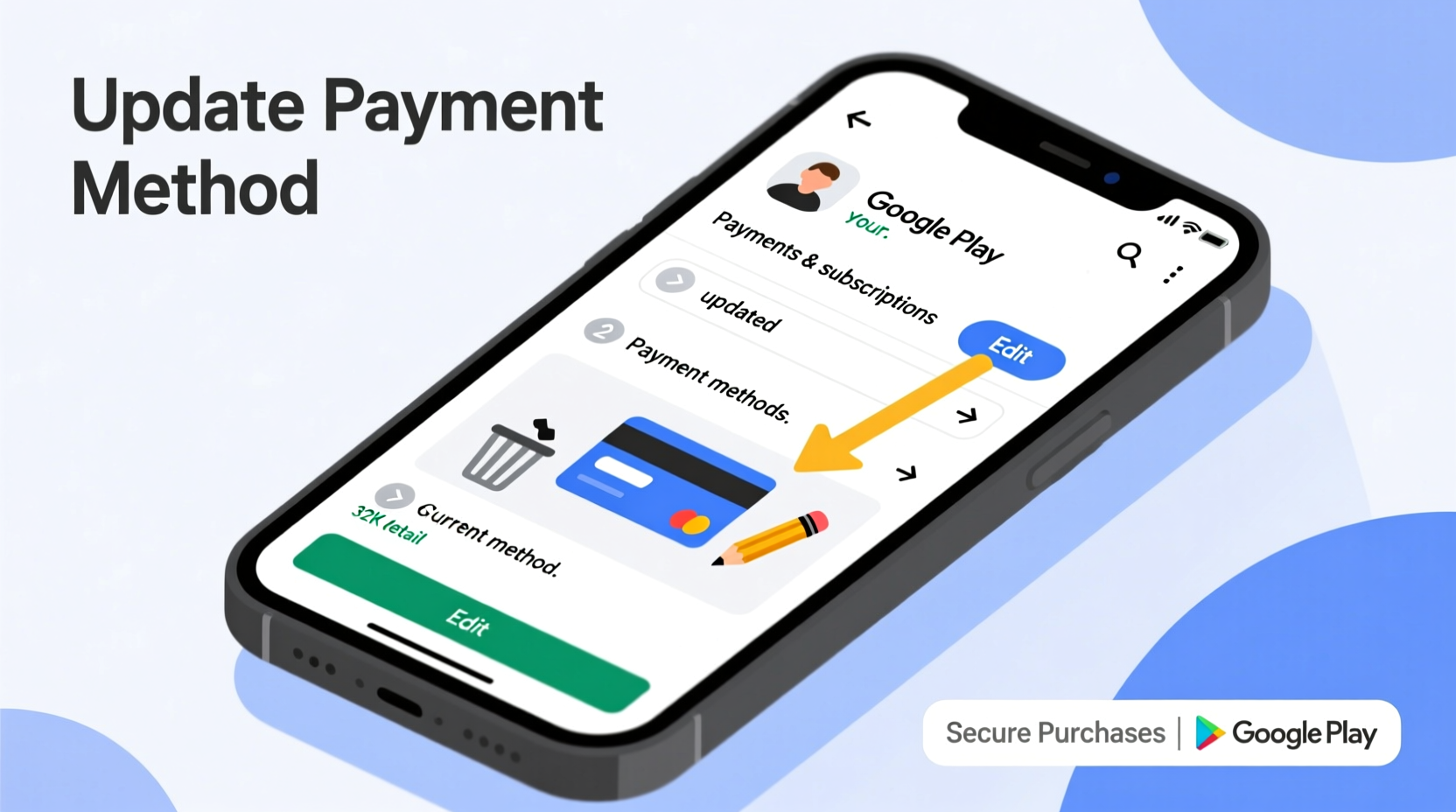
Your payment information stored in Google Play isn't just used for one-time app purchases. It's also tied to recurring subscriptions—like YouTube Premium, Google One, or third-party services—which can continue charging even if you no longer use them. An outdated card may lead to failed payments, service interruptions, or worse, accidental charges if the card was canceled due to fraud.
Additionally, if you’ve ever lost a device or shared it with family members, ensuring sensitive financial details are up to date—or removed entirely—is critical for privacy. According to cybersecurity experts at the Federal Trade Commission (FTC), unauthorized mobile app purchases rank among the top consumer complaints related to digital wallets.
“Regularly auditing your saved payment methods reduces the risk of both fraud and unwanted charges.” — David Lin, Senior Cybersecurity Analyst at Digital Trust Labs
Step-by-Step: How to Remove a Payment Method on Google Play
Removing a payment method from Google Play prevents future charges and eliminates stored card data. Follow these steps based on your device type:
On Android Device
- Open the Google Play Store app.
- Tap your profile icon in the top-right corner.
- Select Payments & subscriptions.
- Tap Payment methods.
- Find the payment method you want to remove and tap it.
- Select Remove and confirm when prompted.
Note: If “Remove” is grayed out, it may be your default method or linked to an active subscription. You’ll need to update your default method or cancel subscriptions first.
On Web Browser (play.google.com)
- Go to play.google.com and sign in.
- Click the menu icon (three horizontal lines) in the top-left.
- Select Account.
- Under “Payment settings,” click Manage payment methods.
- Hover over the payment method and click the trash bin icon.
- Confirm removal.
How to Update Your Payment Information
Updating your payment method is essential when switching cards or banks. Unlike deletion, updating ensures continuity for subscriptions without service disruption.
Replace Expired or Changed Cards
Google often prompts you to update expired cards automatically. When detected, you’ll see a notification in the Play Store or receive an email. To manually update:
- Follow the same path to Payment methods (via app or web).
- Select the outdated card.
- Edit the expiration date, CVV, or card number directly if only minor changes are needed.
- If replacing entirely, add a new card first, then remove the old one.
To add a new method:
- In the Payment methods section, tap Add payment method.
- Choose between credit/debit card, PayPal, carrier billing, or gift cards.
- Enter required details and verify identity if prompted.
Once added, set it as default by tapping Make default next to the new method.
Common Issues and How to Solve Them
Even with clear instructions, users often encounter obstacles when managing payment settings. Here’s how to handle frequent problems:
| Issue | Possible Cause | Solution |
|---|---|---|
| Can’t remove a card | Card is default or has active subscriptions | Change default method or cancel subscriptions first |
| Payment declined despite valid card | Billing address mismatch or bank block | Verify address in payment settings; contact bank |
| New card not appearing | Verification pending or regional restrictions | Check email for verification link; ensure card supports international transactions |
| Subscription still charging old card | System delay or cached data | Clear Play Store cache or wait 24 hours after removal |
Mini Case Study: Recovering from an Overcharged Subscription
Sarah, a freelance designer, noticed a $15 charge from a meditation app she hadn’t used in months. Her old card had been canceled, but the subscription remained active under her Google account. After logging into Google Pay, she discovered the app was still linked to her previous card—even though it was marked inactive. She added her new card, canceled the subscription, and requested a refund through Google’s support portal. Within 48 hours, the charge was reversed. The experience taught her to audit her subscriptions quarterly.
Best Practices for Secure Google Play Purchases
Maintaining control over your payment ecosystem goes beyond adding or deleting cards. Implement these strategies to enhance security and avoid surprises:
- Audit subscriptions monthly: Check which services are actively charging you.
- Use Google Play PIN: Set a 4-digit PIN to require confirmation before each purchase.
- Remove unused cards: Don’t leave backup cards sitting idle—they’re still vulnerable.
- Monitor purchase history: Review recent activity under “Order History” regularly.
- Log out of shared devices: Always sign out of public or family devices after managing payments.
Checklist: Securing Your Google Play Payments
- ✅ Review all saved payment methods
- ✅ Remove expired or unused cards
- ✅ Update any outdated card details
- ✅ Cancel inactive or forgotten subscriptions
- ✅ Set a new default payment method if needed
- ✅ Enable purchase PIN or biometric approval
- ✅ Verify two-factor authentication is active
Frequently Asked Questions
Can I delete all payment methods from Google Play?
Yes, but you won’t be able to make purchases until you add at least one valid method. Some features, like redeeming gift cards, may still work without a payment method on file.
Will removing a card cancel my subscriptions?
No. Subscriptions continue unless canceled manually. However, if the card is the only payment method and fails, Google may attempt retries or suspend service after multiple failures.
Is my card data safe with Google Play?
Google uses encryption and tokenization to protect your payment information. Card numbers are not stored on Google servers in plain text. For added safety, consider using virtual cards or Google Pay as an intermediary.
Take Control of Your Digital Wallet Today
Your Google Play account holds more than just apps—it holds access to your spending habits, subscriptions, and financial security. Taking a few minutes to review and clean up your payment methods isn’t just maintenance; it’s a proactive step toward digital well-being. Whether you're preventing fraud, simplifying your finances, or preparing to pass a device to someone else, knowing how to remove or update your payment method empowers you to stay in control.
Start today: open your Google Play settings, remove outdated cards, and ensure your current methods reflect your real-world banking status. A cleaner, safer digital wallet is just a few taps away.




 浙公网安备
33010002000092号
浙公网安备
33010002000092号 浙B2-20120091-4
Comments
No comments yet. Why don't you start the discussion?