
Running your own Minecraft server opens the door to custom gameplay, private worlds with friends, and creative freedom beyond what public servers offer. Many assume hosting one requires technical expertise or recurring expenses, but that’s no longer true. With the right tools and approach, you can launch a fully functional, free Minecraft server—without subscriptions, donations, or fine print.
The key is knowing which platforms genuinely offer free tiers, understanding their limitations, and configuring your setup efficiently. This guide walks through proven methods that avoid hidden costs while delivering stable performance for small to medium groups of players.
Understanding Free Server Hosting Options
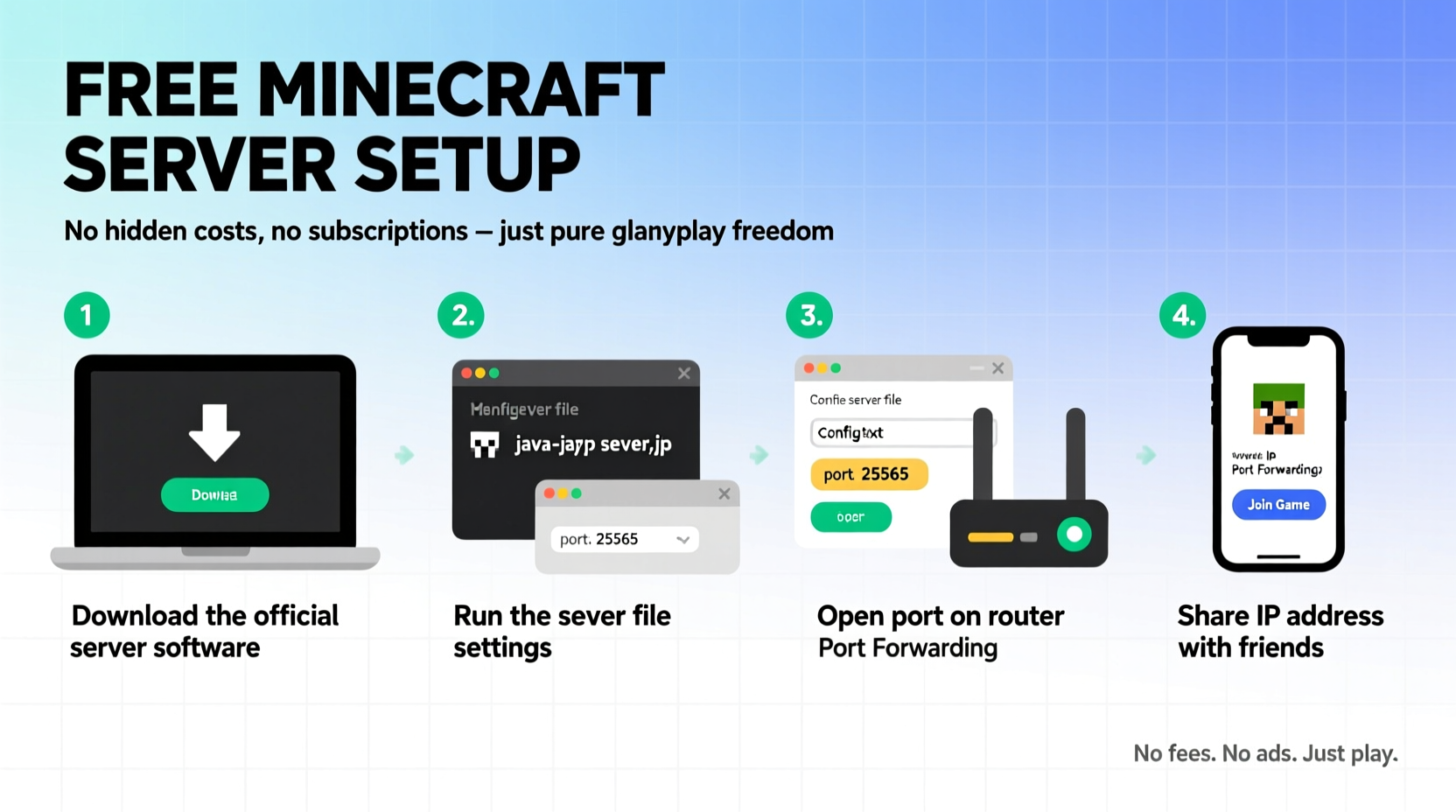
Not all “free” hosting services are created equal. Some lure users in with zero upfront cost only to throttle performance, restrict player counts, or bombard them with ads unless they upgrade. The best free solutions either leverage open-source tools on personal hardware or use cloud providers with legitimate free usage tiers.
Two primary paths exist: self-hosting using your own computer or using cloud-based free-tier services like Oracle Cloud or Google Cloud Platform (GCP). Each has trade-offs in setup complexity, uptime, and bandwidth.
Self-Hosting vs. Cloud-Based Free Hosting
| Method | Pros | Cons |
|---|---|---|
| Self-Hosting (Local PC) | No external costs; full control over files and mods | Server stops when PC shuts down; slower internet affects gameplay |
| Cloud Free Tier (e.g., Oracle Cloud) | 24/7 uptime; better performance; static IP | Slightly more complex setup; limited resources (~1–2 GB RAM) |
For casual play with 2–5 friends, both options work well. If you want your server online even when your laptop is closed, cloud-based free hosting is superior.
Step-by-Step: Setting Up a Free Server Using Oracle Cloud
Oracle Cloud offers an always-free ARM-based virtual machine with up to 24 GB of memory-months and 200 GB of storage—more than enough for a lightweight Minecraft server running Java Edition.
- Create an Oracle Cloud Account: Visit oracle.com/cloud/free and sign up. No credit card is required if you select only Always Free-eligible resources.
- Launch a Compute Instance: From the dashboard, click “Create a VM instance.” Choose an Ubuntu image (20.04 or later).
- Select Shape: Under “Instance Configuration,” pick “Ampere A1” shape with 1 OCPU and 1 GB RAM (or scale to 24 GB memory-months across multiple instances).
- Add SSH Key: Generate an SSH key pair locally or use the console-provided option. Save the private key securely.
- Note Public IP Address: After creation, copy the instance’s public IP—it will be your server address.
Once the instance runs, connect via SSH using Terminal (macOS/Linux) or PuTTY (Windows):
ssh -i /path/to/private-key ubuntu@your-instance-ip
Install Java and Minecraft Server
Run these commands in order:
sudo apt update
sudo apt install openjdk-17-jre-headless -y
mkdir minecraft && cd minecraft
wget https://piston-data.mojang.com/v1/objects/8dfbbdc7ca597d8ac0bcf4b84ff2a354ee3c1fd5/server.jar
echo \"eula=true\" > eula.txt
To start the server:
java -Xmx1024M -Xms1024M -jar server.jar nogui
On first run, the server generates world data and stops. Edit server.properties to change game mode, difficulty, or enable cheats:
sed -i 's/enabled=false/enabled=true/g' server.properties
Now restart it. Your server is live. Players join by adding your public IP in Multiplayer → Add Server.
Alternative: Host Locally Without Port Forwarding
If cloud setup feels daunting, you can run a server from your Windows or macOS machine—with a workaround for NAT/firewall restrictions.
Tools like Tailscale or ZeroTier create secure peer-to-peer networks, letting friends connect directly without exposing your router to the internet.
- Download Tailscale from tailscale.com and install it on your computer and your friends’ devices.
- Log in using Google, Microsoft, or email. All devices appear on a private network.
- Start the local Minecraft server on your machine.
- Have friends open Minecraft and connect to your Tailscale-assigned IP (e.g., 100.x.y.z).
This method avoids port forwarding, dynamic DNS, and security risks associated with opening ports. Performance depends on your upload speed, but for small groups, it's smooth and truly free.
“Using mesh networking tools like Tailscale eliminates the biggest hurdle in home server hosting: connectivity behind firewalls.” — Jordan Lee, Network Infrastructure Engineer
Essential Maintenance and Optimization Tips
A free server doesn’t mean zero maintenance. To keep performance stable and prevent crashes, follow these practices:
- Limit view distance in
server.propertiesto 6 chunks or less to reduce bandwidth usage. - Back up world files weekly by copying the
world/folder to another location. - Use lightweight mods or datapacks instead of heavy modpacks that exceed available RAM.
- Set a regular reboot schedule—even simple restarts every few days clear memory leaks.
Checklist: Pre-Launch Server Setup
- ✅ Chosen hosting method (cloud or local + tunneling)
- ✅ Installed Java 17 (required for Minecraft 1.18+)
- ✅ Accepted EULA by setting
eula=true - ✅ Configured
server.propertiesfor desired gameplay - ✅ Shared server IP securely with players
- ✅ Created backup plan for world saves
Real Example: A Teenager’s Weekend Project
15-year-old Maya wanted a space to build with her school friends after class. She tried several paid hosts but found them slow and restrictive. Then she discovered Oracle Cloud’s free tier.
Over a weekend, she followed a tutorial (similar to this one), launched a VM, installed the server, and invited five friends. They’ve been playing twice a week for three months with no issues. Her only effort now is backing up the world folder to her Google Drive every Sunday night.
“It took me six hours total to learn,” she said. “But now we have our own world, and it costs nothing.”
Frequently Asked Questions
Can I run a Bedrock Edition (console/mobile) server for free?
No official free hosting exists for Bedrock dedicated servers. However, you can enable multiplayer on a local world and invite friends via Xbox Live if everyone is on the same network or using cross-play features. For persistent access, third-party tools like Project Bedrock on Raspberry Pi exist but require technical skill.
Will my free server get shut down?
Oracle Cloud may suspend inactive accounts after 90 days. To prevent this, log in monthly and ensure your instance isn’t idle beyond limits. Self-hosted and P2P solutions (like Tailscale) face no such risk.
How many players can join a free server?
Most free setups support 5–10 players comfortably, depending on available RAM and internet upload speed. For cloud VMs with 1 GB RAM, stick to 4–6 active players for optimal performance.
Final Thoughts
Setting up a free Minecraft server isn’t just possible—it’s accessible to anyone willing to spend a few hours learning. Whether you choose a robust cloud backend or a simple peer-to-peer network, the tools exist to give you full control without spending a cent.
The real value isn’t just saving money. It’s having a private sandbox where creativity thrives, friendships grow, and digital ownership means something again. No ads, no paywalls, no forced upgrades—just pure gameplay on your terms.




 浙公网安备
33010002000092号
浙公网安备
33010002000092号 浙B2-20120091-4
Comments
No comments yet. Why don't you start the discussion?