
Streaming Amazon Prime Video on your TV brings the full cinematic experience into your living room. Whether you're watching the latest blockbuster, bingeing a critically acclaimed series, or catching up on exclusive originals, having Prime Video on your big screen enhances every viewing moment. The good news is that connecting Prime Video to your TV doesn’t require technical expertise. With a wide range of compatible devices and straightforward setup processes, you can start streaming in minutes. This guide walks you through every method—smart TVs, streaming sticks, game consoles, and even HDMI connections—with clear instructions, practical tips, and troubleshooting advice.
Check Your Device Compatibility First
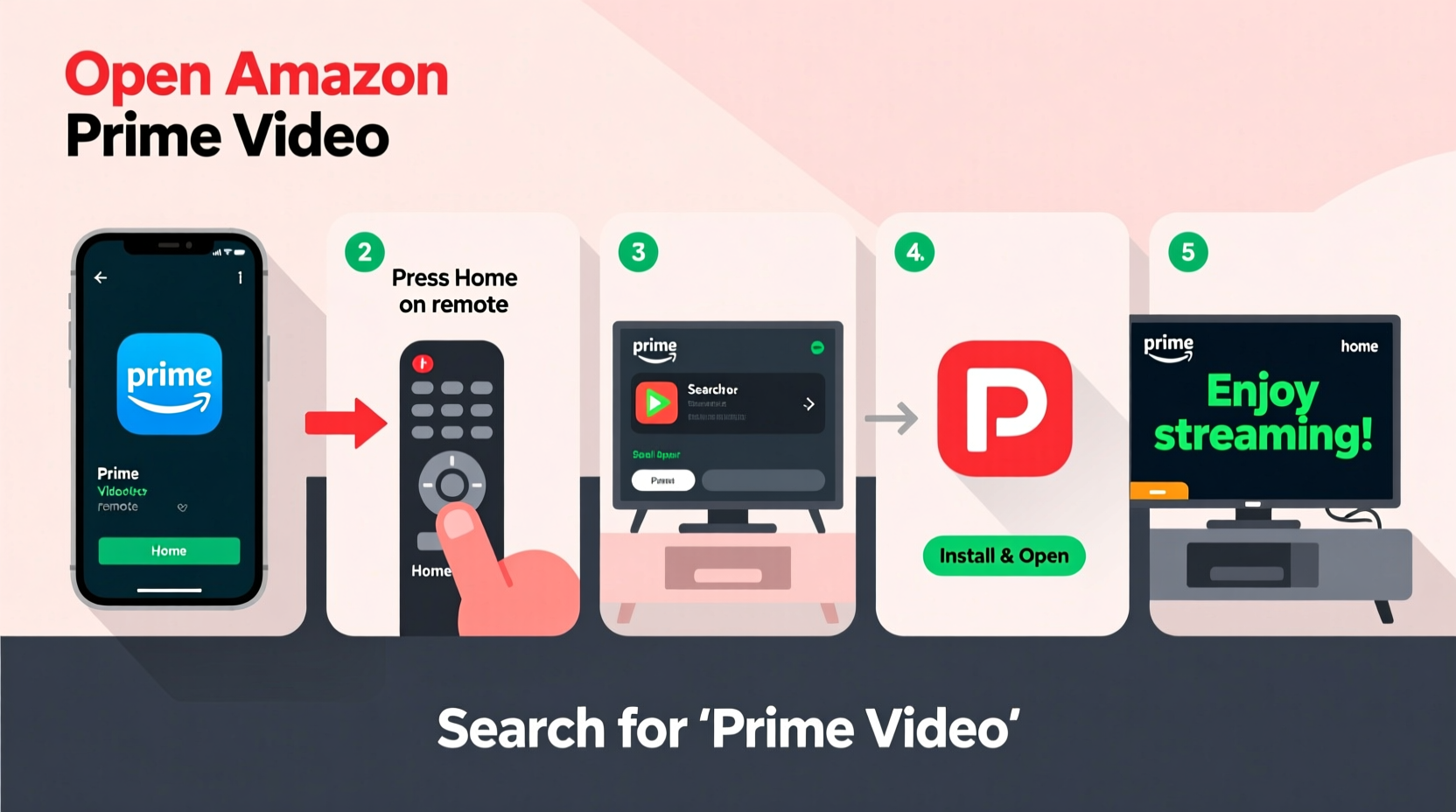
Before diving into setup steps, confirm whether your TV or connected device supports the Amazon Prime Video app. Most modern smart TVs and streaming platforms do, but older models may not. Here’s a quick reference list:
| Device Type | Supports Prime Video? | How to Access |
|---|---|---|
| Amazon Fire TV Stick / Cube | Yes (native) | Pre-installed app |
| Smart TVs (Samsung, LG, Sony, etc.) | Most models from 2016+ | Download via built-in app store |
| Roku (Streaming Stick, Ultra, etc.) | Yes | Install from Roku Channel Store |
| Apple TV (4th gen and later) | Yes | Available on App Store |
| Xbox One / Series X|S | Yes | Download from Microsoft Store |
| PlayStation 4 / 5 | Yes | Available in Media section |
| Older TVs without smart features | No (directly) | Use external streaming device |
Step-by-Step Setup for Popular Devices
The process varies slightly depending on your hardware. Below are detailed instructions for the most common ways to stream Prime Video on your TV.
Option 1: Using an Amazon Fire TV Device
- Plug the Fire Stick or Fire Cube into your TV’s HDMI port.
- Connect the power adapter and turn on your TV.
- Select the correct HDMI input using your remote.
- Follow on-screen prompts to connect to Wi-Fi.
- Sign in with your Amazon account (the same one used for Prime).
- The Prime Video app opens automatically, or find it on the home screen.
This is often the fastest route, especially if you already have an Amazon account. Fire devices integrate seamlessly with Prime services.
Option 2: On a Smart TV (Samsung, LG, Android TV)
- Turn on your smart TV and ensure it’s connected to the internet.
- Navigate to the app store (e.g., Samsung Apps, LG Content Store, Google Play Store).
- Search for “Amazon Prime Video.”
- Download and install the app.
- Launch the app and sign in with your Amazon credentials.
- Begin browsing or searching for content immediately.
Note: Some older smart TVs use legacy operating systems that no longer receive app updates. If you can't find the Prime Video app, consider using a streaming stick instead.
Option 3: Via Roku Streaming Devices
- Set up your Roku device and connect to Wi-Fi.
- Go to the home screen and open the \"Streaming Channels\" menu.
- Search for “Prime Video.”
- Select the official Amazon app and choose “Add Channel.”
- Open the newly added app and log in with your Amazon email and password.
- Start streaming instantly.
Option 4: Using Gaming Consoles
Both Xbox and PlayStation allow Prime Video streaming:
- Xbox: Go to the Microsoft Store, search for Prime Video, install, then sign in.
- PlayStation: Navigate to the Media tab, locate Prime Video, download, and launch.
These consoles support 4K and HDR when available, making them excellent choices for high-quality streaming.
Alternative Method: Screen Mirroring or HDMI Connection
If your TV lacks app support and you don’t want to buy additional hardware, you can still watch Prime Video using screen mirroring or a physical connection.
Mirroring from Phone or Tablet (Android & iOS)
- Ensure both your mobile device and TV are on the same Wi-Fi network.
- Open the Prime Video app and start playing a title.
- Tap the Cast icon (rectangle with Wi-Fi waves) in the top corner.
- Select your TV or Chromecast-enabled device from the list.
- The video will stream directly to your TV.
This works best with Chromecast-built-in TVs or devices like Google Chromecast. iPhones can use AirPlay to compatible smart TVs (e.g., newer LG or Samsung models).
Using an HDMI Cable
- Connect one end of an HDMI cable to your laptop, tablet, or phone (with adapter if needed).
- Plug the other end into your TV’s HDMI port.
- Switch your TV to the corresponding HDMI input.
- Open a browser or app with Prime Video on your device.
- Play the content—the video and audio will display on your TV.
This method bypasses apps entirely but requires your device to stay on and active during playback.
“Streaming quality depends as much on your internet speed as your device. For uninterrupted HD or 4K, ensure at least 15 Mbps bandwidth.” — Carlos Mendez, Home Network Engineer
Troubleshooting Common Issues
Even with the right setup, issues can arise. Here’s how to resolve frequent problems:
- App won’t install: Check your device’s software version. Update the OS if prompted, then retry installation.
- Playback keeps buffering: Test your internet speed. Restart your router or switch to a wired Ethernet connection for stability.
- Sign-in errors: Double-check your Amazon login. Avoid using third-party email apps; copy-paste credentials carefully.
- No sound/video on TV: Confirm the correct HDMI input is selected. Try unplugging and reinserting the cable or device.
- Outdated app: Visit your device’s app store and check for updates under “My Apps” or “Purchased.”
Quick Checklist: Stream Prime Video Successfully
- Confirm your TV or device supports Prime Video
- Ensure stable Wi-Fi or Ethernet connection
- Know your Amazon login details
- Update your device’s operating system
- Gather necessary cables or streaming hardware
Frequently Asked Questions
Can I watch Amazon Prime Video on multiple TVs at once?
Yes, but with limits. Your Prime account allows streaming on up to three devices simultaneously. However, most individual titles can only be viewed on one screen at a time unless they’re downloaded for offline use.
Do I need an Amazon Fire Stick to watch Prime Video?
No. While Fire devices offer deep integration, Prime Video is available on many platforms including smart TVs, Roku, Apple TV, and gaming consoles. Choose the option that fits your current setup.
Why is some content not available on my TV app?
Licensing restrictions sometimes limit availability across regions or devices. If a show appears on the website but not your TV, it may not be supported on that platform. Try accessing it via a web browser on a connected laptop instead.
Enjoy Seamless Streaming Today
Bringing Amazon Prime Video to your TV opens up a world of entertainment in stunning clarity and immersive sound. Whether you’re using a budget-friendly streaming stick, a high-end smart TV, or repurposing a gaming console, the setup is simple and fast. Focus on compatibility, maintain a strong internet connection, and keep your apps updated for the smoothest experience. Once configured, you’ll enjoy effortless access to thousands of movies, series, and originals—all from the comfort of your couch.




 浙公网安备
33010002000092号
浙公网安备
33010002000092号 浙B2-20120091-4
Comments
No comments yet. Why don't you start the discussion?