
Moving from an Android phone to an iPhone is a common transition, especially as users seek deeper integration with Apple’s ecosystem. One of the most important aspects of this switch is transferring personal memories—photos—without compromising their quality. Many assume that switching platforms means sacrificing image resolution or metadata, but that doesn’t have to be the case. With the right tools and approach, you can move your entire photo library seamlessly while preserving every pixel, timestamp, and album structure.
This guide walks through practical, high-fidelity methods for transferring photos from Android to iPhone, compares their strengths and limitations, and offers real-world tips to ensure no detail is lost in translation.
Why Photo Quality Matters During Transfer
Photos are more than just images—they’re records of moments, locations, and emotions. When transferred incorrectly, they may lose resolution, EXIF data (like date, time, and GPS), or even get compressed into lower-quality formats. This often happens when relying on third-party apps that automatically resize media for faster uploads or when syncing through social platforms.
Preserving original quality means maintaining:
- The full resolution (e.g., 12MP, 48MP) captured by your Android camera
- Metadata such as timestamps, geolocation, and device information
- Image format integrity (JPEG, HEIC after conversion, RAW if applicable)
- Album organization and naming conventions
Choosing a method that avoids recompression or cloud-based downsampling is essential for long-term digital preservation.
Method 1: Use Apple’s “Move to iOS” App (Best for Initial Setup)
Apple designed the “Move to iOS” app specifically to help Android users migrate to iPhones during initial setup. It creates a private Wi-Fi connection between devices and transfers contacts, messages, photos, videos, and browser data securely.
This method ensures lossless photo transfer because it copies files directly rather than uploading them to iCloud first.
Step-by-Step Guide to Using Move to iOS
- Start setting up your new iPhone and proceed until you reach the “Apps & Data” screen.
- Select “Move Data from Android.”
- On your Android phone, download the “Move to iOS” app from the Google Play Store.
- Open the app and tap “Continue,” then agree to the terms.
- On your iPhone, tap “Continue” and wait for a six- or ten-digit code.
- Enter that code on your Android device.
- Once connected, select “Photos and Videos” (and other data if desired).
- Wait for the transfer to complete—this may take some time depending on volume.
- Finish iPhone setup; your photos will appear in the Photos app.
Note: The “Move to iOS” app only works during initial iPhone setup. If you’ve already set up your iPhone, you’ll need alternative methods.
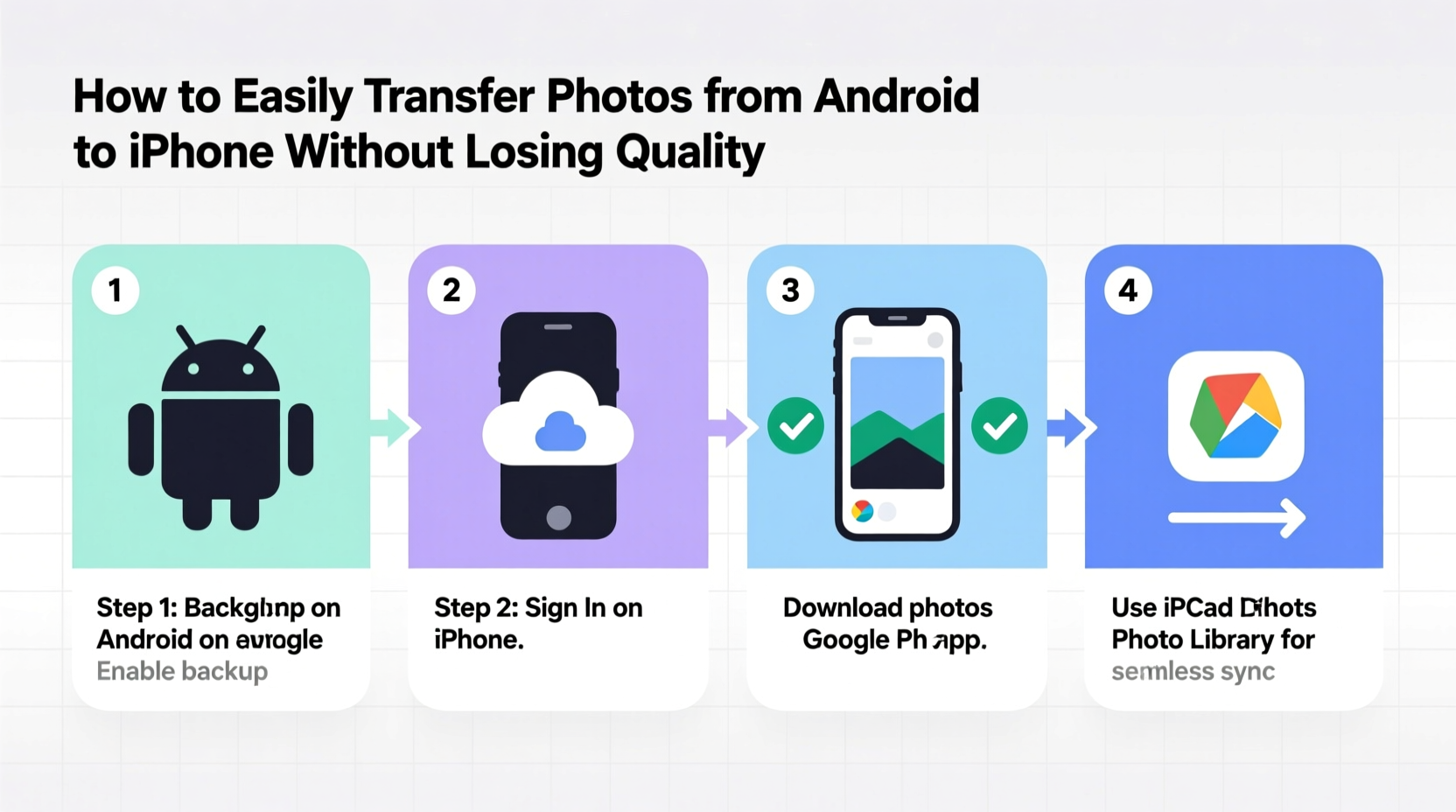
Method 2: Google Photos Backup and Restore (Flexible Timing)
If you’ve already activated your iPhone or missed the initial migration window, Google Photos offers a reliable fallback. By backing up your Android gallery in original quality and restoring it to your iPhone, you maintain full resolution.
Steps to Transfer via Google Photos
- On your Android device, open the Google Photos app.
- Go to Settings > Backup & Sync and turn it on.
- Ensure “Upload size” is set to “Original quality” (not “Storage saver”).
- Wait for all photos to upload—check progress under “Back up & sync.”
- On your iPhone, install Google Photos from the App Store.
- Log in with the same Google account.
- Tap your profile picture > Photos settings > Download original quality.
- Download albums or individual photos to your iPhone.
- To save them permanently, go to each photo > Share > Save to Photos.
“Google Photos remains one of the most consistent cross-platform tools for photo migration, provided users avoid the compressed backup tier.” — David Lin, Digital Archivist & Mobile Migration Specialist
While effective, this method requires sufficient Google Account storage if you're transferring large libraries. Free accounts get unlimited “Storage Saver” backups, but only “Original Quality” preserves fidelity—and that counts against your 15GB free limit unless upgraded.
Method 3: Computer-Aided Transfer (Most Control Over Files)
For maximum control and assurance of quality, use a computer as an intermediary. This method bypasses wireless compression risks and allows manual verification of file integrity.
Transfer Process via PC or Mac
- Connect your Android phone to a computer via USB cable.
- Unlock your phone and select “File Transfer” mode.
- Navigate to the DCIM > Camera folder (where most photos are stored).
- Select and copy all desired photos/videos to a folder on your computer.
- Safely eject your Android device.
- Connect your iPhone to the same computer.
- Use Finder (macOS Catalina+) or iTunes (older macOS/Windows) to access your iPhone.
- In Finder/iTunes, go to the “Photos” section and enable “Sync Photos.”
- Select the folder containing your copied photos and start syncing.
All transferred images will appear in the iPhone’s native Photos app, retaining original resolution and filenames. Metadata like timestamps may not always carry over perfectly due to platform differences, but visual quality remains intact.
Comparison of Transfer Methods
| Method | Quality Preserved? | Requires Initial Setup? | Internet Needed? | Time Required | Best For |
|---|---|---|---|---|---|
| Move to iOS | Yes (lossless) | Yes | No (uses direct Wi-Fi) | Medium to Long | New iPhone users doing fresh setup |
| Google Photos | Yes (if Original Quality enabled) | No | Yes (upload + download) | Long (depends on internet speed) | Delayed transfers or selective imports |
| Computer Transfer | Yes (full control) | No | No (except iCloud sync later) | Medium | Large libraries or tech-savvy users |
| Third-party Apps (Send Anywhere, SHAREit) | Sometimes (varies by app) | No | Yes (P2P Wi-Fi) | Short to Medium | Quick small batches |
Real-World Example: Sarah’s Cross-Platform Move
Sarah had used a Samsung Galaxy S21 for three years, accumulating over 7,000 photos, including family events and travel shots. She upgraded to an iPhone 15 and wanted to keep everything without degradation.
She initially tried Bluetooth transfer but realized it took hours and reduced image clarity. After research, she opted for the computer method. She connected her Galaxy to her MacBook, copied the entire DCIM folder, and used Finder to sync the photos to her iPhone. The process took about 45 minutes, but every photo appeared in full resolution. A few screenshots didn’t retain exact timestamps, but the visual quality was flawless.
Sarah later backed up everything to iCloud Photos to safeguard against future device changes. Her experience highlights the importance of choosing the right tool for volume and quality priorities.
Avoiding Common Pitfalls
Even with the right method, mistakes can degrade results. Here are frequent issues and how to prevent them:
- Using “Storage Saver” instead of “Original Quality” in Google Photos – Always verify upload settings before initiating backup.
- Interrupting wireless transfers – Stay close to your devices and avoid putting either to sleep during transfer.
- Syncing duplicates – If reattempting a transfer, check existing photos to avoid clutter.
- Ignoring metadata loss – Some methods don’t carry over location or creation dates. Consider using dedicated metadata tools like Adobe Bridge if archival accuracy is critical.
Checklist: Ensuring a High-Quality Transfer
Before starting, follow this checklist to guarantee success:
- ✅ Back up your Android photos to cloud or computer before starting
- ✅ Confirm available storage on iPhone (Settings > General > iPhone Storage)
- ✅ Disable battery optimization on Android during transfer
- ✅ Enable “Original” quality in Google Photos (if using that method)
- ✅ Keep both devices charged and on the same Wi-Fi network (for wireless methods)
- ✅ Verify sample photos on iPhone after transfer for resolution and completeness
Frequently Asked Questions
Can I transfer photos after setting up my iPhone?
Yes. While the “Move to iOS” app only works during initial setup, you can use Google Photos, a computer, or third-party apps anytime afterward to transfer photos without quality loss.
Will my Live Photos or GIFs transfer correctly?
Live Photos are an iPhone-exclusive feature and won’t be created from Android videos. However, short video clips recorded alongside photos will transfer as standard videos. Animated GIFs should remain unchanged across platforms.
Do HDR or Night Mode photos lose quality?
No. Modern Android HDR and Night Mode images are saved as standard JPEGs or HEIF-compatible files and retain full dynamic range and detail when transferred properly. The iPhone will display them accurately, though editing options may vary slightly.
Conclusion: Preserve Your Memories Without Compromise
Transferring photos from Android to iPhone doesn’t require sacrificing quality or organization. Whether you use Apple’s official Move to iOS tool, leverage Google Photos with original settings, or take a hands-on computer-assisted approach, each method can deliver pristine results when executed correctly. The key is preparation—verifying settings, ensuring adequate storage, and choosing the right timing.
Your photos represent irreplaceable moments. Taking a little extra care during the transfer process ensures they remain vivid and accessible for years to come, regardless of which device you use. Don’t rush the migration. Plan it, test it, and confirm it—your future self will thank you.




 浙公网安备
33010002000092号
浙公网安备
33010002000092号 浙B2-20120091-4
Comments
No comments yet. Why don't you start the discussion?