
Moving from an iPhone to an Android device is a common transition, but many users worry about what happens to their photo library during the switch. Photos are more than just images—they’re memories, milestones, and moments frozen in time. The last thing anyone wants is for those precious files to be compressed, resized, or lost in translation between operating systems.
The good news: it’s entirely possible to transfer your entire photo collection from iPhone to Android with zero loss in resolution or quality. While Apple and Google use different ecosystems and default syncing tools, there are several effective, user-friendly methods that preserve original file integrity. Whether you're switching phones once or helping someone else migrate, this guide walks through the most reliable approaches, compares their strengths, and helps you choose the best path based on your needs.
Why Photo Quality Gets Lost During Transfers
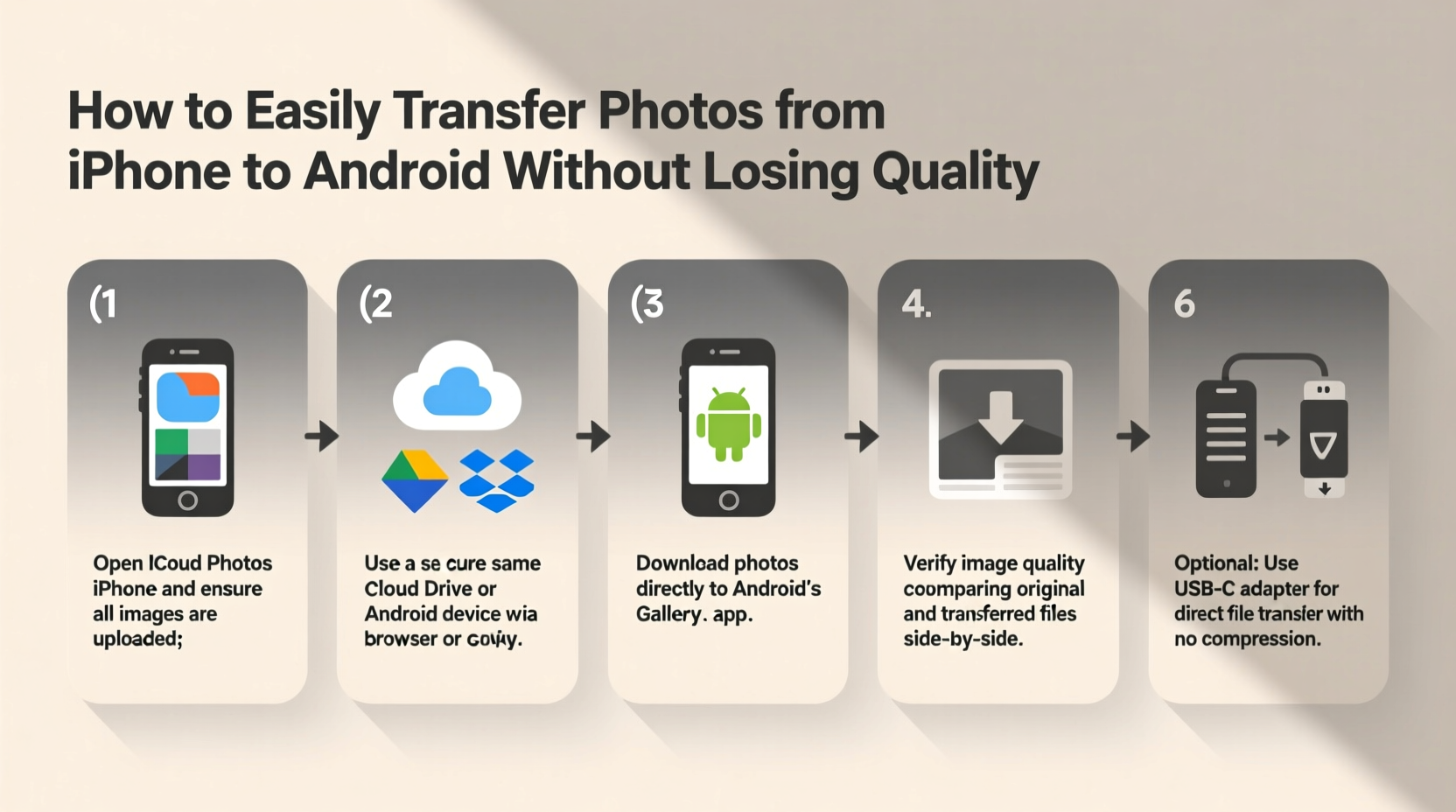
Before diving into solutions, it's important to understand why photo quality often degrades when moving between devices. The issue isn’t always the transfer method itself—it’s usually due to automatic compression applied by apps, messaging platforms, or cloud services trying to save bandwidth or storage space.
iPhone cameras capture high-resolution HEIC (High Efficiency Image Format) files by default. These are smaller than JPEGs but maintain excellent quality. However, many Android devices don’t natively support HEIC without conversion, which can lead to unintended recompression. Additionally, transferring via Bluetooth, MMS, or some third-party apps may downscale images to speed up delivery.
To avoid this, the key is bypassing automatic compression layers and ensuring full-resolution files move intact—either as originals or converted losslessly to widely compatible formats like JPEG.
Method 1: Use Google Photos (With Proper Settings)
Google Photos is one of the most seamless ways to transfer photos if used correctly. It supports direct backup from iOS and restores full-quality images on Android—but only under specific conditions.
By default, Google Photos offers “Storage Saver” mode, which compresses uploads. To preserve quality, you must upgrade to a Google One subscription or ensure your photos fall within the free \"Original Quality\" tier (available for legacy accounts before June 2021). If you’re uploading now, assume compression will occur unless you pay for storage.
- On your iPhone, download and open the Google Photos app.
- Sign in with your Google account (preferably the same one linked to your Android device).
- Go to Settings > Backup & Sync.
- Enable Backup & Sync and tap Back Up Quality.
- Select Original Quality—this requires sufficient Google Drive storage.
- Wait for all photos to upload. Check progress under Photos > Library > Backups.
- On your new Android phone, sign in with the same Google account and open Google Photos.
- All photos will appear automatically in full resolution.
This method works well for large libraries and provides long-term cloud access. However, reliance on internet speed and available storage space makes it less ideal for users with limited data plans or hundreds of gigabytes of photos.
Method 2: Transfer via Computer (Direct File Copy)
For complete control over image quality, transferring through a computer remains the gold standard. This method avoids any intermediary compression and allows you to manually manage file types and organization.
Step-by-Step Guide: iPhone → Mac/PC → Android
- Connect your iPhone to a Mac or Windows PC using a USB cable.
- On Mac: Open the Photos app and select all albums or specific events to export.
- Right-click and choose Export > Export Unmodified Original to keep full resolution and metadata.
- On Windows: Use the built-in Import Photos and Videos tool or open the iPhone as a drive under “This PC.” Navigate to DCIM folder.
- Select all desired photos and copy them to a dedicated folder on your computer.
- Connect your Android phone via USB and enable File Transfer mode.
- Browse to the downloaded photos on your computer and drag them into the
PicturesorDCIM/Camerafolder on your Android device. - Safely eject both devices and disconnect.
This process ensures every pixel stays intact. You also retain EXIF data—date, location, camera settings—which matters for organizing or editing later.
| Aspect | iPhone (HEIC) | Android (JPEG/PNG) | Recommendation |
|---|---|---|---|
| Native Format | HEIC | JPEG | Convert HEIC to JPEG if needed |
| Quality Loss Risk | Low (if handled properly) | Medium (depends on transfer method) | Use direct transfer or cloud with originals |
| File Size per Photo | ~2–5 MB | ~3–6 MB | Allow ample storage space |
| Best Tool | Apple Photos + Export Original | Google Photos / File Manager | Computer-based transfer preferred |
Method 3: Third-Party Apps Designed for Cross-Platform Transfer
Several apps specialize in migrating content between iOS and Android while preserving quality. These are particularly useful when setting up a new Android phone.
Send Anywhere, SHAREit, and Xender allow peer-to-peer transfers over Wi-Fi without relying on cloud servers. Files move directly from one device to another, maintaining original format and size.
Here’s how to use Send Anywhere:
- Install Send Anywhere on both iPhone and Android.
- Open the app on iPhone, tap Send, and select photos.
- Choose Send as File instead of compressed image option.
- A six-digit key appears or a QR code generates.
- Enter the key on the Android device or scan the code.
- Download begins immediately over local Wi-Fi connection.
Because no server compression occurs and encryption is end-to-end, this method keeps photo fidelity intact. Transfer speeds depend on network strength but typically outperform Bluetooth.
“Direct wireless tools like Send Anywhere eliminate middlemen that often degrade media during cross-platform moves.” — David Lin, Mobile Data Migration Specialist
Mini Case Study: Sarah’s Smooth Switch
Sarah had over 12,000 photos across five years on her iPhone 12. She upgraded to a Samsung Galaxy S24 and was anxious about losing baby photos and vacation shots. Instead of trusting automatic migration tools, she used a MacBook Pro to export all photos in original quality to an external SSD. After setting up her Android, she connected it to the laptop and copied the entire folder structure back onto the phone. She then used Google Photos to back everything up again in Original Quality mode under her paid Google One plan. Total time: 3 hours. Result: every photo preserved at full resolution, including Live Photos (converted to video clips).
Method 4: iCloud to Android (Manual Download)
If your photos are already backed up to iCloud, you can retrieve them manually and move them to Android without quality loss.
- On a computer, go to iCloud.com and sign in with your Apple ID.
- Open the Photos app in the browser.
- Select the photos or albums you want to transfer.
- Click the download icon (⬇️). Each photo downloads in its original format—HEIC or JPEG.
- Save the files to a folder on your computer.
- Connect your Android device and transfer the files via USB, as described earlier.
Note: Safari on Mac may auto-convert HEIC to JPEG during download. Chrome or Firefox on Windows preserves HEIC. If Android compatibility is a concern, convert HEIC files to JPEG using free tools like iMazing HEIC Converter or online converters that promise no compression.
Checklist: Ensuring Zero Quality Loss
- ✅ Confirm original photos are still on iPhone or backed up safely
- ✅ Disable automatic compression in cloud apps (Google Photos, Dropbox)
- ✅ Use “Original Quality” or “Unmodified Export” options whenever available
- ✅ Prefer wired or direct Wi-Fi transfers over cellular or Bluetooth
- ✅ Verify file extensions: .HEIC, .JPG, .PNG indicate original formats
- ✅ Check a few transferred photos on Android at full zoom to confirm clarity
- ✅ Back up transferred photos again on Android (e.g., Google Photos or SD card)
Frequently Asked Questions
Will Live Photos lose quality when transferred?
Live Photos consist of a still frame plus a short video clip. When moved to Android, they become video files (usually MOV or MP4) paired with a JPG. The visual quality remains high, but the interactive “press-to-play” feature is lost. Some Android phones display them as animated thumbnails in gallery apps.
Can I transfer photos without a computer?
Yes. Using Google Photos (with Original Quality enabled) or peer-to-peer apps like Send Anywhere allows direct phone-to-phone transfer without a computer. Just ensure strong Wi-Fi and enough battery life on both devices.
Why do my photos look blurry after transfer?
Blurriness usually indicates compression. Double-check that your transfer method didn’t default to “Data Saver” or “Standard Quality.” Also, ensure you’re viewing the full-resolution version—not a cached thumbnail—in your Android gallery app.
Final Thoughts and Recommended Workflow
The safest, highest-fidelity way to transfer photos from iPhone to Android combines manual control with verified outputs. Start by exporting originals to a computer, then copy them directly to your Android device. Once confirmed, back them up to Google Photos or another cloud service for redundancy.
If convenience trumps precision, Google Photos with Original Quality is acceptable—but monitor upload status and verify storage availability. For quick, small batches, Send Anywhere or similar apps offer fast, secure transfers without sacrificing detail.
No matter which method you choose, always double-check a sample of transferred photos at full zoom. A moment of verification saves future regret.




 浙公网安备
33010002000092号
浙公网安备
33010002000092号 浙B2-20120091-4
Comments
No comments yet. Why don't you start the discussion?