
Changing your Skype name may seem like a small detail, but it can make a big difference in how you're perceived online. Whether you're rebranding professionally, personalizing your identity, or simply updating outdated information, having the right display name enhances credibility and makes you easier to find. Unlike your Skype username (which is permanent), your display name can be changed at any time—and doing so is simpler than most people realize.
This guide walks you through every method available to update your Skype name across devices and account types, including Microsoft-linked accounts, legacy Skype accounts, and mobile setups. You’ll also learn common pitfalls to avoid and best practices for choosing a name that works for both personal and professional use.
Understanding the Difference: Username vs. Display Name
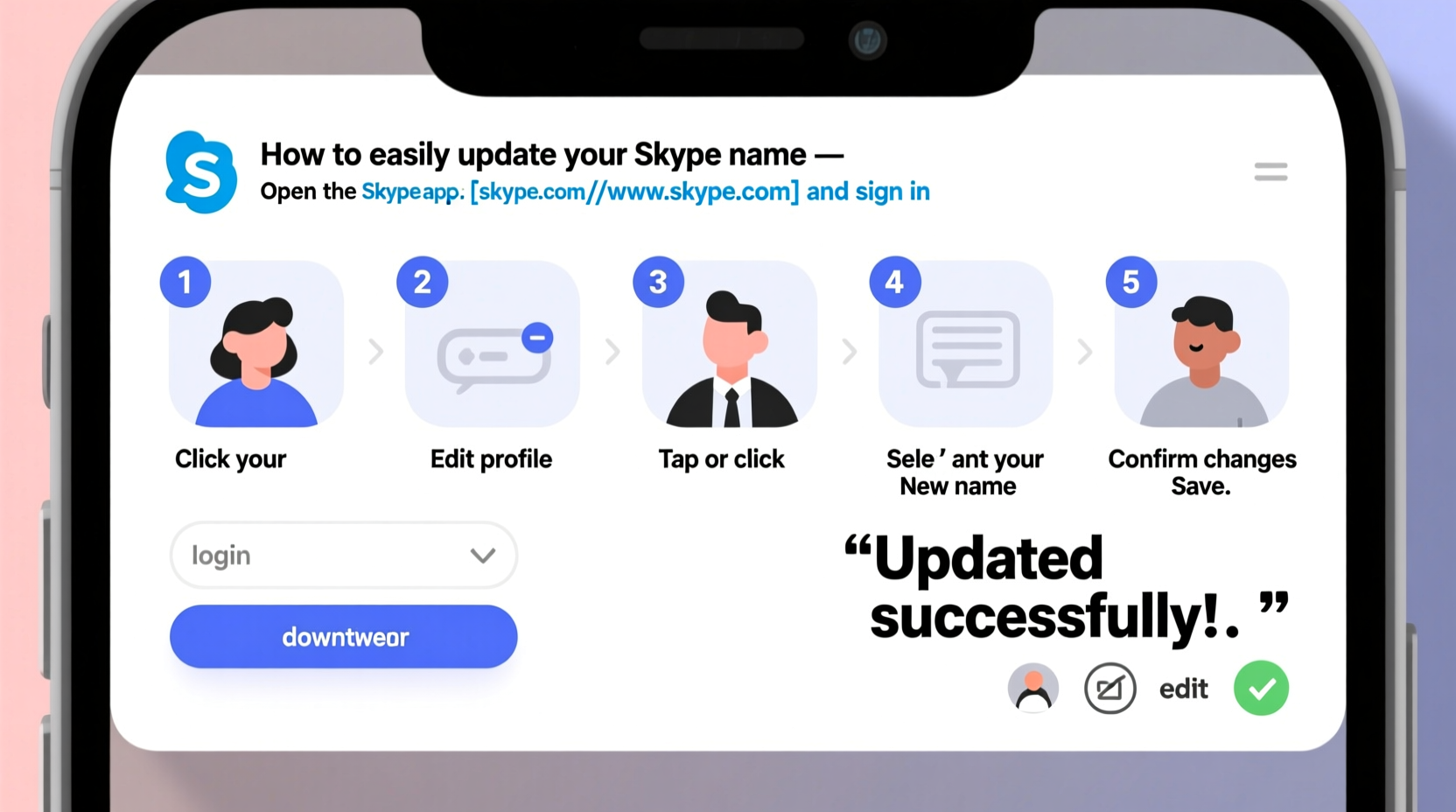
Before making changes, it's essential to understand the distinction between two key identifiers in Skype:
- Skype Username: This is your unique login ID (e.g., live:john_doe123). It cannot be changed once created and is used to sign in and receive calls or messages.
- Display Name: This is the name others see when you message, call, or appear in contacts. This is fully customizable and what this guide focuses on changing.
Mistakenly trying to change your username often leads to confusion. The good news? Your display name is flexible and designed to evolve with your needs.
“Your display name is your digital first impression—it should reflect who you are now, not who you were five years ago.” — Lena Patel, Digital Communication Specialist
Step-by-Step Guide to Updating Your Skype Name
Follow these clear instructions based on your device and account type. The process varies slightly between desktop, web, and mobile apps, but all lead to the same result: a refreshed, up-to-date profile.
On Desktop (Windows or Mac)
- Open the Skype application and log in with your credentials.
- In the top-left corner, click on your current profile picture or initials.
- Select Profile from the dropdown menu.
- Next to your current display name, click the pencil (edit) icon.
- Enter your new preferred name in the text field.
- Click Save to confirm the change.
The update takes effect immediately. All recent chats and contact lists will reflect your new name the next time they open Skype.
On Web (Skype.com)
- Go to https://www.skype.com and sign in.
- Click your profile icon in the upper-right corner.
- Choose Settings from the menu.
- Navigate to the Profile tab.
- Edit the “Name” field with your desired display name.
- Select Save.
Note: If you’re using a Microsoft account to sign in, your Skype display name syncs with your Microsoft profile name. Changes made here will also affect other Microsoft services like Outlook or OneDrive unless adjusted separately.
On Mobile (iOS and Android)
- Launch the Skype app on your smartphone.
- Tap your profile picture or avatar in the top-left corner.
- Select Edit Profile.
- Tap the field under “Name” to edit it.
- Type your new display name.
- Tap Save (checkmark or back button depending on OS).
Your updated name will appear in conversations within seconds. Contacts may need to refresh their app or reopen chats to see the change instantly.
Account Type Considerations
Not all Skype accounts behave the same way. Here’s how different account types affect the name-change process:
| Account Type | Login Method | Name Change Possible? | Notes |
|---|---|---|---|
| Microsoft Account | Email (Outlook, Hotmail, etc.) | Yes | Name changes sync across Microsoft services; adjust privacy settings if needed. |
| Legacy Skype Account | Skype-specific username and password | Yes | Changes apply only to Skype; no external syncing. |
| Facebook Login (discontinued) | Facesigned via Facebook | Limited | No longer supported; users must migrate to Microsoft or Skype accounts. |
If you're still using an older account type, consider upgrading to a Microsoft account for better integration and security. However, your ability to change your display name remains unaffected regardless of account age or type.
Best Practices for Choosing a New Skype Name
Your display name isn’t just functional—it’s part of your digital presence. Follow these guidelines to choose wisely:
- Clarity over creativity: Use a recognizable name format (e.g., First Last or First M. Last).
- Avoid special characters: Symbols like @, #, or emojis may not display correctly on all devices.
- Be consistent: Match your name across professional platforms (LinkedIn, email signature) for brand coherence.
- Limit length: Keep it under 50 characters to ensure full visibility in chat lists.
- Test visibility: Ask a contact to check how your name appears on their end after updating.
“Over 60% of professionals report being contacted more frequently when using a clear, real-name format on communication platforms.” — Global Workplace Communication Survey, 2023
Mini Case Study: Rebranding for Professional Growth
Sophie Tran used the display name “GamerGirl88” on Skype during college. After landing a job in corporate communications, she noticed colleagues hesitated to connect with her on the platform. Once she updated her name to “Sophie Tran – Communications Manager,” her outreach success increased significantly. Within weeks, she was included in more team meetings and cross-departmental projects. A simple name change helped align her digital identity with her professional role.
Frequently Asked Questions
Will changing my Skype name affect my contacts or message history?
No. Your contact list, chat history, and saved files remain intact. Only the name displayed to others changes. Contacts will see your new name automatically upon their next app refresh.
How often can I change my Skype display name?
You can change it as often as you like. There is no limit imposed by Skype. However, frequent changes may confuse contacts or make you harder to identify consistently.
Why does my name still show the old version to some people?
This usually happens due to caching. Some devices or apps retain old profile data temporarily. Ask affected contacts to close and reopen Skype or clear the app cache if the issue persists beyond a few hours.
Final Checklist Before You Update
Use this checklist to ensure a smooth transition:
- ✅ Confirm you’re editing the display name, not the username.
- ✅ Choose a professional, easy-to-read format.
- ✅ Verify spelling and spacing before saving.
- ✅ Test the change by logging out and back in, or checking on another device.
- ✅ Inform key contacts if the change is significant (e.g., switching from nickname to full legal name).
Conclusion
Updating your Skype name is a quick, straightforward task that can have lasting benefits for your personal and professional relationships. Whether you're transitioning careers, correcting outdated information, or simply refreshing your online presence, taking control of how you appear on Skype puts you one step ahead in digital communication clarity.
Now that you know exactly how to change your name—on any device and any account type—there’s no reason to delay. Make the update today, present yourself with confidence, and ensure your digital identity matches your current goals.




 浙公网安备
33010002000092号
浙公网安备
33010002000092号 浙B2-20120091-4
Comments
No comments yet. Why don't you start the discussion?