
Managing personal and professional communications efficiently often means juggling multiple messaging platforms. But what if both your lives run through WhatsApp? Many users need to operate two WhatsApp accounts—one for family and friends, another for business or international contacts—yet are limited by the app’s single-account design. The good news: it’s entirely possible to run two WhatsApp accounts on one phone, without rooting, jailbreaking, or relying on third-party apps that compromise security.
This guide walks you through reliable, officially supported methods across Android and iOS devices. Whether you're a freelancer, entrepreneur, or someone with dual SIM needs, these solutions keep your chats organized, private, and accessible—all from a single device.
Why Use Two WhatsApp Accounts?
Dual WhatsApp usage isn’t just about convenience—it’s a practical necessity for many. Consider:
- Work-life separation: Keep client messages separate from personal conversations.
- International numbers: Maintain a local number while using a home country number for family.
- Dual SIM efficiency: Leverage both SIMs in your phone without switching devices.
- Privacy control: Limit exposure of personal details on a public-facing business line.
WhatsApp recognizes this demand. Since 2017, the app has supported built-in dual account functionality on select Android phones, and newer updates have expanded compatibility. Apple users have fewer native options but can still achieve dual access through creative configurations.
Step-by-Step: Using WhatsApp Dual Apps on Android
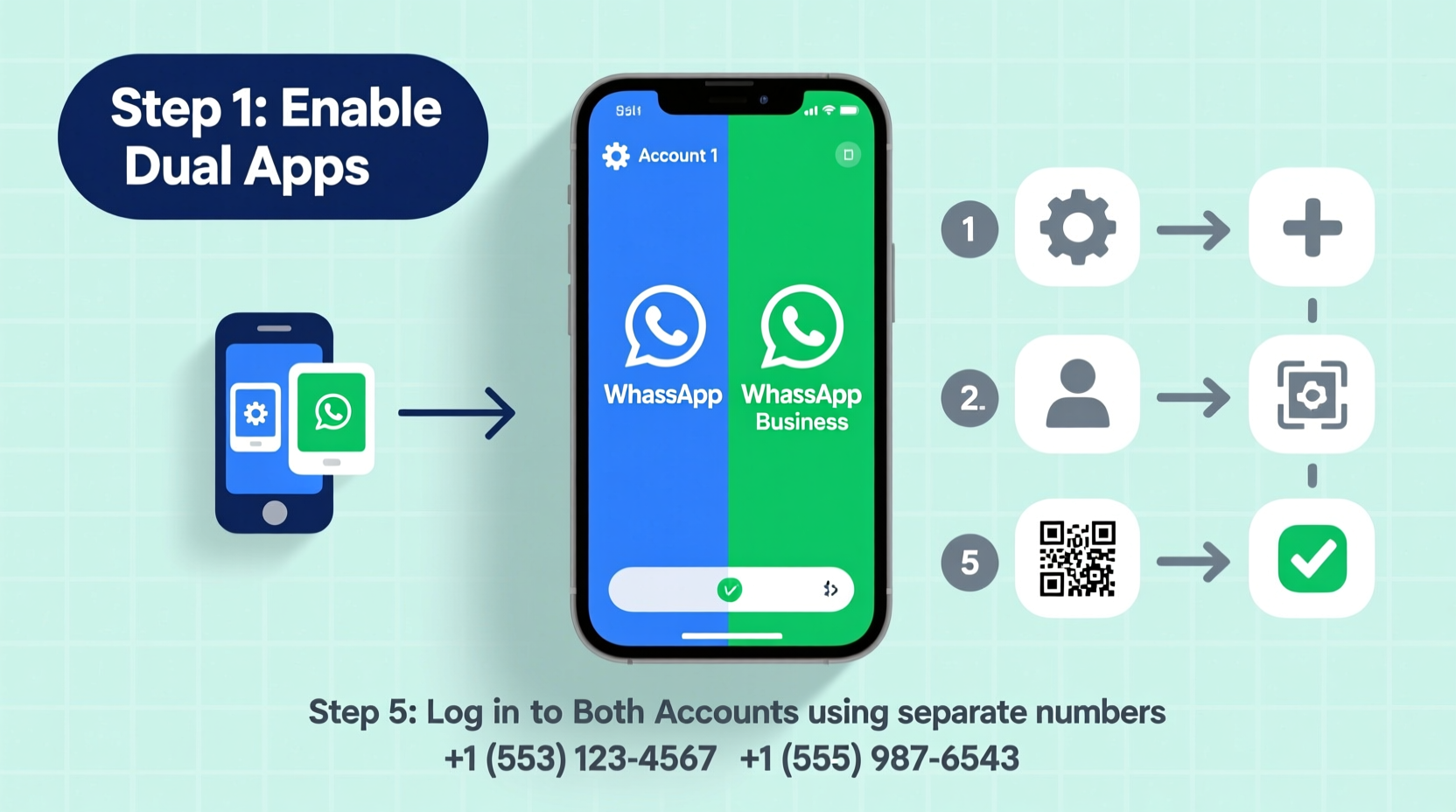
Most modern Android smartphones—especially Samsung, Xiaomi, Oppo, and Pixel devices—support app cloning or dual space features. This allows WhatsApp to run twice, each instance linked to a different phone number.
- Open Settings on your Android phone.
- Navigate to Apps > App Twin (Samsung) or Dual Apps (Xiaomi/Redmi).
- Find WhatsApp in the list and toggle the switch to enable it.
- Exit settings. You’ll now see a second WhatsApp icon—usually marked with a badge or “2”.
- Tap the cloned app and follow the standard setup: verify a second phone number via SMS.
- Restore chat history if desired, then begin using both accounts independently.
Once set up, both WhatsApp instances run simultaneously. Notifications are distinct, and switching between them is seamless. Messages from Account A won’t appear in Account B, ensuring clean separation.
“Dual app support on Android gives users real flexibility without compromising app integrity.” — David Lin, Mobile Systems Analyst at TechPulse Insights
iOS Workaround: Using WhatsApp Web Strategically
Unlike Android, iOS does not support app cloning due to system-level restrictions. However, Apple users can still manage two WhatsApp accounts effectively using WhatsApp Web in combination with careful browser management.
How It Works
While you can only run one WhatsApp app natively on iPhone, you can pair a second account to WhatsApp Web via a desktop browser. This lets you access both accounts from the same physical location—even on the same desk.
- On your iPhone, install and set up WhatsApp as usual with your primary number.
- On a computer, go to web.whatsapp.com.
- Use a secondary smartphone (borrowed or old device) to log into WhatsApp with your second number.
- Scan the QR code on the computer screen using the second phone.
- Once linked, the second account appears in your browser.
- PIN the tab or save it in a dedicated browser profile for quick access.
To streamline access, use separate browsers—e.g., Safari for your native iPhone WhatsApp and Chrome for the web version of your second account. This prevents accidental logouts and keeps sessions stable.
Comparison: Android vs. iOS Dual Account Methods
| Feature | Android (Dual Apps) | iOS (Web Workaround) |
|---|---|---|
| Native Support | Yes, on most brands | No |
| Simultaneous Use | Yes, both apps active | Limited to web browser session |
| Push Notifications | Full notifications for both | Only if browser is open/active |
| Data Sync | Separate backups per account | Web mirrors phone; no independent sync |
| Security | Official method, secure | Secure if used privately; logout when done |
| Setup Difficulty | Easy (3-minute setup) | Moderate (requires external device & PC) |
Best Practices for Managing Two WhatsApp Accounts
Running two accounts brings organizational challenges. Follow these strategies to stay efficient and secure:
- Label accounts clearly: Name them “Personal” and “Work” in your phone’s app settings or browser bookmarks.
- Use different notification tones: Assign unique sounds to each account to instantly identify who’s messaging.
- Back up regularly: Enable Google Drive (Android) or iCloud (via linked device) backups separately for each account.
- Avoid shared devices: Never leave your second account logged into WhatsApp Web on public or shared computers.
- Review linked devices monthly: In WhatsApp settings, check “Linked Devices” and remove inactive sessions.
Mini Case Study: Maria’s Freelance Workflow
Maria, a freelance graphic designer based in Barcelona, uses WhatsApp daily—for clients in Europe and family in Colombia. She owns a Samsung Galaxy S23 with Dual Messenger enabled. Her primary account runs on her Spanish number; the cloned app uses her Colombian SIM.
She assigns blue icons to personal chats and green labels to client messages in her contact notes. Client files are shared through the work account, while family photos stay private. Because both apps run natively, she never misses deadlines or birthday calls. “It took five minutes to set up,” she says, “and now I don’t have to carry two phones.”
Common Questions (FAQ)
Can I use two WhatsApp accounts without a second phone number?
No. WhatsApp requires a unique mobile number for registration. Virtual numbers from services like Google Voice may work temporarily but often fail verification or get banned due to policy violations.
Will using dual apps drain my battery faster?
Slightly. Running two active messaging apps increases background activity. To minimize impact, disable auto-download for media on the less-used account under Settings > Storage and Data > Media Auto-Download.
Is it safe to use third-party apps like GBWhatsApp or Parallel Space?
No. These apps are not endorsed by WhatsApp and may expose your data to malware or lead to permanent account bans. Always prefer official methods like App Twin or WhatsApp Web.
Final Checklist: Setting Up Dual WhatsApp Accounts
- Confirm your phone supports dual apps (Android) or prepare a computer (iOS).
- Ensure you have two active phone numbers (SIM cards or eSIMs).
- Back up existing WhatsApp data.
- Enable Dual App / App Twin feature (Android) or open WhatsApp Web (iOS).
- Install and verify the second account with a different number.
- Customize notifications and privacy settings for clarity.
- Test both accounts with a trusted contact.
- Log out of unused web sessions and monitor linked devices.
Take Control of Your Messaging Life
Using two WhatsApp accounts on one phone is no longer a tech hack—it’s a mainstream productivity tool. With built-in features on Android and smart workarounds on iOS, staying connected across roles and relationships has never been easier. The key is using secure, official methods that protect your privacy while maximizing convenience.




 浙公网安备
33010002000092号
浙公网安备
33010002000092号 浙B2-20120091-4
Comments
No comments yet. Why don't you start the discussion?