
Every time you use Google—on your phone, tablet, or laptop—your searches are often saved to your Google Account. This feature powers personalized results, autocomplete suggestions, and location-based recommendations. But many users don’t realize just how much data accumulates over time, or how easy it is to access and control it. Whether you're concerned about privacy, trying to free up digital space, or simply want a cleaner online experience, managing your Google Search History is a smart first step.
More importantly, this history syncs across devices when you're signed in, meaning your search behavior on one device affects what you see on another. The good news: Google provides intuitive tools to view, delete, pause, and customize this data. Here’s how to take full control—quickly and securely—no matter which device you're using.
Why Managing Your Search History Matters
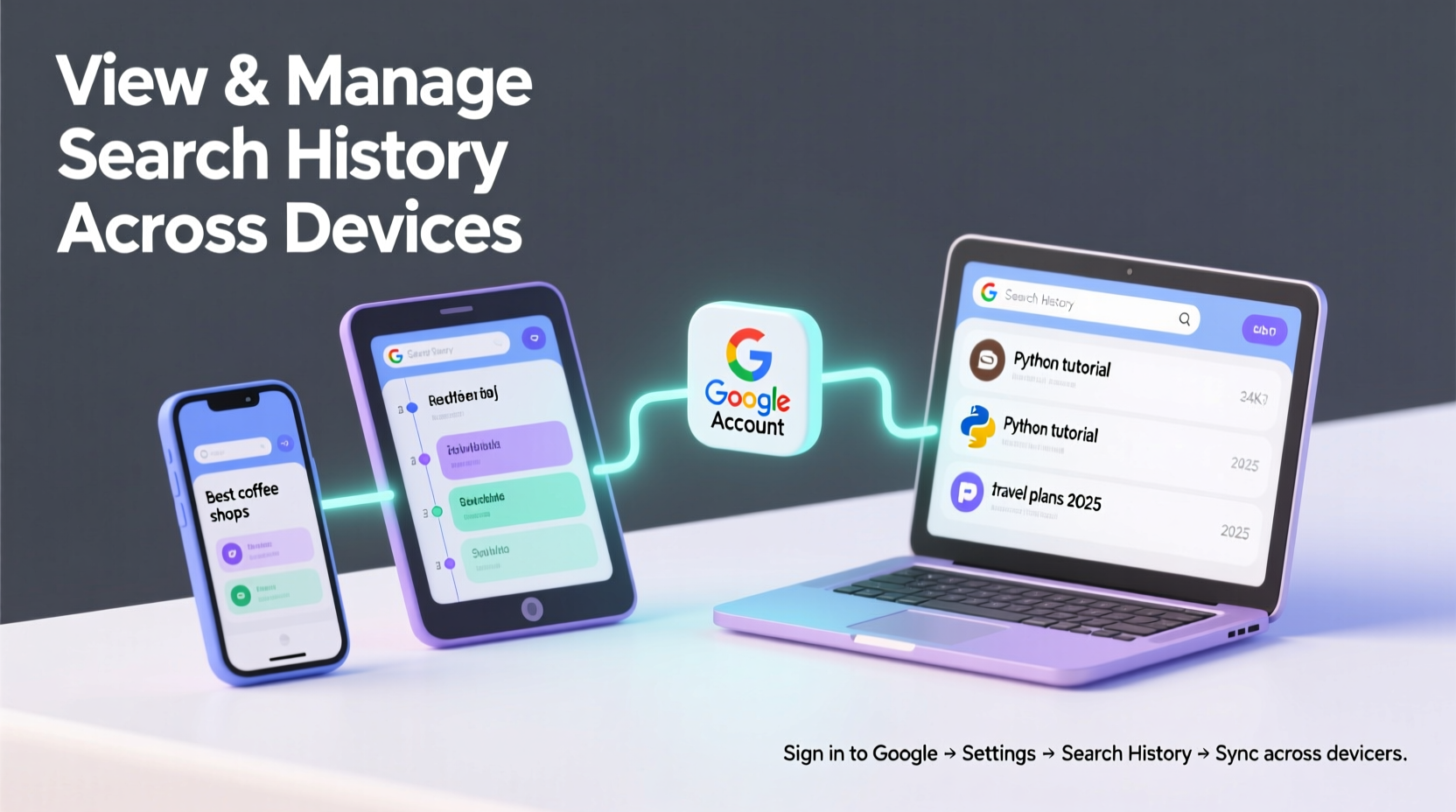
Your Google Search History isn't just a log of past queries—it shapes your digital footprint. Google uses this data to tailor ads, suggest videos on YouTube, recommend nearby restaurants, and even influence news feeds. Over time, the accumulation of search activity can lead to inaccurate assumptions about your interests or expose sensitive topics if accessed by others.
Consider these real-world implications:
- Privacy risks: Shared devices or stolen phones could expose personal health, financial, or relationship-related searches.
- Data overload: Years of unchecked history can clutter your activity dashboard and slow down account management.
- Skewed recommendations: Outdated or accidental searches may distort your content feed across Google services.
Taking regular control helps maintain accuracy, security, and peace of mind.
Step-by-Step: How to View Your Google Search History
Accessing your full search history is straightforward, whether you're on Android, iOS, or desktop. Follow these steps regardless of your primary device:
- Sign in to your Google Account. Go to myactivity.google.com on any browser or open the Google app on mobile.
- Navigate to “Web & App Activity.” This section includes all searches made while signed in, provided history is not paused.
- Browse by date or filter by product. Use the left sidebar to filter results by Google Search, Maps, YouTube, or Assistant.
- Search within your history. Use the search bar at the top to find specific terms like “dentist near me” or “tax calculator.”
- Click any entry to expand details. You’ll see the exact time, device used, and sometimes location data.
This unified timeline gives you complete visibility into how your searches are recorded and stored.
Deleting and Organizing Past Searches
Once you’ve reviewed your history, you may want to remove certain entries. Google allows both selective deletion and bulk removal.
Delete Specific Searches
- Hover over an item (on desktop) and click the three-dot menu to delete individual entries.
- On mobile, tap and hold the search result, then select “Remove.”
Delete by Date Range
- In My Activity, click “Delete activity by” on the left panel.
- Select a timeframe: last hour, last day, custom range, or “all time.”
- Choose “Google Search” as the category and confirm deletion.
Automate Cleanup with Auto-Delete
To prevent future buildup, enable auto-delete:
- Go to Activity Controls.
- Under “Web & App Activity,” click “Manage Activity,” then “Auto-delete.”
- Choose to automatically erase data after 3 months or 18 months.
This setting applies across all synced devices, ensuring consistent cleanup without manual effort.
“Managing your digital trail isn’t about hiding—it’s about intentionality. Users who review their search history regularly report feeling more in control of their online identity.” — Dr. Lena Torres, Digital Privacy Researcher, Stanford University
Sync and Control Across Devices: What You Need to Know
Google seamlessly syncs your search history when you’re signed in and have Web & App Activity enabled. This means a search on your Android phone will appear in your history when you later check on a Windows laptop.
However, syncing doesn’t mean automatic visibility. Each device accesses the same cloud-stored data, not local copies. So if you delete a search from your iPad, it disappears everywhere.
| Device Type | How to Access Search History | Key Notes |
|---|---|---|
| Android Phone | Open Google app > Tap profile icon > Google Activity | Quick filters available; voice searches included |
| iOS (iPhone/iPad) | Safari/Chrome > myactivity.google.com > Sign in | No native Google app shortcut; requires browser login |
| Windows/Mac Desktop | Browser > myactivity.google.com | Full filtering and search capabilities |
| Smart Speakers (Google Nest) | Google Home app > Assistant settings > History | Voice command history tied to search behavior |
Mini Case Study: Reclaiming Control After a Security Scare
Sophia, a freelance writer from Portland, noticed strange job-related ads appearing on her husband’s tablet. She hadn’t searched for new roles—but realized she’d used his device to look up “remote writing jobs” during a casual conversation about career changes.
Because both were signed into the same household Google account, her search history synced across devices. Embarrassed and concerned about privacy, Sophia visited myactivity.google.com, filtered by “Google Search,” and deleted all entries from that week. She then separated her personal account from shared family devices and enabled auto-delete after three months.
Within days, irrelevant ads disappeared. More importantly, she regained confidence in her digital boundaries—without sacrificing the convenience of personalized search.
Checklist: Take Full Control of Your Search History Today
Use this actionable checklist to audit and manage your Google Search History effectively:
- ✅ Sign in to myactivity.google.com
- ✅ Confirm you're viewing the correct Google Account
- ✅ Filter by “Google Search” and browse recent activity
- ✅ Delete sensitive or outdated individual searches
- ✅ Perform a bulk delete for the last 6–12 months if needed
- ✅ Enable auto-delete (3 or 18 months) under Activity Controls
- ✅ Turn off Web & App Activity temporarily if privacy is a concern
- ✅ Repeat this process quarterly for ongoing maintenance
Frequently Asked Questions
Can I pause my search history without deleting it?
Yes. Go to Google Account > Data & Privacy > Activity Controls, then toggle off “Web & App Activity.” Your past history remains unless deleted, but no new searches will be saved. You can re-enable it anytime.
Does deleting search history log me out of websites?
No. Clearing Google Search History only removes your query records from Google’s servers. It does not affect browser cookies, saved passwords, or login sessions on third-party sites.
If I turn off syncing, will my history disappear on other devices?
No. Disabling sync stops future updates, but existing history stays until manually deleted. To fully remove data, you must delete it directly from My Activity, where it will sync removal across devices.
Take Charge of Your Digital Footprint
Your Google Search History is powerful—but it should serve you, not track you unintentionally. With just a few minutes every few months, you can clean up outdated data, enhance your privacy, and refine the relevance of your online experience. The tools are already built into your account; all that’s missing is the habit.
Start today. Visit My Activity, review your last month of searches, and make one edit—whether it’s deleting an old query or turning on auto-delete. Small actions build long-term control. Your digital life deserves that clarity.




 浙公网安备
33010002000092号
浙公网安备
33010002000092号 浙B2-20120091-4
Comments
No comments yet. Why don't you start the discussion?