
In today’s digital world, your search history is more than just a log of what you’ve looked up—it can reveal patterns in your behavior, expose personal interests, and even compromise your privacy if left unchecked. Whether you're trying to reclaim control over your data, improve device performance, or simply clean up clutter, knowing how to access and manage your search history across platforms is essential. From Chrome to Safari, Android to iPhone, the tools exist to give you full visibility—once you know where to look.
Understanding Search History: What It Is and Why It Matters
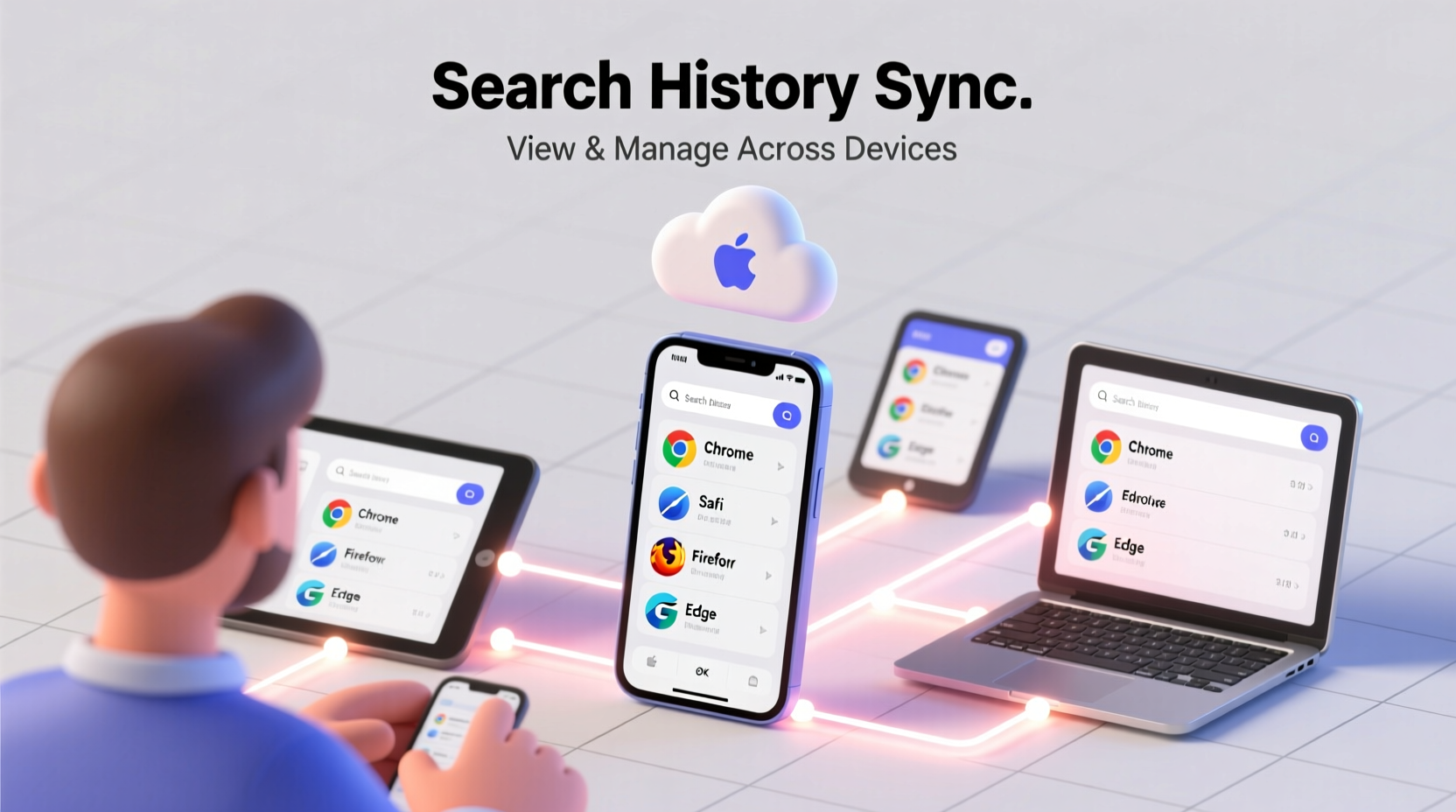
Search history refers to the record of queries you've entered into search engines like Google, Bing, or DuckDuckGo while using a browser or app. This data is often linked to your account and synchronized across devices when signed in. While convenient for autocomplete and personalized results, accumulated history can become a liability. Over time, it may slow down browser performance, skew recommendations, or expose sensitive information if someone gains access to your device.
Google alone processes over 8.5 billion searches per day. A significant portion of those are saved by default. Unless users actively manage their settings, this data persists indefinitely—sometimes without their full awareness.
“Your search history is one of the most revealing digital footprints you leave. Managing it isn’t just about privacy—it’s about digital hygiene.” — Dr. Lena Patel, Cybersecurity Researcher at Stanford University
How to View and Manage Search History by Browser
Different browsers store and display history in unique ways. Below is a breakdown of the most common platforms and how to navigate them.
Google Chrome (Desktop & Mobile)
Chrome syncs history across devices when you’re logged into your Google account. To review or delete entries:
- Open Chrome and press Ctrl+H (Windows) or Cmd+Y (Mac).
- Alternatively, click the three-dot menu > History > History.
- To delete specific items, hover over an entry and click the “More” icon (⋯), then select “Remove from history.”
- For bulk deletion, click “Clear browsing data” on the left sidebar. Choose a time range and check “Browsing history.”
On mobile (Android/iOS), tap the three-dot menu, go to History, swipe left on any item to delete, or use “Clear browsing data” at the bottom.
Mozilla Firefox
Firefox keeps local history unless you enable sync via a Firefox account.
- Press Ctrl+Shift+H to open the Library window with full history.
- Browse by date or use the search bar at the top.
- Right-click any entry to remove it individually.
- To clear all history: Menu > Settings > Privacy & Security > Clear Data under “Cookies and Site Data.”
Apple Safari
Safari integrates tightly with Apple’s ecosystem. If iCloud syncing is enabled, your history appears across iPhone, iPad, and Mac.
- On Mac: Click “History” in the menu bar > “Show All History.”
- On iPhone/iPad: Tap the book icon, then the clock tab.
- To delete: Hover over (Mac) or swipe left (iOS) and tap “Delete.”
- To disable syncing: Go to Settings > [Your Name] > iCloud > Safari (toggle off).
Cross-Device Management: Keeping Your History Consistent
If you switch between a laptop, phone, and tablet, your search history likely lives in multiple places. Without synchronization, managing it becomes fragmented. The key is centralizing control through account-based syncing.
For Google users, enabling Chrome sync automatically pulls history from all devices into one dashboard. Visit myactivity.google.com to see every search made across Chrome, Android, and Google apps—regardless of device.
Similarly, Apple users can manage Safari history centrally via iCloud, while Microsoft Edge ties into your Microsoft account and integrates with Windows Timeline.
| Platform | Sync Method | Central Management URL |
|---|---|---|
| Google Chrome / Android | Google Account Sync | myactivity.google.com |
| Apple Safari | iCloud Sync | Settings > iCloud > Safari (on device) |
| Microsoft Edge | Microsoft Account | account.microsoft.com |
| Mozilla Firefox | Firefox Account Sync | accounts.firefox.com |
Automating History Management: Tools and Best Practices
Manually deleting history is time-consuming. Fortunately, automation can help maintain cleanliness without constant effort.
- Auto-delete settings: On Google, go to My Activity > “Manage Activity,” then enable auto-delete after 3 or 18 months.
- Browser extensions: Tools like “History Auto Delete” for Chrome allow granular rules (e.g., delete history after 7 days).
- Scheduled reviews: Set a monthly calendar reminder to audit your activity dashboard.
“Automation reduces the cognitive load of digital maintenance. Schedule cleanups like you would backups.” — Marcus Tran, Digital Wellness Advocate
Mini Case Study: Recovering Performance After a Clean Sweep
Jamie, a freelance researcher, noticed her laptop was sluggish and Chrome autocomplete kept suggesting outdated job-related terms. After reviewing her Google My Activity page, she discovered five years of accumulated searches—including repeated queries from past projects. She used the auto-delete tool to remove everything older than six months. Within days, browser responsiveness improved, and irrelevant suggestions disappeared. Jamie now schedules quarterly history audits as part of her digital routine.
Privacy Considerations and Security Tips
While managing history improves organization, it also strengthens your privacy posture. Here are key do’s and don’ts:
| Do’s | Don’ts |
|---|---|
| Regularly review synced activity on shared accounts | Leave history enabled on public or shared devices |
| Use incognito mode for sensitive searches | Assume deleted history is permanently gone from servers |
| Enable two-factor authentication on your account | Click “Allow” on sync prompts without reviewing settings |
Remember: Even after deletion, some data may be retained by service providers for legal or operational reasons. Always read the privacy policy of your platform.
Frequently Asked Questions
Can someone else see my search history if they use my device?
Yes, if you’re signed in and history is enabled, anyone with physical access can view it unless protected by a password or biometric lock. Always log out or use guest mode on shared devices.
Does deleting history also remove it from Google’s servers?
If you delete activity from My Activity, it removes that data from your visible timeline and stops it from influencing ads or recommendations. However, anonymized logs may still be stored for system diagnostics.
Is it possible to recover deleted search history?
Generally, no—once deleted, individual entries cannot be restored. Some third-party recovery tools claim to retrieve browser data, but success depends on local cache and device backups, and such tools carry security risks.
Checklist: Take Control of Your Search History Today
- ☐ Review your current search history on one primary device
- ☐ Log into your account dashboard (Google, Apple, Microsoft, etc.)
- ☐ Delete outdated or sensitive entries manually
- ☐ Enable auto-delete for future cleanup
- ☐ Disable syncing on devices you don’t personally use
- ☐ Bookmark your activity page for future reference
- ☐ Schedule a recurring review (e.g., every 90 days)
Conclusion: Make History Management Part of Your Digital Routine
Your search history shapes your online experience—from the ads you see to the results that appear first. Taking a few minutes to organize it isn’t just about privacy; it’s about maintaining control in an increasingly data-driven world. With built-in tools, cross-device syncing, and smart automation, managing your digital footprint has never been easier. Start today—clean up your history, set up auto-deletion, and build habits that protect both your performance and your peace of mind.




 浙公网安备
33010002000092号
浙公网安备
33010002000092号 浙B2-20120091-4
Comments
No comments yet. Why don't you start the discussion?