
Photography is only half the journey. The real magic often happens in post-processing, where raw images are transformed into compelling visual stories. Whether you're using a smartphone or a professional DSLR, learning how to edit a photo like a pro doesn’t require years of training—just the right techniques, tools, and mindset. With accessible software and structured workflows, anyone can elevate their photos from ordinary to outstanding.
Understand the Foundation: What Makes a Great Edit?
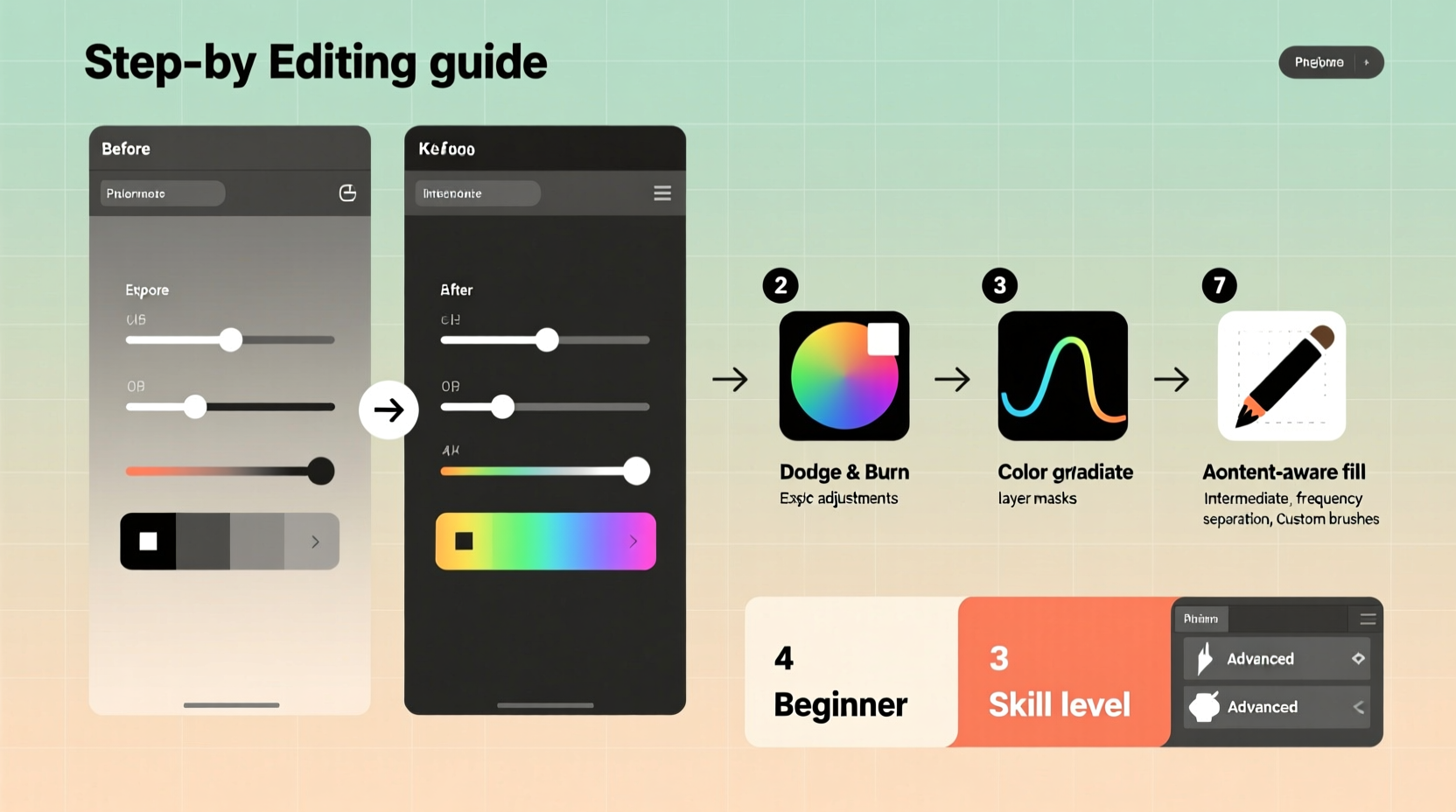
A professional-looking edit isn't about over-applying filters or pushing sliders to the extreme. It's about enhancing what’s already there—correcting exposure, balancing colors, sharpening key details, and guiding the viewer’s eye. The best edits feel natural, not forced. They preserve the authenticity of the moment while improving clarity and emotional impact.
Before diving into tools, grasp these core principles:
- Exposure: Ensure your image isn’t too dark (underexposed) or washed out (overexposed).
- White Balance: Adjust color temperature so whites appear neutral and skin tones look natural.
- Contrast: Use contrast to add depth, but avoid crushing shadows or blowing out highlights.
- Cropping & Composition: Reframe the shot to follow rules like the rule of thirds or leading lines.
- Sharpening & Noise Reduction: Enhance detail without introducing grain or artifacts.
Choose the Right Tool for Your Level
Photo editing tools vary widely in complexity and cost. The key is selecting one that matches your current skill level and long-term goals. Here’s a breakdown of top options across three categories:
| Skill Level | Recommended Tools | Best For |
|---|---|---|
| Beginner | Canva, Snapseed, Adobe Express | Quick fixes, social media posts, simple enhancements |
| Intermediate | Adobe Lightroom (desktop/mobile), Skylum Luminar, Capture One (Express) | Batch editing, color grading, detailed adjustments |
| Advanced | Adobe Photoshop, Affinity Photo, DxO PhotoLab | Precision retouching, compositing, advanced masking |
Mobile apps like Snapseed offer surprisingly powerful features—selective edits, healing brushes, and perspective correction—all in your pocket. Meanwhile, desktop programs like Lightroom provide non-destructive editing and cloud syncing, making them ideal for serious hobbyists and professionals.
“Editing isn’t about fixing bad photos. It’s about revealing the potential hidden within good ones.” — Lena Torres, Professional Editorial Photographer
Step-by-Step: A Pro Editing Workflow You Can Follow
You don’t need to reinvent the wheel. Most professional editors follow a consistent sequence to ensure quality and efficiency. Adopt this timeline to build muscle memory and achieve reliable results:
- Import and Organize: Transfer your photos to your editing platform. Flag keepers and delete obvious rejects.
- Apply Global Adjustments: Correct exposure, contrast, highlights, shadows, whites, and blacks.
- Fix White Balance: Use the eyedropper tool on a neutral area, or manually adjust temperature and tint.
- Enhance Color and Clarity: Slightly boost vibrance (not saturation) and add subtle clarity or dehaze if needed.
- Crop and Straighten: Improve composition by aligning horizons and removing distractions at the edges. <6> Use Local Adjustments: Apply graduated filters, radial masks, or brushes to highlight specific areas (e.g., brightening eyes or darkening skies).
- Sharpen and Reduce Noise: Apply output-specific sharpening—more for print, less for web—and reduce high ISO noise carefully.
- Final Review: Zoom out, view at 100%, and check on multiple screens if possible before exporting.
Real Example: From Dull to Dynamic
Jamal, an amateur travel photographer, captured a sunset in Morocco. The sky was colorful, but his foreground—a quiet alleyway—was nearly black. On his phone, he opened Snapseed and used the ‘Selective’ tool to brighten the cobblestones by +2.5 exposure and +1.0 shadow lift. He then applied a slight 'Warm Filter' and used the 'Details' tool to enhance texture. In under four minutes, the image went from flat to evocative, earning him hundreds of likes on Instagram and interest from a local tourism blog.
This wasn’t luck. It was methodical editing focused on storytelling: light guided the viewer from dark ground to vibrant sky, creating depth and mood.
Essential Do’s and Don’ts
Avoid common pitfalls that undermine even technically sound edits. This table summarizes critical guidelines:
| Do | Don’t |
|---|---|
| Edit in a well-lit, neutral environment | Rely solely on a phone screen outdoors |
| Use non-destructive editing formats (e.g., .DNG, .XMP sidecars) | Save over original files |
| Zoom to 100% when checking sharpness | Oversharpen, causing halos around edges |
| Preserve dynamic range—keep recoverable highlights and shadows | Clip blacks or blow out skies completely |
| Use presets as starting points, not final solutions | Apply presets blindly without tweaking |
Build Your Editing Checklist
Consistency comes from routine. Use this checklist every time you edit a photo—whether it's one image or a hundred:
- ✅ Back up original files
- ✅ Assess exposure and fix if necessary
- ✅ Correct white balance
- ✅ Crop for better composition
- ✅ Adjust contrast, highlights, shadows
- ✅ Fine-tune color (vibrance > saturation)
- ✅ Apply local edits (dodge & burn, gradients)
- ✅ Sharpen appropriately for output
- ✅ Export in correct format (JPEG for web, TIFF/PNG for print)
- ✅ Name and organize edited files systematically
Frequently Asked Questions
How do I know when an edit is “done”?
Stop when further changes no longer improve the image. If you’re adjusting back and forth, take a break. A fresh look after an hour often reveals whether the edit feels balanced. Ask: Does it reflect the mood I felt when shooting? Is the subject clear and emphasized?
Should I shoot in RAW or JPEG?
Always choose RAW if storage allows. RAW files contain significantly more data, especially in shadows and highlights, giving you far greater flexibility during editing. JPEGs are compressed and limit recovery options. Convert to JPEG only at export for sharing.
Can I edit photos well on a phone?
Absolutely. Modern mobile editors like Snapseed, Lightroom Mobile, and Pixelmator offer powerful tools including layers, selective adjustments, and RAW support. While desktop software provides deeper control, phones are fully capable of producing professional-grade results—especially for social content and digital portfolios.
Master the Craft, One Edit at a Time
Becoming proficient at photo editing isn’t about buying the most expensive software or mimicking trending styles. It’s about developing intention. Each adjustment should serve the story—the light, the emotion, the moment preserved. Start small. Practice daily. Re-edit old photos as your taste evolves. Over time, you’ll develop an instinct for balance, color, and flow that no preset can replicate.
The tools are accessible. The knowledge is available. All that’s left is to begin.




 浙公网安备
33010002000092号
浙公网安备
33010002000092号 浙B2-20120091-4
Comments
No comments yet. Why don't you start the discussion?