
In today’s interconnected world, browsing doesn’t happen on just one device. Whether switching from a laptop to a phone or continuing research on a tablet, the ability to access your browsing history seamlessly across platforms is essential. Yet many users struggle with fragmented data, sync issues, or privacy concerns. Mastering cross-device history management isn’t just about convenience—it enhances productivity, supports continuity in work and personal tasks, and strengthens online security.
This guide breaks down the technical and practical aspects of accessing and managing your browsing history across smartphones, tablets, and computers—regardless of operating system or browser preference. From syncing strategies to privacy safeguards, you’ll learn how to maintain control over your digital trail.
Synchronizing Your Browser Across Devices
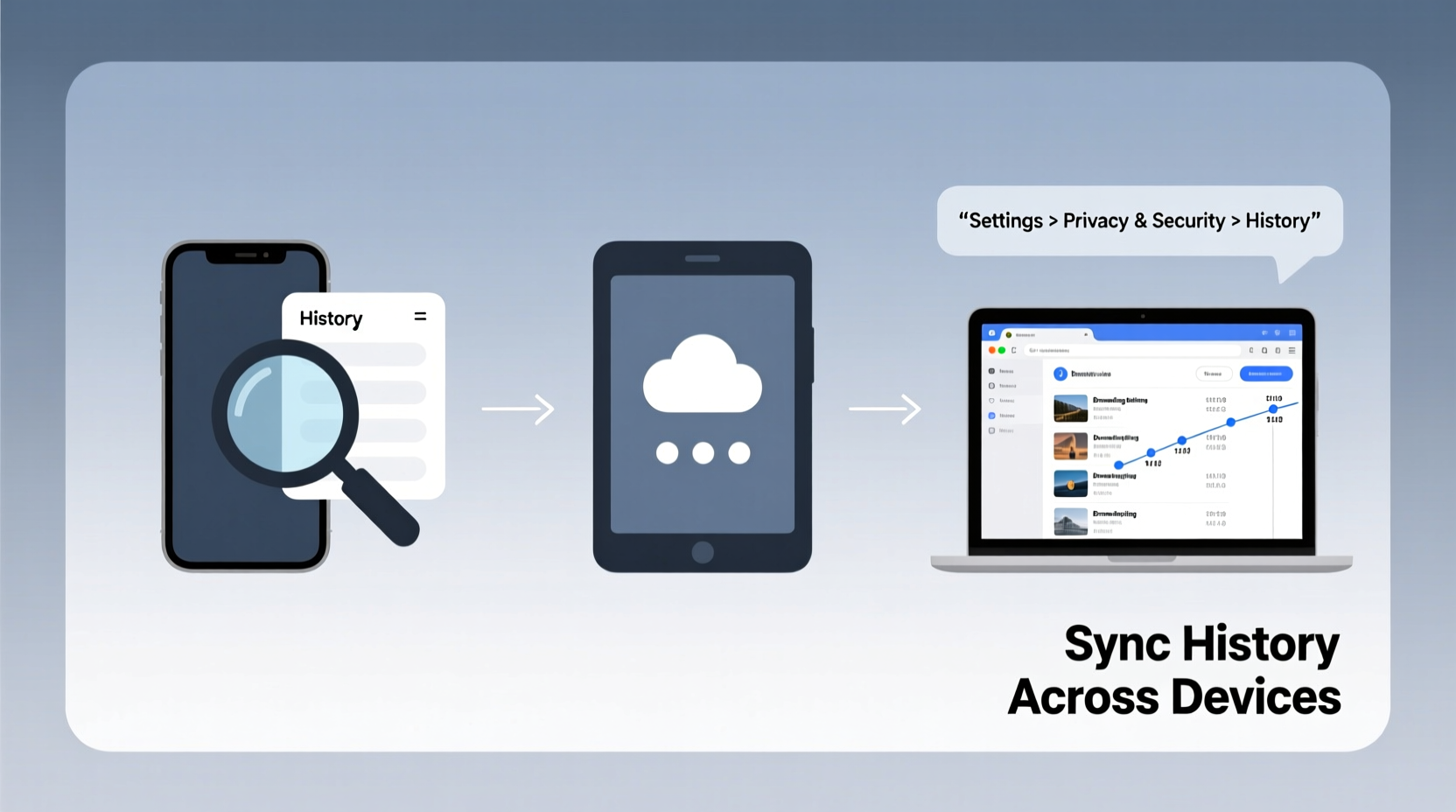
The foundation of cross-device history access is synchronization. Most modern browsers offer built-in sync features that link your activity across multiple devices when signed into the same account. This includes bookmarks, passwords, open tabs, and—crucially—browsing history.
To enable sync:
- Open your preferred browser (e.g., Chrome, Firefox, Safari, Edge).
- Sign in with your account (Google, Apple ID, Microsoft, etc.).
- Navigate to settings and locate the “Sync” or “Account” section.
- Ensure “History” is selected among the synced data types.
- Repeat this process on all devices using the same credentials.
Once enabled, your recent visits will appear automatically when you search your history on any connected device. For example, an article read on your phone during lunch can be resumed on your desktop later that evening.
Accessing History on Different Platforms
Each major platform has its own method for viewing browsing history. Knowing where to look—and how to search efficiently—saves time and reduces frustration.
Google Chrome (Android, Windows, Linux)
Press Ctrl + H (or Cmd + Y on Mac) to open the History tab. You can filter by date, search keywords, or view recently closed tabs. The mobile app offers a similar interface under the three-dot menu > History.
Mozilla Firefox (All Platforms)
Use Ctrl + Shift + H to open Library view with full history. Firefox also allows tagging and organizing frequent sites. On mobile, tap the menu button and select “History.”
Safari (macOS, iOS)
In Safari, go to History > Show All History. If iCloud Sync is enabled, you’ll see entries from iPhone, iPad, and Mac. Use Spotlight search (Cmd + F) to quickly find specific pages.
Microsoft Edge (Windows, Android)
Edge mirrors Chrome’s shortcuts: Ctrl + H. It integrates tightly with Microsoft accounts and even surfaces related history in Bing-powered suggestions.
Cross-Device Search and Recovery Techniques
Finding a lost page across devices requires more than scrolling through lists. Smart search techniques dramatically improve retrieval speed.
- Keyword filtering: Enter a unique word from the page (e.g., a product name or headline) in the history search bar.
- Date-based navigation: If you recall when you visited the site, use calendar filters available in Chrome and Firefox.
- Recently closed tabs: Accidentally closed a tab? Reopen it via Ctrl+Shift+T (desktop) or swipe up on mobile address bars in Chrome/Firefox.
- Cross-browser extensions: Tools like LastPass or Raindrop.io save page context beyond what native history provides.
For deeper recovery, consider third-party tools such as BrowsingHistoryView (Windows) or History Trends Unlimited (Chrome extension), which analyze and visualize historical patterns not visible in standard interfaces.
Security and Privacy Considerations
While syncing history boosts convenience, it also expands your digital footprint. Unauthorized access to a synced device could expose sensitive searches—from medical inquiries to financial planning.
Experts emphasize balancing accessibility with protection:
“Synced browsing history is a double-edged sword. It increases usability but creates a single point of exposure. Always pair sync with strong authentication.” — Dr. Lena Torres, Cybersecurity Researcher at Digital Trust Institute
To mitigate risks:
- Enable two-factor authentication (2FA) on your browser account.
- Regularly review active devices in your account dashboard and remove unknown ones.
- Use incognito/private mode for sensitive sessions; these are never synced.
- Set up auto-clear rules: In Chrome, go to Settings > Privacy and Security > Clear Browsing Data and schedule weekly deletions.
| Action | Benefit | Risk if Ignored |
|---|---|---|
| Enable 2FA | Prevents unauthorized account access | Full history exposure if password is compromised |
| Review linked devices monthly | Detects suspicious logins early | Prolonged access by former employees or lost devices |
| Limit synced data types | Reduces stored personal information | Overexposure of passwords or form data |
Real-World Scenario: Managing Research Across Workflows
Consider Maria, a freelance journalist researching climate policy. She starts reading reports on her iPad during a commute, takes notes on her MacBook at the office, and later shares links with sources via her Android phone. Without synced history, she would waste time re-finding articles or relying on email drafts.
By using Firefox Sync with history enabled, Maria searches “carbon tax models” directly in her laptop’s history panel and instantly retrieves a think tank report she opened days earlier on her tablet. She then opens it in a new tab and continues writing—without interruption. When questioned about her source, she pulls up the exact URL within seconds on her phone.
This seamless flow demonstrates how proper history management supports professional agility and credibility.
Step-by-Step Guide to Full Cross-Device Control
Follow this timeline to set up and maintain effective history access:
- Day 1: Choose a primary browser and create an account if you don’t have one.
- Day 1: Enable sync on all personal devices, ensuring history is included.
- Day 3: Test retrieval: Visit a unique page on one device and search for it on another.
- Weekly: Audit active devices in your account settings.
- Monthly: Review and delete outdated or irrelevant history entries.
- Ongoing: Use private browsing for sensitive topics and bookmark critical pages separately.
FAQ
Can I sync browsing history between Chrome and Safari?
No, direct sync between different browsers isn't supported. To maintain continuity, stick to one ecosystem—either Google/Chrome or Apple/Safari—or use third-party tools like Pocket or Notion to manually save important pages.
Why isn’t my history showing up on all devices?
This usually means sync is disabled on one device, you're logged into different accounts, or history sync was excluded in settings. Check each device’s sync status and ensure Wi-Fi/data is active so updates can propagate.
Is my synced history stored securely in the cloud?
Major providers encrypt history in transit and at rest. However, encryption keys are typically held by the company (not end-to-end encrypted). For maximum privacy, avoid syncing highly sensitive data or use private browsing instead.
Final Thoughts and Action Plan
Effectively managing your browsing history across devices transforms scattered digital moments into a coherent, accessible record. It empowers faster decision-making, reduces redundancy, and supports both personal and professional efficiency. But this power comes with responsibility—protecting your synced data is as important as enabling it.
Start today: audit your current setup, unify your browser experience, and apply the security practices outlined here. Small adjustments now prevent headaches—and potential breaches—down the line.




 浙公网安备
33010002000092号
浙公网安备
33010002000092号 浙B2-20120091-4
Comments
No comments yet. Why don't you start the discussion?