
Your cell phone call history is more than just a list of past calls—it’s a valuable tool for tracking communication, managing personal or professional relationships, and even identifying unwanted or suspicious activity. Despite its utility, many users overlook the depth of information available in their call logs or struggle to navigate them efficiently. With slight variations between operating systems, accessing and interpreting this data should be intuitive. This guide breaks down everything you need to know about retrieving, reading, organizing, and leveraging your call history—regardless of whether you use an iPhone or an Android device.
Understanding What Call History Includes
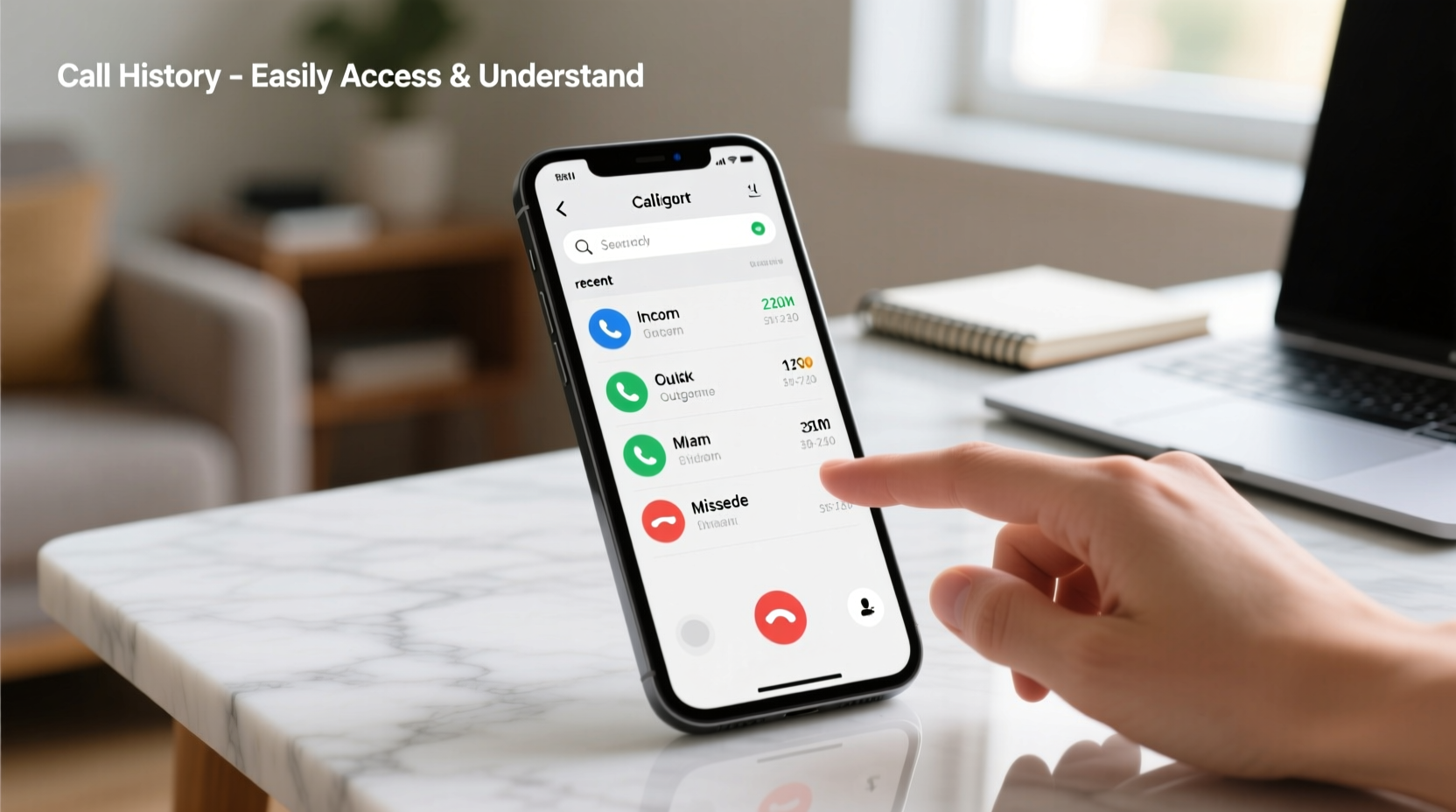
Call history, also known as the call log, records every incoming, outgoing, and missed call made from your device. Each entry typically includes:
- The contact name (if saved) or phone number
- Date and time of the call
- Call duration (for completed calls)
- Call type: incoming, outgoing, or missed
- Network status (e.g., Wi-Fi calling or cellular)
Some smartphones also display additional details such as whether a call was blocked, labeled as spam, or routed through third-party apps like WhatsApp or FaceTime Audio. Understanding these components helps you make informed decisions—like following up on missed calls or spotting patterns in communication.
“Call logs are often the first digital trail people check when verifying communication. They’re essential for accountability and organization.” — David Lin, Mobile Forensics Analyst
How to Access Call History by Device Type
The process for viewing call history varies slightly between platforms. Below is a clear breakdown for the two major mobile operating systems.
On iPhone (iOS)
- Unlock your iPhone and open the Phone app (green icon with a white telephone).
- Tap the Recents tab at the bottom of the screen.
- View all recent calls, sorted chronologically with the most recent at the top.
- Tap any entry to see more details or initiate a callback.
iOS integrates call history with Siri suggestions, Favorites, and iCloud backups, making it easy to sync across Apple devices if enabled.
On Android Devices
- Open the Phone or Dialer app (icon varies by manufacturer but usually resembles a keypad).
- Navigate to the Recent calls, Call history, or Logs tab.
- Browse entries listed by date and time.
- Tap any number to view full details, block the number, or report spam.
Android’s flexibility allows manufacturers like Samsung, Google Pixel, and OnePlus to customize the interface, but core functionality remains consistent.
Interpreting Call Log Symbols and Labels
Call logs use visual indicators to convey call status. Knowing what each symbol means improves comprehension and response efficiency.
| Symbols | Meaning | Platform |
|---|---|---|
| Green arrow pointing right | Outgoing call | iOS & Android |
| Blue arrow pointing left | Incoming call | iOS & Android |
| Red circle with a line | Missed call | iOS & Android |
| (i) or “Info” icon | Number not in contacts or flagged as spam | iOS |
| Shield or “Suspected spam” label | Potential scam or telemarketing call | Android (Google Dialer) |
| Wi-Fi icon next to call | Call made over Wi-Fi (VoWiFi or FaceTime Audio) | Both |
Recognizing these symbols enables faster decision-making—especially when reviewing multiple entries or investigating unknown callers.
Organizing and Managing Your Call History
Over time, call logs can become cluttered, making it difficult to locate important calls. Smart management keeps the list useful without constant scrolling.
Sorting and Filtering Options
- Sort by date: Most phones default to reverse chronological order.
- Filter by type: Separate missed, received, or dialed calls using built-in tabs.
- Search function: Use the search bar (available on most Android devices and newer iPhones) to find numbers or names.
Deleting Individual or Bulk Entries
To remove specific calls:
- Open your call log.
- Swipe left on the entry (iOS) or long-press (Android).
- Select “Delete” or tap the trash icon.
To clear all history:
- iOS: Tap “Edit” > “Clear” > “Clear All Recents”
- Android: Tap the three-dot menu > “Clear call history” or similar option
Real-World Example: Recovering a Missed Business Call
Sarah, a freelance designer, was expecting a call from a potential client around 2:00 PM. Her phone was on silent during a meeting, and she didn’t notice the notification until hours later. When she opened her iPhone’s Phone app, she saw a red “Missed” label next to an unfamiliar number. By tapping the entry, she accessed the exact time (2:07 PM) and saw it had been a regular cellular call—not FaceTime. She returned the call immediately, apologized for the delay, and secured the project. Without a well-maintained and easily readable call log, she might have overlooked the opportunity entirely.
This scenario underscores how accessible and accurate call history can directly impact professional outcomes.
Common FAQs About Call History
How far back does call history go?
Most smartphones retain call logs for 30 to 90 days by default, depending on settings and storage capacity. After that, older entries may be automatically deleted. Some carriers keep records for months, but they aren’t accessible through your phone unless synced via cloud services or third-party backup tools.
Can I recover deleted call logs?
If you’ve manually deleted a call log, recovery isn’t possible through standard settings. However, if you use a cloud backup service (like iCloud or Google Drive), restoring from a previous backup may retrieve lost entries. Third-party data recovery apps exist but vary in reliability and require caution due to privacy risks.
Why do some calls show “No Caller ID”?
Calls marked “No Caller ID” come from numbers that have been blocked by the caller using *67 (in the U.S.) or similar codes, or from automated systems that suppress identification. These can sometimes be spam or robocalls. On Android, Google’s spam detection may flag such numbers automatically.
Actionable Checklist: Master Your Call History
- ✅ Open your phone’s dialer app and locate the call log section
- ✅ Review the last five entries and identify their types (incoming, outgoing, missed)
- ✅ Check for any unrecognized numbers and consider searching them online
- ✅ Delete outdated or irrelevant calls to declutter your log
- ✅ Enable spam protection in settings (Android: Google Phone app; iOS: Settings > Phone > Silence Unknown Callers)
- ✅ Test returning a call from your history to ensure functionality
- ✅ Back up your device weekly to preserve call data in case of loss or reset
Conclusion: Take Control of Your Communication Trail
Your call history is a silent yet powerful record of your daily interactions. Whether you're reconnecting with a friend, following up with a colleague, or protecting yourself from scams, knowing how to access and interpret this data puts you in control. The steps outlined here require no technical expertise—just a few taps and a moment of attention. As smartphones evolve, so too will the intelligence behind call logs, including AI-driven summaries and integration with smart assistants. Start today by reviewing your own call history. Understand it, organize it, and use it wisely.




 浙公网安备
33010002000092号
浙公网安备
33010002000092号 浙B2-20120091-4
Comments
No comments yet. Why don't you start the discussion?