
In 2024, the pace of communication has accelerated. Whether you're confirming a meeting, sharing documents, or following up with a client, sending an email from your smartphone is no longer optional—it's essential. The good news? Modern smartphones make it easier than ever to compose, send, and manage emails efficiently, even on the go. With intuitive interfaces, smart typing, and seamless integration across platforms, mobile email is more powerful than ever.
This guide walks through everything you need to know to send emails from your cell phone quickly, professionally, and without hassle—whether you use an iPhone or an Android device.
1. Set Up Your Email Account Correctly
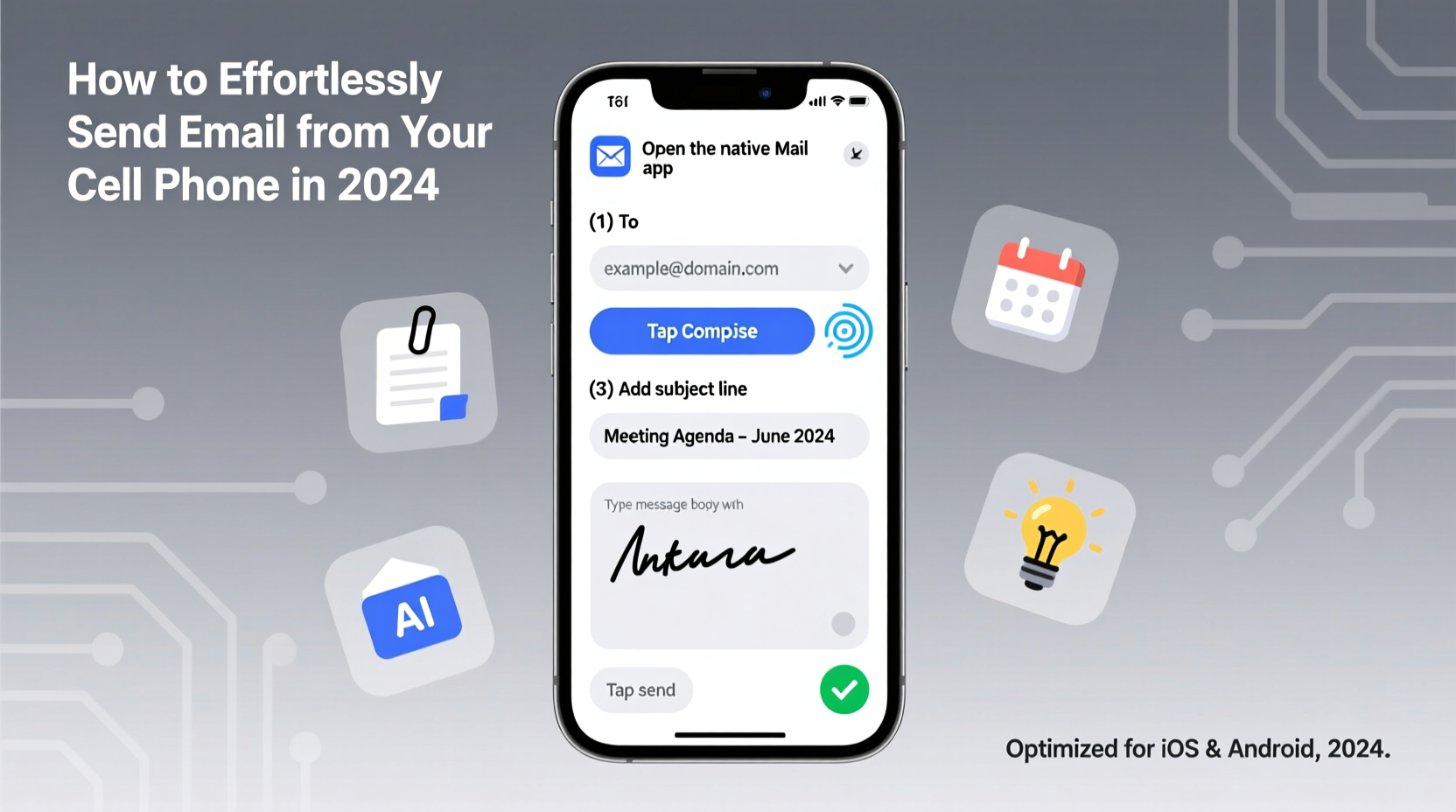
The foundation of effortless emailing is a properly configured email account. Most smartphones support major providers like Gmail, Outlook, iCloud, Yahoo, and custom domains via IMAP or Exchange.
- Open Settings on your phone and navigate to \"Mail\" (iOS) or \"Accounts & Sync\" (Android).
- Select Add Account and choose your provider (e.g., Google, Microsoft, Apple).
- Enter your full email address and password.
- Allow permissions for contacts, calendar, and mail as needed.
- Choose sync frequency: “Push” for real-time updates or “Fetch” every 15/30 minutes to save battery.
Once added, your inbox will appear in the default Mail app or within the provider’s dedicated app (like Gmail or Outlook). For multiple accounts, ensure labels or colors distinguish them clearly.
2. Choose the Right Email App for Your Needs
While most phones come with a built-in mail app, third-party apps often offer better organization, search, and productivity features. Here’s a comparison of top options:
| App | Best For | Key Features | Platform |
|---|---|---|---|
| Gmail | Google Workspace users | Smart replies, spam filtering, integrated Meet/Chat | iOS & Android |
| Outlook | Microsoft 365 users | Calendar integration, focused inbox, file attachment from OneDrive | iOS & Android |
| Apple Mail | iCloud and macOS users | Native integration, clean UI, Mail Drop for large files | iOS only |
| Spark | Teams and professionals | Smart Inbox, send later, team collaboration | iOS & Android |
| BlueMail | Multiple account management | Custom themes, unified inbox, encryption support | iOS & Android |
If you juggle personal and work emails, apps like Spark or Outlook can unify inboxes while keeping identities separate. For AI-powered suggestions and minimal distractions, consider Edison Mail or Canary Mail.
3. Compose Emails Efficiently Using Smart Tools
Sending an email doesn’t have to mean typing every word manually. In 2024, predictive text, voice input, and automation tools help you draft messages faster and with fewer errors.
- Voice-to-text: Tap the microphone icon on your keyboard to dictate your message. Works best in quiet environments.
- Smart Compose: Gmail and other apps suggest completions as you type. Accept with the tab key or tap.
- Canned Responses: Save templates for common replies (e.g., meeting confirmations, thank-you notes).
- Send Later: Schedule emails to be sent at optimal times using features in Spark, Outlook, or Gmail’s “Schedule Send.”
“On average, professionals save 7–10 minutes per day using smart reply and scheduled sends on mobile.” — Dr. Lena Torres, Digital Productivity Researcher, MIT Media Lab
To create a template in Gmail: Draft a message > tap the three dots > “Save draft as template.” Later, access it under “Templates” when composing.
Real Example: Sending a Professional Follow-Up
Jamal, a freelance designer, finishes a client call and wants to send a quick follow-up. Instead of typing from scratch, he opens Spark, taps “+”, selects his “Post-Meeting Summary” template, fills in the project name and next steps, adds a PDF from his cloud storage, and hits “Send.” Total time: 90 seconds. The client receives a polished, professional email before Jamal even leaves the coffee shop.
4. Attach Files and Media Without Hassle
One of the most common pain points is attaching documents, photos, or videos from a phone. But modern systems streamline this process.
To attach a file:
- Start a new email.
- Tap the paperclip (or +) icon.
- Select from:
- Photos & Videos (from camera roll)
- Files (from Google Drive, iCloud Drive, Dropbox, etc.)
- Recent attachments
- For large files (over 20MB), use cloud links instead. Upload to Google Drive or OneDrive and paste the shareable link.
Some apps, like Outlook, let you preview attachments directly in the email. Others allow inline image placement within the message body—ideal for newsletters or visual updates.
5. Optimize for Speed and Professionalism
Just because you're on a phone doesn’t mean your emails should look rushed. A few small adjustments elevate your credibility and readability.
Email Checklist Before Hitting Send
- ✅ Subject line is clear and specific
- ✅ Recipient’s name is spelled correctly
- ✅ Greeting and closing are appropriate (e.g., “Hi Sarah,” / “Best regards,”)
- ✅ Message is concise—under 150 words if possible
- ✅ Attachments are included and labeled
- ✅ No typos (use spell-check or read aloud)
- ✅ Sent from the correct email account (double-check sender identity)
Avoid writing long paragraphs. Break text into short sentences or bullet points. Use bold sparingly for emphasis. And always assume the recipient will read your email on a mobile screen—format accordingly.
FAQ
Can I send encrypted emails from my phone?
Yes. Apps like Proton Mail, Tutanota, and Outlook with S/MIME support offer end-to-end encryption. Enable encryption settings during account setup or in app preferences.
Why aren’t my emails syncing across devices?
Check that IMAP is enabled on your account (not POP3). Also verify that background app refresh is turned on and you’re connected to Wi-Fi or cellular data. Restart the app or phone if issues persist.
How do I recall an email after sending it?
Gmail offers an “Undo Send” feature with a 5–30 second cancellation window. Go to Settings > General > Undo Send to enable it. Outlook and Apple Mail don’t support recall, so double-check before sending.
Conclusion
Sending emails from your cell phone in 2024 should feel natural, fast, and secure. By setting up your accounts correctly, choosing the right app, leveraging smart tools, and maintaining professional standards, you can communicate effectively anytime, anywhere. The key isn’t just speed—it’s consistency and clarity.




 浙公网安备
33010002000092号
浙公网安备
33010002000092号 浙B2-20120091-4
Comments
No comments yet. Why don't you start the discussion?