
Keeping your Apple Watch displaying the correct time isn’t just a matter of convenience—it’s essential for accurate scheduling, health tracking, and maintaining digital harmony across your Apple devices. Unlike traditional watches, the Apple Watch is designed to stay perfectly in sync with your iPhone, but sometimes settings get misconfigured, time zones shift unexpectedly, or users manually tweak options without realizing the consequences. The good news? Restoring flawless time synchronization is usually quick, intuitive, and fully automated when you know where to look.
Whether you're traveling across time zones, troubleshooting a display glitch, or simply setting up a new device, understanding how time management works between your Apple Watch and iPhone ensures you’re always on schedule—without lifting a finger.
How Time Sync Works Between Apple Watch and iPhone
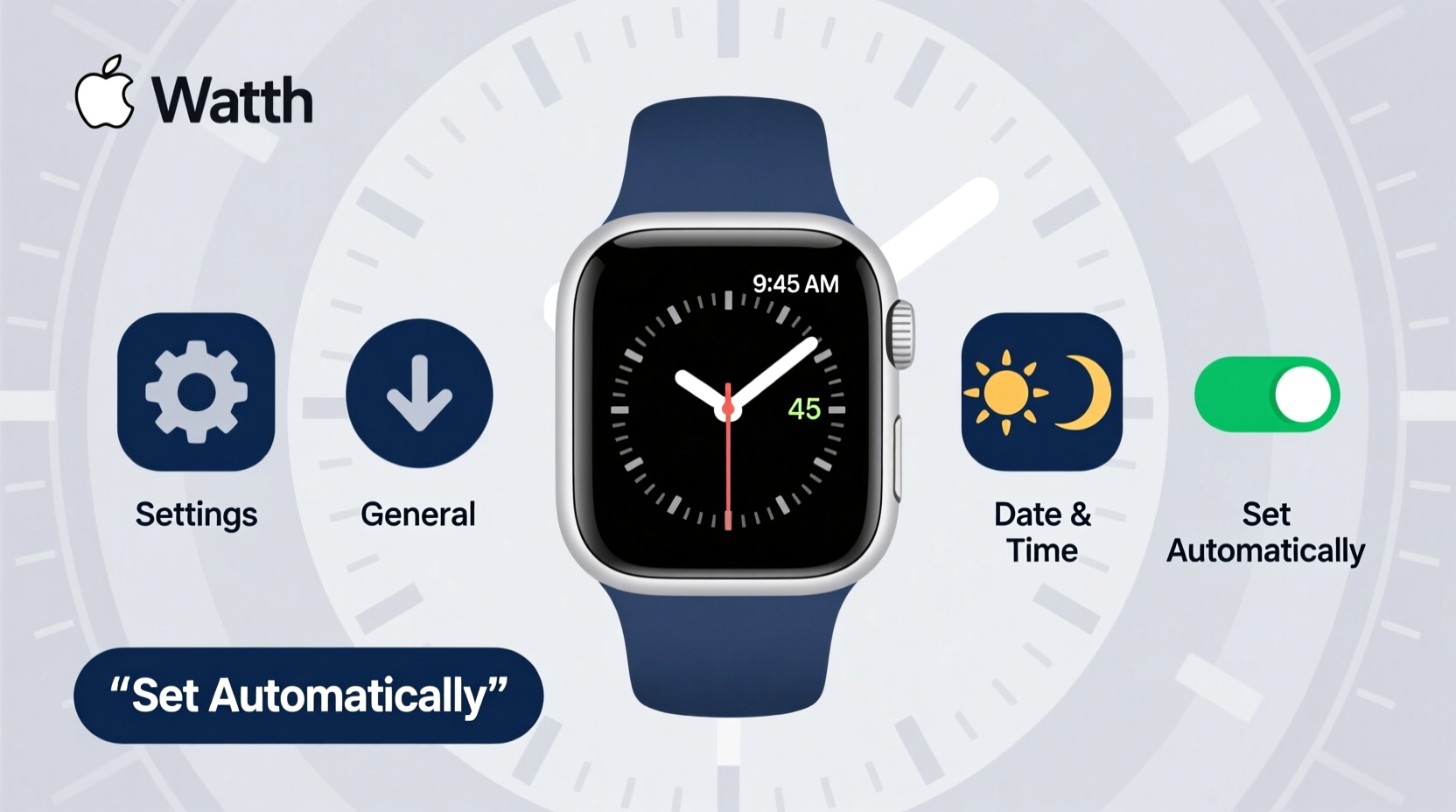
Your Apple Watch doesn’t set its time independently. Instead, it pulls time data directly from your paired iPhone using Bluetooth and, when available, Wi-Fi or cellular signals. This means that as long as your iPhone has accurate time settings enabled, your Apple Watch will reflect those automatically.
The process relies on two core features: Set Automatically in Date & Time settings and Time Zone Support. When both are active, your devices detect your current location via GPS or network signals and update the time accordingly—even during daylight saving transitions or international travel.
If your watch appears out of sync, it's rarely due to a hardware issue. More often, it stems from disabled auto-sync settings, poor connectivity, or a temporary software hiccup.
“Apple’s ecosystem is built around seamless continuity. When time settings fail to sync, it’s almost always a configuration oversight—not a flaw.” — Jordan Lee, iOS Systems Analyst
Step-by-Step Guide to Ensuring Perfect Time Sync
To guarantee your Apple Watch displays the correct time at all times, follow this structured sequence:
- Check iPhone’s Auto-Set Time Setting
Open the Settings app on your iPhone → Tap General → Date & Time. Ensure Set Automatically is turned ON. If disabled, your iPhone—and by extension, your watch—may fall out of sync. - Verify Location Services for Time Zone Detection
Still in Date & Time, confirm that Set Automatically includes time zone updates. This requires Location Services. Go to Settings → Privacy & Security → Location Services → System Services and ensure Setting Time Zone is enabled. - Ensure Bluetooth Connection Is Active
Your Apple Watch must maintain a stable Bluetooth connection with your iPhone for real-time syncing. Check both devices’ screens: if the connection symbol (a curved arrow) appears in the status bar, they’re linked. If not, bring them closer together or restart Bluetooth on the iPhone. - Restart Both Devices (If Needed)
A soft reboot clears minor glitches. Press and hold the side button on your Apple Watch until the power slider appears. Swipe to power off, then press the button again to restart. Repeat on your iPhone via the Side + Volume buttons (depending on model). - Force Sync Through the Watch App
On your iPhone, open the Watch app → Go to My Watch tab → Tap General → Date & Time. Confirm that “Set Automatically” is toggled on here too. Even if it appears grayed out, this reinforces the sync command.
Troubleshooting Common Time Sync Issues
Despite Apple’s robust integration, some users report persistent timing errors. Here’s how to diagnose and fix them:
- Watch shows incorrect time after travel: Enable Change Date & Time Automatically on the iPhone. Also, in the Watch app under General > World Clock, verify that Home Time and Travel Time are correctly assigned.
- Time lags behind or jumps forward: This may indicate a weak Bluetooth signal. Try resetting network settings on the iPhone (Settings > General > Transfer or Reset iPhone > Reset > Reset Network Settings).
- Manual time changes don’t stick: If you attempt to adjust the time manually on the watch, the system will override it once auto-sync detects a discrepancy. Always modify time through the iPhone first.
Mini Case Study: Business Traveler Stuck in Time Limbo
Sarah, a consultant based in Chicago, frequently flies to London. After one trip, her Apple Watch continued showing Central Time despite being offline for only a few hours. Meetings were missed because calendar alerts triggered at the wrong local time.
The root cause? Her iPhone had Set Automatically disabled due to a previous test. Once she re-enabled it and allowed Location Services to detect her position in London, both devices updated within seconds. She now uses the “World Clock” complication on her watch face to monitor home and destination times simultaneously.
Do’s and Don’ts of Apple Watch Time Management
| Do’s | Don’ts |
|---|---|
| ✅ Keep \"Set Automatically\" enabled on both devices | ❌ Manually change time on the watch unless absolutely necessary |
| ✅ Allow Location Services for time zone detection | ❌ Disable Bluetooth expecting accurate sync |
| ✅ Use World Clock complications when traveling | ❌ Ignore software updates—they often include time-related fixes |
| ✅ Restart both devices weekly for optimal performance | ❌ Assume cellular models don’t rely on iPhone time settings |
Customizing Time Display Without Breaking Sync
You can personalize how time appears on your watch face without disrupting automatic syncing. Apple allows extensive customization through watch faces, including:
- Digital vs. analog formats
- 24-hour time display
- Adding second hands or astronomical complications
- Using multiple time zones via the International Traveler or GMT faces
To enable 24-hour format: On your iPhone, go to Settings > General > Language & Region > 24-Hour Time and toggle it on. The change applies instantly to your Apple Watch.
FAQ
Does my Apple Watch update time during flights?
No, unless you have Wi-Fi access and manually connect. Most users disable connectivity during flights. Upon landing and reconnecting to networks, the watch will automatically update to the local time—provided auto-set is enabled.
Why does my Apple Watch show a different date than my iPhone?
This typically happens when time zones aren’t updating correctly. Double-check that Set Automatically is on and that Location Services are permitted for System Services. Also, ensure your iPhone’s region settings match your current country.
Can I use third-party apps to control time settings?
No reputable third-party app can override system-level time controls. Time settings are managed exclusively through iOS and watchOS native menus for security and consistency reasons.
Final Checklist for Effortless Time Sync
- Before Travel:
- - Confirm “Set Automatically” is ON
- - Enable Location Services for System Usage
- - Test Bluetooth range between devices
- During Setup:
- - Pair watch and iPhone within close proximity
- - Avoid manual time adjustments
- - Install latest OS updates on both devices
- After Issues:
- - Restart both devices
- - Reset network settings if sync fails repeatedly
- - Contact Apple Support if time remains inaccurate post-troubleshooting
Conclusion: Let Automation Work for You
The beauty of the Apple Watch lies in its ability to operate seamlessly in the background—handling time, fitness, notifications, and more without constant user input. By trusting the built-in automation and ensuring key settings remain enabled, you eliminate the need for manual corrections entirely.
Perfect time sync isn't something you achieve once; it's a state maintained through smart defaults and mindful configuration. Take five minutes today to audit your settings. Do it once, and you’ll never worry about the wrong time appearing on your wrist again.




 浙公网安备
33010002000092号
浙公网安备
33010002000092号 浙B2-20120091-4
Comments
No comments yet. Why don't you start the discussion?