
In a world where information is expected instantly, typing out questions can feel slow. What if you could simply point your phone at an object, snap a photo, and get immediate answers? That’s now possible with Google Lens and integrated visual search tools. Whether identifying a plant in your backyard, translating a foreign menu, or finding where to buy a piece of furniture you saw in a café, image-based search turns your camera into a knowledge engine. The key lies not just in taking photos but in knowing how to use them effectively within Google’s ecosystem.
Understanding Visual Search: Beyond Keywords
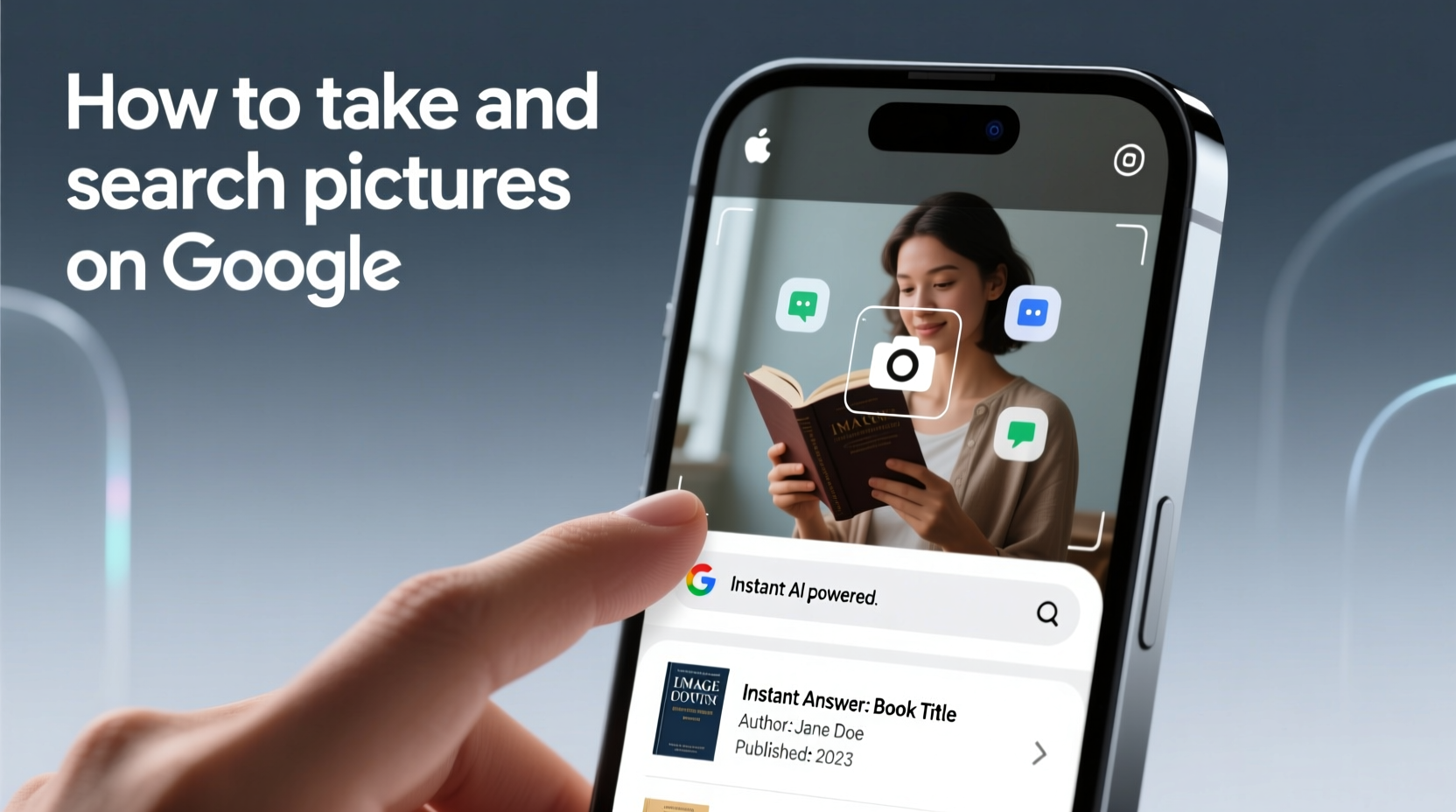
Traditional search relies on text queries—typing words that approximate what you’re looking for. Visual search flips this model. Instead of describing something, you show it. Google processes the image, analyzes its components, and returns relevant information. This technology is powered by machine learning and computer vision, allowing Google to recognize objects, text, colors, and even context from a single photo.
At the heart of this capability is Google Lens, a tool embedded in Android devices and accessible via the Google app on iOS. It enables real-time analysis of scenes through your camera or existing photos in your gallery. When used correctly, it reduces guesswork and accelerates discovery.
“Visual search is transforming how people interact with information. It’s no longer about remembering terms—it’s about pointing and asking.” — Dr. Lena Patel, AI Researcher at Stanford HAI
Step-by-Step Guide to Using Google Lens for Instant Answers
To harness the full power of image-based search, follow this streamlined process:
- Open the Google app (or Google Photos) on your smartphone.
- Tap the camera icon in the search bar (on Android, this may appear as a lens icon).
- Point your camera at the object, text, or scene you want to learn about.
- Wait for Google Lens to detect elements. Boxes will highlight recognizable items.
- Tap on a highlighted area to get specific results—product links, definitions, translations, or similar images.
- Save or act on the result: copy text, visit a website, or save to Keep.
This entire sequence takes less than 15 seconds once practiced. For static images already in your gallery, open Google Photos, select the photo, tap the Lens icon, and proceed similarly.
Practical Use Cases and Real-World Examples
Consider Maria, a traveler in Tokyo. She walks into a small ramen shop and sees a menu written entirely in Japanese. Rather than guessing or using a phrasebook, she opens Google Lens, points her camera at the menu, and taps “Translate.” Instantly, English overlays appear on her screen, showing dish names and ingredients. She orders confidently and enjoys a local favorite she’d otherwise have missed.
Or imagine James, walking through a botanical garden. He sees a vibrant purple flower and wonders what it is. He snaps a photo, runs it through Google Lens, and learns it’s a *Lobelia erinus*. The results also suggest care tips and similar species. No botany degree required.
These scenarios aren’t hypothetical—they reflect everyday applications made possible by seamless integration between cameras and AI-driven search.
Do’s and Don’ts of Image Search: A Quick Reference Table
| Do | Don’t |
|---|---|
| Use clear, well-lit photos | Take blurry or dark snapshots |
| Zoom slightly to focus on one object | Capture cluttered scenes without focus |
| Tap specific areas in the image for targeted results | Assume the first result is always correct |
| Use translation mode for foreign text | Expect perfect accuracy with handwritten or stylized fonts |
| Save useful findings to Google Keep or Notes | Ignore privacy concerns when photographing public notices or documents |
Maximizing Accuracy: Tips for Better Results
Not all photos yield useful results. To improve success rates, consider these strategies:
- Crop for clarity: If searching from your gallery, crop the image to isolate the subject.
- Avoid glare and reflections: Especially important when scanning text from screens or glass displays.
- Use multiple angles: If the first attempt fails, try a different perspective or distance.
- Leverage text extraction: Tap detected text to copy, translate, or search further—ideal for manuals, signs, or recipes.
- Combine with voice search: After identifying an object, say “Show me where to buy this” for shopping options.
Frequently Asked Questions
Can I use visual search on my iPhone?
Yes. Download the Google app from the App Store, tap the camera icon in the search bar, and use Google Lens just like on Android. While not as deeply integrated as on Pixel devices, it works efficiently for most tasks.
Does Google store the photos I search with?
Temporary data may be stored to process your request, but Google states that images uploaded for search are not saved to your account unless you manually save them to Google Photos. You can review and delete search history anytime in your Google Activity controls.
Why doesn’t Google recognize what I’m pointing at?
Recognition fails when lighting is poor, the subject is too distant, or the object is uncommon. Try moving closer, improving lighting, or capturing a simpler scene with fewer overlapping elements. Some niche items may not yet be in Google’s indexed database.
Action Checklist: Master Visual Search in One Day
Follow this checklist to become proficient with picture-based searches today:
- ✅ Install or update the Google app on your phone
- ✅ Enable Google Lens in settings (Android: Google app > More > Settings > Lens)
- ✅ Test it on a book cover or product barcode
- ✅ Practice translating a foreign-language label or sign
- ✅ Use it to identify a plant or artwork nearby
- ✅ Extract text from a business card and save it to contacts
- ✅ Share one useful discovery with a friend using a screenshot and Lens link
Conclusion: Turn Curiosity Into Instant Knowledge
The ability to take a photo and immediately uncover its meaning reshapes how we learn and interact with the world. No longer limited by vocabulary or memory, you can explore unfamiliar environments, decode complex information, and solve daily problems—all through the lens of your smartphone. These tools are not futuristic concepts; they’re available right now, free, and continuously improving. The only barrier is knowing how to use them effectively.




 浙公网安备
33010002000092号
浙公网安备
33010002000092号 浙B2-20120091-4
Comments
No comments yet. Why don't you start the discussion?