
Apple’s Messages app on Mac offers a powerful way to stay connected across your Apple devices. With iMessage integration, you can send texts, photos, videos, and even make audio calls from your desktop—without reaching for your iPhone. However, many users overlook the full potential of this tool, missing out on customization options and cross-device continuity. When properly configured, Messages becomes more than just a chat client—it transforms into a central hub for personal and professional communication.
This guide walks through every step to enable, personalize, and optimize Messages on your Mac, ensuring smooth synchronization with your iPhone and iPad while unlocking productivity-enhancing features.
Enable Messages on Mac: Step-by-Step Setup
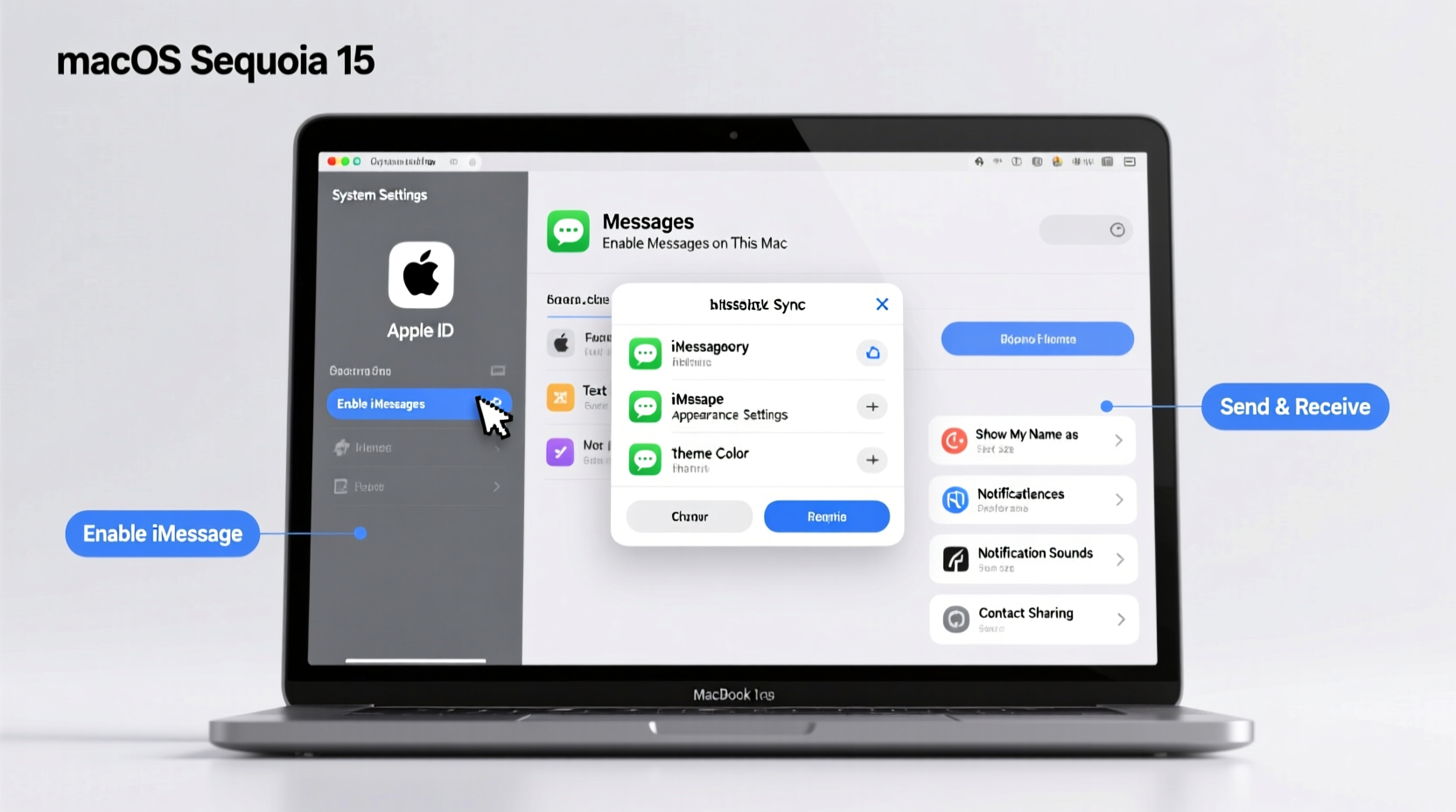
The first step to using Messages on your Mac is linking it to your Apple ID and syncing it with your iPhone. Without proper setup, messages won’t appear on your desktop or may fail to send entirely.
- Open the Messages app from your Dock or Applications folder.
- If prompted, sign in with your Apple ID. Use the same Apple ID associated with your iPhone.
- Go to Messages > Settings (or Preferences) and click the iMessage tab.
- Toggle on “Enable this account.”
- Under “You can be reached by iMessage at,” ensure your phone number and email addresses are selected.
- On your iPhone, go to Settings > Messages > Text Message Forwarding, then enable your Mac.
- A verification code will appear on your Mac—enter it on your iPhone to confirm.
Once verified, any incoming SMS or MMS sent to your phone number will appear on your Mac. This allows you to reply directly from your computer, which is especially useful during work hours when your phone might be silenced or out of reach.
Customize Your Messaging Experience
After enabling Messages, take advantage of built-in customization tools to tailor the app to your preferences. These settings improve readability, response time, and overall user experience.
Change Chat Appearance
- Navigate to Messages > Settings > General.
- Select a preferred theme: Light, Dark, or Auto (based on system appearance).
- Adjust message bubbles under Bubbles—choose between blue (default) or expressive tinted backgrounds.
Set Notification Preferences
To avoid distractions without missing important conversations:
- Go to System Settings > Notifications > Messages.
- Choose whether to display banners, play sounds, or show previews.
- Use Focus filters (e.g., Work, Do Not Disturb) to silence non-urgent chats during specific times.
Use Keyboard Shortcuts
Speed up navigation with these shortcuts:
| Action | Shortcut |
|---|---|
| New Message | Command + N |
| Search Conversations | Command + F |
| Send Message | Enter |
| Insert New Line | Shift + Enter |
| Delete Conversation | Command + Delete |
“Enabling text forwarding and customizing notification behavior turns the Mac into a true extension of your iPhone.” — David Lin, Apple Ecosystem Consultant
Advanced Features for Seamless Communication
Beyond basic texting, Messages on Mac supports several advanced functions that enhance productivity and engagement.
Send Media and Files Effortlessly
You can drag and drop images, documents, PDFs, and videos directly into a conversation. The file transfers via iCloud, so large attachments don’t clog local storage. Recipients receive them instantly if they’re using an Apple device.
Use Tapbacks and Full-Screen Effects
Double-click a message to react with emojis like thumbs up, heart, or laugh. For special occasions, type messages like “Happy Birthday” and press the firework icon to trigger animated effects.
Collaborate in Group Chats
- Rename group threads for clarity (e.g., “Project Team – Q3 Launch”).
- Mention someone with @name to grab attention.
- Leave a group chat instead of staying in silent threads indefinitely.
Integrate with Other Apps
Click the Apps button (the square icon next to the text field) to access integrated tools:
- Photos: Share albums or recent pictures.
- Reminders: Create tasks from messages.
- Notes: Save snippets directly to a note.
- Screen Sharing: Initiate FaceTime screen sharing during a call.
Real-World Example: Remote Work Coordination
Sophie, a project manager based in Toronto, relies on Messages to coordinate with her distributed team. While she uses Slack for formal updates, quick clarifications often happen over iMessage. By enabling Messages on her MacBook Pro, she can respond to urgent queries from clients without switching devices.
Last week, a teammate sent a last-minute design change via text. Sophie replied immediately from her laptop, attached the updated brief from Finder, and used a Tapback to confirm receipt—all within 30 seconds. Her ability to act swiftly kept the project on schedule, demonstrating how seamless messaging enhances workflow efficiency.
Troubleshooting Common Issues
Even with correct setup, some users encounter syncing problems or failed deliveries. Here’s how to resolve them quickly.
Checklist: Fix Messages Sync Problems
- ✅ Ensure all devices use the same Apple ID.
- ✅ Verify that Date & Time settings are set to “Set Automatically” on all devices.
- ✅ Restart Messages or reboot your Mac if conversations freeze.
- ✅ Re-enable Text Message Forwarding on iPhone if messages stop appearing.
- ✅ Check iCloud Drive status—Messages sync through iCloud.
Do’s and Don’ts of iMessage Configuration
| Do’s | Don’ts |
|---|---|
| Use the same Apple ID across devices | Sign in with different IDs on Mac and iPhone |
| Keep software updated to latest macOS/iOS versions | Ignore update prompts—older versions may lack sync support |
| Enable two-factor authentication for security | Share your Apple ID password with others |
| Use email addresses linked to your Apple ID for iMessage | Add unverified emails that aren't registered with iMessage |
Frequently Asked Questions
Can I send SMS messages from my Mac without an iPhone?
No. SMS and MMS require an iPhone connected to the same Wi-Fi network or cellular data and paired via Text Message Forwarding. iMessage works independently once signed in, but standard text messages rely on your iPhone as a relay.
Why are my messages green instead of blue?
Green bubbles indicate SMS messages sent to non-Apple devices (like Android phones). Blue bubbles mean iMessage is active and delivering over the internet. If your messages to another iPhone appear green, check their Apple ID settings or internet connection.
How do I back up my messages on Mac?
Messages are automatically backed up to iCloud if you’ve enabled iCloud Messages. Go to Messages > Settings > iMessage and toggle on “iCloud Messages.” All conversations sync across devices and are protected in your encrypted iCloud backup.
Optimize for Long-Term Use
As your message history grows, performance can degrade. To maintain speed and reliability:
- Periodically archive old conversations you no longer need.
- Disable “Save History” for temporary chats (in Advanced settings).
- Turn off message previews in notifications if privacy is a concern.
- Use search frequently—Messages indexes content intelligently, making retrieval fast.
Final Thoughts
Enabling and customizing Messages on Mac isn’t just about convenience—it’s about creating a unified communication environment where nothing slips through the cracks. Whether you're responding to family updates, coordinating with colleagues, or managing client requests, having a fully optimized Messages setup saves time and reduces device dependency.
Take control of your digital conversations today. Fine-tune your settings, explore hidden features, and integrate Messages into your daily workflow. The result? Smoother interactions, faster responses, and a more connected Apple ecosystem.




 浙公网安备
33010002000092号
浙公网安备
33010002000092号 浙B2-20120091-4
Comments
No comments yet. Why don't you start the discussion?