
In today’s fast-paced digital environment, multitasking isn’t just a convenience—it’s a necessity. Whether you’re watching a tutorial while taking notes, following a workout video during a break, or listening to a podcast while browsing the web, maintaining visual access to your content without sacrificing productivity is crucial. One of the most effective tools for achieving this balance is YouTube’s Picture in Picture (PiP) mode. This feature allows a small, floating video window to stay visible over other apps or browser tabs, giving you continuous playback no matter where you navigate.
PiP has become increasingly popular across platforms, but many users still struggle to activate it due to inconsistent availability, browser limitations, or unclear instructions. This guide breaks down everything you need to know to successfully enable and use Picture in Picture mode on YouTube—whether you're on desktop, mobile, or tablet.
What Is Picture in Picture Mode?
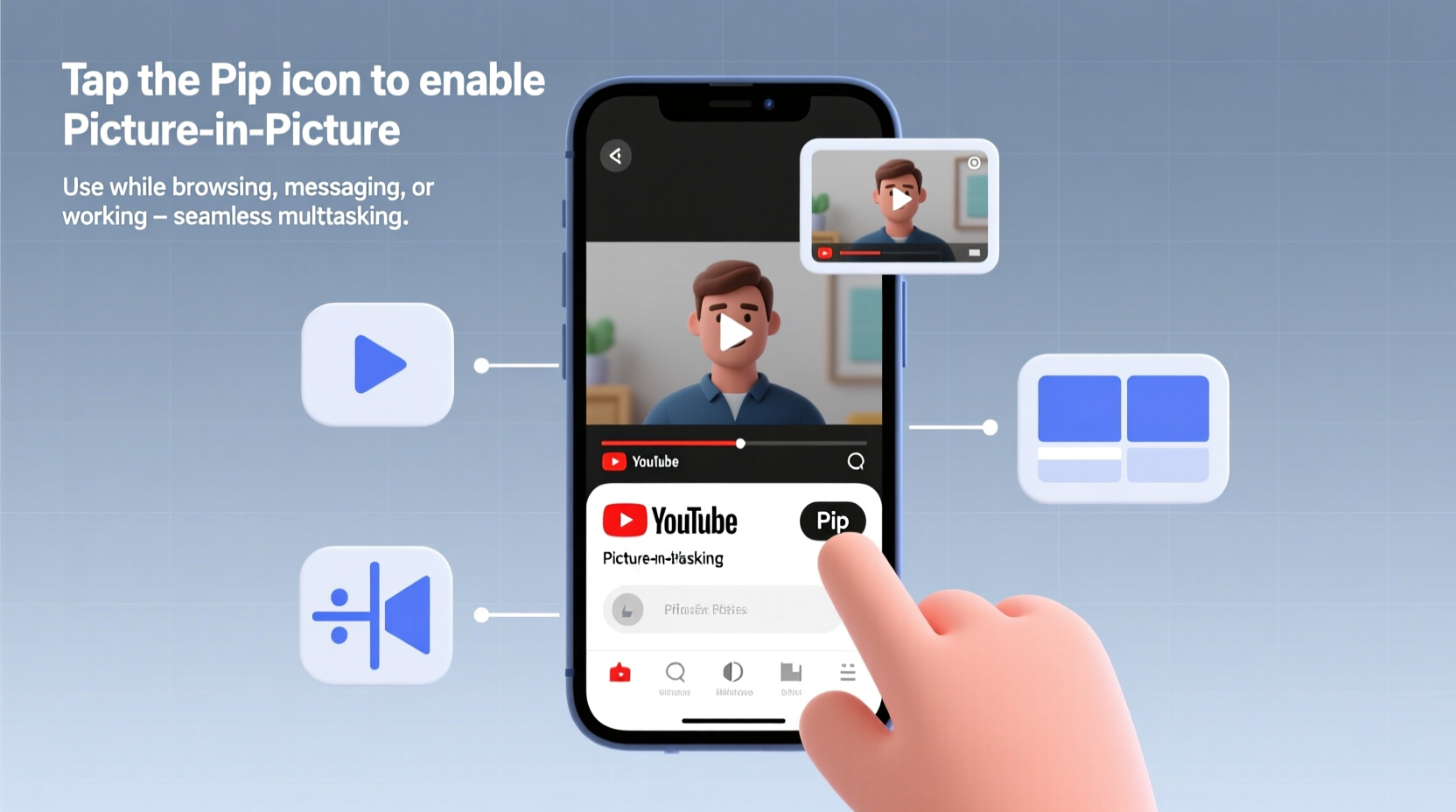
Picture in Picture (PiP) is a display feature that lets a video continue playing in a small, movable window while you interact with other applications or browser tabs. Unlike traditional full-screen or background audio, PiP keeps the video visually accessible at all times, resizing and repositioning as needed.
On YouTube, PiP works best when you're watching longer-form content like lectures, cooking tutorials, or music videos and want to keep the visuals active while checking emails, shopping online, or managing documents. It's particularly useful for remote workers, students, and content creators who rely on continuous visual reference.
“Picture in Picture transforms passive viewing into an integrated part of your workflow.” — David Lin, UX Researcher at a leading tech usability lab
How to Enable PiP on Desktop: Browser-Specific Steps
YouTube’s PiP functionality on desktop depends heavily on your browser and operating system. Not all browsers support it natively, and some require manual configuration or extensions.
Google Chrome (Windows & macOS)
Chrome offers native PiP support for YouTube, but only under certain conditions:
- Ensure you're using Chrome version 70 or later.
- Navigate to a YouTube video and start playback.
- Right-click directly on the video player (not the page).
- Select “Picture in Picture” from the context menu.
If the option is grayed out, verify that hardware acceleration is enabled in Chrome settings and that no conflicting extensions are blocking video controls.
Mozilla Firefox
Firefox supports PiP natively starting from version 75. The process is similar:
- Play a YouTube video.
- Right-click the video.
- Click “View Picture-in-Picture”.
The video will pop out into a resizable window that stays on top of other tabs and applications.
Safari (macOS)
Safari has robust PiP integration. On supported Macs:
- Start a YouTube video.
- Click the PiP icon (a rectangle with a smaller rectangle inside) in the top-right corner of the video player.
- Alternatively, right-click the video and choose “Enter Picture in Picture”.
The window can be dragged anywhere on screen and resized manually.
Mobile and Tablet: Enabling PiP on Android and iOS
Mobile devices offer some of the most seamless PiP experiences, especially when switching between apps.
iOS (iPhone & iPad)
Apple introduced system-wide PiP with iOS 14. To use it with YouTube:
- Open the YouTube app and play any video.
- Tap the Home button (or swipe up from the bottom on Face ID models).
- The video automatically shrinks into a floating window.
You can drag the window to any corner, resize it with two fingers, or close it with a swipe. Note: PiP only works with videos that are three minutes or longer and requires an active YouTube Premium subscription unless you're using Safari with a workaround.
Android
Android 8.0 and above support PiP at the OS level. However, standard YouTube app users need YouTube Premium to access PiP. Free-tier users have limited options:
- With YouTube Premium: Start playback, press Home, and the video continues in a floating window.
- Without Premium: Use a third-party browser like Kiwi Browser (Chrome-based), which supports desktop-style PiP.
Kiwi Browser allows you to open YouTube in desktop mode, play a video, right-click, and select “Picture in Picture”—effectively bypassing the Premium requirement.
| Device | Requires YouTube Premium? | Activation Method |
|---|---|---|
| iPhone (native app) | Yes | Background app switch |
| iPad (Safari) | No | Exit tab → PiP auto-starts |
| Android (YouTube app) | Yes | Press Home during playback |
| Android (Kiwi Browser) | No | Right-click video → PiP |
| Windows (Chrome) | No | Right-click video → PiP |
Troubleshooting Common PiP Issues
Even when following the correct steps, users may encounter obstacles. Here are frequent problems and their solutions:
- “Picture in Picture” option missing: Update your browser or OS. Older versions lack PiP support.
- Video stops when leaving tab: Check site permissions. In Chrome, click the lock icon next to the URL and allow “Autoplay” and “Picture in Picture”.
- PiP window disappears after seconds: Some websites disable PiP via code. YouTube generally allows it, but embedded players on third-party sites may not.
- Audio continues but video doesn’t float: Hardware or driver issues may interfere. Restart the browser or device.
Real-World Example: How PiP Improved Daily Workflow
Sophie, a freelance graphic designer based in Portland, used to pause YouTube tutorials repeatedly while replicating design techniques in Adobe Illustrator. She’d lose her place, miss key steps, or forget timing details. After discovering PiP through Safari on her iPad, she began running design walkthroughs in a corner of her screen while working in her creative suite.
“It cut my learning time in half,” she said. “I don’t have to switch back and forth anymore. The video stays visible, I can adjust its size, and I never lose context.”
She now uses PiP daily—not just for tutorials, but also for ambient music playlists during long design sessions. Her productivity increased by an estimated 30%, according to her time-tracking logs.
Essential Checklist for Activating PiP on Any Device
- Confirm your device and OS support PiP
- Update your browser or YouTube app to the latest version
- Enable autoplay and camera/microphone permissions for YouTube
- Use a supported browser (Chrome, Firefox, Safari, or Kiwi on Android)
- Try right-clicking the video player on desktop
- For iOS: Swipe home during playback
- For Android: Use YouTube Premium or Kiwi Browser
- Test with a video longer than 3 minutes
Frequently Asked Questions
Can I use Picture in Picture on YouTube without a Premium subscription?
Yes, but with limitations. On desktop browsers like Chrome, Firefox, and Safari, PiP is free. On iOS, PiP works in Safari without Premium. On Android, the official app requires Premium, but workarounds exist using browsers like Kiwi.
Why does PiP stop when I open another app?
This typically happens if the app doesn’t support background video or if system resources are low. On mobile, ensure YouTube is allowed to run in the background via battery optimization settings.
Can I resize or move the PiP window?
Yes. On desktop and iOS, you can drag the window and resize it using corner handles. On Android, the size is fixed, but the window can be moved freely across the screen.
Maximize Your Multitasking Potential Today
Picture in Picture mode is more than a convenience—it’s a productivity multiplier. By keeping YouTube videos visible and active while you work, learn, or browse, you eliminate constant context-switching and maintain focus on your goals. The setup varies by platform, but once configured, PiP operates seamlessly across sessions.
Whether you're a student, professional, or casual viewer, enabling PiP unlocks a smarter way to consume video. Take a few minutes today to test the steps outlined here. Try it with your next tutorial, live stream, or favorite playlist. Once you experience uninterrupted, floating playback, you’ll wonder how you ever managed without it.




 浙公网安备
33010002000092号
浙公网安备
33010002000092号 浙B2-20120091-4
Comments
No comments yet. Why don't you start the discussion?