
Fitness trackers are designed to keep up with your active lifestyle, but nothing disrupts the flow like a dying battery mid-day. Whether you're logging workouts, monitoring sleep, or staying connected through notifications, a short battery life can undermine even the most advanced device. The good news? You don’t need a new model or expensive accessories. With a few strategic adjustments to your settings, you can significantly extend your fitness tracker’s battery life—sometimes doubling it—without sacrificing essential functionality.
Battery longevity isn’t just about convenience; it directly impacts data accuracy and consistency. Frequent recharging leads to gaps in heart rate monitoring, sleep tracking, and step counting. By optimizing your device’s power consumption, you ensure uninterrupted insights into your health and performance. These tweaks apply across major brands like Fitbit, Garmin, Samsung, and Xiaomi, though exact menu paths may vary slightly.
Adjust Screen Brightness and Wake Settings
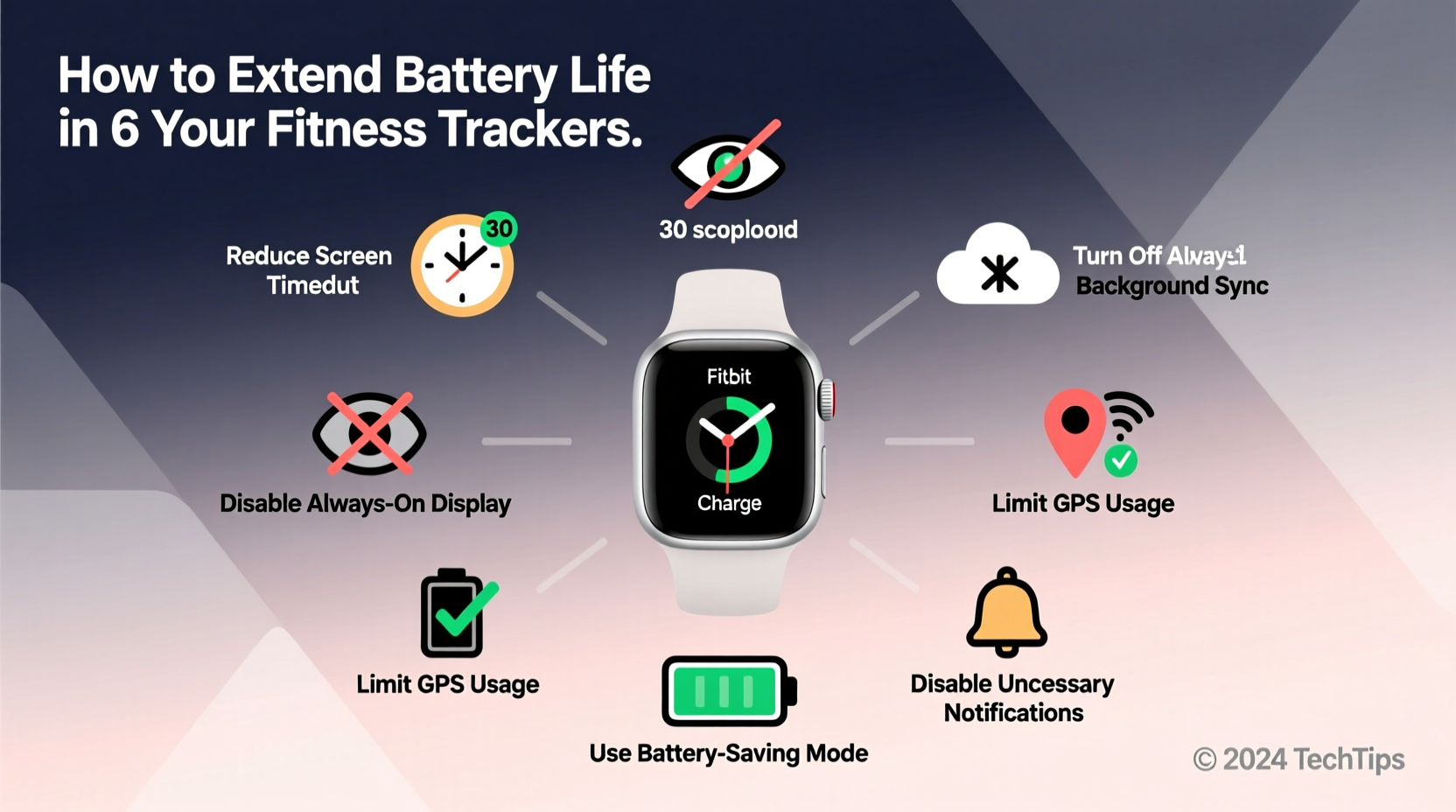
The display is one of the biggest energy drains on any fitness tracker. A bright screen that activates too frequently can deplete your battery in hours, not days. Most users leave their brightness at maximum for visibility, but this comes at a steep cost to battery efficiency.
Lowering screen brightness—even by 20–30%—can dramatically reduce power draw. Many devices offer auto-brightness, which adjusts based on ambient light. This feature alone can prevent unnecessary high-power usage indoors or at night.
Equally important is how your screen wakes. “Always-on” displays, while convenient, consume constant power. Disabling this feature ensures the screen only lights up when you raise your wrist or tap it. Even better, increase the screen timeout duration so it doesn’t stay on longer than needed.
Step-by-Step: Optimize Display Settings
- Open your fitness tracker’s settings menu.
- Navigate to Display or Screen options.
- Reduce brightness to medium or enable auto-brightness.
- Turn off “Always-On Display” if available.
- Set screen timeout to 3–5 seconds.
- Enable “Raise to Wake” only when necessary.
Limit Notifications and Connectivity Features
Bluetooth and smartphone notifications are useful, but each alert—whether it's a text, email, or social media ping—triggers vibrations, screen wake-ups, and wireless communication, all of which drain power. If your tracker buzzes every few minutes, it’s working harder than your workout.
Review which apps are allowed to send notifications to your device. Disable non-essential ones such as promotional emails, game alerts, or news updates. Most people find they only need calls, texts, and calendar reminders on their wrist.
Additionally, consider turning off continuous Bluetooth syncing if you don’t need real-time data uploads. Some trackers allow manual sync intervals, letting you upload data once or twice a day instead of constantly polling your phone.
| Feature | Power Impact | Recommended Setting |
|---|---|---|
| Always-on Bluetooth | High | Keep on, but limit background app refresh |
| Smartphone Notifications | Medium-High | Allow only calls and messages |
| Vibration Alerts | Medium | Use sparingly; reduce intensity |
| Wi-Fi Syncing (if supported) | High | Disable unless near trusted network |
“Reducing notification load is one of the most effective ways to extend wearable battery life without impacting core health tracking.” — Dr. Lena Torres, Wearable Technology Researcher, MIT Media Lab
Optimize Health and Activity Tracking Frequency
Continuous heart rate monitoring, SpO2 tracking, and GPS are powerful tools—but they’re also power-hungry. While these features provide valuable data, running them 24/7 is often overkill for everyday use.
Most users don’t need minute-by-minute heart rate data outside of workouts. Switching to “on-demand” or “interval” heart rate mode (e.g., every 10 minutes) reduces sensor activity significantly. Similarly, blood oxygen (SpO2) monitoring overnight is useful for sleep apnea detection, but enabling it every night when not medically necessary adds unnecessary drain.
GPS is the heaviest consumer of battery during outdoor activities. Instead of relying on your tracker’s built-in GPS for every walk, use your phone’s GPS when possible. Many companion apps allow phone-based location tracking while still recording steps and heart rate on the wrist device—cutting GPS power demand by 70% or more.
Real Example: Sarah’s Week-Long Battery Test
Sarah, a nurse with 12-hour shifts, struggled with her Fitbit Charge 5 dying by mid-afternoon. She tracked her usage for a week:
- Week 1: Always-on display, full notifications, continuous HR, nightly SpO2 — battery lasted 1.3 days.
- Week 2: Dimmed screen, selective notifications, interval HR, SpO2 every other night — battery lasted 4.5 days.
By adjusting just four settings, Sarah extended her battery life by over 200%, eliminating daily charging and ensuring her sleep data remained complete.
Manage Background Apps and Software Updates
Like smartphones, fitness trackers run background processes that can sap power. Third-party apps, watch faces with animations, and poorly optimized software features often run silently, consuming CPU cycles and battery.
Stick to default or lightweight watch faces. Animated backgrounds, live weather widgets, and dynamic complications may look impressive but require constant data fetching and screen redraws. A static, monochrome face uses up to 40% less power.
Regular firmware updates can improve battery efficiency. Manufacturers often release optimizations that fix memory leaks or improve sensor management. However, avoid updating during critical usage periods—some updates trigger lengthy installation and calibration processes that temporarily increase power draw.
Checklist: Weekly Battery Maintenance Routine
- ✅ Review and disable unnecessary notifications
- ✅ Check screen brightness and timeout settings
- ✅ Toggle off GPS unless needed for outdoor runs
- ✅ Limit SpO2 and continuous heart rate monitoring
- ✅ Delete unused apps and switch to a simple watch face
- ✅ Manually sync and restart device to clear cache
- ✅ Install pending firmware updates overnight
Environmental and Charging Best Practices
How and where you charge your fitness tracker matters. Lithium-ion batteries degrade faster when exposed to extreme temperatures or kept at 100% charge for long periods. Avoid charging your device in direct sunlight, on heated surfaces, or in humid environments like bathrooms.
Experts recommend keeping battery levels between 20% and 80% for long-term health. While this isn’t always practical for daily use, try not to let your tracker die completely before recharging. Deep discharges stress the battery and reduce its overall lifespan.
Use the original charger or a certified alternative. Cheap third-party cables may deliver inconsistent voltage, leading to inefficient charging and potential damage. Also, unplug the device once fully charged—overnight charging isn’t harmful with modern safeguards, but minimizing time at 100% helps maintain battery chemistry.
“Battery longevity is as much about usage patterns as it is about settings. Avoid full discharge cycles and extreme heat to preserve capacity over time.” — Rajiv Mehta, Senior Engineer at Anker Power Labs
Frequently Asked Questions
Will turning off heart rate monitoring affect my fitness data?
It depends on your goals. For general step counting and sleep staging, disabling continuous heart rate has minimal impact. However, for accurate calorie burn estimates, workout zones, and resting heart rate trends, continuous monitoring provides more reliable data. Consider using interval monitoring (e.g., every 5–10 minutes) as a middle ground.
Can I still receive calls and messages if I disable notifications?
No—disabling notifications stops alerts from reaching your tracker. However, you can selectively allow only priority apps like Phone and Messages while blocking others. This way, you stay reachable without constant distractions.
Does airplane mode help save battery on fitness trackers?
Yes. Activating airplane mode disables Bluetooth, Wi-Fi, and cellular connectivity (if applicable), drastically reducing power consumption. Your tracker will still record steps, heart rate, and sleep, but it won’t sync until you reconnect. Ideal for travel or long outdoor adventures where charging isn’t possible.
Conclusion: Small Tweaks, Big Gains
Extending your fitness tracker’s battery life doesn’t require technical expertise or hardware upgrades. Simple, intentional changes to display settings, notifications, sensor usage, and charging habits can add days—not just hours—to your device’s runtime. The key is aligning your tracker’s features with your actual needs. You don’t need every bell and whistle active all the time.
Start with one or two adjustments today: lower the brightness, disable always-on display, or limit notifications. Monitor the difference over a few days. Gradually refine your settings until you find the perfect balance between functionality and endurance. When your tracker lasts longer, you gain more consistent health insights, fewer interruptions, and greater peace of mind.




 浙公网安备
33010002000092号
浙公网安备
33010002000092号 浙B2-20120091-4
Comments
No comments yet. Why don't you start the discussion?