
Wireless mice offer unmatched freedom and flexibility, but their reliance on batteries can be a persistent inconvenience. Frequent charging interrupts workflow, reduces productivity, and over time, degrades battery health. While modern devices are more energy-efficient than ever, many users still find themselves plugging in their mouse every few days—sometimes daily. The good news is that with smart usage habits and a few strategic adjustments, you can significantly extend your wireless mouse’s battery life. This guide reveals proven techniques used by tech professionals and everyday users alike to get weeks—or even months—of use from a single charge.
Understand What Drains Your Mouse Battery
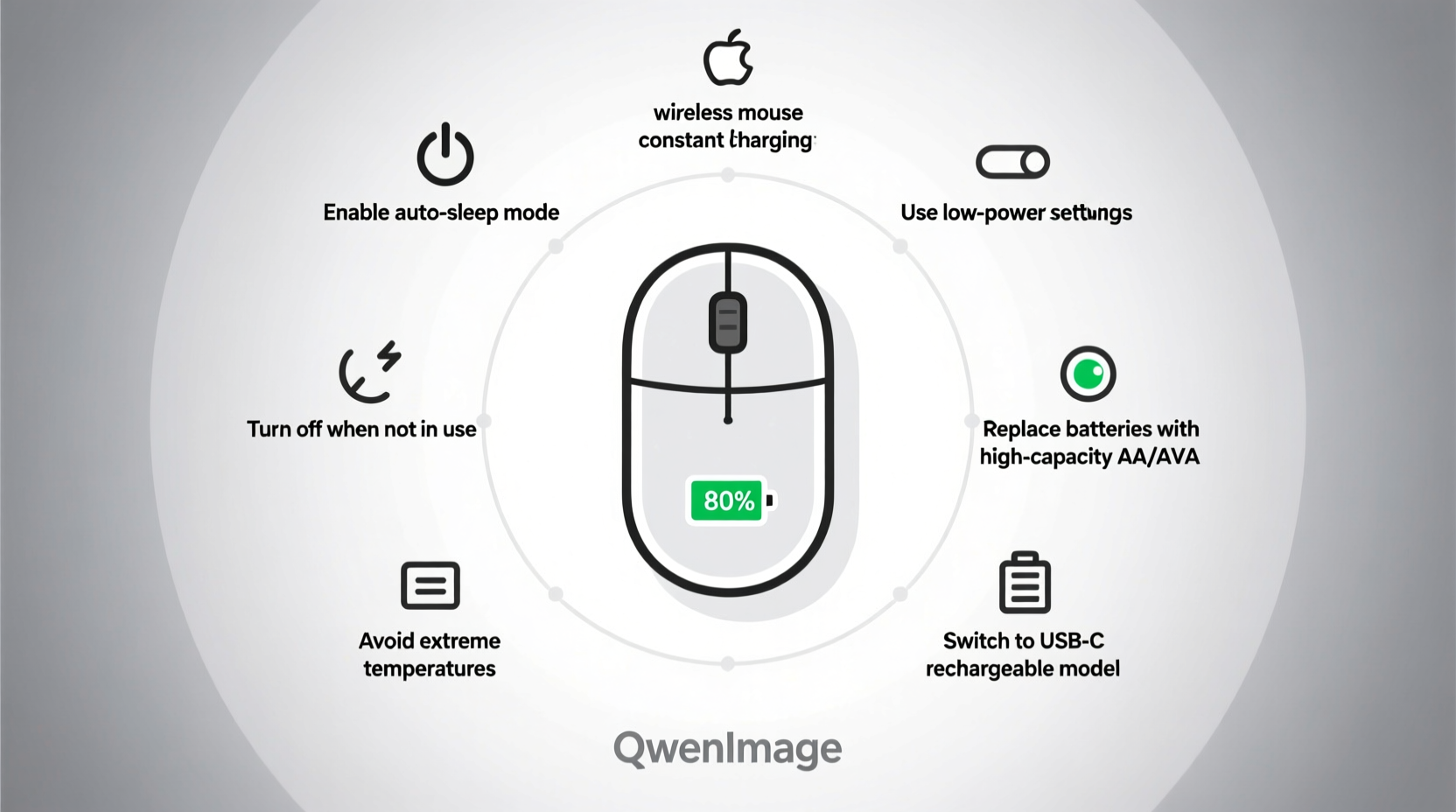
Battery drain isn’t random; it’s driven by specific features and behaviors. Knowing what consumes power allows you to make informed decisions about how you use your device. Most wireless mice draw energy from four primary sources: sensor activity, wireless transmission, lighting effects, and polling rate.
- Optical Sensor: The laser or LED sensor constantly tracks movement. Higher sensitivity (measured in DPI) requires more power.
- Wireless Connectivity: Bluetooth and 2.4GHz RF connections consume energy, especially when signal strength is weak or interference is high.
- RGB Lighting: Decorative LEDs, while visually appealing, can drastically reduce battery life—sometimes by up to 50%.
- Polling Rate: How often the mouse reports its position to the computer (e.g., 125Hz vs. 1000Hz). Higher rates improve responsiveness but increase power consumption.
Optimize Mouse Settings for Maximum Efficiency
Most users never adjust their mouse settings beyond basic cursor speed. However, fine-tuning performance parameters can yield substantial energy savings without sacrificing usability.
Lower the DPI When Possible
High DPI (dots per inch) settings allow for ultra-sensitive tracking, useful in gaming or graphic design. But for general browsing or office work, 800–1200 DPI is more than sufficient. Reducing DPI lowers sensor workload and conserves battery.
Adjust Polling Rate
A 1000Hz polling rate means the mouse sends data 1000 times per second. For non-gaming tasks, dropping to 125Hz or 250Hz is imperceptible to most users but cuts power usage significantly. Many Logitech, Razer, and Microsoft mice allow this adjustment via companion software.
Enable Power-Saving Modes
Some advanced mice feature adaptive sleep modes that activate after periods of inactivity. Ensure these are enabled. Premium models like the Logitech MX Master series enter ultra-low-power states within seconds of idle time, preserving energy without compromising wake-up speed.
“Users often overlook software settings, yet adjusting DPI and polling rate can extend battery life by 30–60% depending on usage.” — David Lin, Senior Hardware Engineer at Peripheral Dynamics
Smart Usage Habits That Make a Difference
How you interact with your mouse throughout the day has a direct impact on battery longevity. Small behavioral changes compound over time into meaningful energy savings.
Turn It Off When Not in Use
Many wireless mice have a physical power switch. Get into the habit of turning the mouse off during long breaks—lunch, meetings, or overnight. Even in sleep mode, some devices continue drawing small amounts of current.
Use a High-Quality Surface
The optical sensor works harder on reflective, transparent, or uneven surfaces like glass or glossy desks. This increased effort raises power consumption. A simple fabric mouse pad provides consistent tracking and reduces sensor strain.
Limit Unnecessary Movement
Fidgeting or excessive cursor movement keeps the sensor active. While not always avoidable, being mindful of idle gestures—like scrolling through blank areas or rapid dragging—can help minimize unnecessary power draw.
Choose the Right Power Source
Not all batteries are created equal. The type of power supply you use affects both performance and longevity.
| Battery Type | Lifespan (Avg) | Pros | Cons |
|---|---|---|---|
| Alkaline AA | 3–6 months | Widely available, low cost | Non-rechargeable, inconsistent voltage drop |
| NiMH Rechargeable AA | 1–2 years (with charging) | Eco-friendly, stable output | Higher upfront cost, self-discharge over time |
| Lithium-Ion (Built-in) | 2–4 years (battery cycle-limited) | High energy density, fast charging | Degrades over time, replacement may be difficult |
If your mouse uses replaceable batteries, consider switching to high-capacity NiMH rechargeables like Eneloop Pro. They maintain voltage better than alkalines and can be reused hundreds of times, reducing waste and long-term cost.
For built-in battery models, avoid letting the charge drop to zero regularly. Lithium-ion batteries degrade fastest when deeply cycled. Try to recharge between 20% and 80% to prolong overall lifespan.
Step-by-Step Guide to Maximizing Battery Life
Follow this actionable sequence to optimize your wireless mouse for extended battery performance. Implementing all steps can result in 2–3x longer intervals between charges.
- Check current settings: Open your mouse’s software (e.g., Logitech Options, Razer Synapse) and note DPI, polling rate, and lighting status.
- Reduce DPI to 1000: Ideal for office and web use. Increase only when needed for precision tasks.
- Set polling rate to 250Hz: Balances responsiveness and efficiency for non-gaming scenarios.
- Disable RGB lighting: Turn off all decorative lights unless essential.
- Clean the sensor lens: Dust or debris forces the sensor to work harder. Wipe gently with a dry microfiber cloth weekly.
- Use a proper mouse pad: Prevents surface-related tracking inefficiencies. <7> Turn off when idle: Make it a habit to power down the mouse during breaks longer than 30 minutes.
- Schedule recharges: Charge before the battery drops below 20%, especially for lithium-ion models.
“After applying these steps, my MX Anywhere 3 went from needing a charge every 4 days to lasting nearly 6 weeks.” — Sarah Kim, Remote Software Developer, Portland, OR
Common Mistakes That Shorten Battery Life
Avoid these frequent errors that unknowingly sabotage your mouse’s efficiency:
- Leaving the mouse on overnight: Even in sleep mode, residual power draw accumulates.
- Using on glass or mirrored surfaces: Forces the sensor to emit brighter light for detection.
- Ignoring firmware updates: Manufacturers often release updates that improve power management.
- Using cheap or old batteries: Low-quality cells have unstable voltage and higher internal resistance, forcing the mouse to draw more current.
- Placing the USB receiver far from the mouse: Distance increases transmission power needs. Keep the receiver within 1 meter and free of obstructions.
FAQ: Common Questions About Wireless Mouse Battery Life
How long should a wireless mouse battery last?
Well-optimized mice using AA batteries typically last 3–6 months under regular use. Built-in lithium-ion models range from 2–12 weeks per charge depending on usage and settings. High-end models like the Logitech MX Master 3S can last up to 70 days on a single charge with efficient settings.
Is it bad to leave my wireless mouse charging overnight?
Modern mice with lithium-ion batteries include overcharge protection, so occasional overnight charging is safe. However, consistently leaving it plugged in after reaching 100% can accelerate battery aging over time. Unplug once fully charged when possible.
Can I use a power bank to charge my wireless mouse?
Yes, as long as the power bank provides standard USB output (5V/0.5A or higher). This is especially useful for travel or when wall outlets aren’t accessible. Just ensure the mouse supports USB charging—most do via micro-USB or USB-C.
Checklist: Extend Your Mouse Battery Life in 7 Steps
Print or bookmark this checklist to implement best practices consistently:
- ✅ Lower DPI to 800–1200 for daily tasks
- ✅ Set polling rate to 250Hz or lower
- ✅ Disable RGB lighting and animations
- ✅ Use a fabric mouse pad on a flat surface
- ✅ Turn off the mouse when not in use
- ✅ Clean the sensor weekly with a dry cloth
- ✅ Charge between 20% and 80% for built-in batteries
Conclusion: Small Changes, Big Gains
Extending your wireless mouse’s battery life doesn’t require expensive upgrades or technical expertise. It comes down to awareness, consistency, and smart choices. By adjusting a few settings, adopting better habits, and choosing the right accessories, you can go from daily charging frustration to weeks of uninterrupted use. These improvements not only save time but also reduce electronic waste and long-term costs. Start applying these strategies today—your productivity, convenience, and battery will thank you.




 浙公网安备
33010002000092号
浙公网安备
33010002000092号 浙B2-20120091-4
Comments
No comments yet. Why don't you start the discussion?