
Gaming consoles are significant investments. Whether you own a PlayStation, Xbox, or Nintendo Switch, these devices deliver countless hours of entertainment—but only if they’re properly cared for. Over time, dust buildup, overheating, poor ventilation, and improper handling can degrade performance and shorten lifespan. The good news? Most of these issues are preventable with routine, straightforward maintenance. With just a few minutes of attention every few months, you can keep your console running smoothly for years beyond the average user’s experience.
Manufacturers design consoles to last between five and seven years under normal use, but many fail prematurely due to avoidable neglect. By adopting a proactive approach, you not only preserve hardware integrity but also maintain optimal load times, graphics performance, and system responsiveness. This guide breaks down practical, science-backed strategies to help you get the most out of your gaming setup—without technical complexity or expensive tools.
1. Control Heat and Ensure Proper Ventilation
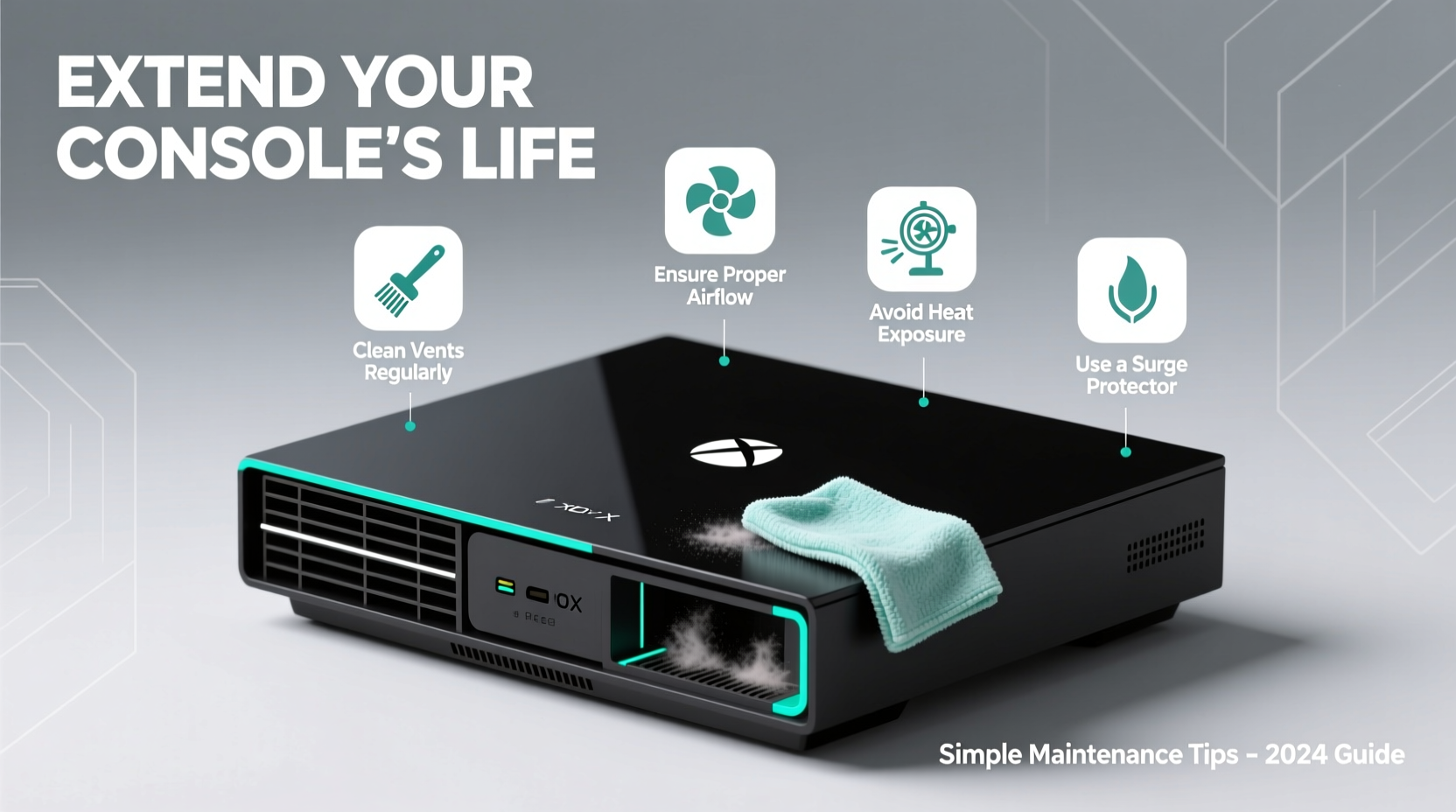
Heat is the number one enemy of electronic components. When a console runs hot for extended periods, internal parts such as the CPU, GPU, and solder joints degrade faster. Thermal expansion and contraction can cause micro-cracks on circuit boards, leading to permanent failure—a common cause of the infamous “Red Ring of Death” on older Xbox 360 models.
To prevent overheating:
- Place your console in an open area with at least 4–6 inches of clearance on all sides, especially near vents.
- Avoid enclosing it in tight cabinets or stacking items on top.
- Never place the console on carpeted floors or soft surfaces that block bottom-facing air intakes.
- Keep room temperature moderate—ideally below 77°F (25°C).
Elevate your console using rubber feet or a stand to improve airflow from the base. For vertical placement models like the PS5 or Xbox Series X, ensure the unit stands upright securely and isn’t wobbly, which could stress internal connections over time.
2. Clean Dust Regularly to Prevent Clogging
Dust doesn’t just make your console look dirty—it acts as insulation, trapping heat inside. Over months, dust accumulates in fans, heatsinks, and vent channels, reducing cooling efficiency and forcing the fan to work harder. This increases wear on moving parts and raises internal temperatures.
You don’t need to open the console for basic cleaning. Use a can of compressed air to gently blow dust out of vents every 3–4 months. Hold the can upright and use short bursts to avoid moisture discharge. Focus on intake and exhaust areas, angling the nozzle to dislodge debris without pushing it deeper.
“Dust accumulation is one of the most overlooked yet critical factors in console longevity. A simple monthly blast with compressed air can add years to a system.” — Marcus Lin, Senior Hardware Technician at GameFix Labs
If you're comfortable with basic electronics, you can perform a deeper clean annually. Power off the console, unplug all cables, and carefully open the casing (check manufacturer guidelines first). Use a soft-bristled brush or anti-static vacuum to remove stubborn dust from the fan blades and heatsink. Never use water, household cleaners, or abrasive cloths on internal components.
Step-by-Step: Safe Console Dust Cleaning
- Turn off and unplug the console. Wait at least 30 minutes to let it cool.
- Move to a well-lit, static-free area (avoid carpeted floors).
- Use compressed air to spray external vents at a 45-degree angle.
- For internal cleaning, open the case following official teardown guides.
- Gently brush or blow dust from the fan, heatsink, and air ducts.
- Reassemble and test the console before regular use.
3. Manage Software and Storage Health
Maintenance isn't just physical—software health plays a crucial role. Fragmented storage, corrupted game files, and outdated firmware can slow down performance and increase strain on the hard drive or SSD.
Regularly check for system updates. These often include stability improvements, security patches, and optimizations that reduce background resource usage. Enable automatic updates if available, or set a monthly reminder to manually check.
Monitor storage space. Running a console with less than 10% free space can lead to longer load times and increased wear on storage drives. Delete unused games, save files, and apps. Consider upgrading to a larger-capacity SSD, which offers faster read speeds and improved durability over traditional HDDs.
| Maintenance Task | Frequency | Benefit |
|---|---|---|
| Check for system updates | Monthly (or enable auto-updates) | Improved stability and security |
| Clear unused games and data | Every 2–3 months | Free up space, reduce lag |
| Rebuild database (PS) / Clear cache (Xbox) | Every 6 months or when lagging | Faster navigation and boot times |
| Backup saves to cloud or USB | After major game completion | Prevent loss from drive failure |
On PlayStation consoles, rebuilding the database (via Safe Mode) can resolve indexing issues. Xbox users can clear the system cache through settings to refresh performance. These are non-destructive processes that don’t delete personal data.
4. Handle Physical Components with Care
How you interact with your console and accessories directly affects its lifespan. Disc drives, HDMI ports, and power connectors are particularly vulnerable to wear.
When inserting or removing game discs, do so gently. Avoid forcing a disc into the drive or leaving it in the console when not in use for long periods. Scratches or dirt on discs can cause the laser to work harder, increasing mechanical stress.
Unplug cables by gripping the connector—not the cord—to prevent fraying or port damage. Repeated yanking can loosen HDMI or power ports, leading to intermittent signal loss or complete failure.
Controllers also require attention. Wipe them down monthly with a slightly damp microfiber cloth. Avoid spraying liquid directly onto buttons or joysticks. Replace worn thumbsticks or batteries early—delaying fixes can lead to erratic inputs or internal corrosion from leaking batteries.
Mini Case Study: Recovering a Lagging PS4
James, a casual gamer in Austin, noticed his PS4 Pro was taking over two minutes to boot and frequently freezing during gameplay. He had over 90% of his 1TB drive filled with games and hadn’t updated the system in nearly a year. After backing up his saves to a USB drive, he performed a full system software update and cleared cached data. He then deleted six rarely played titles, freeing up 300GB. Finally, he rebuilt the database via Safe Mode. The result? Boot time dropped to 28 seconds, and game loading improved noticeably. James later upgraded to a 2TB SSD, extending the console’s usability well beyond typical expectations.
5. Create a Maintenance Checklist and Schedule
Consistency is key. Just like changing the oil in a car, small, regular interventions prevent large-scale failures. Use this checklist to stay on track:
Gaming Console Maintenance Checklist
- ✅ Monthly: Wipe down exterior with dry microfiber cloth
- ✅ Every 3 Months: Blow out dust from vents using compressed air
- ✅ Every 6 Months: Check for and install system updates
- ✅ Every 6 Months: Review storage usage; delete unused content
- ✅ Annually: Perform deep inspection (external only, unless experienced)
- ✅ As Needed: Clean controllers and replace batteries
- ✅ Once a Year: Backup saved games to cloud or external drive
Set calendar reminders or tie maintenance to seasonal events—like cleaning after the holiday gaming season or before summer heat peaks. This habit ensures you never overlook critical tasks.
Common Mistakes That Shorten Console Life
Avoid these frequent errors that unknowingly compromise your system:
| Don’t | Why It’s Harmful | Do Instead |
|---|---|---|
| Leave the console on overnight | Increases thermal stress and energy wear | Enable rest mode or shut down completely |
| Use third-party chargers or power adapters | May deliver incorrect voltage, damaging circuits | Stick to manufacturer-approved accessories |
| Play games while downloading updates | Overloads storage and processor resources | Wait for downloads to finish or pause gameplay |
| Ignore unusual noises (grinding, clicking) | Sign of failing disc drive or fan | Inspect and clean or seek repair early |
Rest mode is a useful feature—it allows background downloads and charging controllers—but it’s not meant for indefinite use. Turn off the console fully at least once a week to reset memory and reduce passive power draw.
FAQ: Common Questions About Console Longevity
Can I vacuum my console instead of using compressed air?
No. Household vacuums generate static electricity that can damage sensitive electronics. Use only anti-static vacuums or compressed air designed for electronics. Even then, keep the nozzle at a safe distance and avoid direct contact with internal parts.
Is it safe to upgrade my console’s hard drive?
Yes, both Sony and Microsoft allow internal storage upgrades on current-gen systems. Replacing an HDD with an SSD is officially supported and does not void the warranty, as long as you follow their guidelines. Always back up your data before swapping drives.
How do I know if my console is overheating?
Symptoms include sudden shutdowns during gameplay, loud or constant fan noise, graphical glitches, or a noticeable drop in performance. Some consoles display warning messages. If you suspect overheating, turn it off immediately and let it cool in a ventilated area before inspecting for dust or placement issues.
Conclusion: Small Efforts, Lasting Results
Your gaming console is built to endure, but its real lifespan depends largely on how you treat it. Simple habits—like dusting vents, updating software, and managing storage—can prevent the most common causes of premature failure. You don’t need advanced tools or technical expertise; just consistency and awareness.
Think of maintenance as an investment in uninterrupted playtime. Every minute you spend cleaning or optimizing today saves hours of frustration tomorrow. Whether you’re protecting a new console or breathing new life into an older one, these steps apply across brands and generations.




 浙公网安备
33010002000092号
浙公网安备
33010002000092号 浙B2-20120091-4
Comments
No comments yet. Why don't you start the discussion?