
Network issues can strike at the worst possible moments—during an important video call, while downloading critical files, or when streaming content for a presentation. What separates a frustrating day from a quick resolution is not luck, but a systematic approach. Knowing how to identify where the problem lies and applying targeted fixes can save time, reduce stress, and restore connectivity in minutes. This guide provides a comprehensive, step-by-step method to diagnose and resolve nearly any network issue—whether it's affecting a single device or an entire office.
1. Understand the Network Hierarchy
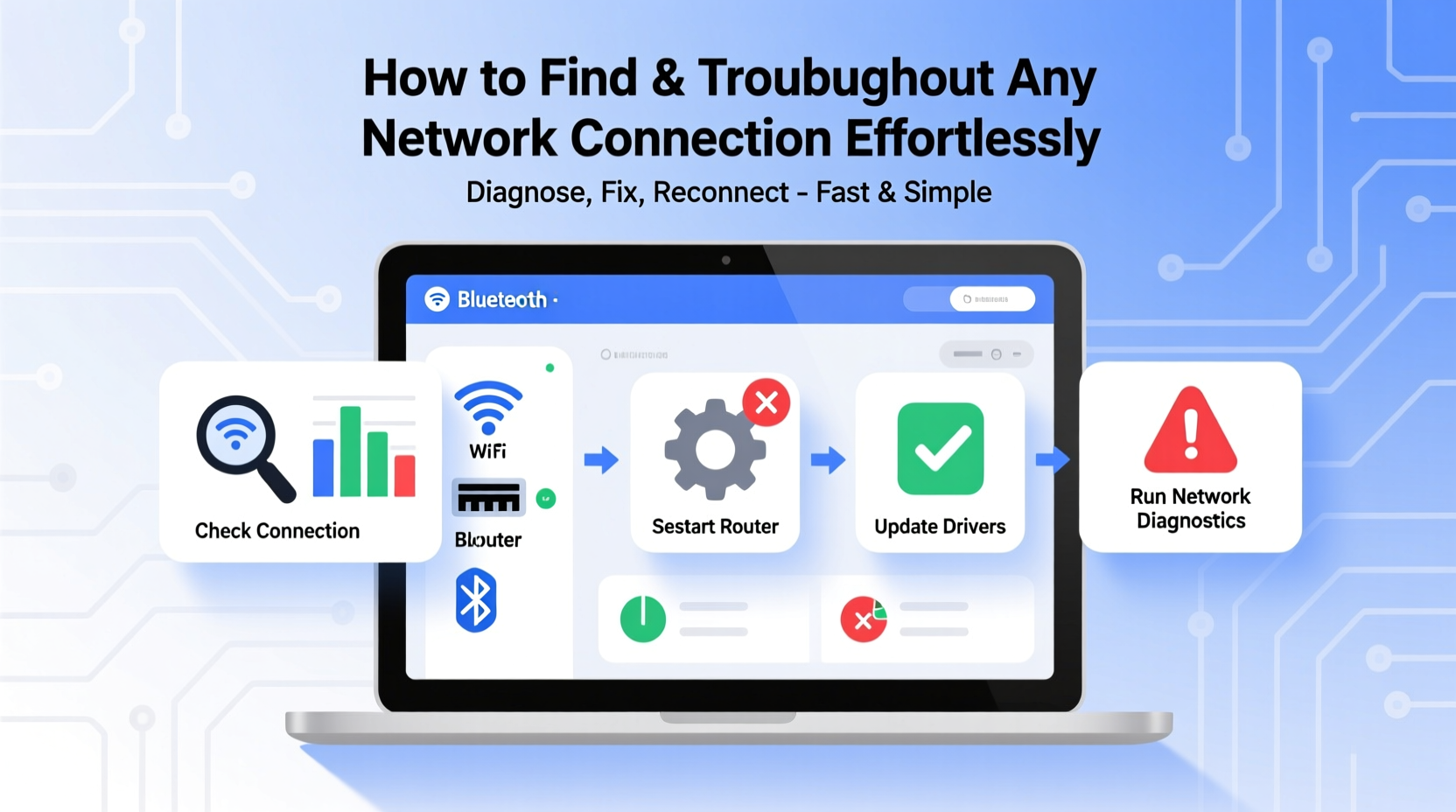
Before jumping into diagnostics, it’s essential to understand the typical flow of a network connection:
- Device (laptop, phone, tablet)
- Local Network (Wi-Fi or Ethernet)
- Router/Modem
- Internet Service Provider (ISP)
- Destination Server (website, cloud service)
Troubleshooting becomes efficient when you test each layer sequentially. If one link fails, everything downstream stops working. Start from your device and move outward.
2. Step-by-Step Troubleshooting Framework
Follow this five-phase process to isolate and fix network problems efficiently:
Phase 1: Confirm the Problem
Determine whether the issue is with internet access, local network access, or a specific application. Try:
- Opening multiple websites (e.g., google.com, bbc.com)
- Pinging a known IP address:
ping 8.8.8.8 - Checking if other devices on the same network are affected
Phase 2: Restart and Reset
Sometimes the simplest fix works best. Power-cycle your equipment:
- Turn off your device.
- Unplug the router and modem for 30 seconds.
- Plug the modem back in, wait until all lights stabilize.
- Reconnect the router.
- Power on your device and retest.
Phase 3: Check Physical and Wireless Connections
Inspect both physical and wireless layers:
- Ensure Ethernet cables are securely plugged in.
- Check for damaged cables or bent pins.
- Verify Wi-Fi is enabled on the device (no airplane mode).
- Move closer to the router to rule out signal interference.
- Test using a wired connection to eliminate Wi-Fi variables.
Phase 4: Use Built-In Diagnostic Tools
Leverage tools already available on your system:
| Operating System | Diagnostic Command | Purpose |
|---|---|---|
| Windows | ipconfig /all |
Displays IP configuration, gateway, and DNS settings |
| macOS/Linux | ifconfig or ip a |
Shows network interface details |
| All Systems | ping 8.8.8.8 |
Tests basic internet reachability |
| All Systems | ping google.com |
Checks DNS resolution and connectivity |
| All Systems | tracert google.com (Windows) or traceroute google.com (macOS/Linux) |
Maps path to destination and identifies failure points |
If ping 8.8.8.8 succeeds but ping google.com fails, the issue is likely DNS-related. Try changing your DNS to Google (8.8.8.8, 8.8.4.4) or Cloudflare (1.1.1.1).
Phase 5: Isolate the Source
Determine whether the issue is isolated to:
- One device? → Likely a local software or driver issue.
- All devices on Wi-Fi? → Could be router firmware or channel congestion.
- All devices including wired? → Points to modem or ISP outage.
“Over 70% of reported ‘internet down’ cases are resolved by checking cable connections and restarting the modem.” — David Lin, Senior Network Engineer at NetSecure Inc.
3. Common Issues and Quick Fixes
Below are frequent network problems and their solutions:
Slow Speeds Despite Good Signal
- Run a speed test via speedtest.net.
- Check for bandwidth-heavy applications (cloud backups, streaming).
- Change Wi-Fi channel via router settings to avoid interference from neighbors.
No Internet But Wi-Fi Connected
This often means your device has joined the network but can't reach the internet. Causes include:
- Incorrect default gateway
- Failed DHCP assignment
- ISP outage
Fix: Renew IP address (ipconfig /release then ipconfig /renew on Windows).
Intermittent Connectivity
Random drops suggest:
- Failing hardware (old router or damaged cable)
- Driver issues (update Wi-Fi adapter drivers)
- Overheating equipment (ensure proper ventilation)
4. Mini Case Study: The Office That Lost Internet
A small marketing firm suddenly lost internet across all devices. Employees assumed the ISP was down. The IT consultant arrived and followed the layered approach:
- Checked one laptop: connected to Wi-Fi but couldn’t load pages.
- Ran
ping 8.8.8.8— no response. - Tested another device: same result.
- Rebooted the router — lights came back, but still no internet.
- Called ISP, who confirmed no outage in the area.
- Inspected modem: noticed the “DSL” light was blinking red.
- Discovered the phone line filter was cracked. Replaced it.
- Within three minutes, full connectivity restored.
The root cause wasn’t the router, Wi-Fi, or ISP—it was a $2 filter. Without systematic testing, hours could have been wasted reinstalling software or replacing hardware unnecessarily.
5. Proactive Checklist for Smooth Connectivity
Prevention beats reaction. Use this checklist weekly or monthly to maintain optimal network health:
- ✅ Reboot router and modem every 2–4 weeks
- ✅ Update router firmware regularly
- ✅ Secure Wi-Fi with WPA3 or WPA2 encryption
- ✅ Rename default SSID and disable guest network if unused
- ✅ Monitor connected devices for unknown intruders
- ✅ Set static IPs for critical devices (printers, servers)
- ✅ Test internet speed monthly and compare to ISP plan
- ✅ Keep a wired Ethernet cable handy for testing
“Routine maintenance prevents 90% of network emergencies. Treat your network like your car—regular checkups keep it running smoothly.” — Maria Chen, Network Infrastructure Lead at TechFlow Solutions
FAQ
Why does my device say “Connected, No Internet”?
This means your device is linked to the router but cannot reach the wider internet. It may be due to a failed DHCP lease, incorrect gateway, or ISP outage. Restart the router and check if other devices have the same issue.
Can a virus cause network problems?
Yes. Malware can flood your network with traffic, change DNS settings, or block connections. Run a security scan and reset network settings if suspicious activity is detected.
How do I know if my router is failing?
Signs include frequent disconnections, overheating, slow admin interface response, or inability to save settings. If your router is over 5 years old, consider upgrading to a modern mesh system.
Conclusion
Mastering network troubleshooting isn’t about memorizing commands—it’s about adopting a logical, calm, and structured mindset. By understanding the layers of connectivity, using built-in tools wisely, and following a repeatable process, you can resolve most issues in under 15 minutes. Don’t rush to replace hardware; instead, isolate the failure point first. With these strategies, you’re no longer at the mercy of spotty Wi-Fi or mysterious outages. Take control of your network today.




 浙公网安备
33010002000092号
浙公网安备
33010002000092号 浙B2-20120091-4
Comments
No comments yet. Why don't you start the discussion?