
Smartphones today come packed with features, but over time, even high-end Android devices can begin to feel sluggish. While many users assume aging hardware is the culprit, the real issue often lies in software—specifically, hidden apps running in the background without their knowledge. These invisible processes consume memory, drain battery, and degrade overall performance. The good news? You don’t need technical expertise to uncover them. With a few simple checks and smart habits, you can identify and eliminate these silent performance thieves.
Why Hidden Apps Slow Down Your Phone
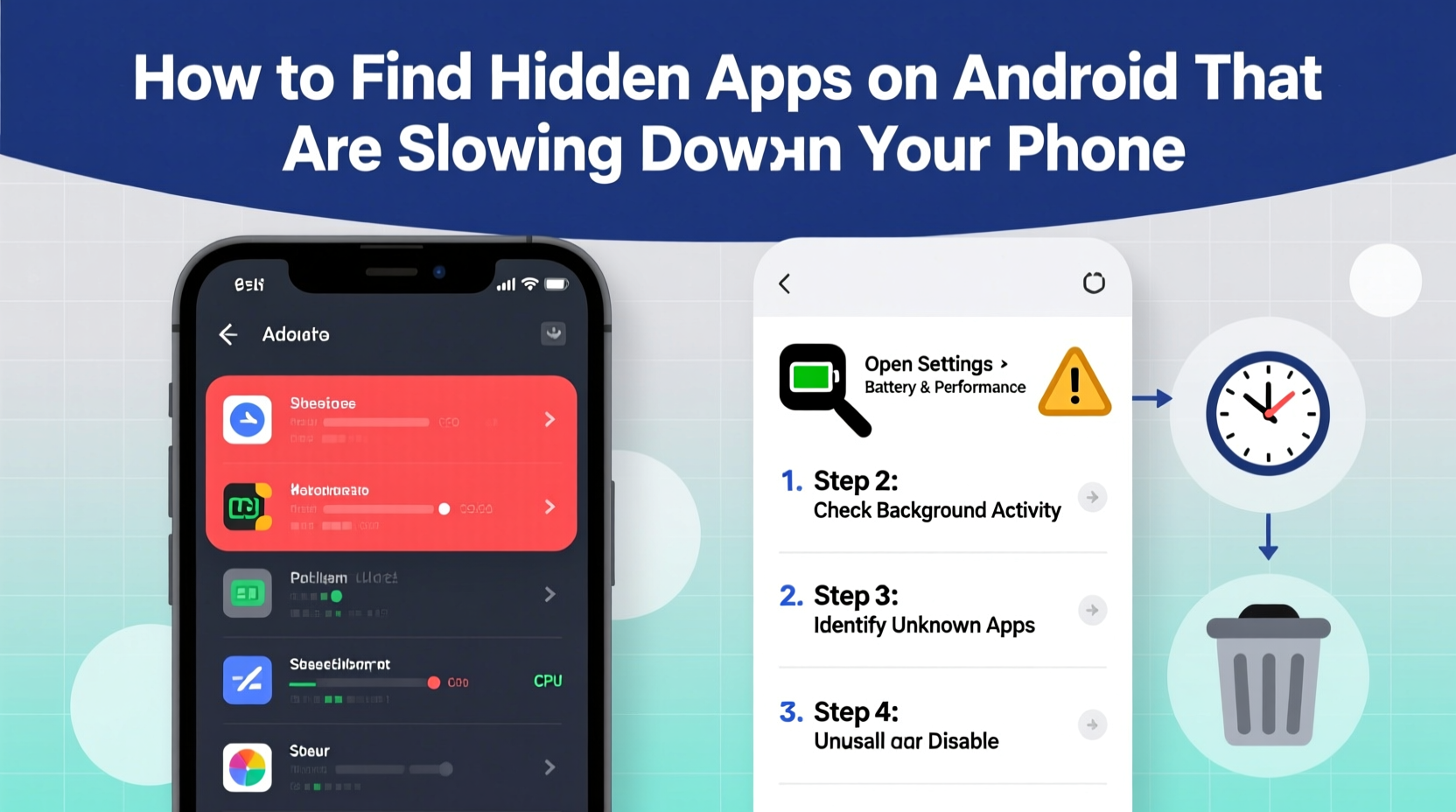
Not all apps appear on your home screen or app drawer, yet they continue to operate in the background. Some are system utilities; others are pre-installed bloatware or third-party apps granted excessive permissions. When multiple such apps run simultaneously, they compete for CPU cycles, RAM, and network access, causing lag, overheating, and reduced battery life.
Hidden apps may include:
- Preloaded carrier or manufacturer software (bloatware)
- Apps with disabled icons but active background services
- Downloaded tools that auto-start at boot
- Malware disguised as legitimate applications
- Accessibility or usage-tracking services enabled unknowingly
These apps often escape notice because they don’t display shortcuts or notifications. Yet, they silently collect data, sync in the background, or preload content, eating up resources.
Step-by-Step Guide to Uncover Hidden Apps
Finding hidden apps requires navigating through built-in Android tools. Follow this sequence to reveal what’s secretly consuming your device’s power.
- Check App Usage via Settings
Go to Settings > Battery > Battery Usage. This screen lists all apps that have consumed power recently. Sort by usage time or percentage. Pay attention to apps you don’t recognize or rarely use. High battery consumption from an unknown source is a red flag. - Review Running Services
Navigate to Settings > Developer Options > Running Services. (If Developer Options isn't visible, go to About Phone and tap Build Number seven times to enable it.) Here, you’ll see every active process, including system services and third-party components. Look for unfamiliar package names or repeated entries under “Service” or “Process.” - Inspect Disabled Apps
Open Settings > Apps > See all apps, then tap the three-dot menu and select Show system. Switch the filter to “Disabled.” This reveals apps turned off manually or by default. Some of these may still trigger background tasks or receive updates. Re-enable and review them before uninstalling if possible. - Search by Package Name
Use a file explorer or terminal app to browse/data/appor/system/appdirectories (requires root). Alternatively, download a lightweight app manager like Package Names from Google Play. It displays all installed packages with their full names, making it easier to spot suspicious entries like “com.adware.tracker” or randomly generated labels. - Monitor Boot Receivers
Apps that launch at startup can significantly slow boot time and hog memory. Install a boot manager tool (e.g., Greenify) or use ADB commands to list apps with RECEIVE_BOOT_COMPLETED permission. Disable non-essential ones to reduce background load.
Do’s and Don’ts When Managing Hidden Apps
| Do’s | Don’ts |
|---|---|
| Do verify app publishers using online databases like APKMirror or VirusTotal. | Don’t uninstall system apps unless you’re certain they aren’t critical (e.g., Carrier Services). |
| Do disable rather than delete preloaded apps to maintain stability. | Don’t grant Accessibility permissions to untrusted apps—they can monitor all screen activity. |
| Do regularly audit battery and data usage reports. | Don’t rely solely on third-party “cleaner” apps; many are themselves bloatware. |
| Do keep your OS updated—security patches often fix exploitable loopholes used by hidden malware. | Don’t ignore sudden spikes in data usage; they may indicate a rogue app phoning home. |
Real Example: Recovering Performance on a Mid-Range Device
Jamal, a freelance photographer, noticed his two-year-old Android phone had become increasingly unresponsive. Photos took seconds to open, messages delayed delivery, and the battery dropped 30% overnight despite minimal use. He assumed it was time for an upgrade—until he followed a diagnostic checklist.
Using Battery Usage, he found an app called “Device Optimization Pro” consuming 40% of power daily. He didn’t recall installing it. Upon checking See all apps, he discovered it was hidden under a generic icon labeled “System Update Helper.” A quick web search revealed it was adware bundled with a free file compression tool he’d downloaded months earlier.
After disabling the app and clearing its cache, Jamal rebooted the device. Within minutes, responsiveness improved dramatically. His boot time decreased by 45%, and background battery drain dropped to normal levels. The experience taught him to scrutinize app sources and permissions more carefully.
“Many users overlook the cumulative impact of small background processes. One rogue app might not cripple your phone alone, but five working together can bring it to its knees.” — Dr. Lena Park, Mobile Systems Analyst at TechInsight Labs
Essential Checklist: Audit Your Android for Hidden Apps
Use this actionable checklist monthly to maintain optimal performance:
- ✅ Review battery usage by app in Settings
- ✅ Enable Developer Options and inspect Running Services
- ✅ Show system apps and check for disabled or suspicious entries
- ✅ Search for recently installed apps from unknown sources
- ✅ Check Accessibility settings for unauthorized services
- ✅ Verify autostart permissions in Security or Device Care settings
- ✅ Run a malware scan using Google Play Protect or a trusted antivirus
- ✅ Clear cache partitions periodically via Recovery Mode
- ✅ Uninstall or disable apps with no clear purpose or publisher
- ✅ Monitor data usage trends for anomalies
Frequently Asked Questions
Can hidden apps be dangerous?
Yes. Some hidden apps are malicious—designed to steal personal data, inject ads, or track location. Apps requesting Accessibility Service or Device Administrator rights without justification pose significant risks. Always revoke permissions from unused or unrecognized apps.
Is it safe to disable system apps?
In most cases, yes—but proceed with caution. Disabling core services like Google Play Services or SIM Toolkit can disrupt functionality. Stick to removing bloatware from known manufacturers (e.g., Facebook, Amazon Shopping, weather widgets). If unsure, research the package name before acting.
How do I prevent hidden apps from reinstalling?
Some preloaded apps reactivate after updates or reboots. To stop this, first disable the app, then go to its app info and select “Uninstall Updates” if available. Avoid rooting unless necessary, as improper modifications can void warranties or compromise security.
Reclaim Control Over Your Device’s Performance
Your Android phone doesn’t have to slow down with age. Much of the decline in speed and efficiency stems from overlooked software elements—not hardware limitations. By taking a proactive approach to managing hidden apps, you extend your device’s lifespan, improve responsiveness, and protect your privacy.
The tools to diagnose and resolve these issues are already built into your phone. No expensive upgrades or third-party solutions are required. Regular audits, informed decisions about permissions, and awareness of installation sources make all the difference.
Start today. Spend 15 minutes reviewing your app list, checking battery stats, and disabling anything unnecessary. The results will be immediate: faster launches, longer battery life, and a smoother user experience. Your phone has untapped potential—unlock it with knowledge and care.




 浙公网安备
33010002000092号
浙公网安备
33010002000092号 浙B2-20120091-4
Comments
No comments yet. Why don't you start the discussion?