
Smartphones today come with impressive hardware, yet one limitation persists: storage capacity. No matter how much internal memory your device has, it eventually fills up—especially if you take photos, download apps, or stream media frequently. The good news is that a significant amount of usable space often lies hidden within your phone’s system, buried under cached data, temporary files, and overlooked settings. Learning how to locate and reclaim this invisible storage can extend your device's usability without requiring a costly upgrade.
This guide walks through practical, often-overlooked areas in your smartphone settings where storage bloat accumulates silently. From clearing app caches to managing backup logs and disabling preloaded bloatware, you’ll learn exactly where to look and what to do to recover gigabytes of space—without compromising essential data.
Understanding Hidden Storage Bloat
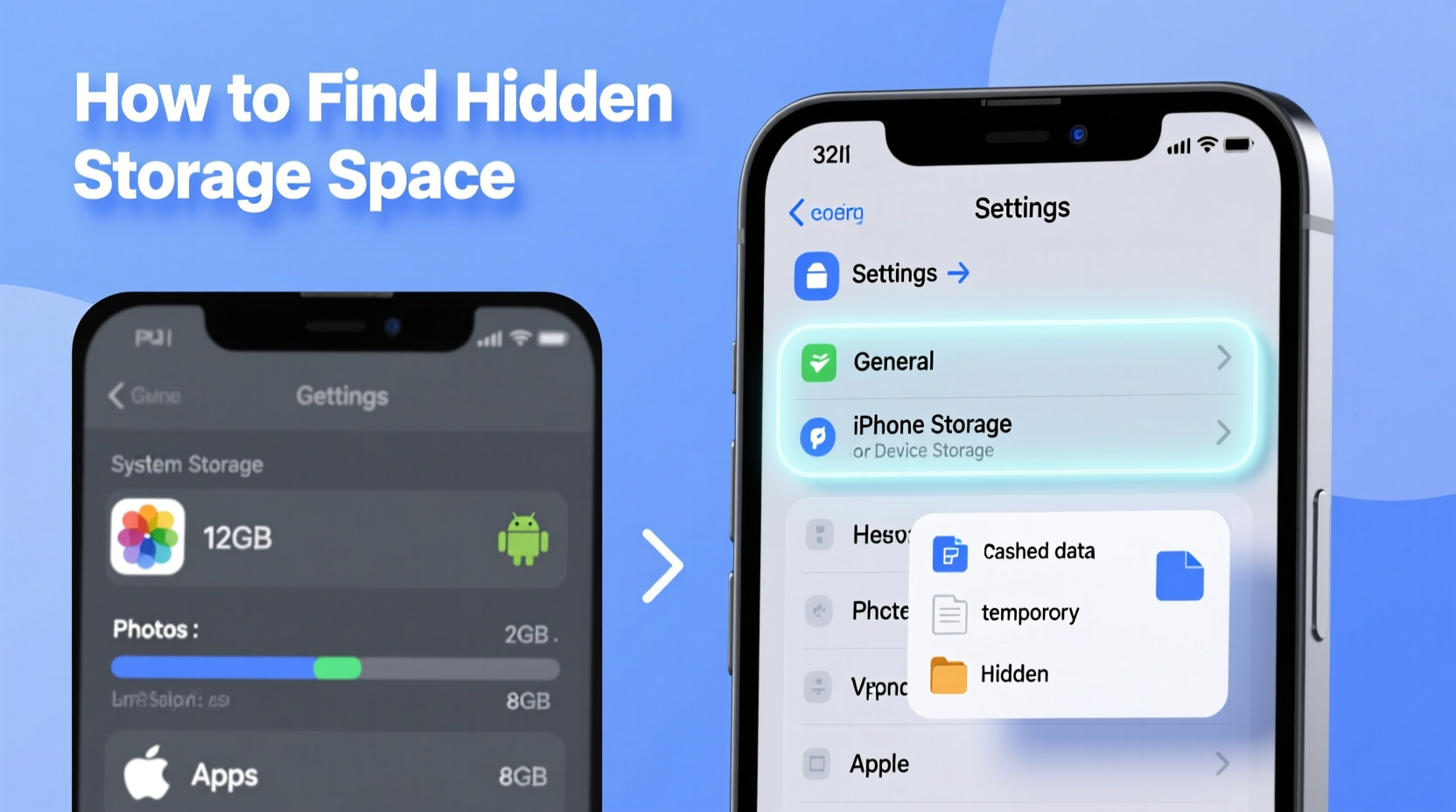
When your phone warns that storage is nearly full, the culprit isn’t always the obvious: photos, videos, or downloaded files. A large portion of consumed space can be attributed to system-generated data that doesn’t appear in your file manager or gallery. This includes cached images from social media apps, residual files from uninstalled apps, temporary downloads, and even outdated firmware updates.
Android and iOS both store temporary data automatically to improve performance. For example, when you scroll through Instagram, the app saves thumbnails and video previews in cache so they load faster on subsequent visits. While helpful, this cache can grow into hundreds of megabytes over time. Similarly, messaging apps like WhatsApp or Telegram save received media temporarily—even if auto-download is disabled.
“Most users never check their cache partitions or system logs, but these areas routinely consume 2–5GB of otherwise usable space.” — Rajiv Mehta, Mobile Systems Analyst at TechInsight Labs
The key to unlocking hidden storage lies not in deleting personal files but in identifying and removing redundant system and app-generated data that your phone no longer needs.
Step-by-Step Guide to Uncover Hidden Storage
Follow this structured approach to systematically uncover and clear hidden storage across major smartphone platforms.
- Access Storage Settings: Navigate to Settings > Storage (on Android) or Settings > General > iPhone Storage (on iOS). Wait for the system to analyze usage—it may take a minute.
- Review App Storage Breakdown: Look for apps consuming disproportionate space. Pay attention to “Other” or “System” categories, which often include hidden cache and logs.
- Clear App Caches Individually: On Android, go to Settings > Apps > [App Name] > Storage > Clear Cache. Repeat for high-usage apps like Chrome, Facebook, or YouTube.
- Delete Old Download Folders: Check your Downloads folder via the Files app. Many apps leave behind temporary installers or update files long after use.
- Manage Messaging App Media: In WhatsApp, Telegram, or Signal, disable automatic media saving and manually delete old attachments stored locally.
- Remove Unused Language Packs and Keyboard Dictionaries: Some keyboards download multiple language models. Disable unused ones in Settings > System > Languages & Input > Virtual Keyboard > Dictionary.
- Check for Stalled Firmware Updates: If an OS update failed mid-download, the partial file may still occupy space. On Android, go to Settings > System > Advanced > System Update > Reset Update History. On iOS, go to Settings > General > iPhone Storage and remove any listed update file.
Hidden Storage Areas Most Users Overlook
Even experienced users miss these stealthy storage hogs. Here are the top five commonly ignored locations where space quietly disappears:
- App Residuals After Uninstallation: When you uninstall an app, some folders in /Android/data or /Android/obb may remain. Use a file manager to manually delete these directories if they belong to removed apps.
- Offline Maps and Navigation Data: Google Maps, Apple Maps, or Waze can store offline regions totaling over 1GB. Review and delete unused areas under Settings > Offline Maps.
- Voice Assistant Logs: Siri and Google Assistant may store voice input history. Disable this feature in Settings > Siri & Search > Don’t Keep Siri Responses or Settings > Google > Manage Your Google Account > Data & Privacy > Voice & Audio Activity.
- Developer Options Artifacts: If Developer Mode was enabled, logging features might have recorded system traces. Disable USB Debugging and clear logs via ADB or by resetting app preferences.
- Cloud Sync Local Copies: Services like Dropbox, OneDrive, or Google Photos may keep synced files locally even after moving them to the cloud. Adjust sync settings to “online-only” mode.
Do’s and Don’ts of Hidden Storage Management
| Do | Don't |
|---|---|
| Regularly clear cache for social media and browser apps | Delete entire app data unless necessary (you’ll lose login info) |
| Use built-in storage analyzers monthly | Manually delete files from /system or /data partitions without root access |
| Disable automatic background app updates | Ignore the “Other” category in iOS storage—it often hides real bloat |
| Move media to external SD cards or cloud backups | Store sensitive files in third-party cleaner apps that request excessive permissions |
| Review default app permissions to limit unnecessary data collection | Factory reset without first trying targeted cleanup methods |
Real Example: Recovering 6.2GB from a Full Pixel 7
Sophie, a freelance photographer, noticed her Pixel 7 was constantly warning of low storage despite having deleted hundreds of old photos. She wasn’t backing up regularly and feared losing work, so she avoided a factory reset. Instead, she followed a deep-cleanup process focused on hidden storage.
She started with the Settings > Storage breakdown, which showed 18.3GB used out of 128GB—with 4.1GB labeled “Apps,” 7.9GB as “Photos & Videos,” and a suspicious 6.2GB marked “Other.” Curious, she tapped “Other” and found no direct explanation, a common frustration on Android devices.
Using a file manager, she navigated to /Android/cache and discovered over 1.8GB of orphaned cache files from apps she had uninstalled months earlier. She then opened Chrome’s storage settings and cleared 920MB of cached images and scripts. Next, she visited WhatsApp Settings > Storage and Network > Manage Storage and deleted 1.4GB of auto-saved media, including voice notes and documents she no longer needed.
Finally, she checked Google Maps’ offline regions and removed three outdated city maps totaling 860MB. After restarting her phone, the “Other” category dropped to 1.1GB—a net gain of 5.1GB. Combined with other cleanups, she recovered 6.2GB without deleting a single personal photo or contact.
Her phone now runs faster, and she schedules a bi-weekly 10-minute maintenance session to prevent future buildup.
Essential Checklist for Hidden Storage Cleanup
Use this checklist monthly to maintain optimal storage health:
- ✅ Open device storage analyzer in Settings
- ✅ Identify apps with largest cache or data usage
- ✅ Clear cache for web browsers and social media apps
- ✅ Delete offline maps not currently needed
- ✅ Review and remove old voice recordings or call transcripts
- ✅ Check Downloads folder for obsolete installers or documents
- ✅ Disable unused keyboard languages and predictive models
- ✅ Remove stalled OS update files
- ✅ Verify cloud-synced files aren’t duplicated locally
- ✅ Restart device to finalize cleanup and refresh system index
Frequently Asked Questions
Is it safe to clear system cache?
Yes, clearing app-specific cache is completely safe. It only removes temporary files that apps can regenerate. Avoid wiping system partitions unless guided by official support, as this could cause instability.
Why does “Other” storage take up so much space on my iPhone?
On iOS, “Other” includes system files, logs, cached data, and partial downloads. It grows when apps store temporary content or when updates fail. Regular reboots and selective cache clearing help reduce it over time.
Can I automate hidden storage cleanup?
Some Android phones (e.g., Samsung, OnePlus) offer built-in optimization tools that auto-clear cache monthly. On iPhones, enable “Offload Unused Apps” in Settings > General > iPhone Storage to let iOS automatically remove infrequently used apps while preserving data.
Maximize Your Device’s Potential
Your smartphone is designed to adapt to your habits, but without regular maintenance, it accumulates digital clutter that degrades performance and limits functionality. The storage you think is gone may simply be hiding in plain sight—locked away in caches, logs, and forgotten folders. By understanding where this space resides and adopting disciplined cleanup practices, you can significantly extend your device’s lifespan and avoid premature upgrades.
Start today by opening your storage settings and investigating the largest consumers. Focus on non-essential caches, residual files, and offline content. With just 15 minutes of effort, you could reclaim several gigabytes—space that might otherwise cost you $100 or more in cloud subscriptions or new hardware.




 浙公网安备
33010002000092号
浙公网安备
33010002000092号 浙B2-20120091-4
Comments
No comments yet. Why don't you start the discussion?