
Managing applications from the Microsoft Store can become overwhelming, especially on systems used for both productivity and entertainment. While Windows includes built-in tools like Settings and PowerShell, they often fall short in delivering a streamlined, user-friendly experience for bulk management, updates, or uninstallation. The right third-party tool can simplify these tasks, save time, and improve system stability. But with countless utilities claiming superiority, how do you identify the one that truly meets your needs? This guide breaks down the essential criteria, evaluates top contenders, and provides actionable steps to help you choose wisely.
Why Built-In Tools Aren’t Enough
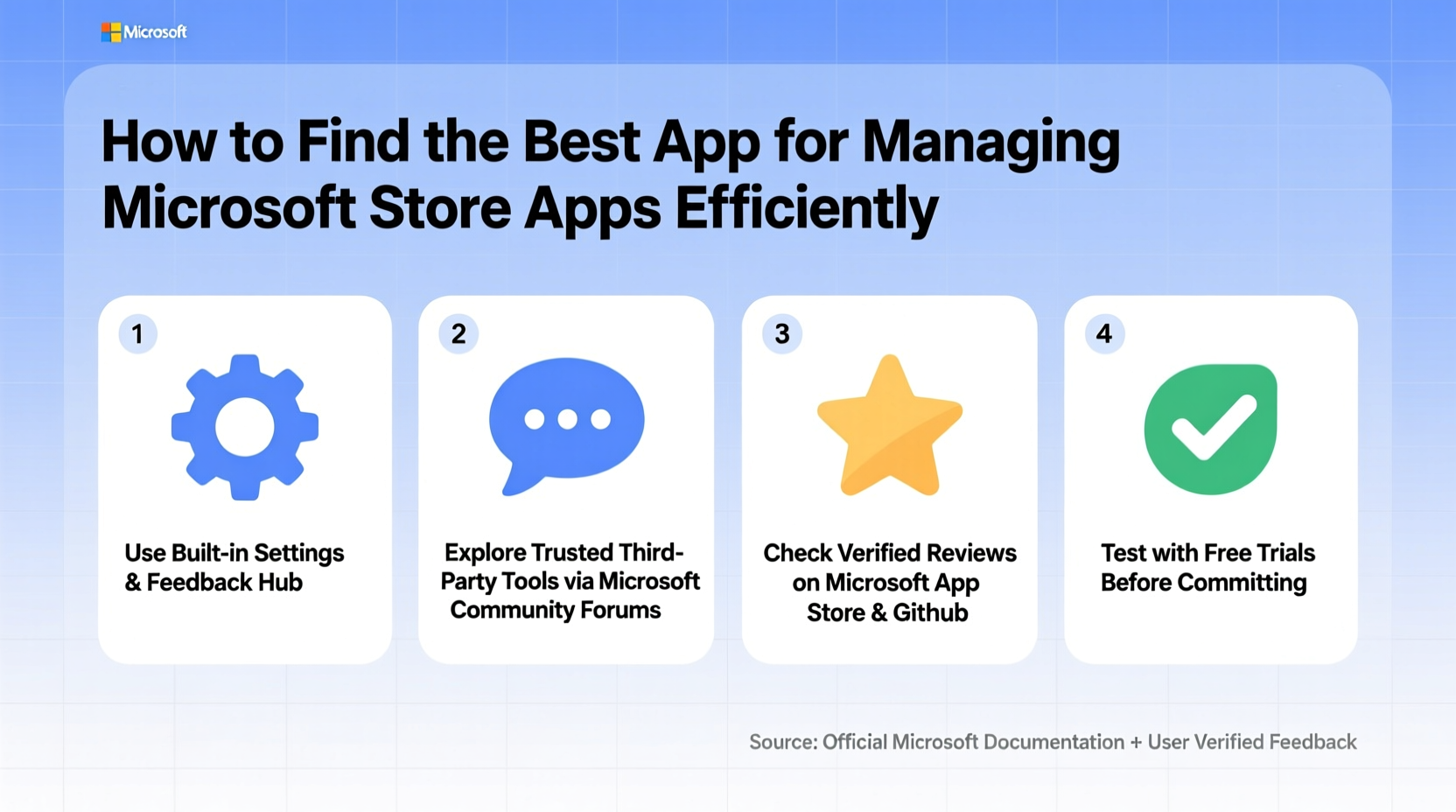
The Microsoft Store and Windows Settings offer basic functionality: install, update, and remove apps. However, they lack advanced features such as batch operations, update scheduling, or detailed app analytics. For example, if you need to uninstall ten unused Store apps at once, you must go through each individually—a tedious process. Additionally, automatic updates can consume bandwidth unexpectedly, and there’s no native way to pause or defer them selectively.
PowerShell and Command Prompt provide more control but require technical knowledge. Commands like Get-AppxPackage and Remove-AppxPackage are powerful but not intuitive for average users. A dedicated app management tool bridges this gap by offering a graphical interface with advanced automation and monitoring capabilities.
Key Features to Look For
Not all app managers are created equal. To ensure efficiency, prioritize tools that offer the following core functionalities:
- Bulk Operations: Ability to select and manage multiple Microsoft Store apps at once—install, update, or remove.
- Update Control: Options to auto-update, defer updates, or receive notifications before changes occur.
- System Impact Monitoring: Real-time insights into CPU, memory, and disk usage caused by Store apps.
- User-Friendly Interface: Clean design with intuitive navigation, especially important for non-technical users.
- Privacy & Permissions Oversight: Visibility into which apps access camera, microphone, location, or contacts.
- Backup & Restore: Capability to export app configurations or reinstall them after a system reset.
Tools that integrate with Windows Update settings or offer scripting support add extra value for power users. Open-source solutions also tend to be more transparent about data handling, reducing privacy concerns.
Top Contenders Compared
| Tool Name | Bulk Management | Update Control | Privacy Insights | Cost | Best For |
|---|---|---|---|---|---|
| Windows Package Manager (winget) | Yes (CLI) | Limited | No | Free | Developers / IT Pros |
| Chocolatey (with Store support plugins) | Yes | Yes | No | Free / Pro versions | Advanced Users |
| AppBeat | Yes | Yes | Yes | Paid (trial available) | Home & Business Users |
| O&O AppBuster | Yes | No | Limited | Paid | Uninstall Focus |
| NanaZip + Manual Scripts | No | No | No | Free | File Utility Integration |
Among these, AppBeat stands out for its balance of automation and usability. It allows scheduled scans, identifies bloatware, and provides health scores for installed apps. Winget is ideal for scripted environments but lacks GUI appeal. Chocolatey excels in enterprise deployment but requires setup complexity. Choose based on your comfort level and use case.
“Efficient app management isn’t just about removing clutter—it’s about maintaining system integrity and minimizing background resource drain.” — Daniel Lin, Senior Systems Analyst at TechOps Group
Step-by-Step Guide to Choosing the Right Tool
Selecting the best app manager involves more than reading reviews. Follow this structured approach to make an informed decision:
- Assess Your Needs: Determine whether you need simple uninstallation, automated updates, or deep system monitoring. Home users may prefer simplicity; professionals might prioritize scripting.
- Verify Compatibility: Ensure the tool supports your version of Windows (e.g., Windows 10 22H2 or Windows 11 23H2). Some older tools don’t handle ARM64 or newer UWP security models.
- Check Permissions: Review what system access the app requests. Avoid tools that demand unnecessary privileges like admin rights for basic scans.
- Test with a Trial: Use free trials or open-source versions to evaluate performance. Run a scan, attempt a bulk removal, and monitor system behavior afterward.
- Evaluate Resource Usage: Monitor Task Manager while the tool runs. A good manager should use under 100MB RAM and minimal CPU.
- Review Update Frequency: Check the developer’s update history. Tools updated quarterly or more often are more likely to stay compatible with Windows changes.
- Read Community Feedback: Visit forums like Reddit’s r/Windows11 or Microsoft Tech Community to see real-user experiences, especially regarding bugs or crashes.
Real-World Example: Streamlining a Corporate Laptop Fleet
A mid-sized marketing firm faced recurring performance issues on employee laptops. After investigation, IT discovered that pre-installed Microsoft Store apps—such as Candy Crush, Weather, and News—were running background processes and consuming memory. With over 75 devices, manually removing these was impractical.
The team tested three tools: O&O AppBuster, winget, and AppBeat. They deployed AppBeat via group policy due to its centralized reporting and silent uninstall feature. Within two weeks, average boot time improved by 38%, and user complaints about sluggishness dropped by 60%. The solution paid for itself within one billing cycle thanks to reduced helpdesk tickets.
This case highlights how the right tool doesn’t just clean up apps—it enhances productivity and reduces operational costs.
Frequently Asked Questions
Can I manage Microsoft Store apps without third-party tools?
Yes, but inefficiently. You can use Settings for single apps or PowerShell for bulk actions, but these methods lack automation, alerts, and visual feedback. Third-party tools streamline repetitive tasks and reduce human error.
Are app management tools safe?
Most reputable tools are safe, especially those digitally signed and regularly updated. Avoid downloading from unofficial sources. Stick to well-known developers with transparent privacy policies. Always scan installers with Windows Defender before execution.
Will managing Store apps affect Windows updates?
No. App managers only interact with installed UWP packages, not the core OS update mechanism. However, removing certain Microsoft-provided apps (like Microsoft Edge or OneDrive) may require reinstallation if needed later. Most tools allow reversion or backup.
Final Checklist Before You Decide
- ✅ Does it support bulk operations for Microsoft Store apps?
- ✅ Can it control update behavior (pause, schedule, notify)?
- ✅ Is it lightweight and non-intrusive during daily use?
- ✅ Does it provide visibility into app permissions and background activity?
- ✅ Is it actively maintained with recent updates?
- ✅ Does it offer rollback or restore options in case of mistakes?
- ✅ Is customer support or documentation available?
Take Control of Your Digital Environment
Efficient app management is no longer optional—it's essential for maintaining speed, security, and sanity in a world of ever-growing software bloat. The Microsoft Store brings convenience, but without proper oversight, it can degrade system performance over time. By applying the criteria and steps outlined here, you can identify a tool that fits your workflow, whether you're a casual user or part of an enterprise team.
Start small: test one recommended tool, run a cleanup, and observe the difference. Over time, integrate app maintenance into your regular digital hygiene routine. Your system—and your productivity—will thank you.




 浙公网安备
33010002000092号
浙公网安备
33010002000092号 浙B2-20120091-4
Comments
No comments yet. Why don't you start the discussion?