
Computer screens—whether on a laptop, desktop monitor, or tablet—are constantly exposed to dust, fingerprints, oils, and environmental pollutants. Over time, this buildup not only dulls visibility but can also degrade the screen’s surface if cleaned improperly. Many people reach for household cleaners or rough cloths, unaware they’re risking permanent damage. Cleaning your screen doesn’t have to be complicated, but it does require care, the right tools, and a method that protects sensitive display coatings.
The key is balancing thorough cleaning with safety. Modern screens use delicate anti-glare, anti-fingerprint, and oleophobic layers that can be stripped by alcohol-based solutions or abrasive materials. Done correctly, screen cleaning enhances clarity, reduces eye strain, and extends the life of your device. This guide walks through safe, effective techniques backed by tech experts and manufacturers.
Understanding Your Screen Type
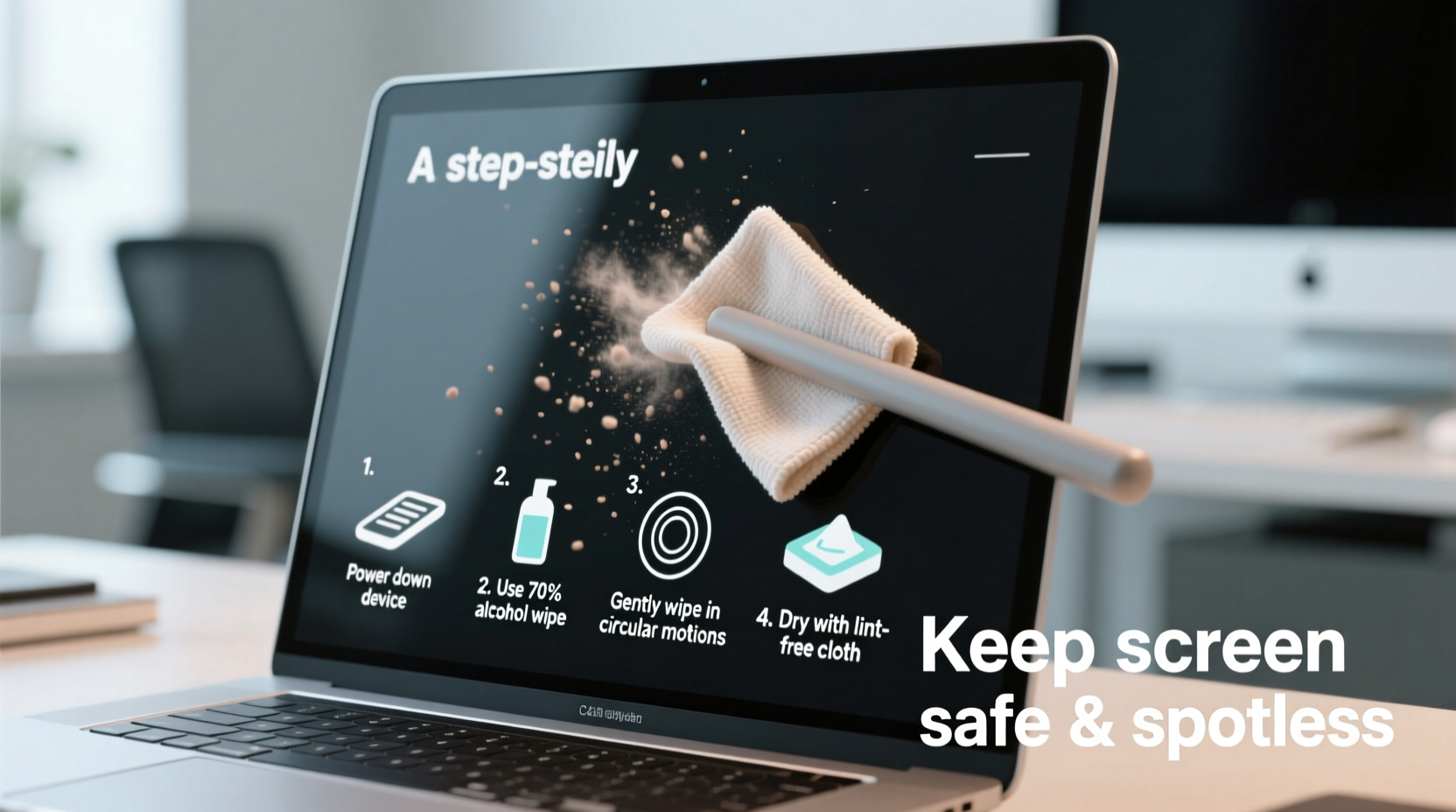
Before you touch your screen, identify what kind of display you're dealing with. The cleaning method varies significantly depending on the technology and coating used:
- Matte (Anti-Glare) Screens: Common on office monitors and many laptops. These have a textured coating that diffuses light but can trap dust in microscopic grooves.
- Glossy Screens: Found on high-end laptops and tablets. They offer vibrant colors but show fingerprints more easily. Often have an oleophobic coating to repel oils.
- OLED/AMOLED Displays: Used in premium devices. Extremely sensitive to moisture and chemicals; require extra caution.
- Touchscreens: On tablets and 2-in-1s. More prone to smudges and must avoid liquids seeping into edges.
“Most display damage from cleaning comes not from dirt, but from using the wrong tools. A soft microfiber cloth and distilled water are safer than 90% of commercial products.” — Dr. Lena Park, Display Technology Specialist, MIT Media Lab
Step-by-Step Guide to Safely Clean Your Computer Screen
Cleaning your screen properly takes less than five minutes but makes a dramatic difference in visual clarity and hygiene. Follow this sequence to avoid damage:
- Power Down and Unplug: Turn off the device and disconnect it from power. A dark screen makes smudges easier to see and prevents electrical risks if moisture is used.
- Dust First: Use a dry, lint-free microfiber cloth to gently wipe away loose particles. Never scrub—dust can scratch when dragged across the surface.
- Prepare Cleaning Solution: Mix one part distilled water with one part white vinegar in a spray bottle. Alternatively, use pre-moistened wipes specifically labeled for electronics. Avoid tap water—it leaves mineral spots.
- Mist the Cloth, Not the Screen: Spray the solution onto the microfiber cloth, never directly on the screen. Excess moisture can seep into bezels and damage internal components.
- Wipe Gently in One Direction: Use straight, overlapping strokes from top to bottom. Circular motions may leave swirls on glossy screens.
- Dry with a Second Cloth: Use a second dry microfiber cloth to remove any residual moisture and prevent streaking.
- Clean the Frame and Bezel: Wipe down the surrounding plastic or metal with a slightly damp disinfecting wipe (e.g., 70% isopropyl alcohol), being careful not to let liquid drip onto the screen.
Do’s and Don’ts of Screen Cleaning
| Do’s | Don’ts |
|---|---|
| Use a microfiber cloth designed for lenses or screens | Use paper towels, tissues, or kitchen rags (they scratch) |
| Apply cleaning solution to the cloth, not the screen | Spray liquids directly onto the display |
| Turn off and unplug the device before cleaning | Clean a powered-on screen |
| Use distilled water or a 50/50 vinegar-water mix | Use ammonia, acetone, or window cleaners (e.g., Windex) |
| Replace old or worn microfiber cloths annually | Re-use dirty cloths that grind grime into the surface |
Real Example: How One Office Worker Improved Productivity
Mark, a financial analyst in Chicago, began experiencing frequent eye strain during long reporting sessions. He assumed poor lighting was the cause—until an IT technician noticed his laptop screen was heavily smeared with oil and dust. After a proper cleaning using a microfiber cloth and distilled water, Mark reported immediate improvement in focus and comfort. “I didn’t realize how much harder my eyes were working,” he said. “Now I clean my screen every Friday afternoon. It’s become part of my routine, like closing tabs.”
This case illustrates a common oversight: a dirty screen forces your eyes to compensate, leading to fatigue and reduced concentration. Regular maintenance isn’t just about appearance—it supports cognitive performance and digital well-being.
Essential Cleaning Kit Checklist
Keep these items on hand for quick, safe cleanings:
- Lint-free microfiber cloth (preferably two: one for wet, one for dry)
- Spray bottle with distilled water and white vinegar (50/50 mix)
- Premium screen-safe cleaning wipes (e.g., Whoosh, Zagg)
- Compressed air canister (for keyboard and screen edges)
- Soft-bristle brush (for removing stubborn dust near hinges)
Frequently Asked Questions
Can I use alcohol wipes to clean my computer screen?
Only if they contain 70% isopropyl alcohol or less—and even then, use them only on the frame and bezel, not the screen itself. Alcohol can degrade anti-reflective and oleophobic coatings over time. For the display, stick to water-based solutions.
How often should I clean my computer screen?
For most users, a light wipe-down once a week is sufficient. Heavy users (e.g., shared workstations, creative professionals) should clean every 3–4 days. Deep cleaning with a mild solution should be done monthly.
Why does my screen still have streaks after cleaning?
Streaks usually result from using a dirty cloth, too much liquid, or circular wiping motions. Try using a fresh microfiber cloth and wipe in straight lines from top to bottom. If streaks persist, ensure you’re not using tap water, which contains minerals that leave residue.
Conclusion: Make Screen Care Part of Your Digital Routine
A clean computer screen is more than an aesthetic choice—it’s a functional necessity. Smudges, dust, and glare reduce readability, increase eye fatigue, and diminish the lifespan of your device. By understanding your screen type, using the right materials, and following a consistent, gentle process, you protect your investment and improve your daily experience.
Start today: power down your device, grab a microfiber cloth, and give your screen the care it deserves. Once you see the difference, you’ll wonder why you waited so long. Share your own tips or ask questions in the comments below—let’s build a cleaner, clearer digital world together.




 浙公网安备
33010002000092号
浙公网安备
33010002000092号 浙B2-20120091-4
Comments
No comments yet. Why don't you start the discussion?