
Echo during video calls is one of the most frustrating audio issues users face—especially when relying on built-in microphones and speakers. Whether you're working from home, attending virtual classes, or catching up with family, persistent echo can disrupt communication, reduce productivity, and make conversations exhausting. The good news: most echo problems are fixable without expensive equipment. By understanding the root causes and applying targeted adjustments to your hardware, software, and environment, you can eliminate echo and enjoy clear, professional-sounding calls.
Why Echo Happens on Video Calls
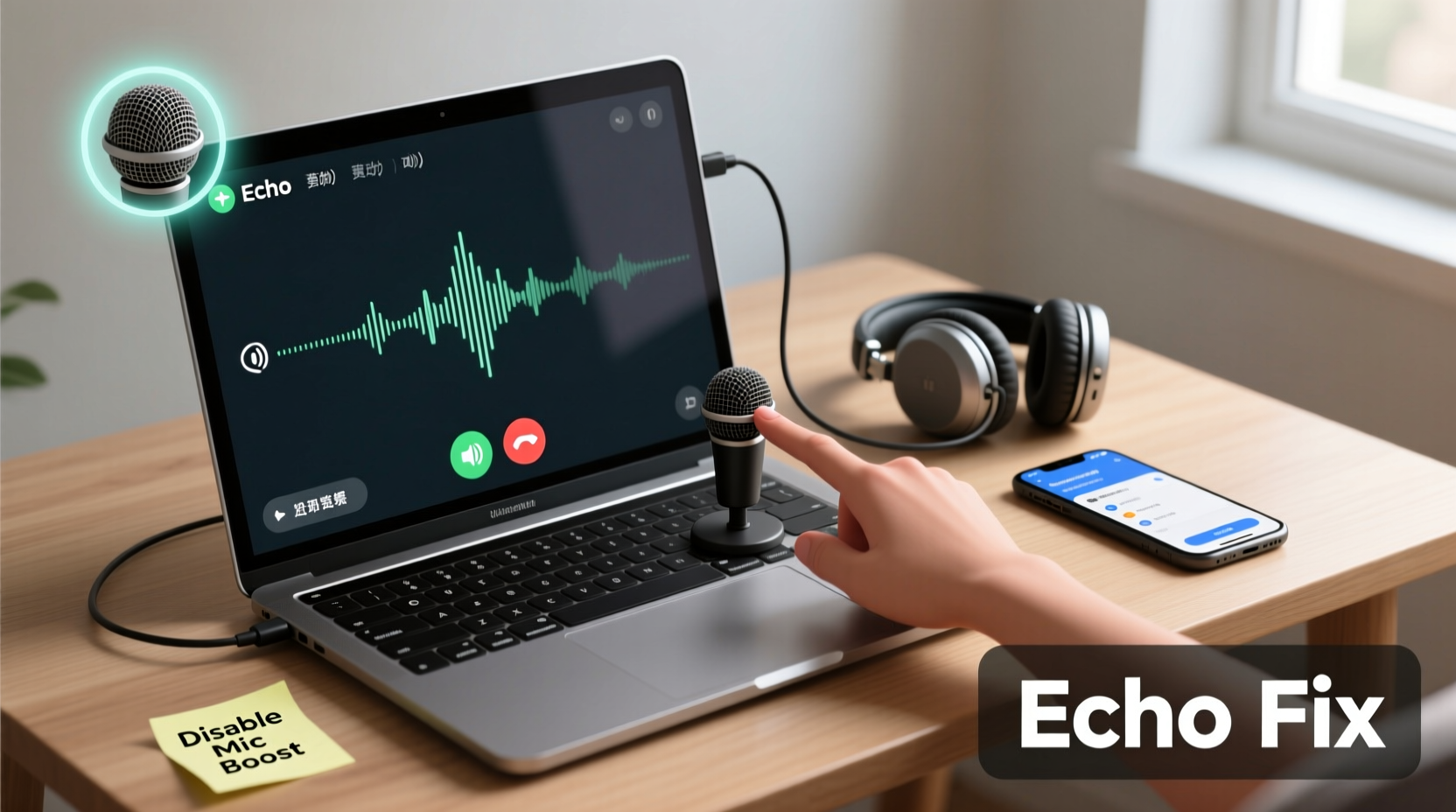
Echo occurs when sound from your device’s speakers is picked up by its microphone and retransmitted back to the caller. This feedback loop creates a delayed repetition of voices, often described as “ghosting” or “reverberation.” Built-in microphones are particularly prone to this issue because they’re physically close to the speakers and lack advanced noise isolation.
Common triggers include:
- High speaker volume causing sound leakage into the mic
- Poor room acoustics (hard surfaces like walls, glass, or tile that reflect sound)
- Multiple devices in the same room picking up and rebroadcasting audio
- Inadequate audio processing in conferencing software
- Outdated or misconfigured audio drivers
The problem intensifies in small rooms with minimal soft furnishings, where sound bounces easily. Laptops and all-in-one desktops are especially vulnerable due to tightly packed internal components.
Step-by-Step Guide to Eliminate Echo
Follow this systematic approach to diagnose and resolve echo issues on your device. These steps apply to Windows, macOS, and common video conferencing platforms like Zoom, Microsoft Teams, and Google Meet.
- Use Headphones or Earbuds
The fastest and most effective solution is switching to headphones. This physically separates output (speakers) from input (mic), breaking the feedback loop. Even basic wired earbuds eliminate 90% of echo cases. - Lower Speaker Volume
Reduce your system volume to 50% or lower. High volume increases the chance of sound escaping and being captured by the mic. Test different levels during a test call to find the optimal balance between audibility and echo prevention. - Adjust Microphone Sensitivity
Access your system’s sound settings:- Windows: Right-click the speaker icon > Sounds > Recording tab > select your mic > Properties > Levels. Lower the microphone boost if set above +10.0 dB.
- macOS: System Settings > Sound > Input. Drag the input volume slider down until background noise and echo diminish.
- Test Audio in Your Conference App
Most platforms offer built-in audio check tools:- Zoom: Click “Test Speaker and Microphone” in settings.
- Google Meet: Join a test meeting at meet.google.com/test.
- Teams: Go to Settings > Devices and run the audio troubleshooter.
- Enable Noise Suppression Features
Modern apps use AI-powered noise cancellation. In Zoom, enable “Suppress Background Noise” (Medium or High). In Teams, turn on “Noise suppression.” Google Meet automatically applies echo cancellation but works best with updated browsers. - Update Audio Drivers
Outdated drivers may lack echo cancellation protocols. Check your device manufacturer’s website (e.g., Dell, HP, Apple) for the latest audio driver updates. On Windows, you can also update via Device Manager under “Audio inputs and outputs.” - Disable Unnecessary Audio Devices
If multiple mics or speakers are listed (e.g., Bluetooth headset, USB mic, internal mic), disable the ones not in use. Conflicting devices can cause routing issues and echo loops.
Do’s and Don’ts: Managing Built-In Mic Performance
| Do | Don't |
|---|---|
| Use headphones whenever possible | Rely solely on built-in speakers in echo-prone environments |
| Position yourself away from reflective surfaces | Sit directly in front of glass windows or bare walls |
| Keep microphone sensitivity moderate | Set mic boost to maximum to “hear better” |
| Close extra browser tabs or apps using audio | Run multiple video meetings on the same device |
| Use software with active echo cancellation | Ignore app-specific audio enhancements |
Real Example: Fixing Echo in a Home Office Setup
Consider Sarah, a remote project manager who began experiencing echo during daily team standups. She used her MacBook Pro’s built-in mic and speakers, sitting at a glass desk near a large window. Colleagues reported hearing delayed versions of their own voices.
She followed a structured troubleshooting process:
- First, she connected wireless earbuds—echo disappeared immediately, confirming the issue was hardware-related.
- Wanting to keep using speakers occasionally, she lowered system volume to 40% and adjusted input sensitivity in macOS Sound settings.
- She placed a fabric-covered bulletin board behind her desk to absorb reflections.
- She disabled her Bluetooth headset in System Settings when not in use to prevent audio conflicts.
- Finally, she enabled “Original Sound” in Zoom with high-fidelity mode off, allowing Zoom’s echo cancellation to work more effectively.
After these changes, Sarah could use her built-in mic with minimal echo, even on speaker mode. Her colleagues noticed clearer audio and fewer interruptions.
“Echo isn’t just an annoyance—it degrades cognitive performance during meetings. Simple acoustic treatments combined with smart audio settings can restore conversational flow.” — Dr. Alan Reyes, Audio Ergonomics Researcher, MIT Media Lab
Optimize Your Environment for Clear Audio
Your physical space plays a critical role in audio quality. Built-in mics pick up everything in the room, so controlling acoustics is essential.
Start by identifying reflective surfaces: walls, desks, monitors, and windows. These bounce sound waves directly into the microphone. Soft materials absorb sound and reduce reverberation.
Effective low-cost improvements include:
- Placing a thick rug or carpet under your desk
- Using curtains or blinds instead of bare windows
- Sitting with your back to a bookshelf or upholstered chair
- Adding foam panels or acoustic tiles behind your seating area
- Avoiding metal or glass furniture near your workspace
If you're in a shared space, consider using a portable mic shield or “reflection filter” designed for laptops. These foldable barriers sit behind your device and block rear sound reflections.
Software and Platform-Specific Fixes
Different platforms handle echo differently. Tailor your approach based on the tools you use most.
Zoom
Zoom includes robust echo cancellation powered by AI. To optimize:
- Go to Settings > Audio
- Check “Automatically adjust microphone volume”
- Set “Suppress Background Noise” to Medium or High
- Uncheck “Always mute microphone when joining a meeting” if you need consistent input
- Avoid enabling “Original Sound” unless using professional audio interfaces
Microsoft Teams
Teams uses Microsoft AEC (Acoustic Echo Cancellation). Best practices:
- Ensure Windows audio drivers are up to date
- In Settings > Devices, let Teams manage speaker and mic selection
- Turn on “Noise suppression” and choose “Standard” or “Aggressive”
- Use Teams’ “Make a test call” feature to fine-tune levels
Google Meet
Meet relies on browser-level audio processing. For best results:
- Use Chrome or Edge (both support WebRTC echo cancellation)
- Visit chrome://settings/content/microphone to confirm correct mic selection
- Close unnecessary tabs—browser overload reduces audio processing power
- Test audio at meet.google.com/test before important meetings
Troubleshooting Checklist
Use this checklist to quickly resolve echo issues:
- ✅ Use headphones or earbuds during calls
- ✅ Lower speaker volume to below 50%
- ✅ Reduce microphone sensitivity or boost settings
- ✅ Update operating system and audio drivers
- ✅ Close unused apps accessing the microphone
- ✅ Enable noise suppression in your conferencing app
- ✅ Disable inactive audio devices in system settings
- ✅ Add soft furnishings or acoustic barriers to your room
- ✅ Test audio setup before every important meeting
- ✅ Avoid placing multiple active devices in the same room
Frequently Asked Questions
Can echo damage my microphone or speakers?
No, echo does not cause physical damage to your hardware. It’s an audio feedback issue, not a mechanical fault. However, prolonged exposure to loud feedback can degrade listening comfort and concentration over time.
Why do I hear echo only sometimes, not on every call?
Intermittent echo often depends on the other participants’ setups. If someone else has poor audio configuration, their mic may pick up your voice through their speakers and send it back as echo. Network latency can also delay audio return, making echo appear sporadically.
Does using a newer laptop automatically prevent echo?
Newer laptops often have better audio processing and beamforming microphones that focus on your voice and reject ambient noise. However, they’re still susceptible to echo in poor acoustic environments or when volume levels are too high. Software settings remain crucial regardless of hardware age.
Final Thoughts and Action Steps
Echo on video calls with built-in microphones is a common but solvable challenge. The key is recognizing that the issue spans three areas: hardware limitations, software configuration, and room acoustics. No single fix works universally—success comes from combining small, deliberate improvements across all three domains.
Start today by plugging in a pair of headphones and adjusting your microphone sensitivity. Then evaluate your environment: can you add soft materials to reduce reflections? Finally, ensure your conferencing apps are configured to suppress noise and echo. These steps don’t require technical expertise or investment, yet they dramatically improve communication quality.
Clear audio builds trust, enhances professionalism, and reduces mental fatigue. In a world where virtual interaction is the norm, mastering your audio setup is as important as dressing appropriately for a meeting. Take control of your sound environment—your next call will be noticeably better.




 浙公网安备
33010002000092号
浙公网安备
33010002000092号 浙B2-20120091-4
Comments
No comments yet. Why don't you start the discussion?