
Smart Christmas lights bring convenience, color control, and festive automation to holiday displays. But when a firmware update goes awry, one of the most common and frustrating symptoms is erratic flickering—lights turning on and off randomly, pulsing in waves, or failing to hold a consistent color. This isn’t just an aesthetic issue; it can indicate deeper communication failures between your lights, hub, and app. The good news: most flickering caused by botched updates is fixable without replacing hardware. With systematic troubleshooting and a few insider techniques, you can restore stability and enjoy a seamless light show once again.
Understanding why firmware issues cause flickering
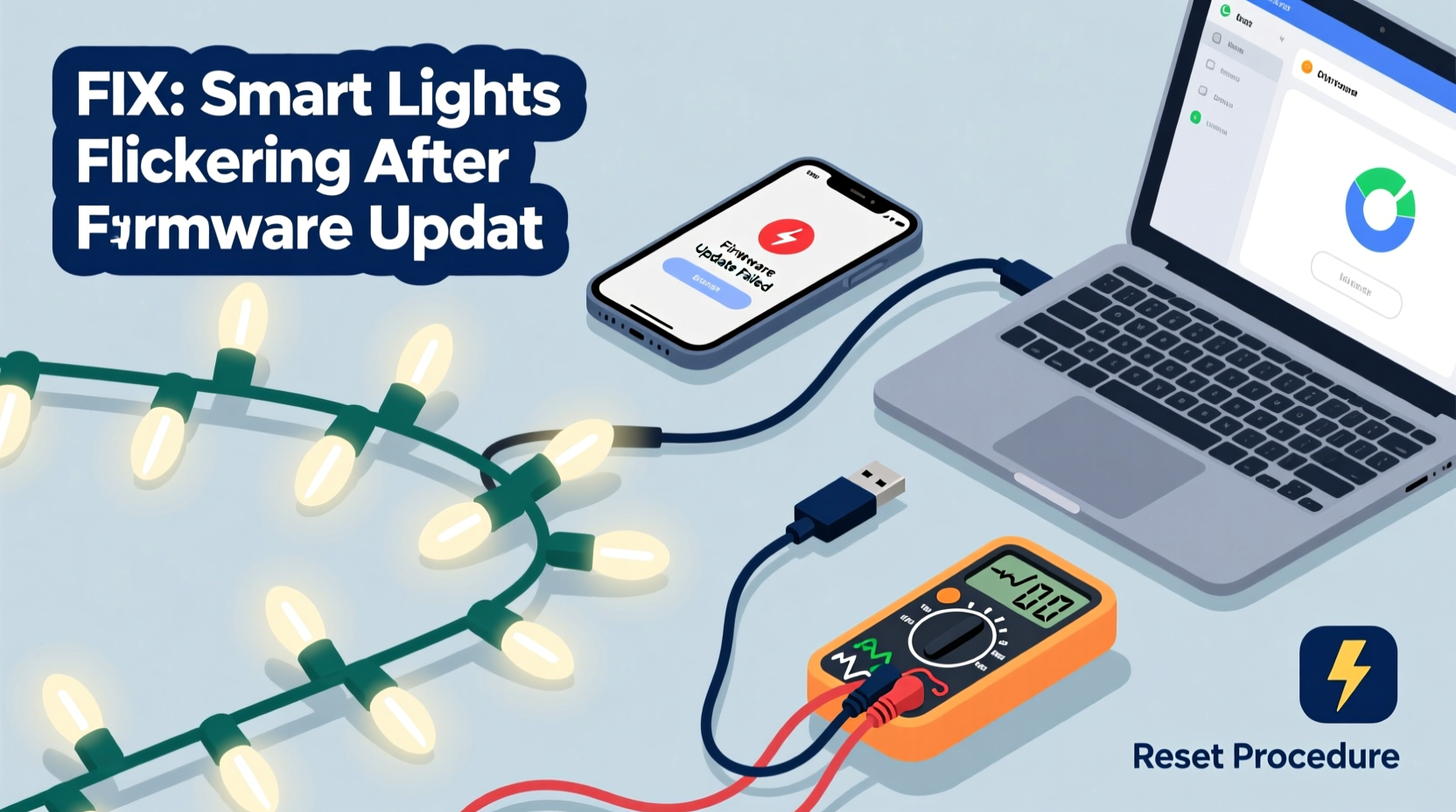
Firmware acts as the operating system for smart lighting systems. It governs how individual LEDs respond to commands, manage power, and communicate over Wi-Fi, Bluetooth, or proprietary protocols like Zigbee. When a firmware update fails—due to power loss during installation, network instability, or incompatible software—the internal logic of the controller chip can become corrupted. This corruption often manifests as:
- Inconsistent timing in LED activation (causing visible strobing)
- Partial strand responsiveness (only half the string works)
- Random color shifts or brightness fluctuations
- Complete unresponsiveness despite being powered
The flicker itself usually stems from the microcontroller attempting—and failing—to interpret commands correctly. Instead of executing clean transitions, it sends fragmented signals that result in rapid, unintended changes in output.
“A failed firmware flash can leave the bootloader in limbo, causing unpredictable behavior until the device re-establishes stable code execution.” — Dr. Alan Reyes, Embedded Systems Engineer at Lumos IoT Labs
Step-by-step recovery process
Recovering from a bad firmware update requires patience and precision. Follow this sequence carefully to maximize success without damaging your lights.
- Power down completely: Unplug the light string from both wall outlet and any extension cords. Wait at least 60 seconds to allow residual charge to dissipate.
- Reset the controller module: Most smart light strings have a small reset button near the plug or control box. Press and hold for 15–20 seconds using a paperclip or pin. You may see brief flashes indicating reset initiation.
- Check app connectivity: Open your smart lighting app (e.g., Philips Hue, LIFX, Govee, Twinkly) and verify if the device appears offline or shows error status.
- Force-close and reopen the app: Clear background processes on your phone or tablet to eliminate cached data conflicts.
- Reconnect to the light’s local network: After reset, many models create a temporary Wi-Fi hotspot (e.g., “Govee_LED_XXXX”). Connect your mobile device directly to this network via Settings > Wi-Fi.
- Re-pair through manual setup: In the app, choose “Add Device” and select your model manually rather than relying on auto-detection.
- Allow firmware re-download: If successful, the app should detect outdated or missing firmware and initiate a fresh download. Keep your device connected and within range throughout this process.
- Test functionality gradually: Once updated, test basic functions—on/off, white mode, solid colors—before enabling effects or scheduling.
Troubleshooting checklist: What to do when standard reset fails
If the standard reset-and-repair method doesn’t resolve the flickering, use this advanced checklist to diagnose deeper issues:
- ✅ Confirm power supply voltage matches manufacturer specifications
- ✅ Test with a different outlet known to deliver stable current
- ✅ Use a dedicated USB power adapter instead of a computer port (if applicable)
- ✅ Ensure no physical damage to wires or connectors
- ✅ Try pairing with a secondary mobile device in case primary has OS-level interference
- ✅ Disable Bluetooth/Wi-Fi on nearby devices that might cause signal crowding
- ✅ Check for regional firmware variants—some brands lock updates based on geographic settings
- ✅ Monitor ambient temperature; extreme cold can affect LED driver performance post-update
Sometimes, flickering persists not due to software alone but because of mismatched expectations between old hardware and new firmware demands. Older generations of controllers may struggle with enhanced features introduced in later versions, leading to timing lags and unstable outputs.
Common pitfalls and what to avoid
Mistakes made during recovery attempts can worsen the situation. Below is a comparison of recommended actions versus risky behaviors:
| Do | Don't |
|---|---|
| Use the manufacturer-recommended app only | Attempt flashing third-party firmware unless explicitly supported |
| Keep the device within 10 feet during update | Move or handle the lights while updating |
| Plug into a surge protector with clean power output | Use daisy-chained extensions or multi-plug strips under load |
| Update one string at a time in multi-light setups | Batch-update multiple units simultaneously on weak networks |
| Wait up to 10 minutes for connection after reset | Repeatedly press reset buttons rapidly—it can lock the bootloader |
One frequent error is assuming all smart lights behave the same way. For example, Wi-Fi-based strands like Govee rely heavily on router stability, whereas Bluetooth Mesh systems such as Nanoleaf require proximity and uninterrupted handshake sequences. Applying generic fixes across platforms often leads to frustration.
Real-world example: Recovering a Twinkly strand after interrupted OTA update
Jamie, a homeowner in Minneapolis, installed a 50-light Twinkly LED string around her living room window frame. Midway through a scheduled overnight firmware update, a brief power outage occurred. The next morning, the lights flickered green and red in irregular bursts, ignoring all app commands.
She followed these steps:
- Unplugged the strand and waited two minutes.
- Held the reset button for 20 seconds until she saw a slow amber pulse.
- Connected her iPhone to the “Twinkly_xxxxxx” network.
- Opened the Twinkly app and selected “Set up new device.”
- Allowed the app to detect the unit in recovery mode and re-downloaded version 3.1.7.
- After a 4-minute update cycle, the lights rebooted smoothly and responded normally.
The key was recognizing that the initial failure didn’t brick the device—it merely required a clean handshake restart. Jamie later configured future updates for daytime hours and invested in a small UPS to protect against outages.
“Many users panic when lights flicker post-update, but over 80% of cases are recoverable with proper reset procedures.” — Tech Support Lead, Twinkly Customer Care Team
When hardware replacement is unavoidable
Despite best efforts, some units cannot be revived. Permanent flickering may indicate:
- Bootloader corruption beyond user-accessible repair
- Physical damage to the control board from electrical surges
- Out-of-warranty obsolescence where firmware support has been discontinued
In such cases, contact the manufacturer for potential warranty claims. Brands like Philips Hue and Lifx offer limited-time coverage for firmware-related failures, especially if the issue arose immediately after an official update. Provide timestamps, screenshots of error messages, and proof of purchase to strengthen your case.
If replacement is necessary, consider upgrading to models with dual-band support (2.4 GHz + 5 GHz) or those offering rollback options—a feature slowly emerging in premium lines that allows reverting to previous stable firmware versions.
Frequently asked questions
Can I prevent flickering before installing a firmware update?
Absolutely. Always ensure your lights are plugged into a stable power source, your smartphone is fully charged, and your Wi-Fi signal strength is strong (preferably above -65 dBm). Schedule updates during low-network-usage times, and avoid running them alongside large downloads or video calls.
Why do only some of my smart lights flicker after an update?
This typically occurs in multi-zone setups where synchronization fails. One controller may have received the update successfully while another stalled. Treat each segment individually during recovery, and ensure they’re all running the same firmware version before grouping them again in the app.
Is flickering dangerous or a fire hazard?
While occasional blinking isn’t inherently hazardous, persistent rapid cycling can stress components and generate excess heat, particularly in enclosed fixtures or tightly bundled wires. Discontinue use if you notice warmth near the controller box, burning smells, or discoloration of insulation. Safety first—erratic behavior should never be ignored long-term.
Final thoughts and action plan
Flickering smart Christmas lights after a faulty firmware update are more common than manufacturers admit—but they’re rarely permanent. By understanding the root causes and following structured recovery methods, most users can restore full functionality without cost or replacement. Start with a hard reset, proceed through controlled re-pairing, and leverage manufacturer tools designed for recovery scenarios.
Going forward, treat firmware updates with the same caution as critical system upgrades. Back up settings when possible, document current versions, and maintain a log of update attempts. These habits not only protect your investment but also deepen your mastery over smart home ecosystems.




 浙公网安备
33010002000092号
浙公网安备
33010002000092号 浙B2-20120091-4
Comments
No comments yet. Why don't you start the discussion?