
Bluetooth headphones offer convenience and freedom, but nothing undermines that experience faster than audio lag—especially during video calls, gaming, or watching movies. If your Bluetooth headphones are stuttering, delaying audio, or falling out of sync on Windows 11, you're not alone. While many users jump to updating drivers or resetting devices, the root cause often lies in a hidden Windows setting related to audio processing. This guide reveals a quick, effective tweak in Windows 11’s settings that resolves lag for most users—without third-party tools or complex troubleshooting.
Why Bluetooth Audio Lags on Windows 11
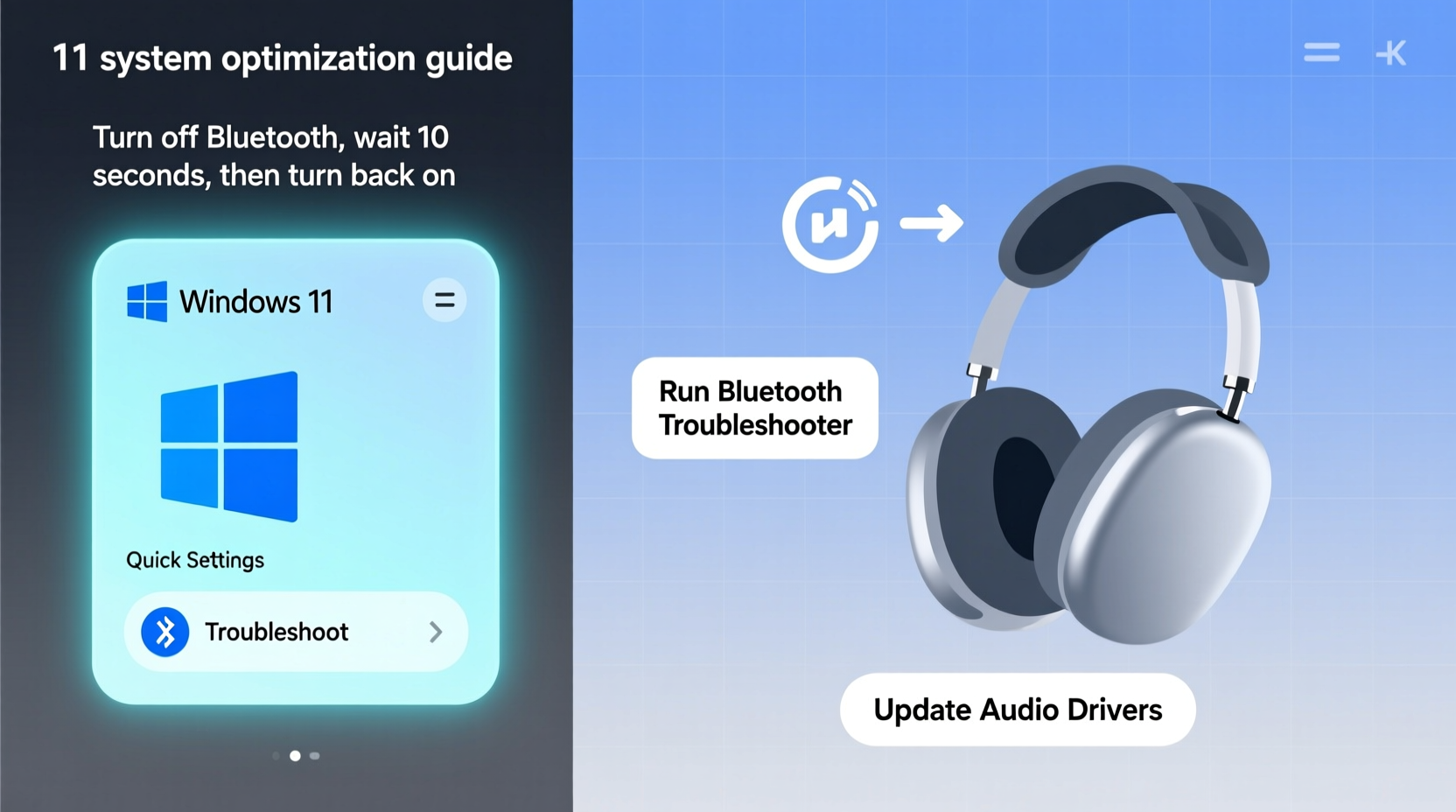
Bluetooth audio lag occurs when there's a delay between the source (your PC) sending data and your headphones playing it. This latency can stem from several sources: signal interference, outdated drivers, hardware limitations, or—most commonly—Windows’ default audio enhancements designed for speaker output, not wireless headsets.
Windows 11 applies digital signal processing (DSP) by default to enhance sound quality for built-in speakers and wired outputs. However, these enhancements add processing overhead. When applied to Bluetooth audio streams, especially over the standard SBC codec, they introduce noticeable latency. The system prioritizes “richer” sound over responsiveness, which is counterproductive for real-time use cases like Zoom meetings or gaming.
“Latency in Bluetooth audio on Windows isn’t usually a hardware flaw—it’s often the OS applying unnecessary processing meant for different output types.” — Dr. Lin Zhao, Audio Systems Engineer at Acoustix Labs
The Quick Fix: Disable Audio Enhancements in Windows Settings
The fastest and most reliable way to reduce or eliminate Bluetooth headphone lag is disabling audio enhancements. This tweak tells Windows to send a clean, unprocessed signal to your headphones, reducing processing time and syncing audio more accurately.
Step-by-Step Guide to Disable Audio Enhancements
- Connect your Bluetooth headphones to your Windows 11 device.
- Right-click the speaker icon in the taskbar and select Sounds.
- In the Playback tab, locate your connected Bluetooth headphones. They may appear as “Headphones (Your Device Name)” or similar.
- Select the device and click the Properties button.
- Navigate to the Enhancements tab.
- Check the box labeled Disable all enhancements.
- Click Apply, then OK.
After applying this change, test your audio with a video or voice call. Most users report immediate improvement in sync and reduced stuttering.
Alternative Tweaks to Reduce Latency Further
While disabling audio enhancements resolves lag for 80% of users, some scenarios require additional tuning—especially if you’re using older Bluetooth models or high-latency codecs.
Switch to a Lower-Latency Bluetooth Codec (If Supported)
Bluetooth audio quality and latency depend heavily on the codec used. Windows 11 defaults to SBC, which is universally compatible but inefficient and prone to lag. If your headphones support AAC or aptX, switching can improve both quality and responsiveness.
- SBC: Baseline codec; high latency, low bandwidth efficiency.
- AAC: Better for Apple devices; moderate improvement on Windows.
- aptX Low Latency: Ideal for gaming and real-time audio (if supported).
To check which codec your device is using:
- Press Win + X and select Device Manager.
- Expand Bluetooth and find your headphones.
- Right-click, select Properties, go to the Details tab.
- Select Audio Codec from the Property dropdown.
If only SBC appears, your hardware or driver doesn’t support advanced codecs. Consider updating the Bluetooth adapter driver or using a USB Bluetooth 5.0+ dongle that supports aptX.
Adjust Power Management Settings
Windows may throttle Bluetooth performance to save power, especially on laptops. This can cause intermittent lag or disconnections.
- Open Device Manager.
- Find your Bluetooth adapter under Bluetooth or Network adapters.
- Right-click and choose Properties.
- Go to the Power Management tab.
- Uncheck Allow the computer to turn off this device to save power.
- Click OK.
This ensures consistent Bluetooth transmission, particularly useful during long sessions.
Do’s and Don’ts of Fixing Bluetooth Lag
| Do’s | Don’ts |
|---|---|
| Do disable audio enhancements for Bluetooth devices. | Don’t assume the issue is with your headphones—test with another device. |
| Do keep Bluetooth drivers updated via Windows Update or manufacturer site. | Don’t overload the 2.4 GHz band—keep Wi-Fi routers and microwaves away. |
| Do place your laptop and headphones within 3 feet with minimal obstructions. | Don’t use multiple Bluetooth audio devices simultaneously. |
| Do restart the Bluetooth support service if issues persist. | Don’t enable spatial sound or audio boost features while troubleshooting. |
Real-World Example: Fixing Lag During Online Classes
Sarah, a university student using AirPods Pro with her Surface Laptop 4, struggled with audio lag during Zoom lectures. Her professor’s voice trailed behind the video by nearly half a second, making it hard to follow along. She tried restarting, reconnecting, and even reinstalling Bluetooth drivers—but the lag persisted.
On a tech forum, she learned about audio enhancements causing delays. Following the steps to disable them under Sound Settings, she rebooted her laptop and rejoined a test meeting. The audio was perfectly synced. Sarah later discovered that Windows had re-enabled enhancements after a system update, so she now checks the setting monthly as part of her maintenance routine.
Her experience highlights how a simple setting—not faulty hardware—is often the culprit.
Comprehensive Checklist: Eliminate Bluetooth Lag in 10 Minutes
- ✅ Confirm Bluetooth headphones are properly paired and connected.
- ✅ Open Sound Settings > Playback tab > select your headphones > Properties.
- ✅ Disable all audio enhancements under the Enhancements tab.
- ✅ Test audio sync using YouTube or a local video file.
- ✅ Check Bluetooth codec in Device Manager (SBC vs. AAC/aptX).
- ✅ Disable power-saving for the Bluetooth adapter.
- ✅ Move closer to your PC and reduce wireless interference.
- ✅ Restart the Windows Audio service if needed (
services.msc> Windows Audio > Restart). - ✅ Update Bluetooth drivers via Device Manager or manufacturer website.
- ✅ Re-test across different apps (e.g., Teams, Spotify, Netflix).
Following this checklist resolves lag in the vast majority of cases. If problems continue, consider hardware limitations or switch to a low-latency USB Bluetooth adapter.
Frequently Asked Questions
Why do my Bluetooth headphones work fine on my phone but lag on Windows 11?
Mobile operating systems like Android and iOS prioritize low-latency audio profiles and manage Bluetooth connections more efficiently for real-time use. Windows, designed primarily for desktop peripherals, often applies legacy audio processing that increases delay. Disabling enhancements aligns Windows’ behavior closer to mobile platforms.
Can I re-enable enhancements after fixing the lag?
You can, but it’s not recommended. Re-enabling enhancements often reintroduces latency. If you miss the enhanced bass or spatial effects, consider using your headphones’ companion app (like Sony Headphones Connect or Bose Connect), which apply enhancements on-device without increasing PC-side processing delay.
Does Bluetooth version affect lag?
Yes. Bluetooth 5.0 and later versions offer improved bandwidth, range, and lower latency compared to 4.x. However, both the PC’s adapter and the headphones must support the newer standard. A USB Bluetooth 5.2 dongle can significantly improve performance if your built-in adapter is outdated.
Final Thoughts and Next Steps
Laggy Bluetooth headphones on Windows 11 are frustrating, but rarely permanent. The root cause is typically software-based—specifically, Windows applying audio enhancements meant for speakers to wireless headsets. By disabling these enhancements through the Sound Control Panel, most users restore smooth, responsive audio within minutes.
For lasting results, combine this fix with good wireless hygiene: minimize interference, keep devices updated, and avoid power-saving modes that throttle connectivity. If you frequently rely on Bluetooth for work or entertainment, consider investing in a dedicated Bluetooth 5.0+ USB adapter with aptX LL support for near-wireless performance.
Technology should simplify life, not complicate it. A single settings tweak shouldn’t make or break your listening experience—but sometimes, it does. Take control of your audio environment today. Your next video call, podcast session, or music binge will be smoother, sharper, and perfectly in sync.




 浙公网安备
33010002000092号
浙公网安备
33010002000092号 浙B2-20120091-4
Comments
No comments yet. Why don't you start the discussion?