
In dense urban environments, apartment dwellers frequently battle sluggish Wi-Fi. Shared walls, overlapping networks, outdated hardware, and physical obstructions can all degrade signal strength and reduce internet performance. While contacting your Internet Service Provider (ISP) might seem like the obvious solution, many common causes of poor connectivity are within your control—and don’t require a technician’s visit. With strategic adjustments and smart upgrades, you can significantly improve your Wi-Fi speed and reliability from within your own unit.
Understand Why Apartment Wi-Fi Slows Down
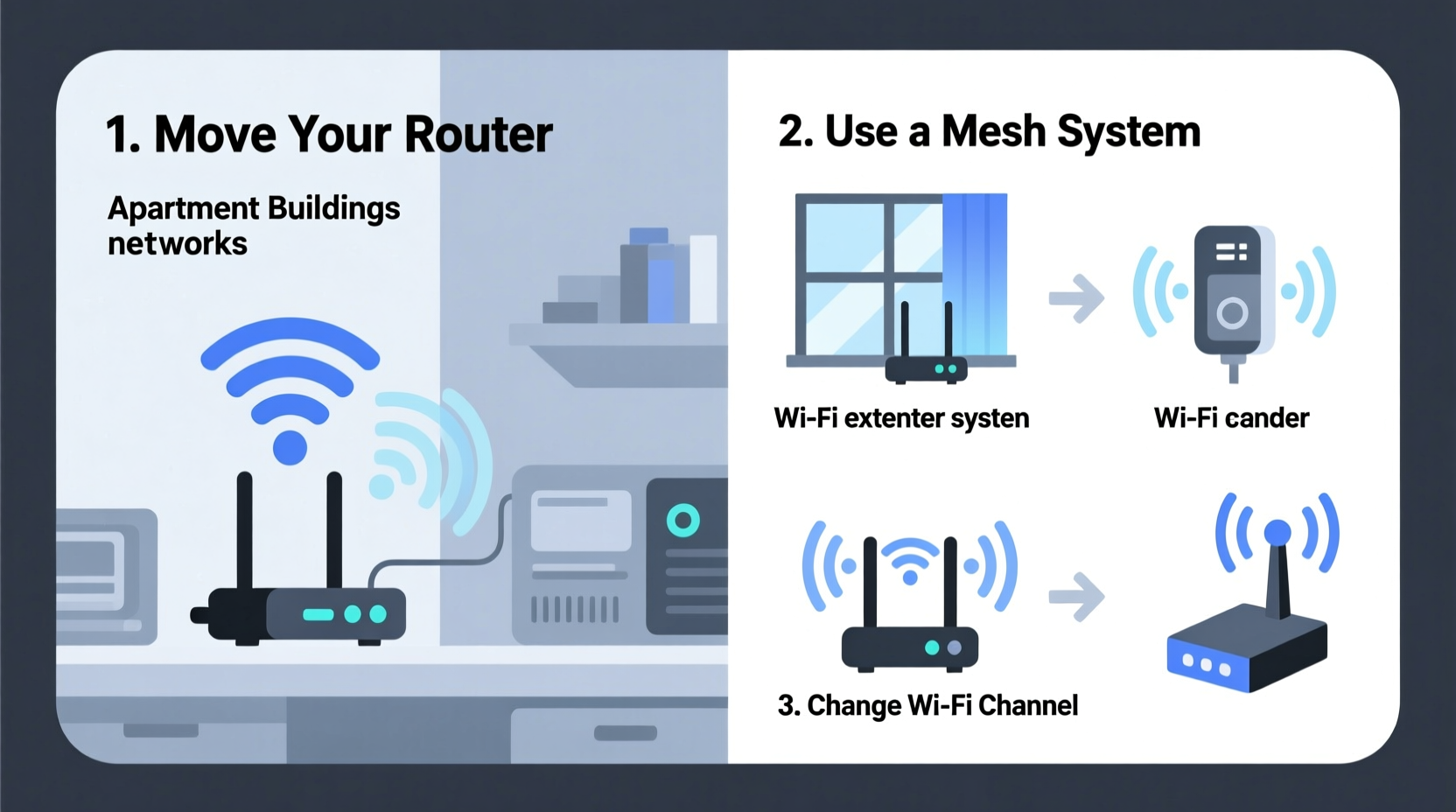
Before diving into fixes, it helps to understand the unique challenges of Wi-Fi in multi-unit buildings. Unlike standalone homes, apartments often suffer from:
- Signal interference: Dozens of nearby routers operating on the same channels create congestion, especially on the 2.4 GHz band.
- Physical barriers: Concrete walls, metal framing, and mirrored surfaces common in modern construction absorb or reflect Wi-Fi signals.
- Network overcrowding: Multiple users streaming, gaming, or downloading simultaneously strain bandwidth.
- Poor router placement: Routers tucked in closets, basements, or behind appliances lose efficiency.
- Outdated equipment: Older routers may not support modern standards like Wi-Fi 5 (802.11ac) or Wi-Fi 6 (802.11ax).
These factors combine to create frustrating dropouts, buffering, and lag—especially during peak evening hours. The good news? Most can be addressed at home with minimal cost and effort.
“More than half of Wi-Fi issues in apartments stem from user-side configuration, not ISP problems.” — Dr. Lena Torres, Network Performance Analyst at Urban Broadband Initiative
Optimize Router Placement for Maximum Coverage
The location of your router is one of the most impactful yet overlooked variables in Wi-Fi performance. Even a high-end router will underperform if placed poorly.
Best Practices for Router Positioning
Follow these guidelines to ensure optimal signal distribution:
- Center the router in your apartment: Place it as close to the geometric center as possible, minimizing distance to all rooms.
- Elevate the device: Keep it off the floor and away from cabinets. A shelf or desk improves line-of-sight transmission.
- Avoid obstructions: Steer clear of large metal objects, refrigerators, microwaves, mirrors, and thick concrete walls.
- Keep antennas vertical: If your router has external antennas, position them upright to maximize horizontal coverage.
- Stay away from other electronics: Devices like cordless phones, baby monitors, and Bluetooth speakers emit interference.
Switch to Less Congested Wi-Fi Channels
In apartment complexes, dozens of networks often compete for the same radio frequencies. The 2.4 GHz band has only three non-overlapping channels (1, 6, and 11), making interference nearly inevitable. The 5 GHz band offers more options but isn’t immune to crowding.
You can manually switch to a less congested channel using your router’s admin interface. Here’s how:
Step-by-Step Guide to Changing Wi-Fi Channels
- Connect to your router via a web browser using its IP address (commonly 192.168.1.1 or 192.168.0.1).
- Log in with your admin credentials (check the router label or manual if unsure).
- Navigate to “Wireless Settings” or “Wi-Fi Configuration.”
- Select either 2.4 GHz or 5 GHz band settings.
- Change the channel from “Auto” to a specific number based on network scans.
- Save changes and reboot the router.
To identify the least crowded channel, use free tools like:
- Wi-Fi Analyzer (Android): Displays nearby networks and their signal strength per channel.
- NetSpot (Windows/Mac): Offers heatmaps and spectrum analysis.
- iStumbler (Mac): Real-time network detection tool.
For the 2.4 GHz band, choose channel 1, 6, or 11—whichever shows the weakest competing signals. On 5 GHz, opt for higher-numbered channels (e.g., 36–48 or 149–161) to avoid DFS (Dynamic Frequency Selection) zones used by radar systems.
Upgrade Your Equipment Strategically
If your router is more than three years old, upgrading could yield dramatic improvements. Modern Wi-Fi 6 (802.11ax) routers handle multiple devices better, offer faster speeds, and resist interference more effectively.
But even if you’re not ready to buy new gear, consider these affordable enhancements:
| Solution | Cost Range | Best For | Limitations |
|---|---|---|---|
| Wi-Fi 6 Mesh System | $150–$300 | Larger apartments, dead zones | Higher upfront cost |
| Wi-Fi Extender | $30–$80 | Single dead zone | Can halve bandwidth; setup complexity |
| Powerline Adapter | $50–$100 | Thick walls, basement units | Depends on circuit quality |
| Directional Antenna | $20–$40 | Targeted signal boost | Only works with upgradable routers |
Mesh systems like Google Nest Wifi or TP-Link Deco are particularly effective in multi-room layouts. They replace your single router with multiple nodes that blanket your space in seamless coverage.
Real-World Example: Improving Speed in a Mid-Rise Building
Consider the case of Marcus, a remote worker living in a 750 sq ft apartment on the third floor of a 12-story building in Chicago. He experienced constant video call freezing and download speeds below 10 Mbps despite paying for a 100 Mbps plan.
After ruling out ISP issues (confirmed via direct Ethernet test), he took the following steps:
- Moved his router from a closet to a central bookshelf.
- Used Wi-Fi Analyzer to switch from channel 6 to channel 1 on 2.4 GHz, and selected channel 157 on 5 GHz.
- Upgraded firmware on his two-year-old router.
- Added a $60 mesh extender in his bedroom, where signal was weakest.
Within an hour, his download speed jumped to 85 Mbps on all devices, and Zoom calls stabilized. No technician was needed.
“Sometimes the best fix isn’t stronger signal—it’s smarter signal management.” — Marcus Rivera, IT Consultant and Apartment Dweller
Reduce Interference and Manage Bandwidth
Beyond hardware and placement, your daily habits influence Wi-Fi performance. Background activity from apps, devices, and neighbors can silently eat up bandwidth.
Checklist: Minimize Wi-Fi Interference
- ✅ Reboot your router weekly to clear memory and refresh connections.
- ✅ Disable unused smart devices or IoT gadgets when not in use.
- ✅ Schedule large downloads (e.g., game updates) during off-peak hours (late night/early morning).
- ✅ Use Quality of Service (QoS) settings in your router to prioritize video calls or streaming.
- ✅ Switch devices to 5 GHz when possible—it’s faster and less crowded than 2.4 GHz.
- ✅ Turn off Wi-Fi on devices you aren’t actively using (laptops, tablets, phones).
Many modern routers include QoS features that let you assign priority to specific devices or applications. For example, you can ensure your laptop gets top bandwidth during a Teams meeting while your smart TV buffers quietly in the background.
Frequently Asked Questions
Why is my Wi-Fi slow only at certain times of day?
This typically occurs during peak usage hours (6 PM–10 PM), when neighbors stream, game, or download heavily. Network congestion worsens on shared frequencies. Try switching to the 5 GHz band or adjusting your usage schedule.
Can my neighbor’s Wi-Fi slow down mine?
Yes—especially if both networks operate on the same channel. While they can’t access your data, overlapping signals cause interference that reduces throughput. Changing your channel or using 5 GHz mitigates this.
Is it safe to use a Wi-Fi extender in an apartment?
Yes, extenders are safe and effective when properly configured. However, avoid placing them too close to the main router, as this can create signal overlap and confusion for devices. Position them halfway between the router and the dead zone.
Conclusion: Take Control of Your Connection
Slow Wi-Fi in an apartment doesn’t have to mean waiting on hold with your ISP. By understanding the environment, optimizing placement, selecting cleaner channels, upgrading strategically, and managing interference, you can reclaim fast, reliable internet—on your terms.
Start with simple changes: reposition your router, scan for congestion, and reboot your system. Then progress to targeted upgrades if needed. Most improvements cost little and take less than an afternoon. The result? Smoother streaming, clearer calls, and fewer frustrations—all without making a single support call.




 浙公网安备
33010002000092号
浙公网安备
33010002000092号 浙B2-20120091-4
Comments
No comments yet. Why don't you start the discussion?