
Forwarding a text message may seem like a basic task, but on older cell phones—especially non-smartphones—it can be surprisingly unclear. Whether you're using a flip phone, a feature phone from the early 2000s, or a legacy smartphone, the process varies significantly by brand, model, and operating system. Unlike modern smartphones where forwarding is often just a tap away, older devices require specific navigation through menus that aren’t always intuitive. This guide breaks down the exact steps for forwarding texts across different types of older phones, including Nokia, Motorola, Samsung feature phones, and early Android models.
Understanding Text Forwarding on Legacy Devices
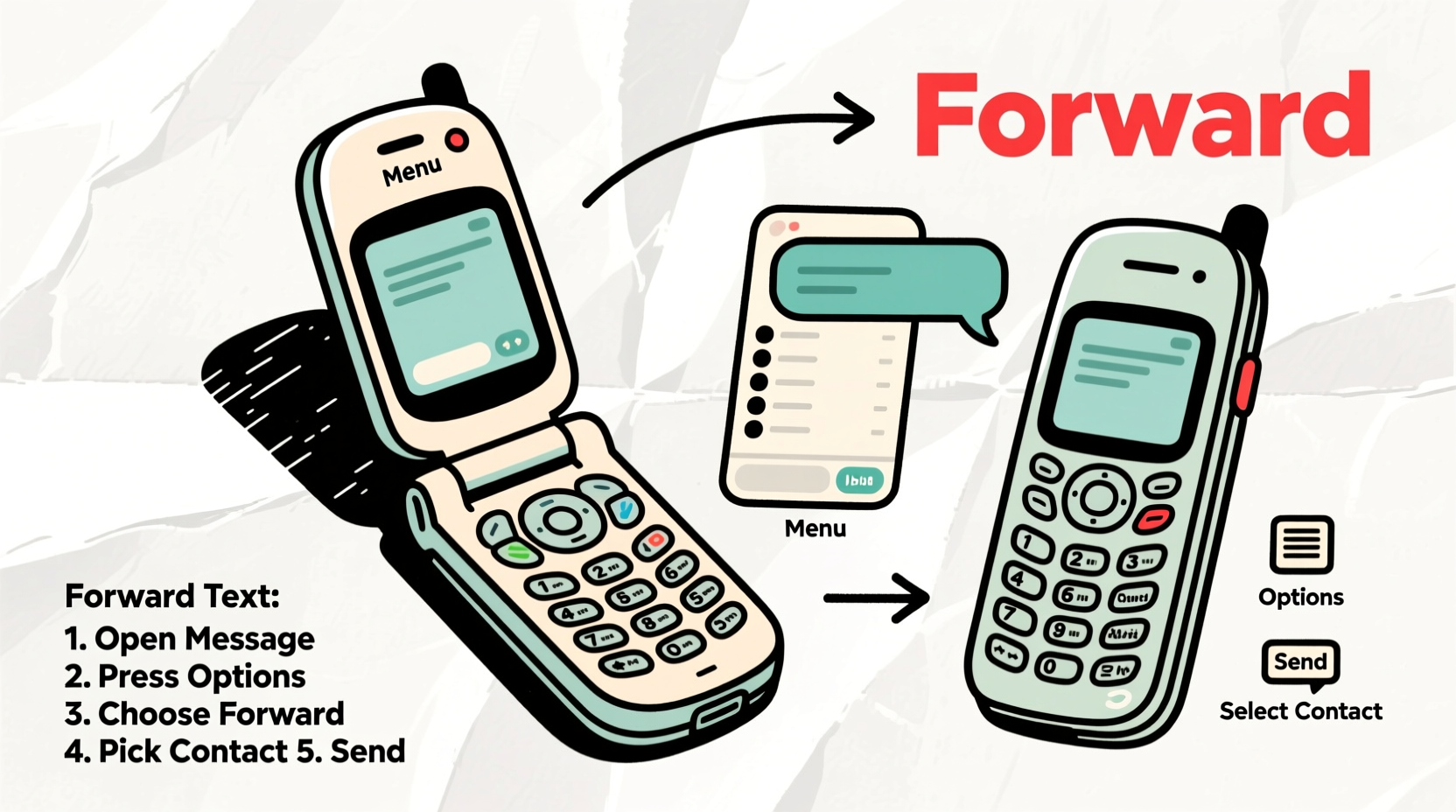
On older mobile phones, especially those without full internet capabilities or touchscreens, SMS (Short Message Service) is the primary method of communication. Forwarding a message means sending a received text to another contact while preserving the original content. Unlike today’s smartphones, which support MMS (Multimedia Messaging Service), group texts, and chat apps, most older phones only allow one-to-one SMS forwarding—and even then, the path isn't always obvious.
The key challenge lies in interface design. Older handsets rely heavily on physical keypads and nested menu systems. Without standardized icons or touch gestures, users must navigate through numbered options and submenus. Additionally, some carriers restricted certain messaging features unless users subscribed to premium plans, further complicating functionality.
“Many people assume their old phone can’t forward messages simply because they don’t know where the option is hidden in the menu.” — Carlos Mendez, Mobile Usability Analyst
Step-by-Step Guide: How to Forward Text Messages by Device Type
Below are detailed, device-specific instructions for forwarding text messages on common categories of older phones. Follow these sequences carefully based on your phone model.
1. Basic Feature Phones (Nokia, Motorola RAZR, LG Flip Phones)
These include classic non-smartphones with T9 keypads and monochrome or low-resolution color screens.
- Open the Messages app from your main menu.
- Select Inbox and find the message you want to forward.
- Highlight the message and press the Options button (usually labeled “Menu” or accessed via a soft key).
- Choose Forward from the menu. If not visible, look for \"Send,\" \"Copy,\" or \"Move.\"
- Enter the recipient's phone number manually or select from contacts using the keypad.
- Press Send (often the green call button or a soft key at the bottom).
2. Early Touchscreen Smartphones (BlackBerry, Windows Mobile, Pre-iPhone Era)
Devices like BlackBerry Curve or HTC Touch require stylus or keypad input.
- Open the Messages inbox.
- Navigate to the desired message using the trackball or directional pad.
- Press the Menu button and select Forward.
- Use the keyboard or stylus to enter the recipient’s number or name.
- Review the message body—some models strip formatting or truncate long texts.
- Tap Send.
3. Early Android Phones (HTC Dream, Samsung Galaxy S1, Motorola Droid)
If your older phone runs Android 2.0–4.0, the process resembles modern smartphones but with clunkier UI.
- Launch the Messages or SMS app.
- Tap and hold the message you wish to forward until a menu appears.
- Select Forward from the context menu.
- Type the recipient’s number or choose from your contact list.
- Edit the message if needed (e.g., add context above the quoted text).
- Tap the send arrow or paper plane icon.
4. iPhones Before iOS 5 (iPhone 3G, iPhone 3GS)
While newer iPhones make forwarding easy, earlier models had limited message management tools.
- Open the Messages app and go to the conversation thread.
- Tap and hold the message bubble until a popup shows Copy.
- Tap Copy, then open a new message.
- Paste the copied text into the message field (tap and hold, then select Paste).
- Add the recipient and send.
Note: Native forwarding wasn’t introduced until later iOS updates. This copy-paste method was the workaround.
Universal Checklist: Can Your Old Phone Forward Texts?
Before attempting any steps, verify whether your device supports message forwarding. Use this checklist:
- Does your phone have an active SIM card with SMS service?
- Is there enough memory to store messages? (Check under Settings > Memory)
- Can you compose and send new messages?
- Do you see an “Options” or “Menu” button when viewing a message?
- Is the word “Forward,” “Send,” or “Copy” listed in the message menu?
If all answers are yes, your phone likely supports forwarding. If no options appear, consult your user manual or try alternative methods such as copying the message content manually.
Common Issues and Troubleshooting Tips
Even when following correct procedures, users often encounter problems. Here’s how to resolve them:
| Issue | Possible Cause | Solution |
|---|---|---|
| No “Forward” option visible | Outdated firmware or carrier restrictions | Try copying text manually; update software if possible |
| Message fails to send | Network issues or invalid number format | Verify signal strength and re-enter recipient number |
| Only part of message forwards | SMS character limit (160 characters) | Split long messages before forwarding or summarize |
| Forwarded message appears blank | Bug in legacy OS or corrupted message cache | Delete and re-receive message; restart phone |
Mini Case Study: Helping a Senior Citizen Forward Medication Reminders
Maria, a 72-year-old retiree in Arizona, uses a Samsung Haven flip phone provided by her carrier. Her daughter sends weekly medication reminders via text. When Maria wanted to share one with her home nurse, she couldn’t figure out how to forward it. After several failed attempts, she called customer support. The agent guided her through the Options menu, revealing a hidden “Forward” command under “Message Actions.” Within minutes, Maria successfully sent the reminder. This small win improved her confidence in using her phone independently—a common story among older adults relying on legacy devices.
Frequently Asked Questions
Can I forward multiple text messages at once on an old phone?
Generally, no. Most older phones only allow forwarding one message at a time. You’ll need to repeat the process for each individual message.
Why does my forwarded message say “FWD:” or show extra symbols?
This is standard SMS behavior. The “FWD:” prefix helps recipients identify forwarded content. Extra symbols may appear due to encoding differences between devices, especially when special characters are involved.
Will forwarding a message delete it from my inbox?
No. Forwarding creates a new message; the original remains in your inbox unless you manually delete it.
Final Tips for Success Across All Devices
Regardless of your phone model, keep these best practices in mind:
- Always double-check the recipient number—mistyped digits are common on numeric keypads.
- Keep messages short to avoid truncation caused by the 160-character SMS limit.
- Save frequently contacted numbers as contacts to reduce typing errors.
- Restart your phone periodically to clear glitches in the messaging app.
- Refer to your user manual—many manufacturers include exact key sequences for messaging tasks.
Conclusion: Stay Connected, No Matter the Device
Just because a phone is old doesn’t mean it can’t serve a meaningful purpose. Millions still rely on legacy devices for reliability, battery life, or simplicity. Knowing how to forward text messages empowers users to stay connected with family, caregivers, and emergency contacts. With the right steps—and a bit of patience—forwarding texts on even the most outdated handsets becomes second nature. Don’t let outdated interfaces discourage you. Take control of your device, apply these techniques, and keep communication flowing smoothly.




 浙公网安备
33010002000092号
浙公网安备
33010002000092号 浙B2-20120091-4
Comments
No comments yet. Why don't you start the discussion?