
Your iPad is a powerful tool for creativity, productivity, and entertainment. But over time, even the most organized users can run into the dreaded “Storage Almost Full” alert. While deleting apps might seem like the easiest fix, it’s not always practical—especially if you rely on those apps daily. The good news: you don’t have to sacrifice functionality to reclaim space. With the right strategies, you can significantly reduce storage usage while keeping every app intact.
iPadOS is designed with intelligent storage management in mind, but many users overlook built-in features that optimize space without removing core applications. From cleaning cached data to leveraging cloud services and managing media files, there are multiple ways to lighten your device’s load. This guide walks through proven methods that preserve your workflow while boosting available storage.
Understand What’s Taking Up Space
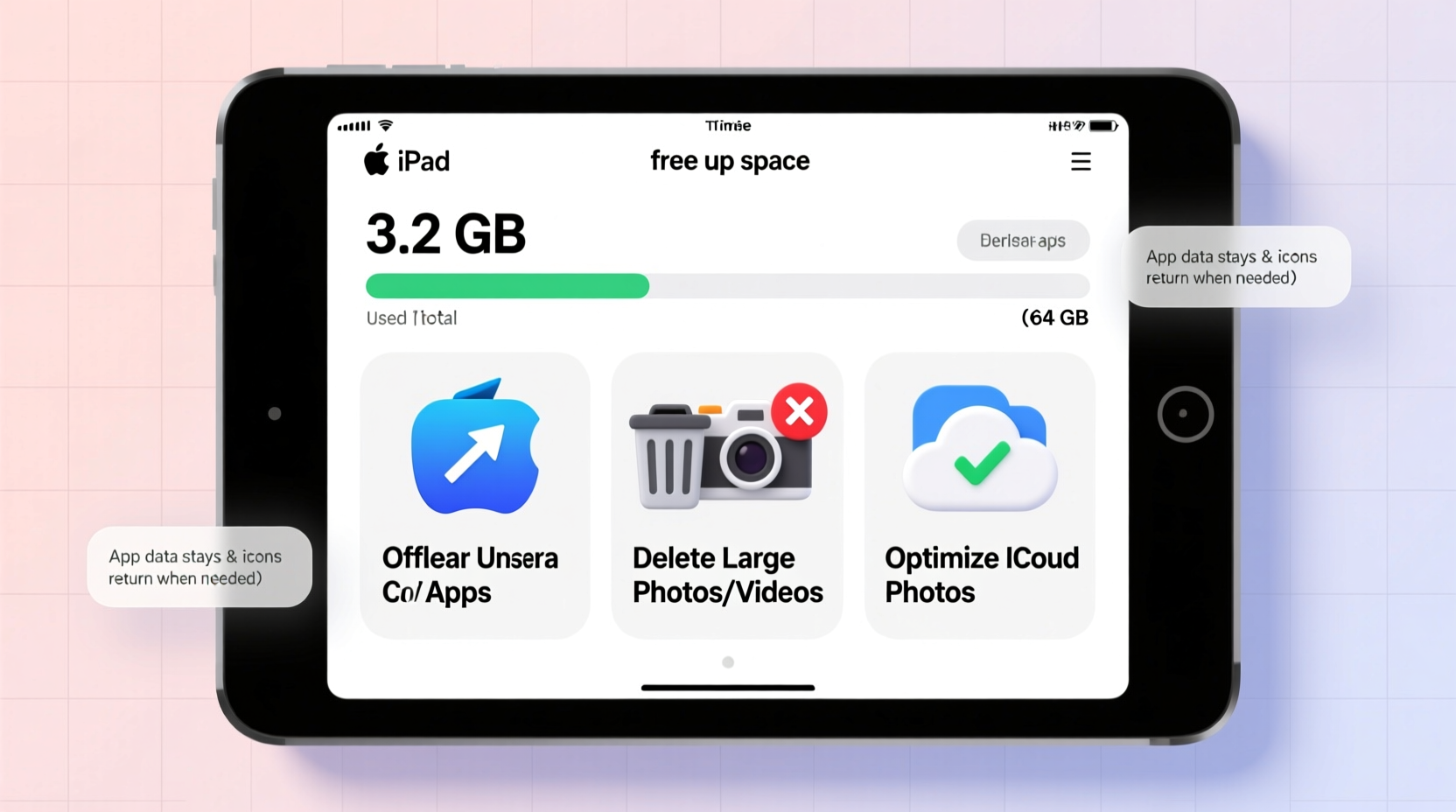
Before making changes, it’s essential to know exactly what’s consuming your iPad’s storage. Apple provides detailed insights under Settings > General > iPad Storage. Here, you’ll see a color-coded breakdown of system data, apps, photos, and other files. Tap any app to view its size and offloaded data options.
System data often takes up more room than expected—this includes caches, logs, Siri voices, and temporary files. Photos and videos are usually the biggest culprits, especially if iCloud Photo Library isn’t enabled or set to optimize storage. Music, podcasts, and downloaded content from streaming apps also contribute significantly.
Optimize Photos and Videos
Photos and videos typically consume the largest portion of iPad storage. Even with moderate use, high-resolution images from an iPad Pro camera or imported files can quickly fill tens of gigabytes.
Enable **Optimize iPad Storage** in Settings > Photos. This keeps smaller, device-friendly versions locally while storing full-resolution originals in iCloud. You won’t lose quality when viewing or editing—the full file downloads automatically when needed.
If you're not using iCloud, consider switching to Google Photos, Dropbox, or another cloud provider with automatic backup. Once backed up, delete local copies selectively. Use Albums to organize content by event or date, then review and purge duplicates or blurry shots.
For users who shoot 4K video, trimming unused clips in the Photos app frees up substantial space. Simply open a video, tap Edit, and cut out unnecessary sections before saving the trimmed version. Delete the original afterward.
“Most people keep 30–40% more photos than they actually need. A simple cull once per quarter can recover 5–10 GB easily.” — Jordan Lee, Digital Organizer & Tech Consultant
Clear App Caches and Temporary Files
Many apps store large amounts of cached data to improve performance. Social media platforms like Instagram, TikTok, and YouTube accumulate gigabytes over time as they save previews, watched videos, and offline content.
To clear these:
- Go to Settings > General > iPad Storage.
- Select an app known for high cache usage (e.g., TikTok, Spotify).
- If available, tap “Offload App” temporarily—this removes the app but keeps documents and data. Reinstall it immediately to wipe the cache clean.
- Alternatively, within the app itself, look for settings like “Clear Cache” or “Manage Storage.”
For Safari, go to Settings > Safari > Clear History and Website Data. This removes stored cookies, form entries, and cached pages. It won’t affect bookmarks or saved passwords.
Email apps like Outlook or Gmail may sync large attachments locally. Adjust settings to only download recent messages (e.g., last 30 days) instead of “All” history.
Leverage Cloud Services and Offload Files
One of the most effective ways to free space is moving files out of local storage. Use cloud platforms such as iCloud Drive, Google Drive, Microsoft OneDrive, or Dropbox to store documents, PDFs, spreadsheets, and archived projects.
Create a routine:
- Open Files app and browse On My iPad folders.
- Identify large files (videos, ZIP archives, old backups).
- Drag them into your preferred cloud folder.
- After confirming upload success, delete the local copy.
You can also enable desktop-class file management via third-party apps like FileBrowser or Documents by Readdle, which integrate multiple cloud accounts and allow batch transfers.
Consider changing default save locations. In supported apps, choose “Save to iCloud Drive” instead of “On My iPad.” This prevents future buildup.
| Action | Local Storage Saved | Recommended Frequency |
|---|---|---|
| Move 10 PDFs (50 MB each) | ~500 MB | Monthly |
| Upload 1 hour of 1080p video | ~7 GB | As needed |
| Clear Safari cache | 100–500 MB | Biweekly |
| Offload and reinstall one large game | 1–3 GB | Quarterly |
Use Offload Unused Apps Feature
iPadOS includes a smart feature called “Offload Unused Apps,” which automatically removes apps you haven’t used in weeks—but keeps all their data intact. When you tap the app icon again, it reinstalls instantly with your settings and documents preserved.
This is ideal for infrequently used tools like airline check-in apps, seasonal games, or trial software. To enable:
- Navigate to Settings > App Store.
- Toggle on “Offload Unused Apps.”
- Optionally, manually offload specific apps via Settings > General > iPad Storage.
Note: Some apps may require re-downloading in-app purchases or logging back in after reinstallation. However, documents, preferences, and progress remain safe.
Stream Instead of Downloading Media
Streaming services like Netflix, Disney+, Spotify, and Apple Music let you enjoy content without storing it locally. Yet many users default to downloading episodes or playlists for offline access, which eats up space fast.
Instead:
- Watch shows directly through Wi-Fi or cellular connection.
- Delete downloaded content after viewing.
- Set auto-expire rules where available (e.g., Spotify deletes unplayed offline songs after 30 days).
For audiobooks and podcasts, switch to streaming mode. Most platforms now support seamless playback even with intermittent connectivity.
If you must download, limit duration. For example, download a podcast episode the night before commuting, then delete it the same day.
Mini Case Study: Recovering 12 GB Without Losing a Single App
Sophie, a freelance graphic designer based in Portland, relied heavily on Procreate, Adobe Fresco, and Affinity Designer. Her 64GB iPad Air frequently hit 95% storage, causing lag and failed updates. She refused to delete apps—each was mission-critical.
She followed a structured cleanup plan:
- Ran iPad Storage analysis—found 6.2 GB in Photos (mostly screenshots), 2.8 GB in TikTok cache, 1.5 GB in Safari data.
- Enabled Optimize iPad Storage and uploaded older project files to iCloud Drive.
- Cleared TikTok and Instagram caches via app settings.
- Deleted duplicate screenshots and trimmed long video memos.
- Turned on Offload Unused Apps and removed local copies of completed audiobooks.
Within two hours, she recovered 12.1 GB. All her creative tools remained fully functional, and system performance improved noticeably. Monthly maintenance now keeps her below 75% usage.
Step-by-Step Guide to Free Up Space Safely
Follow this sequence to maximize results without risking data loss:
- Analyze Storage: Go to Settings > General > iPad Storage. Wait for the list to load completely.
- Prioritize Large Apps: Tap on apps over 1 GB. Look for “Documents & Data”—if high, investigate internal storage options.
- Clean Safari: Clear history and website data. Disable excessive tab grouping if not needed.
- Optimize Photos: Enable “Optimize iPad Storage” and ensure iCloud sync is active.
- Migrate Files: Move non-essential documents to cloud drives using the Files app.
- Clear Media Caches: Open top social and streaming apps; use built-in storage managers.
- Enable Offloading: Turn on “Offload Unused Apps” and manually offload one or two rarely used tools.
- Restart iPad: After cleanup, restart to flush residual temporary files.
- Verify Gains: Return to iPad Storage screen and compare before/after usage.
Repeat steps 2–7 monthly for best results.
Checklist: Quick Wins to Reclaim Space
- ✅ Enable “Optimize iPad Storage” in Photos
- ✅ Clear Safari cache and browsing data
- ✅ Upload large files to iCloud or Google Drive
- ✅ Delete old screenshots and screen recordings
- ✅ Offload one unused app (e.g., holiday travel tool)
- ✅ Trim long videos in Photos app
- ✅ Turn on “Offload Unused Apps” globally
- ✅ Stream music/podcasts instead of downloading
- ✅ Review email app settings—limit message history
- ✅ Restart iPad after cleanup
Frequently Asked Questions
Will offloading an app delete my data?
No. Offloading removes the app binary but preserves all documents, settings, and user data. When you reinstall, everything returns as it was.
Can I still use my iPad normally while optimizing storage?
Yes. Optimization tasks like uploading files or clearing caches run in the background. Avoid restarting during large uploads, but otherwise, normal use continues uninterrupted.
Is it safe to delete items from “Other” in storage?
Proceed with caution. “Other” includes system files, caches, and logs. You can’t directly delete it, but clearing caches, updating iOS, or resetting settings often reduces it. Never jailbreak or use third-party cleaners claiming to remove “Other” data—they risk instability.
Conclusion: Take Control of Your iPad’s Storage Today
Running out of space doesn’t mean sacrificing the apps you depend on. By understanding how storage works and applying consistent digital hygiene, you can maintain peak performance without uninstalling a single tool. The key lies in proactive management—regularly reviewing caches, embracing cloud storage, and optimizing media handling.
Your iPad is capable of far more than just reacting to low-storage alerts. With smarter habits, it becomes a leaner, faster, and more reliable extension of your daily life. Start implementing these strategies today, and experience the difference a well-maintained device can make.




 浙公网安备
33010002000092号
浙公网安备
33010002000092号 浙B2-20120091-4
Comments
No comments yet. Why don't you start the discussion?