
Running out of storage on your iPad can be frustrating—especially when you're prompted with “Storage Almost Full” warnings during critical tasks or while trying to capture a special moment. Many users respond by deleting photos, apps, or documents they might later regret losing. But there’s a smarter way. You don’t have to sacrifice valuable memories or essential files to reclaim space. With strategic digital hygiene, cloud integration, and Apple’s native tools, you can significantly free up storage on your iPad while preserving everything that matters.
The key lies in understanding what’s consuming your space and leveraging alternatives that keep data accessible without occupying local memory. This guide walks through proven, non-destructive methods to optimize your iPad’s storage, backed by real-world strategies and expert insights.
Understand What’s Taking Up Space
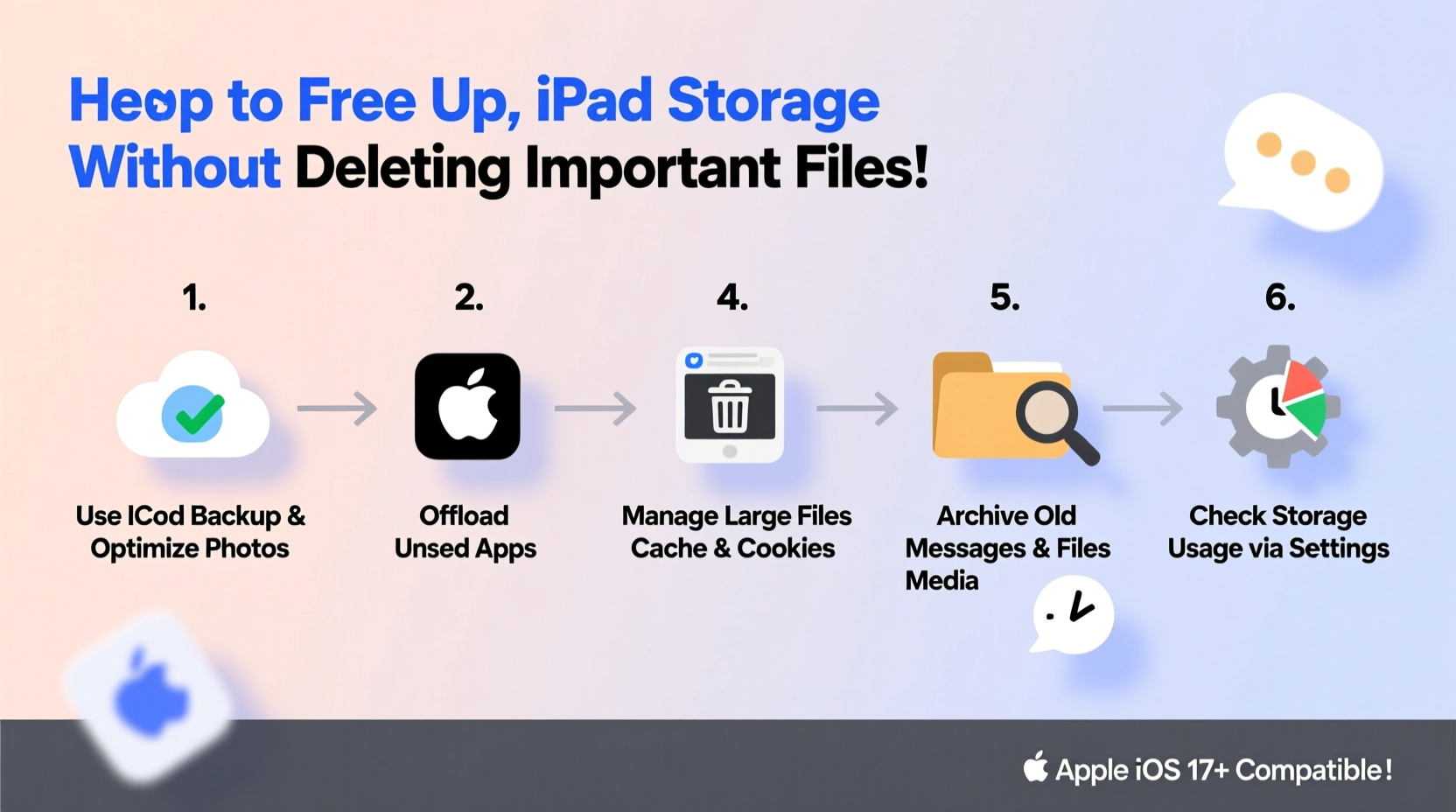
Before making changes, it’s crucial to identify the actual culprits behind your dwindling storage. iOS provides detailed breakdowns that reveal exactly where gigabytes are going. Navigate to Settings > General > iPad Storage to view a color-coded chart showing usage by category: apps, photos, messages, system data, and more.
You’ll see each app listed with its size and offload recommendation. Large apps like video editors, games, or social media platforms often accumulate cached data over time. Photos and videos typically dominate storage, especially if iCloud Photo Library isn’t optimized. Messages with attachments—photos, videos, voice memos—can silently consume hundreds of megabytes.
Optimize Photos Without Losing Quality
Photos and videos are usually the largest storage consumers. The good news is, you can manage them intelligently without deletion. Enable Optimize iPad Storage in the Photos settings. Go to Settings > Photos, then toggle on “Optimize iPad Storage.” This feature keeps smaller, device-friendly versions locally while storing full-resolution originals in iCloud.
When you view a photo, it downloads instantly from the cloud if needed. Over time, this can save tens of gigabytes—especially for users with large libraries synced across devices.
Additionally, review your albums for duplicates or blurry shots. Use the “Recently Deleted” album to permanently remove unwanted images after 30 days, ensuring you don’t lose anything accidentally.
“With Optimize iPad Storage enabled, most users recover 40–60% of their photo-related space without noticing any difference in usability.” — Lisa Tran, Apple Support Specialist
Use Cloud Services Strategically
Cloud storage is your ally in reducing local burden. Instead of deleting files, move them to secure, accessible locations. Apple’s iCloud Drive is seamlessly integrated, but third-party services like Google Drive, Dropbox, and OneDrive offer generous free tiers and cross-platform compatibility.
Transfer large files such as PDFs, presentations, and archived projects to these platforms. Once uploaded, delete the local copies—but keep access via the respective app. For example, store old tax returns in Google Drive and retrieve them only when needed.
To automate this process, set up rules: any file older than six months gets moved to the cloud. Create folders labeled “Archive – Cloud Only” to maintain clarity.
| Service | Free Storage | iPad App Quality | Best For |
|---|---|---|---|
| iCloud Drive | 5 GB | Excellent (native) | Apple ecosystem users |
| Google Drive | 15 GB | Very Good | Documents, collaboration |
| Dropbox | 2 GB (expandable) | Good | File syncing, sharing |
| OneDrive | 5 GB | Good | Microsoft Office users |
Offload Unused Apps Automatically
iOS includes a powerful feature called App Offloading, which removes an app but keeps its data intact. When you reinstall it later, all settings and documents return exactly as they were.
To enable this, go to Settings > General > iPad Storage > Enable Automatic Offloading. Alternatively, manually offload infrequently used apps. Tap on an app in the storage list, then choose “Offload App.” This is ideal for travel apps used once a year, seasonal games, or trial software.
For example, a user who downloaded a ski resort map app in January can offload it in July. When winter returns, reinstalling takes seconds, and saved trails and preferences remain.
Step-by-Step: How to Offload and Reclaim App Space
- Open Settings > General > iPad Storage.
- Wait for the analysis to complete (may take a minute).
- Scroll through the list and tap on large apps you rarely use.
- Select Offload App.
- Confirm action. The app icon remains, but with a cloud download symbol.
- Tap the icon later to reinstall when needed.
Manage Messages and Email Attachments
Messages often go unnoticed as storage hogs. Over years, conversations filled with images, videos, and audio clips can occupy several gigabytes. To reduce this:
- Go to Settings > Messages.
- Set message retention to 30 Days or 1 Year instead of “Forever.”
- Enable Auto-Delete Old Conversations if available.
- Manually delete long threads with heavy media.
For email, especially if you use IMAP accounts like Gmail or Outlook, attachments download automatically. Open the Mail app, search for large emails (e.g., “larger:10MB”), and delete those with outdated attachments. Consider downloading important ones to Notes or cloud storage first.
“I recovered 7.2 GB just by cleaning up message history and offloading two gaming apps I hadn’t touched in months.” — Daniel K., graphic designer and long-time iPad user
Create a Digital Decluttering Checklist
Follow this actionable checklist monthly to maintain optimal storage health without risking data loss:
- Review Settings > iPad Storage for top space users
- Enable or verify Optimize iPad Storage in Photos
- Upload large files to iCloud Drive, Google Drive, or Dropbox
- Delete local copies after confirming cloud backup
- Offload at least 2 unused apps
- Clear old messages (set auto-delete if not already)
- Empty Recently Deleted album in Photos
- Check for iOS updates—they sometimes include storage optimization patches
Real Example: Recovering 22 GB Without Deleting Memories
Sophie, a freelance photographer, received constant low-storage alerts despite having thousands of client photos she couldn’t afford to lose. Her 64GB iPad was at 98% capacity. She followed a structured approach over three weekends:
First, she enabled Optimize iPad Storage. This immediately freed 9.4 GB by uploading full-resolution images to iCloud and retaining only thumbnails locally.
Next, she reviewed her messaging apps. A group chat from a past project contained over 1,200 shared images. She exported key visuals to a cloud folder, then deleted the conversation—freeing another 3.1 GB.
She offloaded five creative apps (Lightroom Mobile, Procreate, Affinity Photo, LumaFusion, and VSCO), which collectively occupied 6.8 GB. Since she primarily used desktop versions now, reinstallation wasn’t urgent.
Finally, she moved old client contracts and invoices from Notes to Google Drive, removing 2.7 GB of document clutter.
Total reclaimed space: 22 GB. All critical files remained accessible. Her iPad now runs faster, and she receives no more warnings.
Frequently Asked Questions
Will optimizing photos affect image quality?
No. When you enable “Optimize iPad Storage,” full-quality originals stay safely in iCloud. The version on your iPad is compressed for efficiency, but tapping it downloads the original instantly. You won’t notice a difference in daily use.
What happens if I turn off iCloud Photos?
If you disable iCloud Photos, all synced images will download to your device unless you choose “Remove from iPad.” That could instantly fill your storage. Always ensure you have enough space—or back up externally—before making this change.
Can I recover an offloaded app’s data if I forget to back it up?
In most cases, yes. iOS preserves app data when you offload. Even if you accidentally delete an app entirely, some data may persist in iCloud or the Files app under “On My iPad.” However, this isn’t guaranteed for all third-party apps—always check developer policies.
Final Thoughts: Smart Storage Is Sustainable Storage
Freeing up space on your iPad doesn’t mean starting over or losing irreplaceable content. It means shifting from hoarding data locally to managing it intelligently. By embracing cloud solutions, automating cleanups, and using Apple’s built-in tools wisely, you gain breathing room without compromise.
The goal isn’t just to clear space today, but to build habits that prevent future clutter. Think of your iPad like a physical workspace: regularly organizing files, archiving old projects, and removing unused tools keeps everything running smoothly.




 浙公网安备
33010002000092号
浙公网安备
33010002000092号 浙B2-20120091-4
Comments
No comments yet. Why don't you start the discussion?