
Running out of storage on your Samsung Galaxy can slow down performance, prevent app updates, and disrupt daily use. Many users hesitate to delete photos—memories captured over time—but there are smarter, non-destructive ways to reclaim space. With built-in tools, cloud integration, and strategic cleanup methods, you can significantly expand available storage while keeping every photo intact.
The key is understanding where storage is consumed beyond media files. Apps, cached data, downloads, and system bloat often take up more space than users realize. By targeting these areas with precision, you can unlock hundreds of megabytes—or even gigabytes—without touching your photo library.
Leverage Samsung Cloud and Google Photos
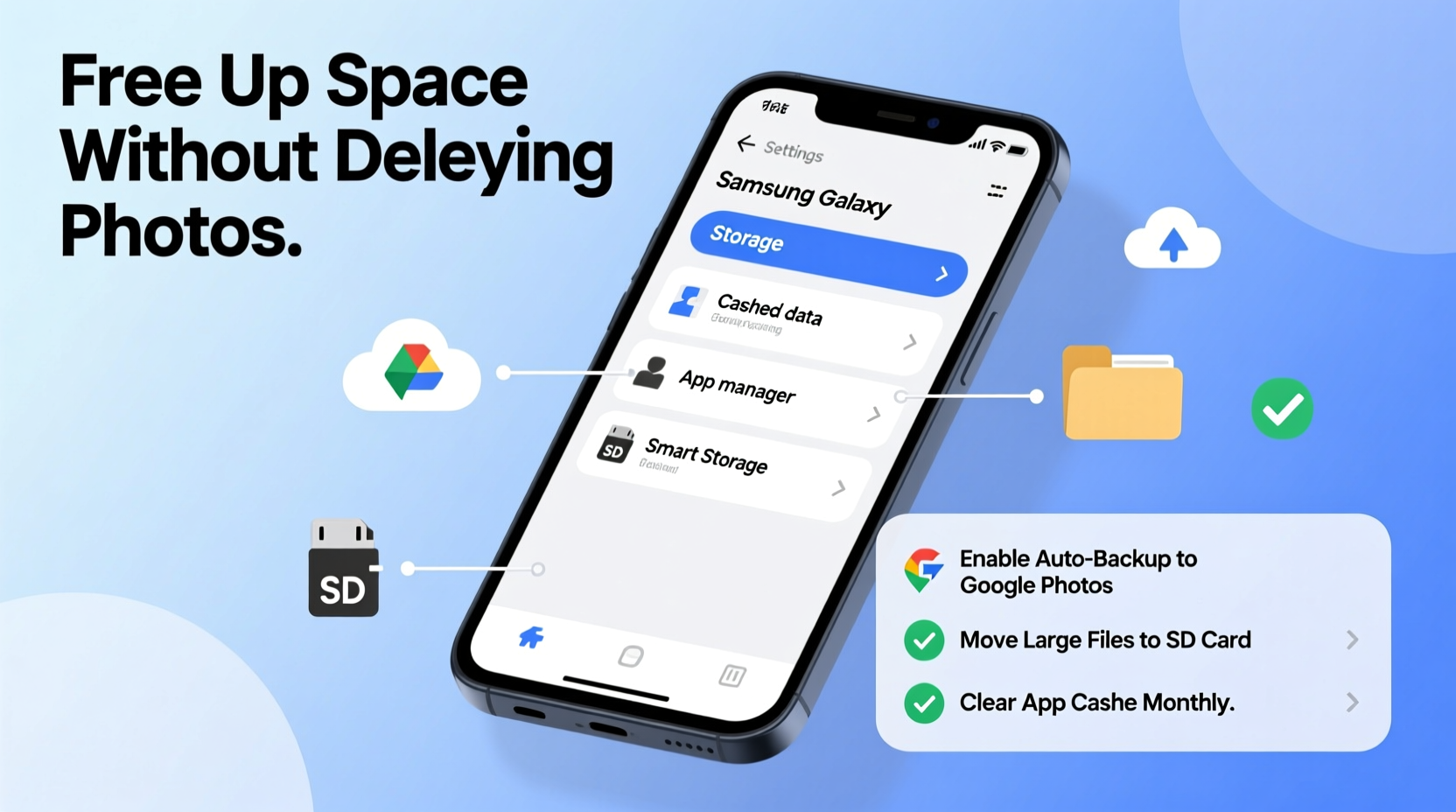
One of the most effective strategies for freeing up space without losing photos is offloading them to a secure cloud service. Both Samsung Cloud and Google Photos offer robust backup options that keep your images safe and accessible from any device.
Samsung Cloud comes pre-integrated into Galaxy devices and automatically syncs photos when enabled. To activate it:
- Open the Settings app.
- Tap Accounts and backup.
- Select Sync and backup.
- Turn on Back up data and ensure Photos is selected under auto-backup settings.
Once synced, you can safely remove local copies. Navigate to the Gallery app, go to Settings, and enable “Delete from device after upload” to automate cleanup.
Google Photos offers greater flexibility, including high-quality free storage (though original quality now counts against your Google account quota). It also supports cross-platform access, making it ideal if you switch between Android and other devices.
Set up Google Photos by opening the app, signing in with your Google account, and enabling Backup & Sync. After confirming all photos are uploaded, review device storage usage through the app’s Free up space tool, which removes locally stored images already backed up.
“Cloud backup isn’t just about saving space—it’s about protecting memories. A dual-layer approach using both Samsung Cloud and Google Photos ensures redundancy.” — Lena Park, Mobile Data Security Consultant
Clear App Cache and Manage App Storage
Apps accumulate temporary files known as cache data, which help speed up loading times but can grow unchecked. Over months, this hidden data can consume several gigabytes, especially in social media, streaming, and messaging apps.
To clear app cache:
- Go to Settings > Apps.
- Select an app (e.g., WhatsApp, Instagram, YouTube).
- Tap Storage.
- Press Clear Cache.
This process doesn't delete personal data like messages or login info—only temporary files. Repeat for each major app consuming significant storage.
For deeper control, consider uninstalling unused apps or replacing heavy ones with lightweight alternatives. For example, use Facebook Lite instead of the full Facebook app, or opt for YouTube Go if available.
You can also disable pre-installed bloatware that runs in the background. While you can't always uninstall these, disabling them stops their operation and prevents further cache buildup.
Top Apps That Consume the Most Cache
| App | Average Cache Size | Action |
|---|---|---|
| 500 MB – 2 GB | Clear monthly | |
| 1 GB – 5 GB+ | Clear media cache selectively | |
| YouTube | 300 MB – 1.5 GB | Clear regularly if offline viewing used |
| Spotify | 200 MB – 1 GB | Delete downloaded playlists when no longer needed |
| Chrome | 100 MB – 800 MB | Clear browsing data weekly |
Use Smart Cleanup Tools Built Into Your Device
Samsung Galaxy devices come equipped with intelligent storage optimization features. The Smart Manager app (or Device Care on newer models) analyzes storage, RAM, battery, and security in one dashboard.
To access Device Care:
- Navigate to Settings > Device Care.
- Select the Storage tab.
- Tap Optimize Now.
This scans for junk files such as residual app data, old downloads, and duplicate thumbnails. After scanning, you’ll see a breakdown of reclaimable space. Confirm deletion to instantly free up room.
Additionally, use the Files by Google app (available on Galaxy phones via Google Play) to identify large files, duplicates, and infrequently used apps. Its Clean section highlights items safe to delete, including old APK installers and redundant screenshots.
Move Files to External Storage or Cloud Drives
If your Galaxy model supports a microSD card, this is one of the most powerful ways to extend storage capacity. Insert a compatible card (up to 1TB depending on model), then configure it as portable or adoptable storage.
To set up a microSD card:
- Insert the card into the SIM tray slot (use an ejector pin if necessary).
- Open Settings > Storage.
- Select the SD card when it appears.
- Choose Format as internal (adopts it as permanent storage) or Format as portable (allows removal).
Note: Formatting as internal makes the card exclusive to your phone and encrypts its contents. If removed, files won’t be readable on other devices without decryption.
Alternatively, transfer large files—videos, documents, music—to cloud drives like Google Drive, Dropbox, or OneDrive. These services offer 5–15 GB of free storage and integrate seamlessly with your phone’s file manager.
In the My Files app, long-press on folders like Download, Ringtones, or Videos, then select Move to Cloud if linked to a provider. Or manually upload via the respective app interface.
Mini Case Study: Reclaiming 8 GB Without Deleting Photos
Jamal, a college student using a Galaxy S21 with 128 GB storage, found his phone slowing down at 97% capacity. He didn’t want to lose photos from his semester abroad. Using the steps outlined here, he freed up 8.2 GB in under an hour:
- Backed up 1,400+ photos to Google Photos (used “High Quality” mode for free unlimited storage).
- Cleared cache across WhatsApp, Instagram, and TikTok (reclaimed 3.1 GB).
- Used Device Care to remove junk files (gained 1.3 GB).
- Moved 2.4 GB of lecture videos and PDFs to a 128 GB microSD card.
- Disabled five rarely used preloaded apps.
Afterward, his phone ran faster, updated smoothly, and had breathing room for new content—all without sacrificing a single photo.
Optimize System Settings and Prevent Future Bloat
Prevention is just as important as cleanup. Adjusting default behaviors reduces future storage strain.
Start by managing automatic downloads in messaging apps. In WhatsApp, go to Settings > Chats > Chat backup and disable auto-download for videos over mobile data and Wi-Fi. Set exceptions only for trusted contacts.
Limit screenshot accumulation by reviewing and archiving them periodically. Screenshots often pile up unnoticed—sometimes exceeding 500 per user annually. Use the My Files app to sort by date and batch-delete outdated ones.
Enable Auto-delete trash in the Gallery app to permanently remove deleted photos after 30 days. This prevents the trash folder from hoarding space indefinitely.
Finally, audit your download habits. Avoid saving files directly to internal storage unless necessary. When downloading attachments or web content, choose external SD or cloud destinations by default.
Checklist: Weekly Storage Maintenance Routine
- ✅ Run Device Care optimization scan
- ✅ Clear cache for top 3 apps (e.g., Instagram, Chrome, WhatsApp)
- ✅ Review and delete unnecessary downloads
- ✅ Verify photo backup status in Google Photos or Samsung Cloud
- ✅ Uninstall at least one unused app
- ✅ Check microSD card health (if applicable)
Frequently Asked Questions
Will clearing app cache log me out of apps?
No. Clearing cache only removes temporary files like images and scripts stored for faster loading. Your login credentials, settings, and personal data remain unaffected.
Can I recover photos after freeing up space in Google Photos?
Yes. As long as they were successfully backed up before deletion, photos remain in your Google Photos library. Deleted items stay in the trash for 30 days before permanent removal, giving you time to restore them.
Is it safe to format an SD card as internal storage?
Yes, but only if you plan to keep it in the same device. Adopted storage encrypts the card to work as part of your phone’s internal memory. Removing it may render data inaccessible elsewhere. Always back up critical files stored on adopted cards.
Conclusion: Take Control of Your Galaxy’s Storage Today
Freeing up storage on your Samsung Galaxy doesn’t require sacrificing cherished photos. With strategic use of cloud backups, cache management, external storage, and built-in optimization tools, you can regain valuable space while preserving every memory. The process not only improves performance but also establishes healthier digital habits for long-term device care.




 浙公网安备
33010002000092号
浙公网安备
33010002000092号 浙B2-20120091-4
Comments
No comments yet. Why don't you start the discussion?