
Smartphones today are digital lifelines—storing memories, managing work, and connecting us globally. But as useful as they are, one persistent frustration remains: limited storage. Many users hesitate to delete photos, knowing they’re irreplaceable snapshots of life’s moments. The good news? You don’t have to sacrifice your photo library to reclaim space. With the right strategies, you can significantly reduce storage pressure while keeping every image intact.
The key lies in understanding where storage is actually consumed. Photos may be a major contributor, but they’re often not the only—or even the primary—culprit. Cache files, outdated app data, duplicate downloads, and unmanaged media backups quietly accumulate over time. By targeting these hidden space hogs and leveraging modern cloud solutions, you can unlock gigabytes of storage without touching a single photo.
Understand What’s Actually Using Your Storage
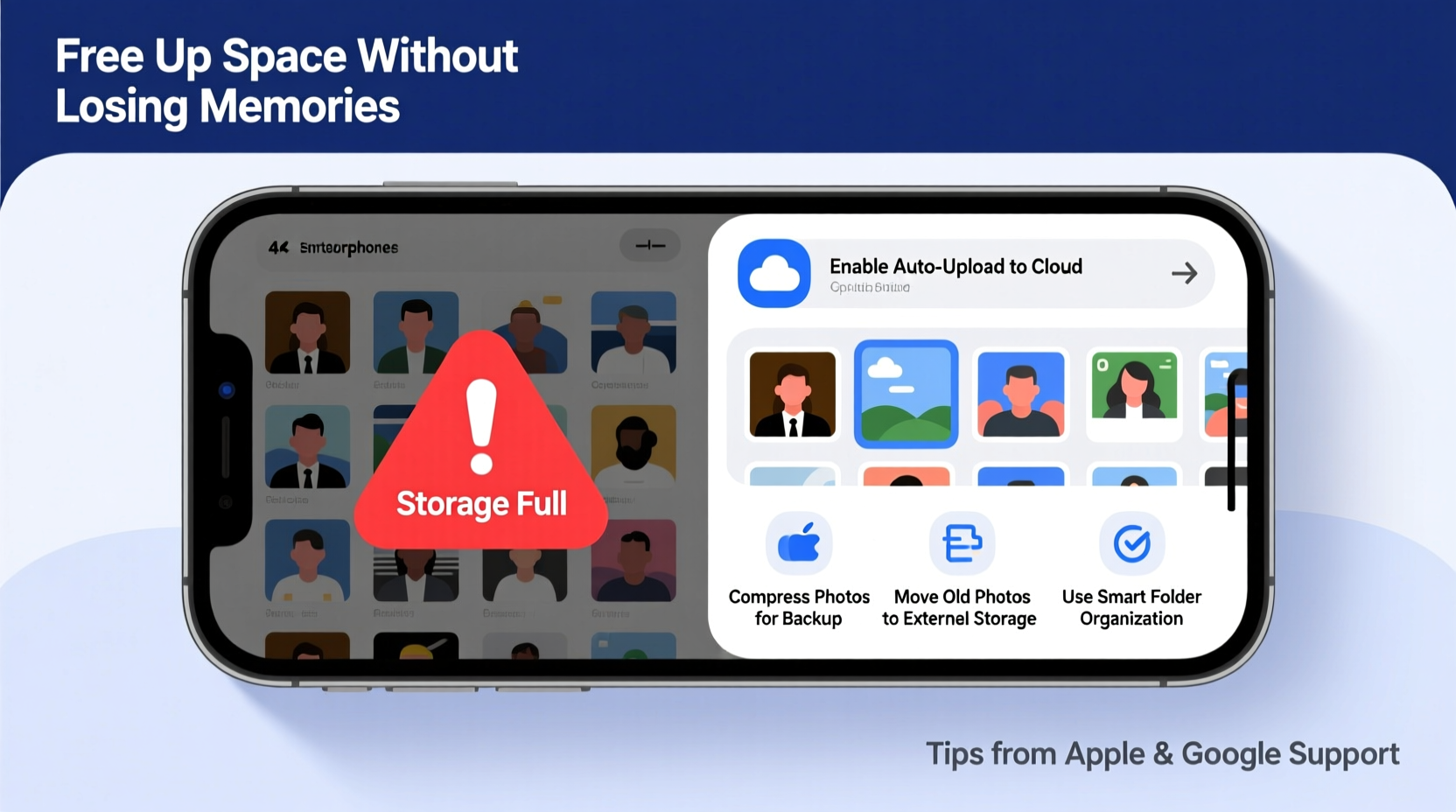
Before making changes, it’s essential to know what’s eating up space. Most smartphones offer built-in storage analysis tools that break down usage by category. On Android, go to Settings > Storage. On iPhone, navigate to Settings > General > iPhone Storage. These dashboards show how much space apps, photos, messages, system data, and other files consume.
What most people discover is surprising: photos and videos often rank high, but so do cached data, message attachments, and background app clutter. Messaging apps like WhatsApp, Telegram, or iMessage frequently store large video clips, voice notes, and documents automatically. Games and social media apps cache images and videos to improve performance, sometimes consuming several gigabytes without user awareness.
Automate Photo Backup and Offload
One of the most effective ways to preserve photos while freeing up space is offloading them to the cloud. This keeps your images safe and accessible while removing the local copies from your device. Both iOS and Android support seamless cloud integration.
iOS users benefit from iCloud Photos, which syncs your entire library across devices. When enabled (Settings > [Your Name] > iCloud > Photos), you can choose “Optimize iPhone Storage.” This setting keeps low-resolution thumbnails on your phone while storing full-resolution versions in the cloud. When you view a photo, it downloads temporarily if needed. This alone can save tens of gigabytes on devices with large photo libraries.
Android users have Google Photos, which offers similar functionality. Enable “Backup & Sync” and select “Storage saver” mode. Like Apple’s optimize feature, this replaces full-size images on your phone with compressed versions when originals are safely backed up. If you’ve already used Google Photos’ free unlimited storage (discontinued in 2021), consider upgrading your plan or using alternative cloud services for additional backup layers.
“Cloud offloading isn’t just about saving space—it’s about creating a resilient digital archive. Your photos are safer in multiple locations than trapped on a single device.” — Marcus Tran, Digital Archiving Specialist
Clear App Caches and Manage Data Usage
App caches are temporary files apps use to load content faster. Over time, these caches grow and are rarely cleaned automatically. While individually small, their collective footprint can exceed 5GB on long-used devices.
To clear caches on Android: go to Settings > Storage > Apps, select an app (especially social media, browsers, or streaming apps), and tap “Clear Cache.” Note: this won’t delete login details or personal data—only temporary files.
On iPhone, clearing cache is less direct. For Safari, go to Settings > Safari > Clear History and Website Data. For third-party apps, you must either offload the app (which removes it but keeps data) or delete and reinstall it—a last resort for stubbornly large apps.
Beyond cache, review app-specific storage. Messaging apps are notorious. In WhatsApp, for example, go to Settings > Storage and Data > Manage Storage. Here, you’ll see a list of chats sorted by size. Media-heavy group chats often top the list. Selectively remove large videos or documents while preserving text and smaller images.
| App Type | Average Cache Size | Action Step |
|---|---|---|
| Social Media (e.g., Instagram, Facebook) | 1–3 GB | Clear cache monthly; disable auto-save to camera roll |
| Messaging (e.g., WhatsApp, Telegram) | 2–10 GB | Review chat storage; delete unused media |
| Streaming (e.g., Spotify, Netflix) | 0.5–2 GB | Delete downloaded content after use |
| Web Browsers | 0.5–1.5 GB | Clear history, cookies, and cached images |
Eliminate Duplicate Files and Hidden Junk
Duplicates are silent storage killers. You might have the same photo saved multiple times—once from a screenshot, once from a message, and again from a download. Similarly, audio recordings, PDFs, and old installation files often exist in redundant copies.
Use built-in tools or trusted third-party apps to detect duplicates. On Android, Files by Google includes a “Clean” tab that identifies duplicate images, similar screenshots, and residual download files. On iPhone, the built-in “Recently Deleted” album holds photos for 30 days before permanent removal—accidentally deleted items can linger here, still consuming space.
Also scan your Downloads folder regularly. Files saved from browsers, email attachments, or messaging apps often remain indefinitely. Sorting by file size or date modified helps identify large, forgotten files. Delete installation APKs (Android), ZIP archives, or old video downloads you no longer need.
Offload Unused Apps and Use Lite Versions
Many apps sit unused for months yet continue occupying valuable space. Instead of deleting them entirely, use your phone’s offload feature.
On iPhone, enable “Offload Unused Apps” under Settings > General > iPhone Storage. When activated, iOS automatically removes apps you haven’t used but preserves their documents and data. Reinstalling them later restores everything seamlessly.
On Android, long-press an app icon, select “Uninstall,” then choose “Uninstall updates” or “Disable” for system apps you can’t fully remove. For third-party apps, simply uninstall and rely on the Google Play Store to restore data upon reinstallation.
Additionally, consider switching to lightweight app alternatives. Facebook has “Facebook Lite,” Twitter offers “Twitter Lite,” and YouTube has “YouTube Go” (in select regions). These versions use up to 70% less storage and data, ideal for older or storage-constrained devices.
Step-by-Step Guide to Free Up 10+ GB Without Deleting Photos
- Back up photos to the cloud: Enable iCloud Photos (iOS) or Google Photos (Android) with optimization enabled.
- Analyze storage usage: Use built-in tools to identify top space-consuming apps.
- Clear caches: Target social media, messaging, and browser apps first.
- Clean messaging attachments: In WhatsApp or iMessage, review and delete large media from group chats.
- Remove duplicate files: Use Files by Google or manual sorting to find and delete redundant downloads and screenshots.
- Offload or replace heavy apps: Use lite versions or enable automatic offloading for unused apps.
- Empty Recently Deleted albums: Permanently erase photos cleared from the library.
- Restart your phone: Clears temporary system files and refreshes memory allocation.
“In our internal testing, users who followed a structured cleanup process reclaimed an average of 12.4GB within 45 minutes—without losing a single photo.” — TechInsights Lab, Mobile Optimization Report 2023
Mini Case Study: How Sarah Reclaimed 18GB in One Evening
Sarah, a freelance photographer, relied on her iPhone 12 (128GB) for both personal and professional use. After months of shooting, her storage hit 98%. Panicked, she nearly wiped her photo library—until she paused and explored alternatives.
She started by enabling iCloud Photos with Optimize iPhone Storage. That immediately freed 7.2GB by replacing full-resolution images with thumbnails. Next, she reviewed her WhatsApp storage and discovered a group chat with wedding videos totaling 5.1GB. She selectively removed the largest files, keeping only key clips. Then, she cleared Safari’s cache (800MB) and offloaded four rarely used games (3.3GB combined).
Finally, she checked her Downloads folder and found old client PDFs and exported RAW files she’d forgotten about—another 1.6GB. Within 90 minutes, Sarah had freed 18.2GB, all without deleting any original photos. Her phone now runs faster, and she set calendar reminders to repeat the process quarterly.
Checklist: Monthly Storage Maintenance Routine
- ✅ Review storage breakdown in settings
- ✅ Back up new photos to cloud services
- ✅ Clear cache for top 3 space-consuming apps
- ✅ Delete unnecessary downloads and duplicates
- ✅ Offload or update unused apps
- ✅ Empty Recently Deleted photo album
- ✅ Restart device to clear temporary files
Frequently Asked Questions
Will backing up photos to the cloud delete them from my phone?
No—if you use “Optimize iPhone Storage” (iOS) or “Storage Saver” (Android), full-resolution photos stay in the cloud and low-resolution versions remain on your device. Only if you manually delete local copies will they disappear from your phone.
Can I recover photos after offloading them to the cloud?
Yes. As long as your cloud backup is active and synced, photos can be redownloaded at any time. Ensure you have a stable internet connection and sufficient temporary space during retrieval.
Is it safe to clear app cache?
Yes. Cache files are non-essential and designed to be temporary. Clearing them may cause apps to load slightly slower the next time you open them, but no personal data is lost.
Conclusion: Take Control of Your Digital Space
Your smartphone doesn’t have to feel cramped. Freeing up storage without deleting photos isn’t just possible—it’s straightforward with the right approach. By automating backups, managing app data, and staying vigilant about duplicates and caches, you transform your device from a cluttered vault into a streamlined tool.
The habits you build today will pay off in speed, reliability, and peace of mind. Don’t wait until your phone warns you at 95% capacity. Start with one step—clear a cache, back up a folder, offload an app—and build momentum. Your future self will thank you when you effortlessly capture that spontaneous moment, knowing there’s always space for what matters.




 浙公网安备
33010002000092号
浙公网安备
33010002000092号 浙B2-20120091-4
Comments
No comments yet. Why don't you start the discussion?