
Facebook remains one of the most widely used social networking platforms in the world, connecting over 2.9 billion people monthly. Whether you're joining to reconnect with friends, grow a business, or stay updated on community events, getting started requires more than just signing up. A secure, well-managed account ensures privacy, authenticity, and long-term usability. This guide walks through every essential phase—from initial registration to ongoing maintenance—with actionable steps and expert-backed strategies.
Step 1: Preparing to Create Your Account
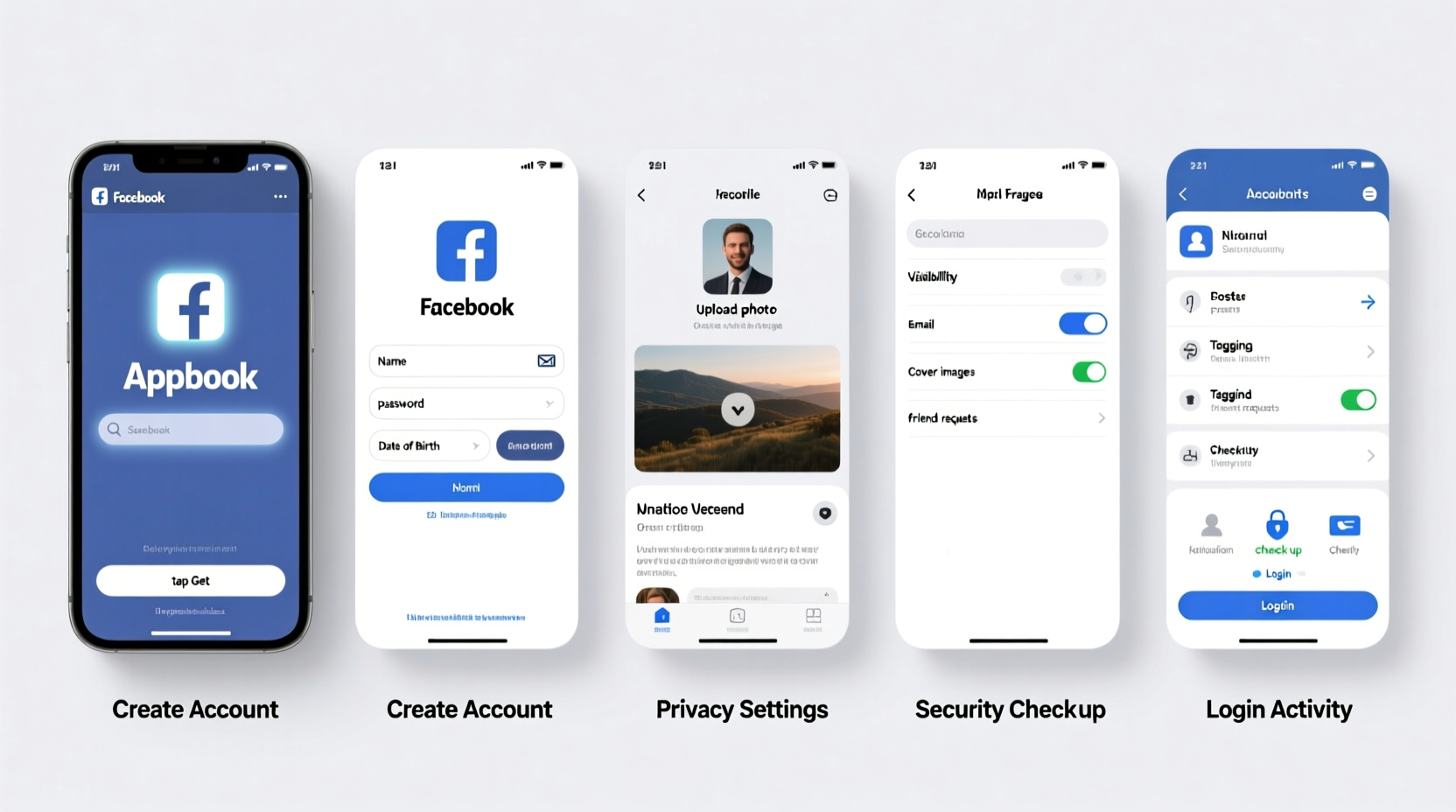
Before diving into the signup process, gather the necessary information. Facebook requires accurate details to verify identity and maintain platform integrity. Having everything ready streamlines registration and reduces the risk of future verification issues.
- A valid email address or mobile phone number
- Your full name (as it appears on official documents)
- Date of birth (must meet minimum age requirement: 13+)
- A strong password (at least 8 characters with a mix of letters, numbers, and symbols)
Ensure your device has a stable internet connection. Access Facebook via a web browser or download the official app from your device’s app store. Avoid third-party versions, which may compromise security.
Step 2: Creating Your Facebook Account
Navigate to facebook.com and locate the sign-up form. Fill in the following fields:
- First and Last Name: Enter your real name. Facebook enforces a real-name policy to reduce impersonation.
- Email or Phone Number: Provide one primary contact method. You can add both later.
- Password: Choose a unique password not used on other sites.
- Date of Birth: Required for age verification and content personalization.
- Sign Up: Click the blue button to proceed.
After submission, Facebook sends a confirmation code via email or SMS. Enter this code to verify your account. Once confirmed, you’ll be prompted to upload a profile picture and search for friends.
Customizing Your Profile Basics
Your profile is your digital presence. Start by adding key details:
- Profile photo (preferably a clear image of yourself)
- Cover photo (can reflect interests, location, or profession)
- Brief bio or “About” section with hometown, education, or workplace
These elements help others recognize you and improve discoverability within trusted networks.
Step 3: Securing Your Account
Security is non-negotiable. Over 30% of online accounts are compromised due to weak passwords or reused credentials, according to cybersecurity firm NortonLifeLock. Protect your Facebook access with these foundational steps.
Enable Two-Factor Authentication (2FA)
Two-factor authentication adds a second layer of protection beyond your password. To enable it:
- Go to Settings & Privacy > Settings
- Select Security and Login
- Click Use two-factor authentication
- Choose your preferred method: text message (SMS) or authentication app (like Google Authenticator)
- Follow the prompts to complete setup
“Two-factor authentication blocks over 99% of automated attacks.” — Kevin Mitnick, Cybersecurity Expert and Former White Hat Hacker
Recognize Trusted Devices and Locations
In the same Security and Login section, review devices where you’re currently logged in. Remove unrecognized ones immediately. Facebook will notify you of new logins—pay attention to these alerts.
Step 4: Managing Privacy and Visibility
Privacy settings determine who sees your posts, photos, and personal information. Default settings often favor visibility, but adjusting them enhances control.
Adjusting Audience for Posts
Each time you post, use the audience selector (the globe, friends, or lock icon) to choose visibility:
- Public: Anyone on or off Facebook can see it
- Friends: Only your approved connections
- Only Me: Private drafts or sensitive notes
- Custom: Select specific people or lists
| Setting | Recommended For | Caution |
|---|---|---|
| Public | Business pages, public figures, event promotions | Can be shared or scraped by third parties |
| Friends | Personal updates, family photos | Still visible to all your friends, including acquaintances |
| Only Me | Drafts, old memories, private thoughts | Best for sensitive or outdated content |
Reviewing Privacy Shortcuts
Visit Settings > Privacy to access shortcuts that let you quickly adjust:
- Who can send you friend requests
- Who can see your future posts
- How people can find you
- Blocking tools for unwanted contacts
Limit search engine indexing of your profile under “Do you want search engines outside of Facebook to link to your profile?” Set this to “No” for better anonymity.
Step 5: Ongoing Management and Best Practices
Creating an account is just the beginning. Long-term management ensures continued access, relevance, and safety.
Regular Maintenance Checklist
- Update password every 90 days
- Review active sessions monthly
- Clear unused apps connected to Facebook
- Review tag approvals before photos appear on your timeline
- Back up important memories using Download Your Information tool
Real Example: Recovering a Compromised Account
Sarah, a small business owner, noticed unfamiliar posts on her Facebook page promoting counterfeit goods. She hadn’t used her account in weeks and had reused her password across multiple sites. After reporting the activity to Facebook, she regained access by verifying her identity through a government ID upload. She then reset her password, enabled 2FA, and removed third-party app permissions. Her experience underscores the importance of proactive security—even infrequent users are targets.
Managing Friend Requests and Networks
Be selective. Accepting unknown requests increases exposure to scams and data mining. If someone you don’t know sends a request, consider their profile: mutual friends, photos, activity history. When in doubt, decline or report.
Create friend lists (e.g., Family, Work, Close Friends) to tailor content sharing. For example, vacation photos might go to “Close Friends,” while professional updates reach “Work Colleagues.”
Frequently Asked Questions
Can I have more than one Facebook account?
No. Facebook’s Community Standards allow only one personal account per person. Multiple accounts may lead to suspension. For business use, create a Page linked to your personal profile instead.
What should I do if I forget my password?
Click “Forgotten password?” on the login screen. Enter your email, phone, or username. Facebook will guide you through resetting it using a recovery code sent to your device or email.
How do I deactivate or delete my account?
To take a break, go to Settings > Security and Login > Deactivation and Deletion. Choose “Deactivate Account”—your data remains recoverable. For permanent removal, select “Delete Account,” which takes 30 days to finalize and cannot be undone.
Final Thoughts
Gaining Facebook access is simple, but managing it wisely determines your experience. From careful registration to vigilant privacy controls, each step builds a safer, more meaningful presence. Social media should connect, not compromise. By applying consistent habits—strong passwords, two-factor authentication, thoughtful sharing—you protect your identity and enhance how you engage online.




 浙公网安备
33010002000092号
浙公网安备
33010002000092号 浙B2-20120091-4
Comments
No comments yet. Why don't you start the discussion?