
Slow Wi-Fi is one of the most frustrating modern tech issues—buffering videos, laggy video calls, and sluggish downloads disrupt productivity and enjoyment alike. Yet many people assume their internet speed is solely determined by their ISP plan. In reality, a range of factors within your control can dramatically improve your wireless performance. From router placement to firmware updates, understanding how your network operates empowers you to unlock its full potential.
Whether you're working from home, streaming 4K content, or supporting multiple connected devices, optimizing your Wi-Fi isn’t just about convenience—it’s essential. This guide breaks down actionable, expert-backed strategies to boost your signal strength, reduce interference, and achieve consistently faster speeds across your entire space.
Optimize Your Router Placement
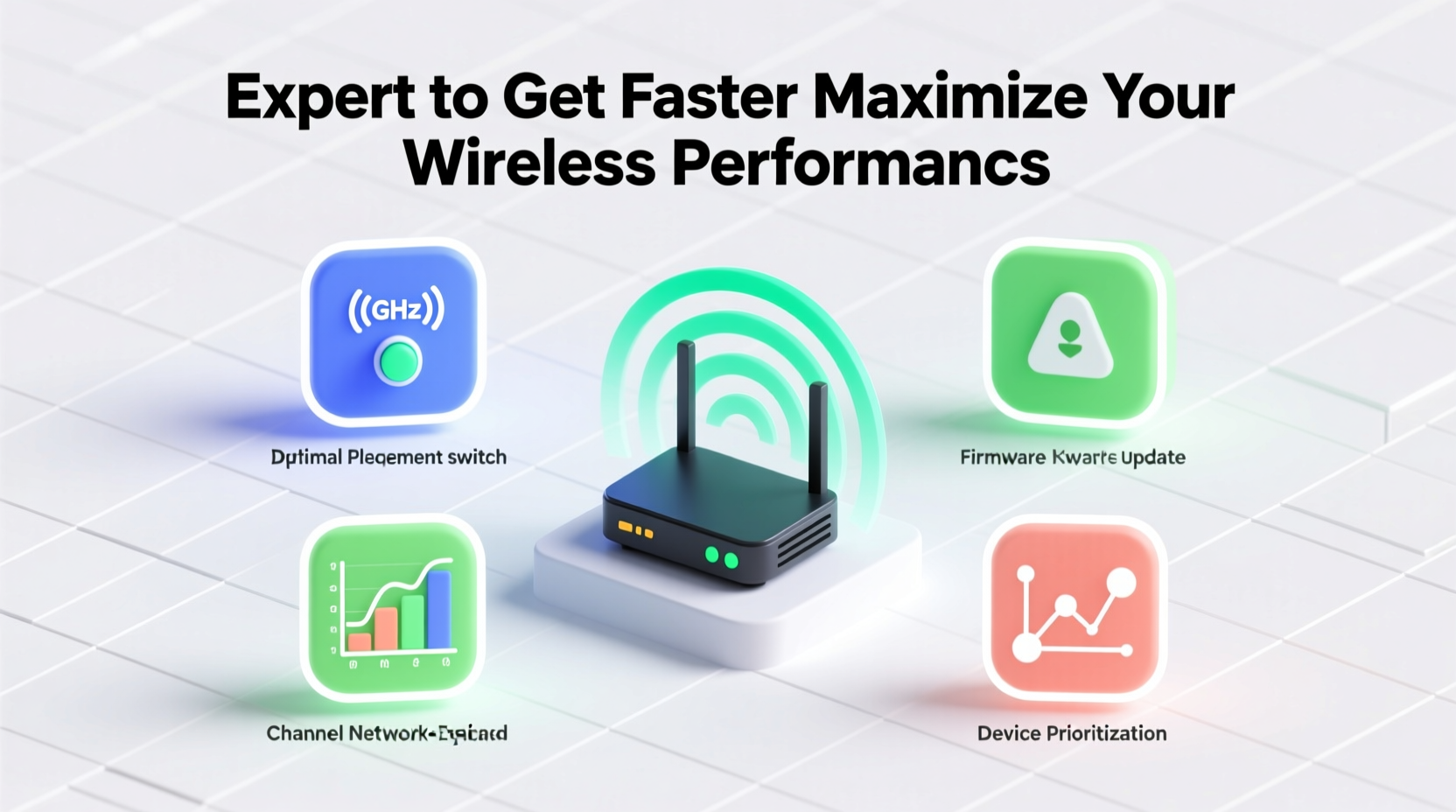
The location of your router has a profound impact on signal distribution. Wi-Fi signals radiate outward in all directions but weaken when obstructed by walls, furniture, or appliances. Central positioning ensures more even coverage throughout your home.
Avoid tucking your router into a closet or basement corner. Instead, elevate it on a shelf or desk in a central room. If your home has multiple floors, consider placing the router on an upper-middle floor to allow signals to penetrate downward effectively.
Additionally, keep your router away from cordless phones, baby monitors, and Bluetooth speakers, which operate on similar frequencies and can cause interference.
Upgrade Hardware Strategically
Even the best settings can't compensate for outdated equipment. Routers typically last 3–5 years before becoming obsolete due to advances in technology and increasing bandwidth demands.
If your router is more than four years old, upgrading to a Wi-Fi 6 (802.11ax) model can deliver significant improvements in speed, capacity, and efficiency—especially in homes with many connected devices. Wi-Fi 6 supports higher data rates, better performance in congested areas, and improved battery life for connected gadgets.
“Modern routers don’t just offer faster speeds—they manage network traffic smarter, reducing congestion during peak usage.” — Dr. Alan Reyes, Network Systems Engineer at Broadband Insights Lab
For larger homes, mesh Wi-Fi systems provide seamless coverage by using multiple nodes to extend the signal without dead zones. Unlike traditional range extenders that degrade speed, mesh networks maintain consistent performance across the entire footprint.
Manage Bandwidth and Connected Devices
Every device connected to your network consumes bandwidth—even those idle in the background. Smart TVs updating apps, phones syncing photos, and IoT devices checking servers all contribute to network load.
To maintain optimal speed:
- Disconnect unused devices from Wi-Fi.
- Set up Quality of Service (QoS) rules in your router settings to prioritize critical activities like video conferencing or gaming.
- Limit automatic updates to off-peak hours.
Many modern routers include mobile apps that let you monitor real-time bandwidth usage per device, giving you insight into what’s slowing things down.
Do’s and Don’ts of Bandwidth Management
| Do | Don’t |
|---|---|
| Use QoS to prioritize work or streaming devices | Allow unrestricted background downloads |
| Schedule large updates overnight | Stream 4K video while others are on Zoom calls |
| Regularly audit connected devices | Leave guest devices connected indefinitely |
Step-by-Step Guide to Boosting Your Wi-Fi Speed
Follow this sequence to systematically enhance your wireless performance:
- Test your current speed: Use a tool like Speedtest.net to measure download/upload speeds and ping at various locations in your home.
- Reposition your router: Move it to a central, elevated spot, away from obstructions and interference sources.
- Update firmware: Log into your router’s admin panel and check for available firmware updates.
- Select optimal channels: Use a Wi-Fi analyzer app to find the least congested 2.4 GHz and 5 GHz channels; manually set them in router settings.
- Enable both frequency bands: Use 5 GHz for high-speed tasks nearby, and 2.4 GHz for broader coverage with compatible devices.
- Implement QoS settings: Assign priority to devices used for work, learning, or streaming.
- Consider a mesh system: If dead zones persist, install satellite nodes in distant rooms.
- Re-test speeds: Compare new results with baseline measurements to assess improvement.
Real-World Example: Fixing a Lagging Home Office
Jamal, a freelance graphic designer in Austin, struggled with dropped Zoom calls and slow cloud uploads despite having a 200 Mbps plan. His router was tucked behind his entertainment center on the ground floor, while his office was upstairs near the back of the house.
After testing, he found his upload speed in the office was only 8 Mbps. He moved the router to a hallway table on the second floor, updated its firmware, and switched to a less crowded Wi-Fi channel. He also enabled QoS to prioritize his laptop.
Within an hour, his upload speed jumped to 92 Mbps, and video calls became stable. The total cost? $0—he used existing hardware and free tools.
Essential Maintenance Checklist
Stay ahead of performance drops with this routine checklist:
- ✅ Test internet speed monthly
- ✅ Reboot router every 4 weeks
- ✅ Update router firmware quarterly
- ✅ Audit connected devices weekly
- ✅ Clean dust from router vents (prevents overheating)
- ✅ Review Wi-Fi channel congestion bi-monthly
- ✅ Secure network with WPA3 encryption
Frequently Asked Questions
Does my internet plan affect Wi-Fi speed?
Yes, but only up to a point. Your ISP plan determines the maximum speed entering your home. However, poor Wi-Fi setup can prevent you from achieving even that. For example, a 500 Mbps plan won’t help if your router can only deliver 100 Mbps wirelessly due to age or placement.
Is the 5 GHz band always faster than 2.4 GHz?
Generally, yes—5 GHz offers faster speeds and less interference but has shorter range and weaker wall penetration. Use 5 GHz for devices close to the router (laptops, smart TVs), and 2.4 GHz for peripherals farther away (smart lights, thermostats).
Can neighbors’ Wi-Fi slow mine down?
Yes, especially in apartments or dense neighborhoods. Overlapping signals on the same channel create interference. Using a Wi-Fi scanner app helps identify crowded channels so you can switch to a clearer one in your router settings.
Final Thoughts: Take Control of Your Connection
Faster Wi-Fi isn’t reserved for tech gurus or expensive upgrades. With strategic placement, regular maintenance, and informed settings adjustments, you can significantly enhance your wireless experience. The key is consistency—treat your network like any other essential system in your home that benefits from attention and care.
Start with one change today: reposition your router or run a speed test. Small steps lead to measurable gains. Over time, these optimizations compound, transforming a frustrating connection into a reliable, high-performance network that supports everything you do online.




 浙公网安备
33010002000092号
浙公网安备
33010002000092号 浙B2-20120091-4
Comments
No comments yet. Why don't you start the discussion?