
In today’s hyper-connected world, having dependable mobile internet isn’t a luxury—it’s a necessity. Whether you're working remotely, streaming content, navigating unfamiliar streets, or staying in touch with loved ones, unreliable connectivity can disrupt productivity and peace of mind. Yet, despite advancements in network technology, dropped signals, slow speeds, and dead zones persist. The good news? With the right knowledge and tools, you can significantly improve your mobile internet reliability. This guide breaks down actionable strategies, from optimizing device settings to understanding carrier networks, so you can stay connected wherever you go.
Understand Your Carrier and Network Type
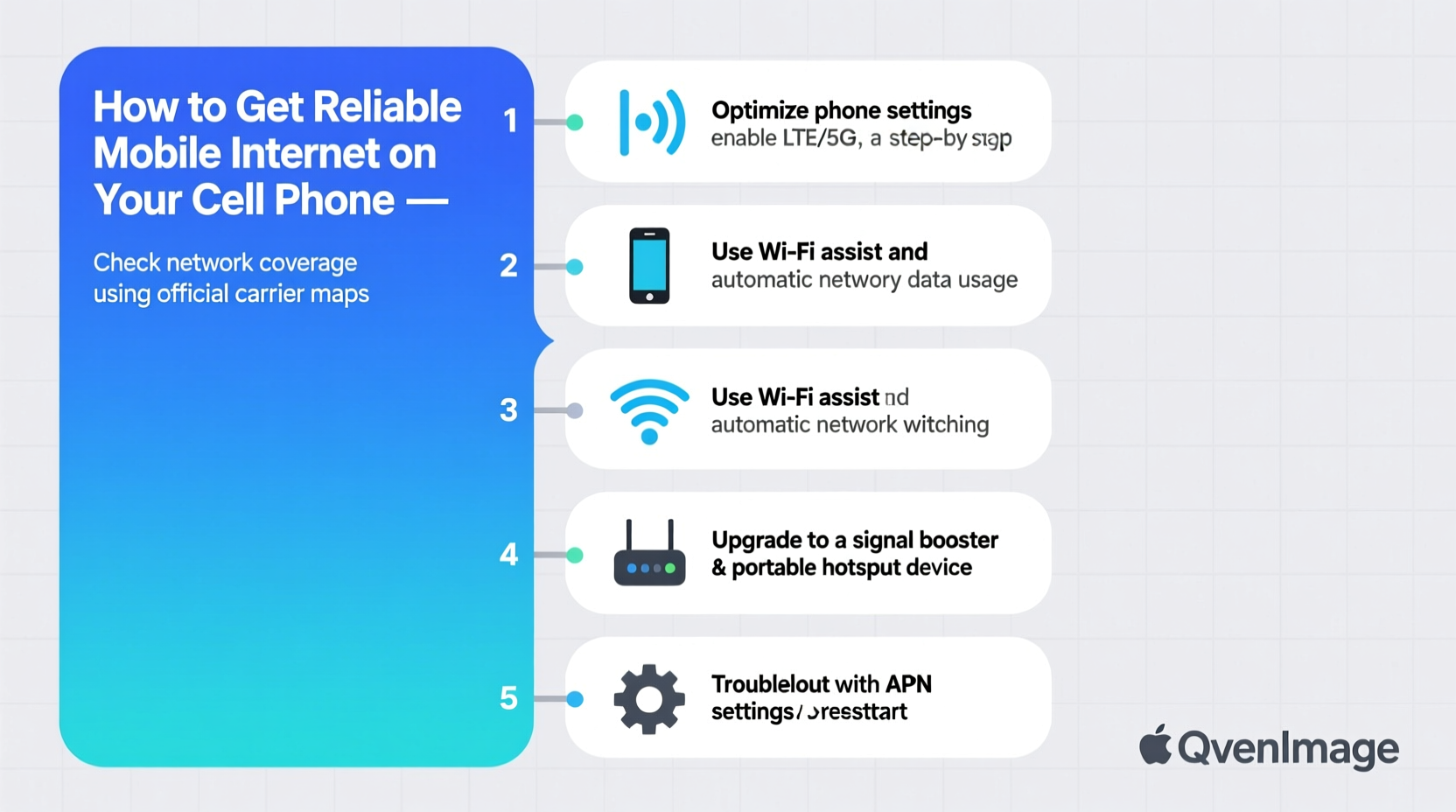
Your mobile internet experience starts with your carrier and the type of network they support. Major carriers like Verizon, AT&T, T-Mobile, and regional providers offer varying levels of coverage depending on location, population density, and infrastructure investment.
Modern smartphones connect via several network standards: 4G LTE, 5G (including low-band, mid-band, and mmWave), and in rare cases, older 3G systems. While 5G promises faster speeds, its performance varies dramatically:
- Low-band 5G: Offers wide coverage but speeds only slightly better than 4G.
- Mid-band 5G: Balances speed and coverage—ideal for urban and suburban areas.
- mmWave 5G: Delivers ultra-fast speeds but has limited range and struggles with walls and obstacles.
To check what network you’re using, go to your phone’s settings under “Network & Internet” or “Cellular.” If you're frequently dropping to 4G in a 5G zone, it may indicate poor signal penetration or tower congestion.
“Network reliability isn’t just about speed—it's about consistency. A stable 4G connection often beats an erratic 5G signal.” — David Lin, Senior Wireless Engineer at NetSignal Labs
Optimize Your Phone Settings for Better Connectivity
Many users overlook built-in phone features that directly impact internet reliability. Small adjustments can yield noticeable improvements.
Enable Wi-Fi Assist (iOS) or Adaptive Connectivity (Android)
These features automatically switch to Wi-Fi when cellular signal weakens, provided a trusted network is available. While helpful, they can drain battery and data if not managed.
Turn Off Data Saver Modes When Performance Matters
Data saver modes restrict background activity and reduce video quality. Useful for conserving bandwidth, but disable them during video calls or large downloads.
Reset Network Settings Periodically
If you notice persistent connection issues, resetting network settings clears corrupted APN configurations, Bluetooth pairings, and saved Wi-Fi networks. On iPhone: Settings > General > Transfer or Reset iPhone > Reset > Reset Network Settings. On Android: Settings > System > Reset Options > Reset Wi-Fi, Mobile & Bluetooth.
Boost Signal Strength in Weak Coverage Areas
Physical environment plays a major role in signal reception. Buildings, terrain, weather, and even your grip on the phone can interfere with reception.
Use Airplane Mode Strategically
Toggle Airplane Mode on for 10 seconds, then off. This forces your phone to reconnect to the nearest tower, often locking onto a stronger signal.
Avoid Obstructions
Stay away from basements, elevators, metal structures, and thick concrete walls. Even holding your phone differently—avoiding covering the bottom edge—can prevent antenna blockage.
Invest in a Signal Booster or Femtocell
For homes or offices with chronic poor reception, consider:
- Signal boosters: Amplify existing outdoor signals indoors (e.g., weBoost, SureCall).
- Femtocells/MicroCells: Miniature towers provided by carriers (e.g., AT&T MicroCell, Verizon LTE Network Extender) that use your broadband to create a local cellular signal.
| Solution | Best For | Limitations |
|---|---|---|
| Wi-Fi Calling | Indoor use with stable Wi-Fi | Requires internet; may not work during outages |
| Signal Booster | Rural or low-signal buildings | Needs external antenna; installation required |
| Femtocell | Carrier-specific indoor coverage | Uses home internet; limited simultaneous users |
| Mobile Hotspot (Tethering) | Secondary devices or backup access | Drains phone battery; consumes data quickly |
Choose the Right Plan and Monitor Data Usage
Even with strong signal, throttling can degrade your experience. Many carriers offer “unlimited” plans that reduce speeds after a certain threshold (typically 20–50GB).
To avoid unexpected slowdowns:
- Track your monthly usage in phone settings or carrier app.
- Check if your plan includes premium data prioritization (e.g., T-Mobile ONE Plus, Verizon CAA pricing).
- Consider switching MVNOs (Mobile Virtual Network Operators) like Mint Mobile, Consumer Cellular, or Visible, which use major networks at lower cost—but verify coverage maps first.
Mini Case Study: Remote Work in Rural Pennsylvania
Sarah, a freelance graphic designer, moved to a rural town for a quieter lifestyle. Her initial carrier showed full bars but delivered inconsistent uploads, disrupting client Zoom calls. After testing apps like OpenSignal and contacting neighbors, she discovered her provider had spotty backhaul infrastructure. She switched to a different MVNO using T-Mobile’s mid-band network, paired it with a weBoost signal booster, and enabled Wi-Fi calling. Her upload stability improved by 70%, allowing seamless file transfers and video meetings.
Step-by-Step Guide to Diagnose and Fix Mobile Internet Issues
Follow this logical sequence when facing connectivity problems:
- Verify the issue: Try loading multiple websites or apps. Is it one app failing or all services?
- Restart your phone: Eliminates temporary software hiccups.
- Check carrier status: Visit your provider’s outage page or use Downdetector.com.
- Test Wi-Fi vs. cellular: Switch between networks to isolate the problem.
- Update your phone: Install OS and carrier settings updates (Settings > General > About > Check for Carrier Update).
- Inspect SIM card: Remove and reinsert it. Look for damage or corrosion.
- Test with another device: Insert your SIM into a friend’s phone to rule out hardware failure.
- Contact customer support: Request a line refresh or account reset if issues persist.
FAQ
Why does my phone show full bars but no internet?
Full bars indicate strong signal strength, but not necessarily good throughput. The tower might be congested, misconfigured, or experiencing backhaul issues. Try restarting or switching to Wi-Fi to confirm.
Does turning off 5G save battery and improve reliability?
Yes. On some phones, especially in areas with spotty 5G coverage, constantly searching for 5G drains battery and causes instability. In Settings, choose “LTE” or “Auto (5G/4G)” mode to prioritize stability over peak speed.
Can a VPN improve mobile internet reliability?
Not typically. A VPN encrypts traffic and routes it through a remote server, which may add latency. However, it can bypass ISP throttling in rare cases where providers limit specific services.
Checklist: Ensuring Reliable Mobile Internet
- ✅ Confirm your carrier has strong coverage in your primary locations
- ✅ Enable Wi-Fi calling and keep it active at home/work
- ✅ Regularly restart your phone and update carrier settings
- ✅ Monitor data usage to avoid throttling
- ✅ Use a signal booster or femtocell if indoors consistently
- ✅ Carry a portable hotspot as backup for critical tasks
- ✅ Test connectivity before committing to long trips or remote work
Take Control of Your Connection
Reliable mobile internet isn’t left to chance. It’s the result of informed choices—choosing the right carrier, optimizing device settings, understanding environmental factors, and preparing for weak spots. By applying these strategies, you transform unpredictable connectivity into a dependable tool for work, communication, and entertainment. Don’t wait for the next dropped call or buffering screen. Audit your current setup today, implement one improvement this week, and build a more resilient digital life—one strong signal at a time.




 浙公网安备
33010002000092号
浙公网安备
33010002000092号 浙B2-20120091-4
Comments
No comments yet. Why don't you start the discussion?