
Streaming live television has transformed the way we consume media. Among the most popular options is YouTube TV, a subscription-based service that offers access to over 100 live channels, unlimited cloud DVR storage, and support for up to six household profiles. Whether you're cutting the cord or simply looking for a more flexible viewing experience, YouTube TV delivers a seamless blend of live TV and modern streaming convenience. This guide walks you through every essential step—from checking compatibility to watching your first show—so you can start streaming without hassle.
Step 1: Confirm Device Compatibility
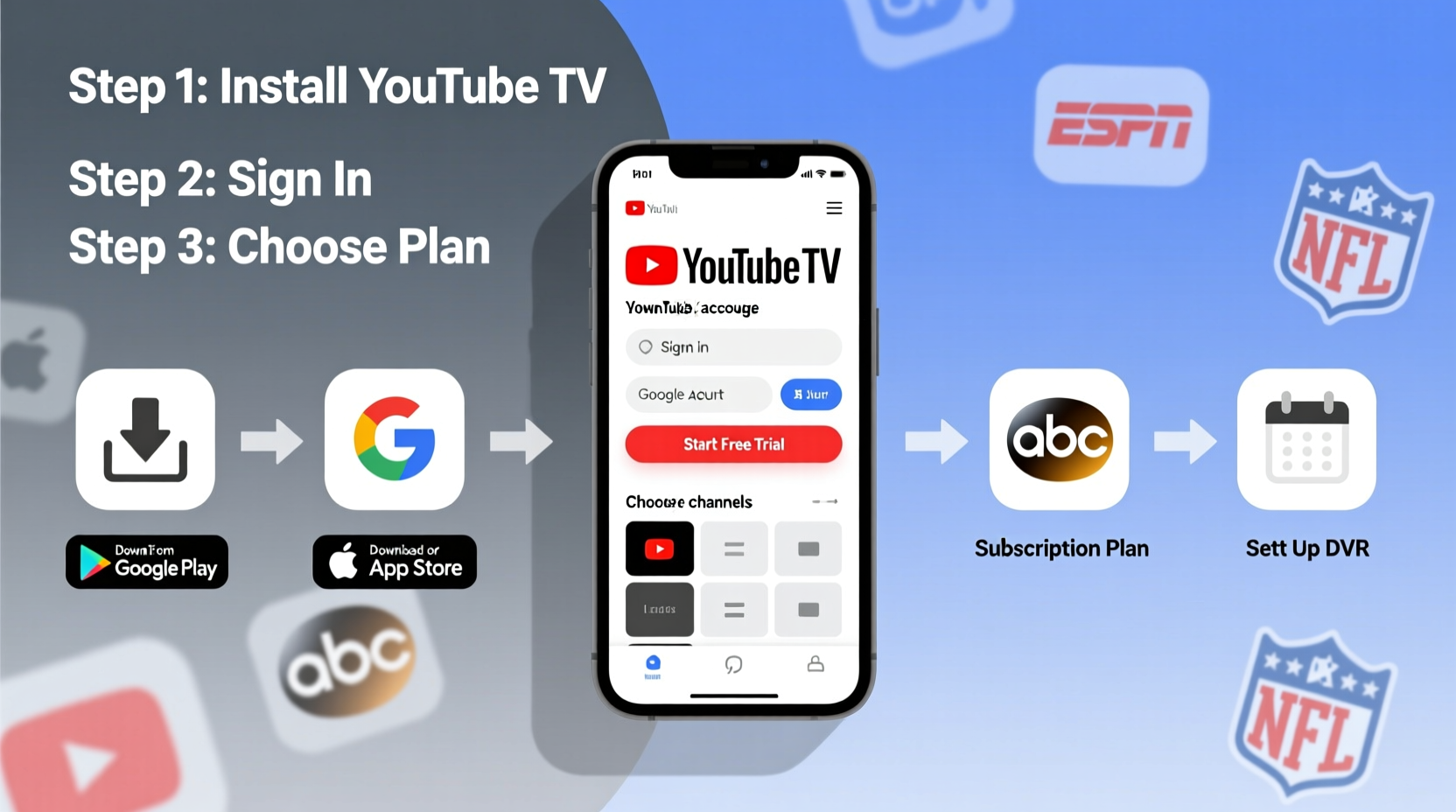
Before signing up, ensure your devices support YouTube TV. The service is available across a wide range of platforms, but not all devices are compatible. You’ll need one of the following:
- Smart TVs (Samsung, LG, Vizio, Hisense, etc.) with built-in YouTube TV apps
- Streaming devices like Roku, Amazon Fire TV, Apple TV, Chromecast with Google TV
- iOS and Android smartphones or tablets
- Web browsers via tv.youtube.com on Chrome, Safari, Firefox, or Edge
To check compatibility, visit the official YouTube TV Help Center or search “YouTube TV” in your device’s app store. Look for the dedicated YouTube TV app—not just the regular YouTube app—as they serve different purposes.
Step 2: Review Channel Lineup and Pricing
YouTube TV costs $72.99 per month as of 2024, with occasional regional variations. This price includes access to major broadcast networks (ABC, CBS, NBC, FOX), sports channels (ESPN, NFL Network), news (CNN, Fox News, MSNBC), entertainment (HGTV, TLC, FX), and premium add-ons like HBO, Showtime, and 4K Plus.
The service regularly updates its channel offerings. Before subscribing, verify that your favorite networks are included. You can explore the full lineup at tv.youtube.com.
“With YouTube TV, I no longer miss my local sports games—even when traveling. The ability to record multiple games simultaneously changed how I watch live TV.” — Marcus Tran, Cord-Cutter Advocate
Common Add-Ons and Their Value
| Add-On | Monthly Cost | What It Includes |
|---|---|---|
| 4K Plus | $19.99 | Offline downloads, 4K streaming, unlimited simultaneous streams |
| HBO Max | $14.99 | Original series, movies, documentaries |
| Showtime | $10.99 | Drama series, film library, original programming |
| Paramount+ | $5.99 (with ads) | Live CBS, exclusive originals, archives |
Step 3: Create or Use an Existing Google Account
YouTube TV requires a Google account for login and billing. If you already use Gmail, Google Drive, or YouTube, you likely have one. Simply sign in using your credentials.
If you don’t have an account:
- Go to accounts.google.com/signup
- Enter your name, desired email address, and password
- Verify your phone number
- Complete setup and sign in to YouTube TV
Your Google account will manage subscriptions, family sharing, parental controls, and payment methods. Ensure it’s secure with two-factor authentication enabled.
Step 4: Subscribe to YouTube TV
Now it’s time to activate your subscription. Follow these steps:
- Navigate to tv.youtube.com or open the YouTube TV app on your device.
- Click or tap “Try it free” (currently offering a 7-day free trial).
- Select your preferred subscription plan (base package + any add-ons).
- Enter your payment information—credit/debit card or Google Pay.
- Confirm your zip code to receive localized channels (e.g., local ABC affiliate).
- Review terms and complete registration.
Within seconds, you’ll gain full access to live TV, on-demand content, and your personalized home screen.
Mini Case Study: How Sarah Cut the Cord Successfully
Sarah, a working mother from Denver, was paying over $120 monthly for cable and still missing her kids’ soccer games due to poor DVR functionality. After researching alternatives, she switched to YouTube TV. Using the free trial, she tested the service on her Samsung smart TV and iPhone. She appreciated the ease of scheduling recordings and streaming live games remotely. Within a week, she canceled her cable subscription. Now, she spends less than $80 a month, shares access with her spouse via profile switching, and uses the cloud DVR to record both Sunday football and cooking shows—without conflict.
Step 5: Optimize Your Viewing Experience
Signing up is just the beginning. To get the most out of YouTube TV, customize your setup:
- Create user profiles: Each household member can have their own recommendations, watchlists, and DVR libraries.
- Set up Family Sharing: Invite up to five other members into your household group. Everyone gets their own login and access to the same channels—no extra cost.
- Use voice remote features: On supported devices, press the microphone button and say “Record Saturday Night Football” or “Watch CNN live.”
- Download shows (with 4K Plus): Travelers or commuters can save programs offline for later viewing.
“YouTube TV’s interface learns what you like quickly. Within days, it was suggesting relevant documentaries and morning news clips tailored to my habits.” — Lena Patel, Media Analyst
Checklist: Getting Started with YouTube TV
- ✅ Verify your device supports the YouTube TV app
- ✅ Check if your favorite channels are available in your region
- ✅ Sign in with a Google account (or create one)
- ✅ Start the 7-day free trial
- ✅ Enter payment details securely
- ✅ Customize profiles and enable parental controls if needed
- ✅ Explore live TV, DVR queue, and on-demand sections
Frequently Asked Questions
Can I watch YouTube TV on multiple devices at once?
Yes. The base plan allows streaming on up to three devices simultaneously. With the 4K Plus add-on, you can stream on unlimited devices within your home network.
Is there a contract or cancellation fee?
No. YouTube TV does not require a long-term contract. You can cancel anytime through your account settings without penalty. Your access continues until the end of the current billing cycle.
Does YouTube TV include local channels?
Yes. YouTube TV provides local ABC, CBS, NBC, FOX, PBS, and CW stations in most U.S. markets. Availability depends on your zip code during setup.
Maximize Your Streaming Freedom
Setting up YouTube TV doesn’t require technical expertise—just a few deliberate steps. From verifying device compatibility to personalizing your viewing environment, each action brings you closer to a smarter, more flexible way to watch television. With robust DVR capabilities, high-quality streaming, and broad device support, YouTube TV stands out as one of the most reliable live TV services available today.
Whether you're replacing cable, supplementing your current package, or setting up your first streaming-only household, the process is straightforward and rewarding. Millions have already made the switch—and with this guide, you’re fully equipped to join them.




 浙公网安备
33010002000092号
浙公网安备
33010002000092号 浙B2-20120091-4
Comments
No comments yet. Why don't you start the discussion?