
In an era where smartphones hold access to personal messages, financial data, health records, and private media, managing app visibility is more than just a neatness habit—it's a smart privacy strategy. Whether you're shielding sensitive tools from prying eyes or decluttering your home screen for focus, knowing how to hide apps effectively can enhance both security and usability. This guide breaks down proven methods across iOS and Android, offering practical steps, real-world use cases, and expert-backed advice to help you take control of what’s visible on your device.
Why Hide Apps? Privacy, Focus, and Digital Minimalism
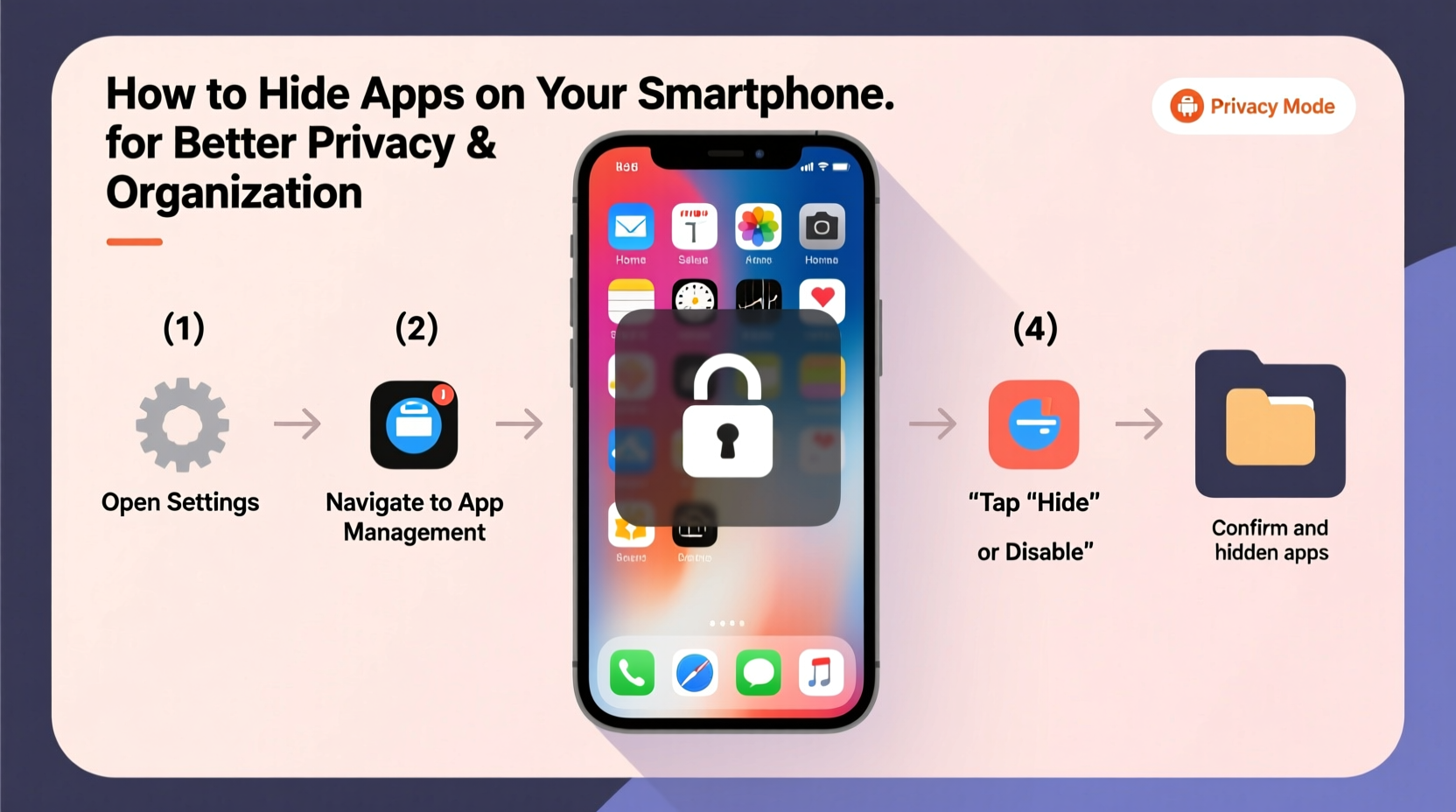
Hiding apps isn’t about deception—it’s about intentionality. Every visible app represents a potential distraction or vulnerability. For instance, someone glancing at your phone might infer habits, interests, or even relationships based on the icons they see. More critically, public devices or shared environments increase exposure to unauthorized access.
Consider these common scenarios:
- A parent wants to restrict children’s access to banking or social media apps.
- A professional uses work-related productivity tools that contain confidential data.
- An individual seeks mental clarity by minimizing digital clutter and reducing notification overload.
By hiding select apps, users regain control over their digital footprint. As Dr. Lena Torres, a digital wellness researcher at the Center for Human-Technology Interaction, explains:
“Curating app visibility supports cognitive offloading. When fewer choices are immediately visible, decision fatigue decreases, and intentional usage increases.” — Dr. Lena Torres, Digital Behavior Specialist
How to Hide Apps on Android Devices
Android offers multiple ways to hide apps, depending on your manufacturer and version. Unlike iOS, many Android phones allow deeper customization through launchers and built-in features.
Method 1: Use the Built-in App Hider (Samsung Devices)
Samsung Galaxy phones running One UI include a native “Hide apps” feature:
- Open Settings.
- Tap Home screen or Display, then select Hide apps.
- Choose the apps you want to conceal from the list.
- Tap Apply. The selected apps will disappear from your app drawer and home screen.
To access hidden apps later, open the app drawer and tap the three-dot menu > Show hidden apps, then re-enable them as needed.
Method 2: Use a Third-Party Launcher
Launchers like Nova Launcher or Action Launcher let you hide apps without relying on manufacturer tools.
Nova Launcher Example:
- Install Nova Launcher from the Google Play Store.
- Long-press the home screen > Settings > App & Widget Drawers.
- Select Hide Apps.
- Check the apps you wish to hide.
The hidden apps remain fully functional but vanish from view unless accessed via search or shortcuts.
Method 3: Use Secure Folder (Samsung) or Work Profile (Enterprise)
Samsung’s Secure Folder isolates apps in an encrypted container accessible only with a PIN, pattern, or biometrics.
- Go to Settings > Biometrics and Security > Secure Folder.
- Set up authentication and link your Samsung account.
- Add apps (e.g., Messages, Gallery, Banking).
Once added, these apps disappear from the main interface and exist only inside the Secure Folder—a true form of app concealment.
“Secure Folder acts like a vault within your phone. It’s one of the most effective consumer-grade tools for app isolation.” — Rajiv Mehta, Mobile Security Analyst at TechShield Labs
How to Hide Apps on iPhones (iOS)
iOS doesn’t offer a direct “hide apps” toggle, but Apple provides indirect yet powerful methods using Screen Time, App Library, and Home Screen customization.
Method 1: Remove from Home Screen (Use App Library Only)
This method keeps apps installed but removes them from immediate view.
- Long-press any app icon on the home screen.
- Select Remove App > Remove from Home Screen.
- The app disappears from your grid but remains accessible via the App Library (swipe left past the last home page).
You can further organize the App Library by going to Settings > Home Screen > App Library and choosing which categories appear.
Method 2: Restrict Access Using Screen Time
Introduced in iOS 12, Screen Time allows granular control over app availability.
- Navigate to Settings > Screen Time.
- Enable Screen Time if not already active.
- Tap App Limits > + Add Limit.
- Select categories (e.g., Social, Finance) or specific apps.
- Set time limit to 1 minute and enable Block at End of Limit.
- Tap Add.
Now, when the user tries to open the app after the limit expires, they must enter a Screen Time passcode to proceed. While not truly “hidden,” this creates a strong deterrent against casual access.
Method 3: Create an Empty Folder (Visual Concealment)
A clever workaround involves burying apps deep within nested folders:
- Create a new folder by dragging one app onto another.
- Name it something generic like “Utilities” or “Tools.”
- Add the apps you want to hide into this folder.
- Place the folder on the last home screen page, behind other folders.
- Optionally, fill the front pages with decoy apps to mislead viewers.
This method relies on obscurity rather than encryption but works well in low-risk situations.
Comparison: Android vs. iOS App Hiding Capabilities
| Feature | Android | iOS |
|---|---|---|
| Native Hide Option | Yes (on Samsung, Xiaomi, etc.) | No |
| Third-Party Launcher Support | Yes (Nova, Action, etc.) | No |
| Encrypted Container (e.g., Secure Folder) | Yes (Samsung, some OEMs) | Limited (via third-party vault apps) |
| Access via App Library/Search | Yes, unless blocked | Yes, always available |
| Requires Extra Authentication | Optional (with containers) | Yes (via Screen Time passcode) |
While Android leads in flexibility, iOS compensates with robust parental controls and ecosystem-wide consistency. Your choice depends on threat model and convenience needs.
Real-World Example: Protecting Sensitive Data During Travel
Meet Aisha, a freelance journalist traveling through regions with high surveillance risks. Before crossing borders, she takes preventive steps:
- Hides her note-taking and encrypted messaging apps using Samsung Secure Folder.
- Removes social media apps from her home screen and sets Screen Time limits on others.
- Uses a secondary email-linked Google account with minimal personal data.
When questioned by authorities, her phone appears ordinary—no suspicious icons, no obvious activism tools. Yet she retains full access to critical apps via biometric authentication. Her approach balances operational security with usability under pressure.
Best Practices Checklist
Follow this checklist to safely and effectively hide apps:
- ✅ Identify which apps contain sensitive or distracting content.
- ✅ Use built-in hiding features (Android) or Screen Time (iOS).
- ✅ Enable biometric locks or strong passwords on your device.
- ✅ Avoid storing passwords in notes or unsecured apps.
- ✅ Regularly audit visible apps and update hiding settings.
- ✅ Educate family members or roommates about privacy boundaries.
- ✅ Back up important data before making system changes.
Frequently Asked Questions
Can hidden apps still run in the background?
Yes. Hiding an app visually does not stop background processes unless restricted via battery optimization or app permissions. To fully disable background activity, go to Settings > Apps > [App Name] > Battery > Background Usage and disable it.
Will hiding apps affect updates?
No. Hidden apps continue receiving automatic updates through the App Store or Google Play, provided internet access and auto-update settings are enabled.
Are there risks in using third-party app hiders?
Potentially. Some unofficial launchers or vault apps may collect usage data or lack encryption. Stick to reputable developers (e.g., Nova Launcher, AppLock by Do Mobile) and review permissions carefully before installation.
Final Thoughts: Take Control of Your Digital Space
Your smartphone should serve you—not expose you. By thoughtfully hiding apps, you create a cleaner interface, reduce distractions, and add a meaningful layer of privacy. Whether you’re safeguarding financial tools, protecting personal journals, or simply seeking a minimalist aesthetic, these techniques empower you to shape your digital environment with purpose.
Start small: pick one app to hide today. Test the method, verify accessibility, and build confidence. Over time, refine your system to match your lifestyle and security needs. In a world of constant connectivity, intentional design is the ultimate act of self-protection.




 浙公网安备
33010002000092号
浙公网安备
33010002000092号 浙B2-20120091-4
Comments
No comments yet. Why don't you start the discussion?