
A sleek, clutter-free gaming station isn’t just pleasing to the eye—it can enhance focus, reduce stress, and even improve airflow and hardware longevity. Yet, one of the most common obstacles to achieving that clean aesthetic is cable chaos. With monitors, PCs, consoles, headsets, charging docks, and peripherals all demanding power and data connections, it’s easy for wires to spiral into an unruly mess behind your desk.
The good news: hiding cables doesn’t require expensive gear or advanced technical skills. With thoughtful planning and a few smart tools, you can transform tangled cords into a streamlined, professional-looking setup. Whether you’re building a new battle station or revamping an existing one, these strategies will help you manage every wire with precision and style.
Assess Your Cable Load First
Before reaching for zip ties or cable sleeves, take stock of what you're working with. Lay out all devices and trace each cable from source to destination. Identify:
- Power cables (PC, monitor, speakers, console)
- Data cables (HDMI, DisplayPort, USB, Ethernet)
- Peripheral cables (keyboard, mouse, headset, webcam)
- Charging cables (controllers, phones, accessories)
This inventory helps determine how much cabling you need to manage and where bottlenecks might occur. For example, if you have multiple monitors and a console connected to a single PC via HDMI switches or docking stations, those junction points become critical zones for organization.
Use Cable Management Channels and Raceways
One of the most effective ways to conceal cables along walls or desks is by using adhesive-mounted raceways. These hollow plastic channels snap closed over grouped wires, keeping them flat against surfaces while remaining accessible.
Raceways are ideal for vertical runs—such as from your desk up to wall-mounted monitors—or horizontal paths along the back edge of your desk. They come in various sizes and colors, including white, black, and gray, allowing them to blend seamlessly into most setups.
Installation is simple:
- Clean the surface thoroughly with alcohol wipes.
- Align the base of the raceway where you want the cables routed.
- Peel and stick, then press firmly for adhesion.
- Lay cables inside the channel.
- Snap the cover shut.
For more permanent installations, consider in-wall conduit kits—especially useful if you're mounting your PC or TV on the same wall. These allow cables to disappear completely behind drywall, emerging only where needed.
“Clean cable routing isn't just about aesthetics—it reduces dust accumulation and improves cooling efficiency.” — Jordan Lee, PC Build Specialist at TechFlow Labs
Optimize Cable Lengths and Routing Paths
Long cables may seem convenient, but excess length leads to loops, tangles, and poor airflow. Instead, aim for precision. Measure distances between devices and outlets, then choose appropriately sized cables.
For instance:
- A monitor 3 feet from the GPU? Use a 4-foot DisplayPort cable, not a 10-foot one.
- Your router is across the room? Run a longer Ethernet cable through baseboards rather than across open floor space.
Consider upgrading to custom-length braided cables for both durability and visual appeal. Many vendors offer made-to-order power, SATA, and PCIe cables in specific lengths and colors.
| Cable Type | Ideal Length Range | Recommended Solution |
|---|---|---|
| Monitor Video (HDMI/DP) | 3–6 ft | Braided low-profile cable; route behind desk leg |
| PC Power Cord | 6–8 ft | Use velcro straps to coil excess near PSU inlet |
| USB Peripherals | 3–5 ft | Hub with short breakout cables; avoid daisy-chaining |
| Ethernet | As needed + 1–2 ft slack | Run under carpet or along baseboard with clips |
Embrace Modular Solutions: Sleeves, Clips, and Trays
Once cables are measured and positioned, secure them with modular accessories designed for long-term neatness.
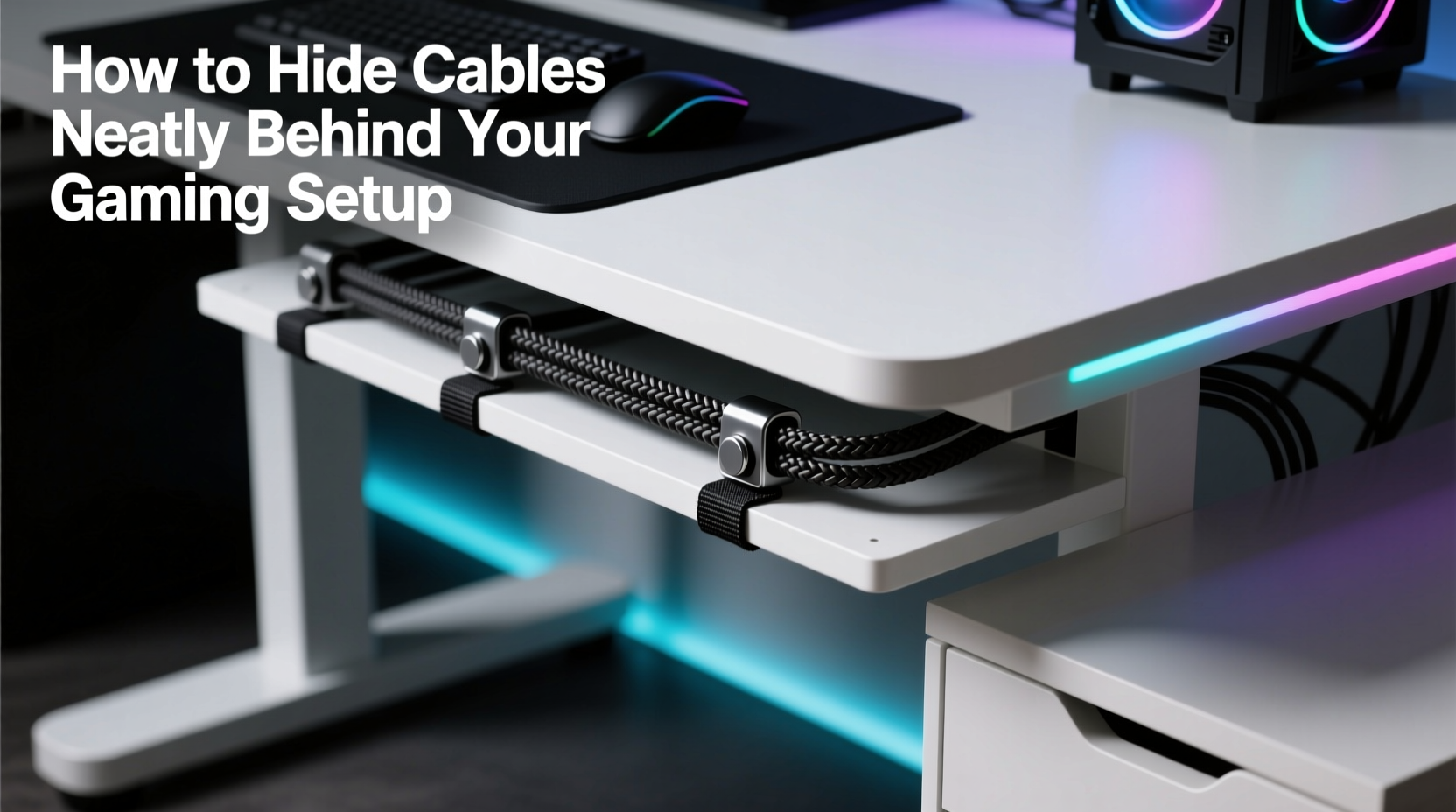
Cable sleeves (also called looms) bundle multiple wires into a single flexible tube. Available in mesh or braided fabric, they compress easily and expand when adding or removing cables. Wrap your monitor, audio, and USB cables together and run them as one unified strand.
Adhesive cable clips keep individual lines flush against desk frames or legs. Use rubber-lined variants to prevent abrasion. Place them every 8–12 inches along the route to maintain tension and alignment.
Under-desk cable trays are game-changers for multi-device setups. Mounted beneath the desktop, these trays hold power strips, hubs, and excess cord slack out of sight but within reach. Choose models with ventilation slots to prevent heat buildup.
For standing desks, use stretchable spiral wrap conduits that flex with movement without snagging or pulling loose.
Mini Case Study: From Cluttered to Clean in One Weekend
Daniel, a streamer with a dual-monitor rig, struggled with constant tripping hazards and uninvited “cable cam” appearances on live video. His original setup had six power cords, four data cables, and three charging lines snaking across the floor and behind his desk.
He reorganized using this approach:
- Unplugged everything and labeled each cable.
- Measured required lengths and replaced oversized cords.
- Installed a 4-port USB hub and single power strip under the desk.
- Used a 12-inch cable sleeve to group monitor and audio cables.
- Fitted adhesive raceways along the back panel and down one leg.
- Mounted an under-desk tray to house the power strip and hub.
The result? A fully concealed backend with easy access to ports. Viewers noticed the cleaner background immediately, and Daniel reported fewer crashes due to accidental unplugging.
Build a Smart Cable Management Routine
Even the best initial setup degrades without maintenance. Establish a monthly check-in to inspect connections, re-tension straps, and remove dust buildup. Follow this checklist to stay on track:
✅ Monthly Cable Maintenance Checklist
- Check for frayed or overheating cables
- Re-secure loose zip ties or Velcro straps
- Dust around power bricks and connection points
- Test backup cables and replace failing ones
- Verify all devices receive stable power and data signals
- Update labels if new devices were added
Incorporate digital tools too. Use a surge protector with a remote switch or smart plug to cut power to non-essential devices overnight—reducing energy waste and wear on cables.
Common Mistakes That Sabotage Cable Neatness
Even experienced builders fall into traps that undo their efforts. Avoid these pitfalls:
- Over-tightening zip ties: Can damage insulation and restrict heat dissipation.
- Ignoring airflow: Packing too many cables around intake fans blocks cool air.
- Using permanent adhesives on rental furniture: Opt for removable mounts or magnetic clips instead.
- Hiding everything permanently: Always leave service loops or quick-release points for upgrades.
- Skipping strain relief: Cables bent sharply at ports can break internally over time.
Instead of zip ties, use reusable hook-and-loop straps or magnetic cable holders that allow adjustments without cutting.
FAQ
Can I paint cable raceways to match my wall?
Yes—most plastic raceways accept acrylic or latex paint. Lightly sand the surface first, apply primer, then paint in thin coats. Avoid metallic paints near active cables due to conductivity risks.
What’s the best way to hide floor-running cables?
Use flat cable covers (also called cord protectors) that lay on the ground and shield wires under a low-profile lid. These are safe for foot traffic and come in carpet and hard-floor variants. Alternatively, route cables under area rugs secured with non-slip pads.
Are wireless peripherals worth it for cable reduction?
For keyboards, mice, and headsets, yes—modern wireless models offer near-zero latency and strong encryption. However, retain wired options for mission-critical tasks like competitive play. Combine both: go wireless for convenience, keep essential links physical for reliability.
Final Thoughts: A Clean Setup Is a High-Performance Setup
Hiding cables neatly isn’t just about impressing viewers on camera or matching your RGB theme. It’s about creating a functional, sustainable environment where every component works efficiently and safely. Tidy wiring improves airflow, minimizes fire risk, eases troubleshooting, and extends the life of your gear.
Start small—bundle two or three cables today. Then gradually integrate raceways, trays, and optimized routing. Over time, you’ll build a system that looks pro-installed and performs like one.




 浙公网安备
33010002000092号
浙公网安备
33010002000092号 浙B2-20120091-4
Comments
No comments yet. Why don't you start the discussion?