
In today’s hyper-connected world, homes and offices host a growing number of devices—from smartphones and laptops to smart thermostats and security cameras. Each device that connects to your network represents both convenience and potential risk. Unauthorized or poorly managed devices can slow performance, expose sensitive data, or serve as entry points for cyberattacks. Gaining full visibility and control over what’s on your network isn’t just technical housekeeping—it’s essential digital hygiene.
Understanding which devices are connected, assessing their behavior, and managing access ensures better speed, stronger security, and peace of mind. This guide walks through proven methods to discover all active devices, evaluate their legitimacy, and maintain ongoing oversight using accessible tools and best practices.
Why Device Visibility Matters
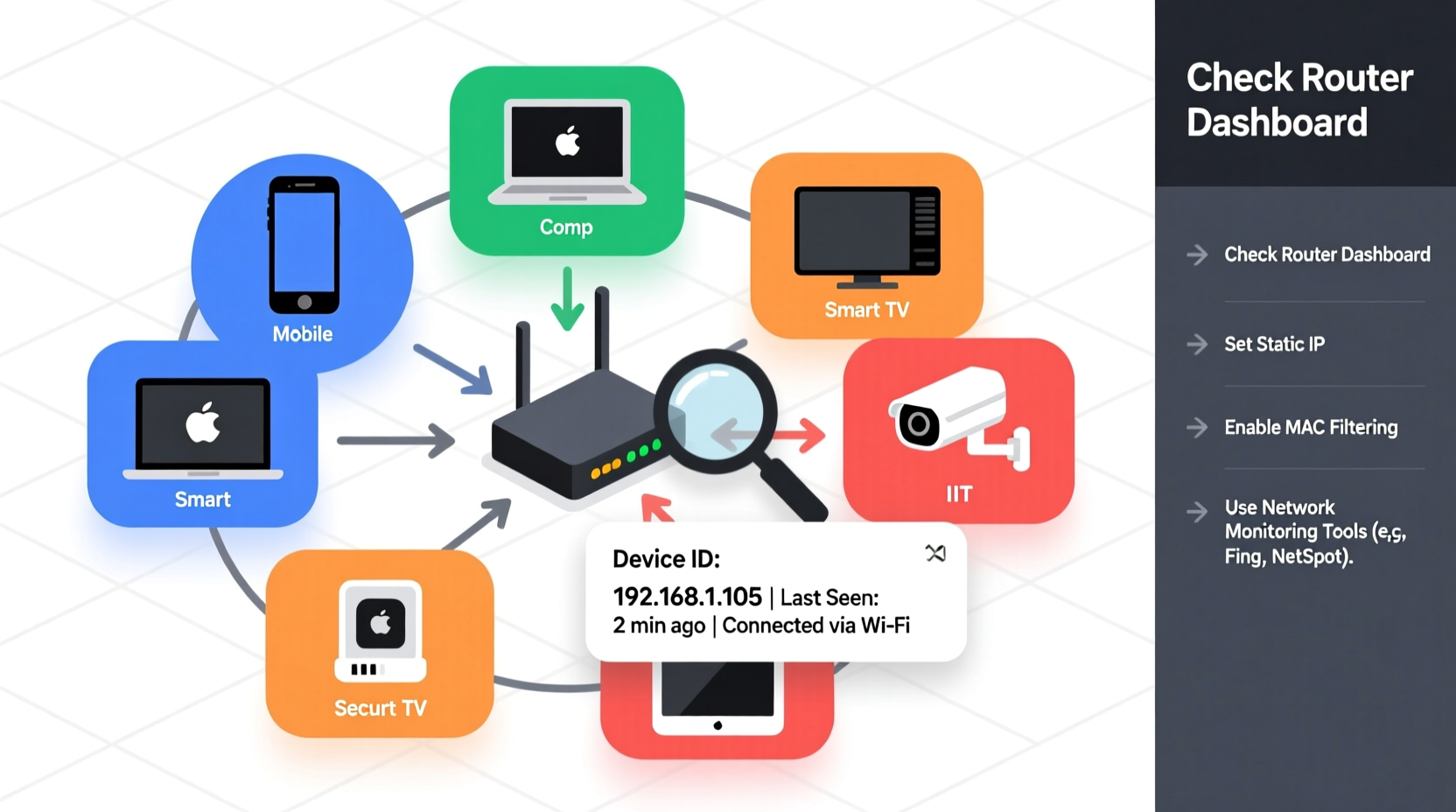
Your router acts as the gateway between your local network and the internet. Every device that communicates online does so through this hub. Without monitoring, it's easy to lose track of what’s connected—especially as IoT devices proliferate. A guest’s phone, a forgotten tablet, or even a rogue smart speaker could be silently consuming bandwidth or transmitting data without your knowledge.
Security is the primary concern. The 2023 Verizon Data Breach Investigations Report found that 74% of breaches involved human elements such as misconfigurations or unauthorized access. Many attacks begin by exploiting unmonitored devices. For example, an outdated IP camera with default credentials can become a foothold for attackers to move laterally across your network.
“Network visibility is the foundation of cybersecurity. You can’t protect what you can’t see.” — Dr. Lena Torres, Network Security Analyst at CyberShield Labs
Beyond security, performance suffers when too many devices compete for bandwidth. Streaming lag, slow downloads, and dropped video calls often stem from unnoticed devices syncing in the background or malware generating traffic.
Step-by-Step Guide to Identifying Connected Devices
Finding every device on your network doesn’t require advanced skills. Follow these steps to build a complete inventory:
- Access Your Router’s Admin Interface
Open a web browser and enter your router’s IP address (commonly 192.168.1.1 or 192.168.0.1). Log in with your admin credentials (check the router label if unsure). - Navigate to Attached Devices
Look for sections labeled “Connected Devices,” “Device List,” or “DHCP Clients.” This page displays all current connections, typically showing device names, IP addresses, MAC addresses, and connection type (wired/wireless). - Record Device Details
Note down each device’s name, MAC address (a unique hardware identifier), and IP. Use a spreadsheet to track known devices like your laptop, phone, or TV. - Use Network Scanning Tools
For deeper insight, use free tools like Advanced IP Scanner (Windows), Fing (mobile/desktop), or nmap (command-line). These tools actively probe the network and often reveal more information than the router interface. - Cross-Reference Unknown Devices
If a device lacks a recognizable name, check its MAC address. The first six characters (OUI – Organizationally Unique Identifier) indicate the manufacturer. Use online OUI lookup tools (e.g., https://macvendors.com) to identify the maker.
Managing Devices: Best Practices for Control and Security
Once you’ve identified all devices, the next step is management. This involves controlling access, segmenting traffic, and monitoring behavior.
- Rename Devices for Clarity: Replace generic names like “Android-12” with descriptive labels such as “John’s Phone” or “Living Room Camera.” Some routers allow renaming directly in the admin panel.
- Set Up Access Controls: Use MAC address filtering to allow only approved devices. While not foolproof (MAC addresses can be spoofed), it adds a layer of deterrence.
- Enable Guest Networks: Isolate visitor devices on a separate SSID with limited access to internal resources. This prevents guests from reaching shared folders or smart home systems.
- Update Firmware Regularly: Ensure your router runs the latest firmware. Manufacturers patch vulnerabilities that could otherwise be exploited by malicious devices.
- Monitor Traffic Patterns: Watch for unusual spikes in upload/download activity. Sudden high usage from a smart bulb or thermostat may indicate compromise.
Network Segmentation Strategy
Consider dividing your network into zones:
| Segment | Purpose | Example Devices |
|---|---|---|
| Primary | Trusted personal devices | Laptop, phone, workstations |
| IoT | Smart home gadgets | Cameras, lights, plugs |
| Guest | Visitor access | Friends’ phones, tablets |
| Isolated | High-risk or legacy devices | Old printers, unpatched systems |
Many modern routers and mesh systems support VLANs or app-based segmentation. This limits lateral movement if one device is compromised.
Real Example: Detecting a Hidden Threat
Mark, a remote worker in Austin, noticed his internet slowing down every evening. His router list showed 14 devices—far more than he owned. Using Fing, he discovered an unknown device named “ESP_8266,” a common identifier for low-cost Wi-Fi microcontrollers. The MAC address traced back to a Chinese electronics manufacturer.
Suspicious, Mark disconnected the device and changed his Wi-Fi password. He later realized he’d left a smart plug at a friend’s house months earlier, which had auto-reconnected when visiting. Though benign in this case, it highlighted how easily forgotten devices can reappear—and how crucial regular audits are.
Essential Checklist for Ongoing Network Management
To maintain control, follow this monthly checklist:
- Review the list of connected devices in your router dashboard
- Verify all devices are recognized and authorized
- Check for firmware updates on router and critical IoT devices
- Test guest network isolation (try accessing internal shares from a guest device)
- Document any new permanent devices with name, MAC, and purpose
- Run a quick scan using a tool like Fing or nmap
- Reset passwords if suspicious activity is detected
Frequently Asked Questions
Can someone connect to my Wi-Fi without my knowledge?
Yes, especially if your network uses weak or default passwords. WPA3 encryption and strong, unique passphrases significantly reduce this risk. Regular device checks help catch intruders early.
How do I remove an unknown device from my network?
First, disconnect it via your router’s admin interface if possible. Then, change your Wi-Fi password immediately. For persistent threats, enable MAC filtering to block the device’s hardware address.
Do all devices show up on the router’s device list?
Most do, but some may appear only intermittently (e.g., sleeping laptops). Devices in airplane mode or disconnected won’t appear. Active scanning tools improve detection accuracy.
Final Thoughts and Action Plan
Taking control of your network starts with awareness. Simply logging into your router once a month to review connected devices can prevent major issues down the line. Combine visibility with proactive measures—strong passwords, segmentation, and regular updates—to create a resilient digital environment.
Technology should empower, not endanger. By identifying and managing every device on your network, you’re not just optimizing performance—you’re protecting your privacy, your data, and your peace of mind.




 浙公网安备
33010002000092号
浙公网安备
33010002000092号 浙B2-20120091-4
Comments
No comments yet. Why don't you start the discussion?