
High-definition (HD) television has become the standard for modern viewing, offering sharper images, richer colors, and an overall more immersive experience. Yet, many households still use older TVs or are unsure whether their current model delivers true HD quality. If you're noticing blurry visuals, pixelation during streaming, or just want to make sure you're getting the most out of your entertainment setup, it's time to determine whether your TV supports HD. This guide walks you through practical steps to confirm your TV’s capabilities, decode technical labels, and optimize your viewing experience.
Understanding HD: What It Means for Your Viewing Experience
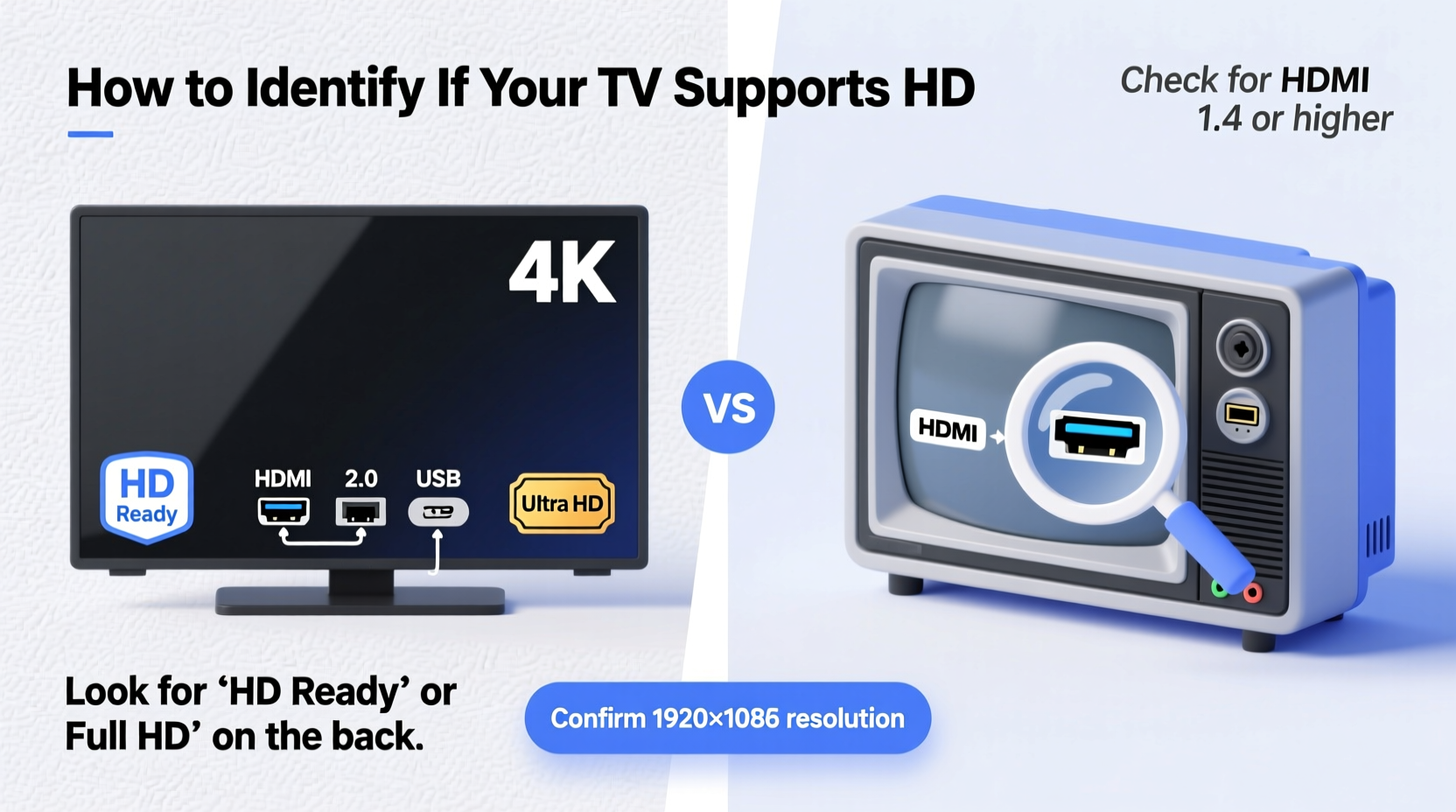
HD, or high definition, refers to a display resolution significantly higher than standard definition (SD). The most common HD resolutions are:
- 720p (1280x720 pixels) – Often called \"HD Ready\"
- 1080i (1920x1080 pixels, interlaced) – Full HD in broadcast format
- 1080p (1920x1080 pixels, progressive) – True Full HD, the gold standard for HD content
Compared to standard definition (typically 480i), HD provides four to six times more image detail. This means clearer facial features, crisper text, and smoother motion—especially noticeable on larger screens or when watching movies, sports, or streaming services like Netflix and Hulu.
However, having an HD signal isn’t enough. Both your TV and your source device (cable box, streaming stick, Blu-ray player) must support HD output and transmission. Otherwise, even premium content will appear soft or distorted.
Step-by-Step Guide to Confirming Your TV’s HD Support
Follow these clear, actionable steps to determine whether your TV is capable of displaying HD content.
- Check the Model Number – Locate your TV’s model number, usually found on the back panel or in the settings menu under “About” or “System Information.” Search the model online (e.g., “Samsung UN40H5500 specs”) to find its native resolution.
- Review the User Manual – If you still have the original manual, look for terms like “HD,” “Full HD,” “1080p,” or “720p.” Avoid vague marketing terms like “digital” or “advanced clarity,” which don’t guarantee HD support.
- Navigate the Settings Menu – Access your TV’s display or picture settings. Look for resolution options such as 1080p, 1080i, or 720p. If only 480i or 480p appears, your TV is not HD-capable.
- Inspect Physical Ports – HD-ready TVs typically include HDMI ports. While older models may have component video inputs (red, green, blue RCA jacks), HDMI is the most reliable way to transmit HD signals from modern devices.
- Test with HD Content – Play a known HD source (e.g., a Blu-ray disc or HD stream on YouTube). Observe the picture quality. A genuine HD display will show fine details without visible scan lines or blockiness.
Decoding Common Labels and Marketing Terms
TV manufacturers often use confusing terminology. Understanding what these labels actually mean can prevent misinterpretation.
| Term | What It Really Means | HD Capable? |
|---|---|---|
| Digital TV | Can receive digital broadcasts but may only display SD resolution | No |
| HD Ready | Supports 720p or higher but requires external tuner; common in older EU models | Yes (minimum HD) |
| Full HD / 1080p | Native resolution of 1920x1080; fully HD-compliant | Yes |
| Ultra HD / 4K | Resolution of 3840x2160; exceeds HD standards | Yes (and beyond) |
| Smart TV | Connects to the internet; does not imply HD resolution | Not necessarily |
Be cautious of legacy terms like “HDTV Monitor” or “Digital Tuner Built-In.” These suggest partial HD compatibility but do not guarantee a high-resolution display. Always verify the actual resolution.
Real Example: Maria Upgrades Her Living Room Setup
Maria had been frustrated with her nightly news broadcasts looking grainy, despite subscribing to a premium cable package. She assumed her two-year-old smart TV was handling HD content. After reading about resolution checks, she pressed the “Info” button on her remote and saw “480i” displayed in the corner. Surprised, she looked up her model number—LG 32LB5800—and discovered it was labeled “HD Ready” but only supported 720p via HDMI. Her cable box was connected via composite cables (the red/white/yellow ones), which max out at SD.
She switched the connection to HDMI, restarted both devices, and instantly noticed a dramatic improvement. News anchors’ faces were clearer, and weather maps were legible. The fix cost nothing—just reconfiguring existing hardware.
“Many consumers assume connectivity equals quality. But without the right cables and correct settings, even HD-capable TVs perform like SD sets.” — James Reed, AV Technician & Home Theater Consultant
Troubleshooting: Why Your HD TV Might Not Be Showing HD
Sometimes, the issue isn’t the TV—it’s the setup. Here are common reasons your HD TV might not be delivering HD quality:
- Using outdated cables – Composite (RCA) or S-Video cables cannot carry HD signals. Upgrade to HDMI.
- Source device set to SD output – Check your cable box, DVD player, or streaming stick settings to ensure output resolution is set to 720p or higher.
- Signal limitations – Some broadcast channels or streaming apps default to lower resolution on slow internet connections.
- Incorrect aspect ratio – If the screen shows black bars or stretched images, adjust the aspect setting to “16:9” or “Full” mode.
Quick Checklist: Is Your TV Truly HD?
- ✅ TV model supports at least 720p resolution
- ✅ Connected via HDMI (not composite or coaxial)
- ✅ Source device outputs in HD (check its settings)
- ✅ On-screen info shows 720p, 1080i, or 1080p resolution
- ✅ Picture appears sharp with minimal pixelation
Frequently Asked Questions
Can a non-HD TV play HD content?
No. A non-HD TV lacks the pixel density to display HD resolutions. If you connect an HD source, the signal will be downconverted to standard definition, resulting in no visual improvement.
Does having a smart TV mean it’s HD?
Not necessarily. While most smart TVs today are HD or better, the term “smart” only refers to internet connectivity and app support. Always check the resolution specifications separately.
Is there a difference between 1080i and 1080p?
Yes. 1080i (interlaced) displays alternating lines of the image in sequence, while 1080p (progressive) shows all lines at once. 1080p provides smoother motion and is superior for fast-action content like sports or gaming.
Final Thoughts: Maximize Your Viewing Potential
Knowing whether your TV supports HD isn’t just about technical curiosity—it directly impacts your daily enjoyment of media. A clear, detailed picture enhances everything from movie nights to morning news. By verifying your TV’s resolution, using the right cables, and ensuring your sources are properly configured, you unlock the full value of your entertainment investments.
If your TV falls short, consider upgrading to a modern HD or 4K model—today’s entry-level sets offer excellent picture quality at affordable prices. But if your hardware is capable and just misconfigured, a few simple adjustments can transform your viewing experience overnight.




 浙公网安备
33010002000092号
浙公网安备
33010002000092号 浙B2-20120091-4
Comments
No comments yet. Why don't you start the discussion?