
Determining your mobile phone carrier can be essential when switching networks, unlocking your device, or troubleshooting connectivity issues. Whether you've inherited an old phone, bought one secondhand, or simply forgotten which provider you're using, identifying your carrier doesn't have to be confusing. This comprehensive guide walks you through reliable methods that work across all major devices—Android, iPhone, Windows, and even basic phones—using built-in settings, physical identifiers, and external tools.
Check Your Device Settings (iPhone and Android)
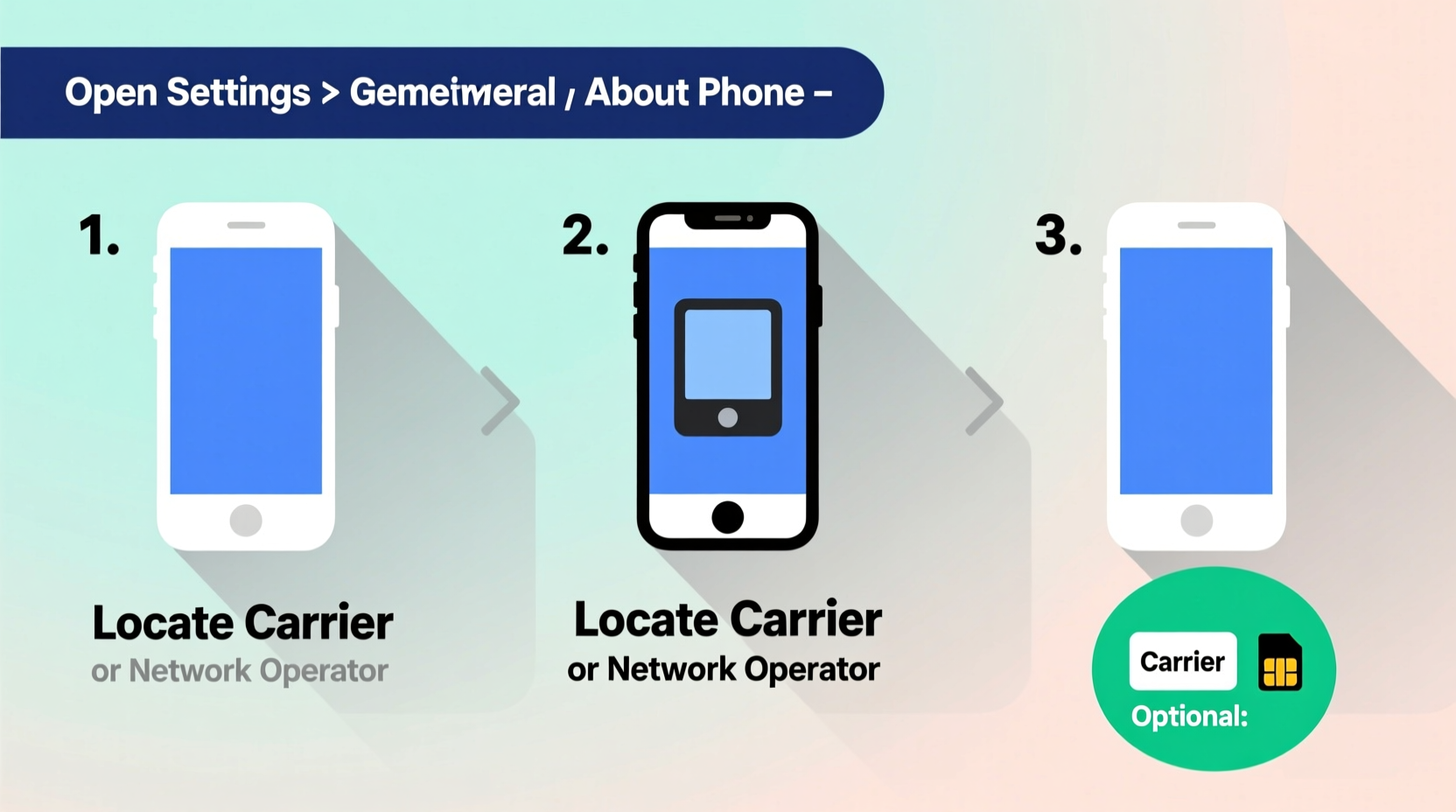
The most straightforward way to find your carrier is directly within your phone’s settings. Both iOS and Android display network information clearly, often including the carrier name, signal type, and even SIM status.
For iPhone Users
- Open the Settings app.
- Navigate to General > About.
- Look for the Carrier field. The name listed here is your current service provider (e.g., AT&T, Verizon, T-Mobile).
- If you’re using a dual-SIM model, check under Cellular to see details for each line.
This method works even if the phone isn’t actively connected to a network, as long as a SIM card was previously inserted.
For Android Devices
- Go to Settings.
- Select Network & Internet or Connections, depending on your brand.
- Tap Mobile Network or SIM Card Manager.
- Your carrier’s name should appear at the top or within the SIM information section.
Some manufacturers like Samsung or Google Pixel may label this under “SIM Status” or “Network Operators.” If no name appears, ensure a SIM card is properly installed and active.
*#*#4636#*#* opens a hidden testing menu where you can view detailed phone and network info, including carrier.
Examine Physical Markings on the Device
If the phone won’t power on or lacks a SIM card, physical identifiers can still reveal the carrier. Manufacturers often engrave or print carrier-specific codes on the device body or packaging.
- Back Panel or Battery Compartment: Older phones list carrier names or logos on the rear casing. iPhones show this near the regulatory text.
- Original Box or Documentation: Check the retail box—it usually displays the carrier logo prominently.
- Model and FCC ID: Visit FCC ID Search, enter the FCC ID (found on the device or in settings), and review grant documents. These often specify supported carriers and frequencies.
For example, an iPhone model number ending in “LL/A” typically indicates a U.S. version sold by Apple or a specific carrier like Verizon (“VL/A”) or AT&T (“ZA/A”).
Use the SIM Card to Identify the Carrier
The SIM card itself is one of the most direct indicators of your mobile provider. Every SIM has printed information that includes the carrier's name and ICCID (Integrated Circuit Card Identifier).
- Power off your device.
- Remove the SIM tray using the eject tool or a paperclip.
- Inspect the SIM card for visible branding—most carriers imprint their logo or company name.
- Look for the ICCID number, usually 19–20 digits long. The first few digits (Issuer Identifier) indicate the country and carrier.
For instance:
- 89012 – Often corresponds to U.S.-based providers.
- 89014 – Commonly used by Verizon.
- 89011 – Frequently associated with AT&T.
| ICCID Prefix | Possible Carrier | Country |
|---|---|---|
| 89014 | Verizon | United States |
| 89011 | AT&T | United States |
| 89012 | T-Mobile | United States |
| 8944 | O2, Vodafone UK | United Kingdom |
You can also insert the SIM into another compatible phone to see which network it connects to automatically.
Call Customer Service or Use Online Tools
If internal checks fail, contacting customer support with your phone number or IMEI can confirm your carrier instantly.
- Dial your own number from another phone and listen to the voicemail greeting—many carriers include prompts like “You’ve reached a Verizon Wireless customer…”
- Visit carrier websites such as Verizon’s Bring Your Own Phone page or AT&T’s IMEI Checker. Enter your device’s IMEI to verify compatibility and ownership history.
To find your IMEI:
- Dial
*#06#on your phone’s keypad. - The 15-digit number displayed is your IMEI.
- Alternatively, check under Settings > About Phone > Status (Android) or Settings > General > About (iPhone).
“IMEI databases are maintained globally and can trace not only carrier locks but also reported thefts and warranty status.” — David Lin, Mobile Forensics Analyst
Mini Case Study: Unlocking a Secondhand iPhone
Sarah purchased a used iPhone from an online marketplace. It had no SIM card, and she couldn’t access settings without the previous owner’s Apple ID. She needed to know whether it was locked to a carrier before inserting her T-Mobile SIM.
She removed the SIM tray and noticed the engraved model number: A2111. A quick web search revealed this was an international variant typically sold unlocked. Still cautious, she dialed *#06# using the keypad and obtained the IMEI. She entered it on Apple’s Check Coverage site, which confirmed the device was eligible for activation and not reported lost.
After inserting her SIM, the phone displayed “T-Mobile” in the status bar—confirming it worked on her network. Sarah avoided potential lock-in issues by verifying both hardware and carrier status beforehand.
Quick Checklist: How to Identify Your Carrier in Under 5 Minutes
- ✅ Check Settings > About (iPhone) or Network & Internet (Android)
- ✅ Look at the SIM card for printed carrier name or ICCID prefix
- ✅ Dial *#06# to retrieve IMEI and verify via carrier website
- ✅ Inspect the device model number or FCC ID for clues
- ✅ Test with a known SIM card from a specific provider
Frequently Asked Questions
Can I tell my carrier without a SIM card?
Yes. While the carrier name may not appear in settings without an active SIM, you can still use the device model number, IMEI, or physical engravings to determine likely carrier associations. Some phones sold exclusively by carriers (like Verizon’s CDMA models) have unique identifiers tied to those networks.
What does it mean if my phone says “No Service” but shows a carrier name?
This usually means a SIM card is present and recognized, but there’s no network connection due to poor signal, account suspension, or carrier lock. Verify your plan status and ensure the SIM is activated.
Does the carrier name in settings always reflect the current provider?
Not necessarily. In rare cases, especially after flashing custom firmware or switching carriers without updating software, outdated carrier branding may persist. Always cross-check with SIM and network behavior.
Conclusion: Take Control of Your Connectivity
Knowing your mobile phone carrier empowers you to make informed decisions about plans, unlocks, and device compatibility. Whether you’re upgrading, traveling internationally, or troubleshooting service issues, these proven methods provide clarity across any device. From checking built-in settings to decoding SIM and IMEI data, the tools are accessible and reliable.




 浙公网安备
33010002000092号
浙公网安备
33010002000092号 浙B2-20120091-4
Comments
No comments yet. Why don't you start the discussion?