
Mastering aim in Fortnite on a controller is one of the most challenging yet rewarding aspects of competitive play. While mouse and keyboard offer precision, millions of skilled players dominate matches using only a controller. The key lies not just in reflexes or hand-eye coordination, but in fine-tuning your settings to match your natural movement and playstyle. With the right configuration, even casual players can drastically reduce input lag, increase tracking accuracy, and land more headshots under pressure.
This guide breaks down every critical setting that affects aiming performance, from sensitivity curves to stick dead zones. It also includes actionable strategies, real-world examples, and insights from high-level console players to help you build muscle memory and consistency. Whether you're struggling with flick shots or smooth tracking during close-range fights, optimizing your controller setup is the first step toward elite-level performance.
Understanding Controller Input Mechanics
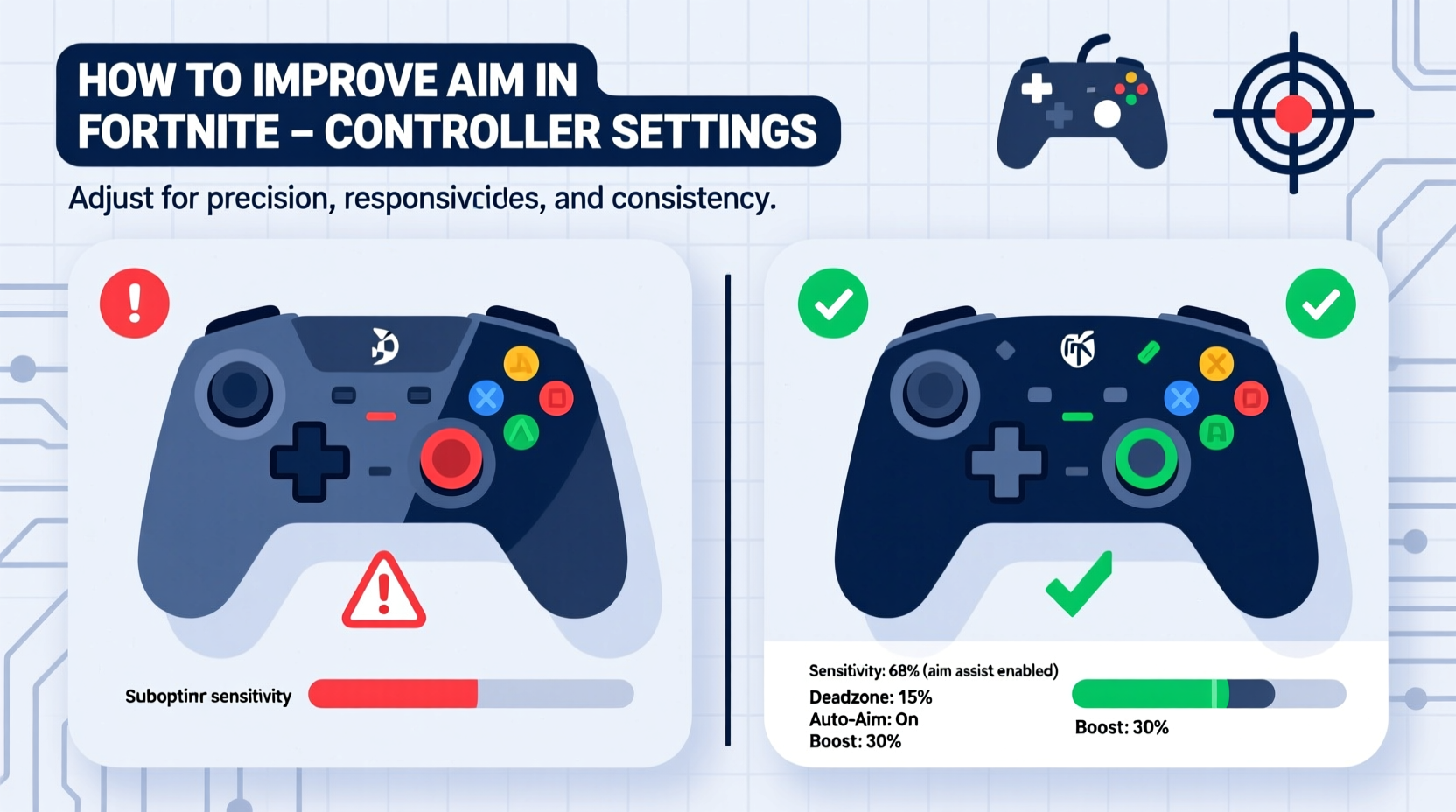
Before adjusting any settings, it's essential to understand how a controller translates physical movement into in-game camera motion. Unlike a mouse, which provides direct 1:1 tracking, analog sticks rely on variable voltage output based on how far they’re pushed. This creates a non-linear response curve—small movements near the center produce slower rotation, while full deflection results in rapid turning.
The problem many players face is inconsistency in stick return-to-center, drift over time, and mismatched sensitivity between vertical and horizontal axes. These issues compound during fast-paced engagements, leading to overshooting targets or sluggish reactions. The solution isn't just lowering sensitivity—it’s about calibrating the entire control pipeline for responsiveness and repeatability.
Optimizing Core Aim Settings
Fortnite offers granular control over aiming mechanics. Each option serves a distinct purpose, and understanding their function allows for intelligent tuning rather than random experimentation.
Sensitivity & Response Curve
Sensitivity determines how fast your character turns when you move the right stick. However, raw sensitivity values mean little without considering the response curve. Fortnite offers three main curve types: Dynamic, Linear, and Exponential.
- Dynamic (Default): Adjusts sensitivity based on movement speed. Good for beginners, but inconsistent for precise flicks.
- Linear: Provides constant rate of turn regardless of stick deflection. Offers predictability and preferred by advanced players.
- Exponential: Increases sensitivity exponentially with stick push. Allows slow micro-adjustments at low input and fast turns at full deflection.
For consistent aim training, Linear is often recommended because it removes variability and helps develop accurate muscle memory.
Yaw vs. Pitch Sensitivity
Yaw controls horizontal turning; pitch controls vertical look-up/down. Most players benefit from slightly higher yaw sensitivity than pitch, as horizontal tracking is more frequent in combat.
“We see top players running 7–9 on yaw and 5–7 on pitch with Linear curve. That balance lets them track side-to-side smoothly while maintaining tight vertical recoil control.” — Marcus Tran, Console Coach at AimFactory.gg
Dead Zones
Stick dead zones filter out minor stick drift or imperfect centering. Too high, and you lose fine control; too low, and unintended inputs occur.
| Setting | Purpose | Recommended Value |
|---|---|---|
| Outer Stick Dead Zone | Max input threshold before full rotation | 0.98–1.00 |
| Inner Stick Dead Zone | Minimum input required to register movement | 0.08–0.12 |
| Adaptive Trigger Dead Zone | Filters minor trigger pull variations | 0.10 |
A common mistake is setting inner dead zones too high, which creates a \"laggy\" feel when initiating aim. Start at 0.10 and adjust downward if you experience jitter.
Step-by-Step Guide to Tuning Your Settings
Follow this structured process to systematically refine your aim configuration:
- Reset to Default: Begin with all aim settings reset so you have a clean baseline.
- Select Response Curve: Choose Linear for consistent input behavior.
- Set Base Sensitivity: Start with 7.0 on both yaw and pitch.
- Adjust Dead Zones: Set inner to 0.10, outer to 0.98.
- Test in Creative Mode: Use a target course with moving bots. Practice flicking between two points 90 degrees apart.
- Refine Gradually: If you overshoot, lower sensitivity by 0.2 increments. If too slow, increase slightly.
- Separate ADS Sensitivity: Once base looks are stable, set Aim Down Sights (ADS) sensitivity to 50–70% of your default value for better scoped weapon control.
- Enable Targeting Assist: Keep this ON unless you're preparing for tournament play where it may be disabled.
- Lock in and Train: After finding a comfortable setup, use it consistently for at least 10 hours to build muscle memory.
Advanced Techniques and Real Player Example
Consider the case of Jordan “Flex4” Reyes, a competitive PS5 player who climbed from Chapter 3 Rank 100 to Top 10 in NA Arena within six weeks. His breakthrough came not from upgrading hardware, but from re-evaluating his controller setup and practice routine.
Jordan originally used Dynamic curve with high sensitivity (11.0) to compensate for slow reaction time. He could spin quickly but struggled with precision—often missing headshots during mid-range AR fights. After consulting a coach, he switched to Linear 6.5 yaw / 5.5 pitch, reduced inner dead zone to 0.09, and began daily aim drills.
Within two weeks, his kill-death ratio improved by 42%. More importantly, his confidence in tracking increased. “I stopped trying to win every fight,” he said. “I focused on landing the first shot. Once I did that consistently, everything else followed.”
His current settings:
- Response Curve: Linear
- Look Yaw: 6.5
- Look Pitch: 5.5
- ADS Multiplier: 0.6x
- Inner Dead Zone: 0.09
- Targeting Assist: High
This example illustrates that lower sensitivity paired with proper technique beats aggressive, unstable setups in the long run.
Essential Accessories and Ergonomics
Your controller’s physical condition directly impacts aim quality. Worn thumbsticks or degraded potentiometers cause inconsistent input registration. Consider these upgrades:
- Grip Enhancements: Textured grips or back paddles reduce hand fatigue and improve stick access.
- Thumbstick Height: Tall domes (like Alphas or Kontrol Freeks) increase leverage for finer adjustments.
- Cable Management: A taut USB cable can restrict wrist movement. Use wireless or secure slack properly.
Ergonomics matter too. Rest your wrists lightly on your legs or a surface, keeping arms relaxed. Tension reduces fine motor control and leads to shaky aim. Position the screen at eye level and sit about arm’s length away to maintain optimal visual tracking.
“Most console players underestimate ergonomics. A stiff wrist or poor posture degrades aim faster than bad settings.” — Lena Park, Esports Performance Specialist
Practice Drills to Build Muscle Memory
Settings alone won’t make you accurate. You need deliberate practice. Here’s a weekly drill plan:
Day 1–2: Flick Accuracy
In Creative Mode, place two bots 90° apart. Flick between them using short, controlled stick motions. Goal: Land crosshair on head within 0.3 seconds, 8/10 attempts.
Day 3–4: Tracking Consistency
Use a zig-zag moving bot. Practice following its path smoothly without overcorrecting. Focus on minimal stick movement—only what’s necessary.
Day 5: Recoil Control
With an SMG or AR, fire at a wall while tracking a horizontal line. Adjust pitch sensitivity if you consistently rise above or below the line.
Day 6: Combining Movement + Aim
Engage bots while strafing or jumping. Learn to stabilize aim mid-air or during crouch-spams.
Day 7: Live Match Review
Play ranked matches and record gameplay. Analyze missed shots: Was it prediction error? Input delay? Over-flicking?
Do’s and Don’ts of Controller Aim Optimization
| Do’s | Don’ts |
|---|---|
| Use Linear curve for predictable response | Switch between Dynamic and Linear frequently |
| Match ADS sensitivity proportionally to base | Set ADS sensitivity higher than default |
| Train with consistent settings for at least 10 hours | Change sensitivity after every loss |
| Use targeting assist unless competing in no-assist modes | Assume pro settings will work for you immediately |
| Calibrate thumbsticks monthly | Ignore stick drift or inconsistent centering |
Frequently Asked Questions
Can I become pro-level with a controller?
Absolutely. Many top-ranked players, including World Cup finalists, compete exclusively on controller. While mouse offers advantages, high-tier console players mitigate this with superior game sense, positioning, and optimized settings.
Should I use gyro aiming?
Gyro can enhance micro-adjustments but adds complexity. Only enable it if you’re willing to dedicate time to calibration and practice. Most pros don’t use it due to inconsistency across devices.
How do I know when my settings are optimal?
You’ll know your settings are working when flick shots feel repeatable, tracking is smooth, and you rarely over-rotate. The best sign is improved consistency across multiple matches without conscious focus on stick movement.
Final Checklist Before Going Live
- ✅ Response Curve set to Linear
- ✅ Yaw/Pitch sensitivity balanced (yaw ≥ pitch)
- ✅ Inner dead zone between 0.08–0.12
- ✅ ADS sensitivity at 50–70% of base
- ✅ Targeting Assist enabled (High or Medium)
- ✅ Thumbsticks clean and responsive
- ✅ Completed at least 5 practice sessions with current setup
Conclusion: Mastery Through Consistency
Improving aim in Fortnite with a controller isn’t about chasing the perfect sensitivity number or copying a streamer’s config. It’s about building a reliable, personalized system that works with your hands, reflexes, and playstyle. Small tweaks in dead zones, response curves, and ergonomic habits compound over time into significant gains.
The most effective players aren’t those with the fastest flicks—they’re the ones who train deliberately, stay patient, and trust their setup. Now that you understand how each setting influences performance, take action. Open your settings menu, apply one change at a time, and commit to focused practice. Progress might feel slow at first, but every adjustment brings you closer to effortless, accurate aim.




 浙公网安备
33010002000092号
浙公网安备
33010002000092号 浙B2-20120091-4
Comments
No comments yet. Why don't you start the discussion?