
Gaming on a low-end PC doesn’t have to mean constant stuttering, frame drops, or unplayable performance. While upgrading hardware is the most direct solution, it’s not always feasible due to budget constraints. The good news is that with strategic software tweaks, system optimizations, and smart settings adjustments, you can significantly improve FPS (frames per second) without spending a single dollar on new parts. This guide dives into practical, real-world methods that deliver measurable results—proven by gamers, streamers, and tech enthusiasts worldwide.
Optimize In-Game Graphics Settings
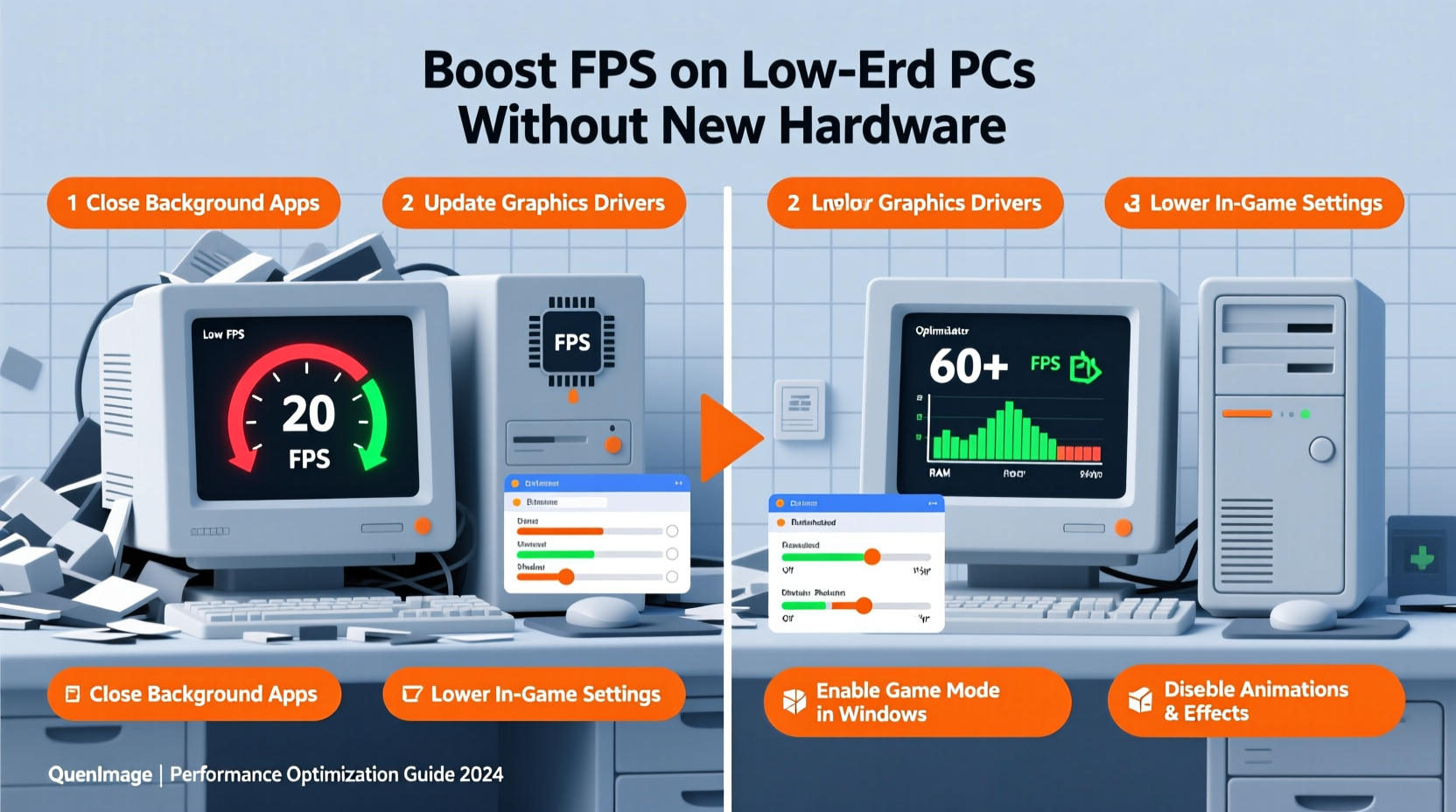
The most immediate way to boost FPS is adjusting in-game graphics. Many games default to high or ultra settings, even on underpowered systems. Reducing graphical load directly translates to smoother gameplay.
Focus on disabling or lowering the following settings, which are known to be resource-intensive:
- Shadows: High-quality shadows require significant GPU processing. Set to low or off.
- Anti-Aliasing: Smoothes jagged edges but is extremely taxing. Use FXAA or disable entirely.
- Texture Quality: Lower this only if VRAM is limited (common in integrated GPUs).
- View Distance: Reduces how far the game renders objects. Set to medium or low.
- Post-Processing Effects: Includes motion blur, depth of field, and bloom. These consume GPU cycles for minimal visual gain.
Recommended In-Game Settings for Low-End Systems
| Setting | Recommended Value | Performance Impact |
|---|---|---|
| Resolution | 1280x720 or lower | High |
| Graphics Preset | Low or Custom | High |
| Shadows | Low or Off | High |
| Anti-Aliasing | FXAA or Off | Medium-High |
| Texture Filtering | Bilinear or Trilinear | Low-Medium |
| Render Scale | 70–85% | Very High |
Update and Optimize Drivers
Outdated or poorly configured drivers can severely limit your GPU's performance. Whether you're using integrated Intel graphics, an older NVIDIA card, or AMD Radeon, keeping drivers updated ensures maximum compatibility and optimization for newer games.
NVIDIA and AMD regularly release Game Ready Drivers that include performance boosts for specific titles. Even Intel pushes updates for its UHD integrated graphics through the Intel Driver & Support Assistant.
- Visit the official website of your GPU manufacturer (NVIDIA, AMD, or Intel).
- Download the latest driver for your specific model.
- Perform a clean installation (especially on NVIDIA cards via GeForce Experience).
- Disable automatic driver updates from Windows if they interfere with preferred versions.
“Driver optimization can yield up to a 15–20% FPS increase in well-supported titles, especially on aging hardware.” — Mark Rivera, Senior Tech Analyst at PCPerf Labs
Free Up System Resources and Background Processes
Your CPU and RAM are just as critical as your GPU. A slow or overloaded system will bottleneck performance, even if the game itself isn’t demanding.
Background applications—especially those running at startup—consume memory and CPU cycles. Common culprits include antivirus scanners, cloud sync tools (Dropbox, OneDrive), Discord, Chrome tabs, and RGB control software.
Step-by-Step Guide to Reduce Background Load
- Press Ctrl + Shift + Esc to open Task Manager.
- Go to the “Startup” tab and disable unnecessary programs (e.g., Spotify, Steam overlay, printer tools).
- Under the “Processes” tab, sort by CPU and Memory usage while idle.
- Identify high-usage apps and research whether they’re essential.
- Use Windows Settings > Apps > Startup to manage permissions long-term.
Additionally, ensure your power plan is set to “High Performance”:
- Navigate to Control Panel > Hardware and Sound > Power Options.
- Select “High Performance” (may need to click “Show additional plans”).
- This prevents CPU throttling during gameplay.
Checklist: Pre-Gaming System Optimization
- ✅ Close all unused browser tabs and applications
- ✅ Disable Discord, Steam Overlay, or GeForce Experience overlay
- ✅ Set power plan to “High Performance”
- ✅ Run a quick disk cleanup (cleanmgr)
- ✅ Restart PC before launching demanding games
Leverage Built-in and Third-Party Optimization Tools
Modern operating systems and software ecosystems offer tools designed to boost performance automatically.
Windows Game Mode
Enabled by default in Windows 10 and 11, Game Mode prioritizes system resources for active games. To verify it’s on:
- Go to Settings > Gaming > Game Mode.
- Ensure it’s turned on and add your games manually if needed.
Dedicated GPU Management Software
Use tools like:
- NVIDIA Control Panel: Set preferred refresh rate, disable V-Sync globally, and assign GPU to specific apps.
- AMD Radeon Software: Enable Radeon Boost (dynamic resolution scaling) and Anti-Lag features.
- Intel Graphics Command Center: Adjust performance mode and disable enhancements like color correction.
Third-Party Tools (Use with Caution)
Some lightweight utilities can help squeeze out extra performance:
- Razer Cortex: Frees up RAM and pauses background tasks.
- MSI Afterburner: Allows GPU undervolting and clock curve tuning for efficiency.
- Process Lasso: Prevents CPU core parking and optimizes process priority.
Real Example: Turning Around Minecraft on a 10-Year-Old Laptop
Consider Alex, a college student using a 2014 HP laptop with Intel Core i3-4005U and Intel HD 4400 graphics. Originally, Minecraft ran at 8–12 FPS on default settings, making it nearly unplayable.
After applying the following steps:
- Installed OptiFine mod to enable performance-enhancing options
- Set resolution to 800x600 and render distance to 8 chunks
- Disabled smooth lighting, particles, and mipmaps
- Closed Chrome and background apps before launching
- Updated Intel graphics driver via Intel DSA
- Set power plan to “High Performance”
FPS jumped to a stable 45–60, transforming the experience from frustrating to enjoyable. No hardware was replaced—only configuration changes were made.
“It wasn’t about what my laptop could do out of the box. It was about removing the invisible drag holding it back.” — Alex Tran, Student & Casual Gamer
Advanced Tweaks: BIOS, Virtual Memory, and Overclocking
For users comfortable with deeper system settings, further gains are possible.
Enable XMP/DOCP in BIOS
If your system supports XMP (Intel) or DOCP (AMD), enabling it in BIOS allows RAM to run at advertised speeds instead of default JEDEC rates. Faster RAM improves integrated graphics performance significantly, as iGPUs use system memory as VRAM.
- Restart and enter BIOS (usually by pressing F2, Del, or F12).
- Navigate to “Memory” or “Overclocking” settings.
- Enable XMP/DOCP profile matching your RAM specs.
- Save and exit.
Adjust Virtual Memory (Page File)
When RAM fills up, Windows uses disk space as overflow. On low-memory systems (4GB or 8GB), increasing the page file can prevent stutters.
- Go to System Properties > Advanced > Performance Settings > Advanced > Virtual Memory.
- Uncheck “Automatically manage” and set custom size.
- Initial size: 1.5 × RAM (e.g., 6144 MB for 4GB RAM).
- Maximum size: 3 × RAM (e.g., 12288 MB).
- Place on fastest drive (SSD preferred).
Safe Overclocking
While risky, mild CPU or GPU overclocking can yield 10–15% gains. Use tools like:
- Intel Extreme Tuning Utility (XTU): For unlocked or partially unlocked CPUs.
- AMD Ryzen Master: For Ryzen APUs with integrated Vega graphics.
- MSI Afterburner: For modest GPU core/memory boosts.
Always monitor temperatures and test stability with stress tools like FurMark or Prime95.
FAQ: Common Questions About Boosting FPS on Low-End PCs
Can I improve FPS without lowering graphics quality?
Sometimes. If your CPU is the bottleneck, closing background apps or upgrading RAM (if expandable) may help without touching in-game settings. However, for most low-end systems, reducing visual fidelity remains the most effective method.
Does upgrading to an SSD help FPS?
An SSD won’t increase peak FPS, but it dramatically reduces stuttering, texture pop-in, and loading times. In open-world games like GTA V or Skyrim, this creates a smoother perceived experience, even if average FPS stays the same.
Is it safe to use optimization mods like OptiFine?
Yes, for supported games. OptiFine, for example, is widely trusted in the Minecraft community and includes legitimate rendering optimizations. Always download from official sources to avoid malware.
Conclusion: Maximize What You Have
You don’t need the latest RTX 4090 or a 16-core Ryzen processor to enjoy modern games. Millions of players around the world run games smoothly on aging or budget hardware by understanding their system’s limits and optimizing intelligently. The techniques outlined here—ranging from simple setting changes to advanced BIOS tweaks—are accessible, free, and proven to work.
Start with the basics: lower resolution, disable heavy effects, update drivers, and close background apps. Then experiment with deeper optimizations like XMP, virtual memory, or mods. Track your FPS before and after each change to see what works best for your setup.




 浙公网安备
33010002000092号
浙公网安备
33010002000092号 浙B2-20120091-4
Comments
No comments yet. Why don't you start the discussion?