
Christmas lights have long been a symbol of holiday cheer, transforming homes into festive displays that captivate neighbors and passersby. But in today’s connected world, the magic doesn’t stop at simple on-off switches. With smart home technology, you can now command your holiday lighting using just your voice—turning sequences on at sunset, dimming brightness during dinner, or syncing colors to music without lifting a finger.
Incorporating voice-controlled Christmas lighting isn’t just about convenience; it enhances safety, energy efficiency, and seasonal enjoyment. Whether you're managing indoor string lights, outdoor roofline displays, or animated lawn figures, integrating voice commands through platforms like Amazon Alexa, Google Assistant, or Apple HomeKit opens up a new level of control and personalization.
This guide walks you through everything you need to know—from choosing compatible devices to setting up routines and troubleshooting common issues—so you can create a responsive, intelligent lighting display that feels truly magical.
Understanding Smart Lighting and Voice Control Compatibility
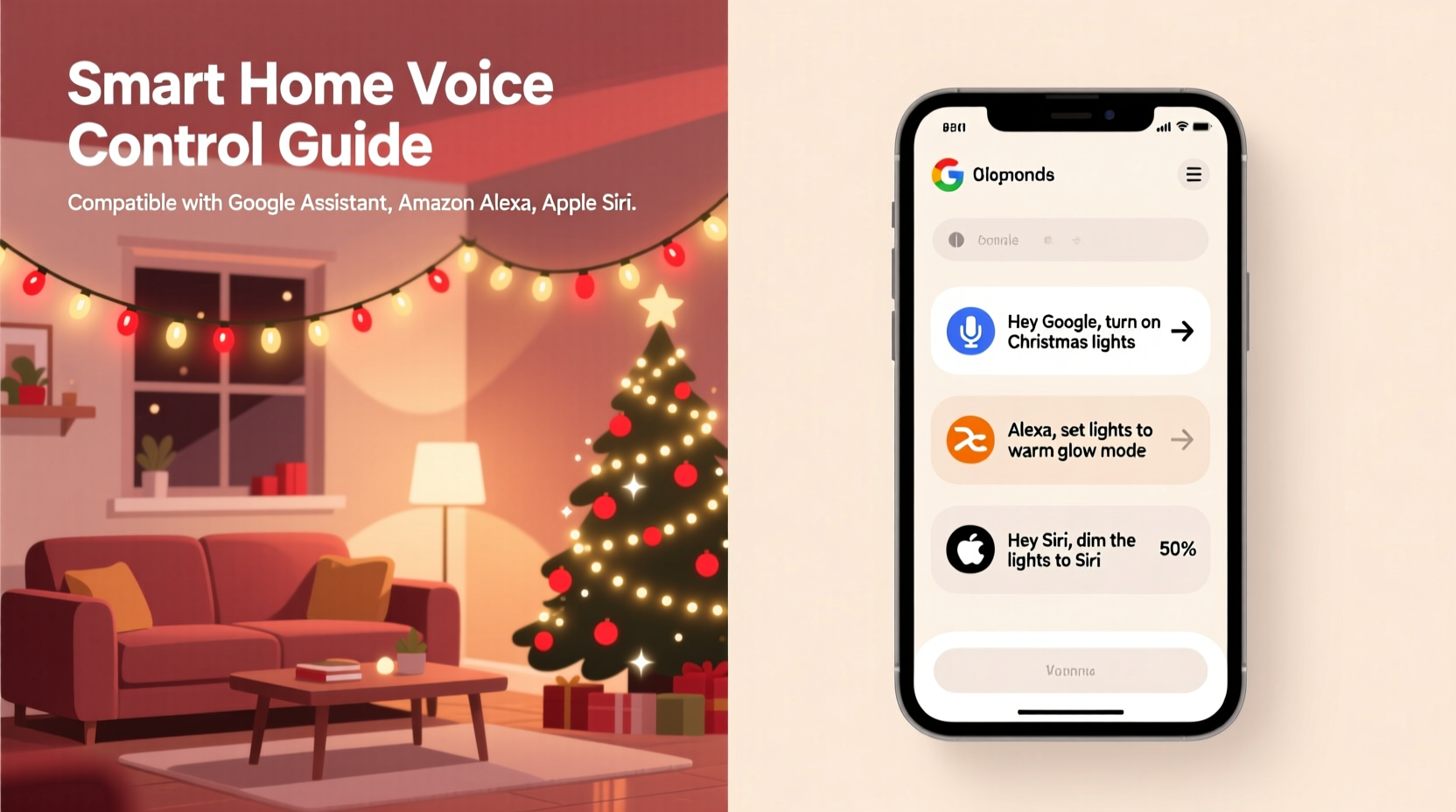
Before diving into setup, it's essential to understand how smart lighting systems communicate with voice assistants. At the core of this integration are three components: smart bulbs or controllers, a central hub or Wi-Fi bridge, and a voice-enabled device such as an Echo Dot, Google Nest Hub, or iPhone running Siri.
Smart Christmas lights come in two primary forms: plug-in smart controllers for traditional incandescent or LED strands, and all-in-one smart light strings with built-in color and pattern controls. Both types connect to your home Wi-Fi network and can be managed via mobile apps and integrated into larger smart home ecosystems.
The key to seamless voice control lies in compatibility. Not all smart lighting brands work with every voice assistant. For example:
- Philips Hue works with Alexa, Google Assistant, and Apple HomeKit.
- TP-Link Kasa supports Alexa and Google Assistant but not Siri directly.
- Lifx offers robust standalone Wi-Fi connectivity and broad platform support.
- Govee is popular for affordable RGB options and integrates well with both major platforms.
To ensure smooth operation, verify that your chosen lighting system lists explicit support for your preferred voice assistant before purchasing.
Step-by-Step Guide to Setting Up Voice-Controlled Christmas Lights
Setting up voice control involves hardware setup, app configuration, and voice assistant integration. Follow these steps carefully to avoid common pitfalls.
- Purchase Compatible Equipment: Choose either smart light strings or use a smart plug/controller with existing non-smart lights. Ensure they match your desired voice platform (Alexa, Google, or HomeKit).
- Install Hardware Safely: For outdoor setups, use weatherproof enclosures and GFCI-protected outlets. Never overload circuits—most smart plugs handle up to 15 amps.
- Connect to Wi-Fi via Manufacturer App: Download the corresponding app (e.g., Kasa, Govee, Hue) and follow setup instructions. Name each light or group clearly (e.g., “Front Porch Lights,” “Tree Topper”)
- Link to Your Voice Assistant: Open the Alexa or Google Home app, go to \"Skills\" or \"Devices,\" search for the brand (e.g., “Govee”), enable the skill, and log in to sync devices.
- Test Basic Commands: Say, “Hey Google, turn on the Christmas tree lights” or “Alexa, turn off front yard lights.” Confirm responsiveness within 5–10 seconds.
- Create Groups and Scenes: In the voice assistant app, group multiple lights under names like “Holiday Display” or “Indoor Festive.” This allows one command to control several devices simultaneously.
Once linked, your lights will appear in the voice assistant’s device list. You can assign them to rooms (e.g., “Living Room”) for more natural phrasing like “Turn on all living room lights.”
Advanced Features: Scheduling, Routines, and Automation
Voice commands shine when paired with automation. Instead of manually toggling lights daily, set schedules based on time, sunrise/sunset, or even location.
For instance, configure your outdoor display to activate 15 minutes after sunset and shut down at midnight. Inside, program soft white lighting to fade in gently each morning as part of a holiday-themed wake-up routine.
Routines also allow layered actions. A single phrase like “It’s Christmas Eve!” could trigger:
- Turn on all holiday lights
- Set color to warm white and blue
- Play classic carols on your smart speaker
- Adjust thermostat to a cozy 72°F
“Automation transforms holiday lighting from static decoration to dynamic storytelling. The right sequence can evoke nostalgia, excitement, or calm—all through timed color shifts and voice-triggered scenes.” — Marcus Lin, Smart Home Experience Designer
Creating Time-Based Automations
| Scenario | Action | Trigger |
|---|---|---|
| Daily outdoor display | Turn on porch & roof lights | Sunset +15 min |
| Nighttime wind-down | Dim indoor lights to 20% | 10:00 PM nightly |
| Welcome home | Activate entryway lights | Phone geolocation detected near home |
| Holiday movie night | Switch to red/green pulse mode | Voice command: “Start Movie Mode” |
These automations reduce manual input and make your display feel intuitive and immersive.
Tips for Optimal Performance and User Experience
Even with perfect setup, performance hiccups can occur. Here’s how to maintain reliability throughout the season.
Minimize latency by ensuring strong Wi-Fi coverage where lights are installed. Outdoor areas often suffer from weak signals, leading to delayed responses. Consider using a Wi-Fi extender or mesh node nearby.
Use descriptive yet concise names. Avoid vague labels like “lights1” or overly long phrases like “the-red-lights-on-the-front-porch-that-mom-bought-in-2018.” Stick to clear, memorable terms such as “Front Roof Lights” or “Dining Table Garland.”
If using multiple assistants (e.g., Alexa in kitchen, Google in bedroom), standardize naming across platforms to prevent conflicts. Otherwise, saying “Turn on Christmas lights” might only affect one zone.
Checklist: Pre-Launch Review Before First Use
- ✅ All smart devices powered and connected to Wi-Fi
- ✅ Verified integration with voice assistant (visible in app)
- ✅ Devices grouped logically (e.g., “Outdoor,” “Tree,” “Stairs”)
- ✅ Tested basic commands (“on,” “off,” “brighter,” “dimmer”)
- ✅ Scheduled automations confirmed for correct times
- ✅ Firmware updated on all smart controllers and hubs
- ✅ Backup power strip switch accessible in case of app failure
Real Example: A Family’s Transition to Voice-Controlled Holiday Lighting
The Rivera family in Portland, Oregon, used to spend 20 minutes each evening setting up their elaborate front yard display—plugging in four separate circuits, adjusting timers, and manually switching modes for weekends versus weekdays.
Last year, they upgraded to Govee Wi-Fi LED strips and smart plugs, connecting six light zones including inflatable figures, pathway markers, and roof outlines. After linking to Google Assistant, they created a routine called “Holiday Mode.”
Now, any family member can say, “Hey Google, turn on Holiday Mode,” and within seconds, the entire display activates with synchronized colors. They also set a schedule: lights turn on at sunset Tuesday through Sunday, but remain off on Monday nights to conserve energy.
Perhaps most impactful was accessibility. Mr. Rivera, who uses a wheelchair, no longer needs assistance reaching outdoor outlets. His daughter, age 8, enjoys being the “light master” by changing colors with playful commands like “Make the tree purple!”
According to Mrs. Rivera, “It’s brought us closer together around the holidays. We’re not fussing with cords—we’re enjoying the moment.”
Common Challenges and How to Solve Them
Despite advances, users may encounter obstacles. Below are frequent issues and practical fixes.
Delayed Response or No Reaction
This usually stems from poor Wi-Fi signal or high network congestion. Move routers closer, reduce interference from metal objects, or switch smart devices to the less crowded 5 GHz band if supported.
Lights Turn On But Won’t Change Color
Confirm the bulb model supports color adjustment. Some “smart” bulbs only offer white temperature changes. Also, check if the command syntax is correct—say “blue” instead of “make it bluish.”
Voice Assistant Mishears Command
Background noise or similar-sounding device names (e.g., “kitchen lights” vs. “Christmas lights”) cause errors. Train your assistant by repeating corrections: “No, I said Christmas lights, not kitchen lights.”
Automations Fail During Power Outages
Most smart plugs lose settings unless they auto-reconnect. Enable “auto-boot” or “last state restore” features in the manufacturer app so lights resume previous status once power returns.
Frequently Asked Questions
Can I control Christmas lights with voice commands if they’re not smart-ready?
Yes. Use a smart plug or inline controller (like TP-Link Kasa KP115 or Wemo Mini) with your existing lights. Plug the strand into the smart device, then control it via voice once linked to Alexa or Google.
Do I need a hub for voice-controlled Christmas lights?
Not always. Many modern smart lights use Wi-Fi directly and don’t require a central hub. However, systems like Philips Hue do need a bridge. Check product specifications before buying.
Is it safe to leave voice-controlled Christmas lights on overnight?
LED-based smart lights generate minimal heat and are generally safe. However, always inspect cords for damage, use surge protectors, and limit runtime with automations. Never leave non-LED or older strands unattended for long periods.
Conclusion: Bring the Holidays Into the Future
Incorporating smart home voice commands into your Christmas lighting setup bridges tradition with innovation. It simplifies management, enhances accessibility, and adds an interactive layer to seasonal celebrations. From effortless daily routines to joyful moments with family, voice control turns static decorations into responsive experiences.
With careful planning, compatible gear, and thoughtful automation, your holiday display can become more than just a sight—it becomes a story told through light, sound, and voice.




 浙公网安备
33010002000092号
浙公网安备
33010002000092号 浙B2-20120091-4
Comments
No comments yet. Why don't you start the discussion?