
Gaming rooms are ecosystems of precision: synchronized lighting, low-latency peripherals, and real-time visual feedback. When December arrives, the impulse to string up warm white LEDs or animated snowflake projectors is strong—but many builders hesitate. They’ve spent months calibrating their motherboard’s Aura Sync, configuring iCUE profiles for their keyboard and case fans, and fine-tuning Philips Hue scenes to pulse with in-game audio. One misconfigured USB-powered light strip can desync an entire rig—causing stuttering ambient effects, delayed reactions in reactive lighting modes, or even USB enumeration errors during intense gameplay sessions.
This isn’t about choosing between immersion and festivity. It’s about architectural intentionality: treating holiday lighting as a *layered subsystem*, not an afterthought. The solution lies not in disabling RGB software, but in isolating control domains, respecting signal timing, and selecting hardware that coexists—not competes—with your gaming ecosystem.
Why RGB Sync Breaks (and Why It’s Usually Not the Lights’ Fault)
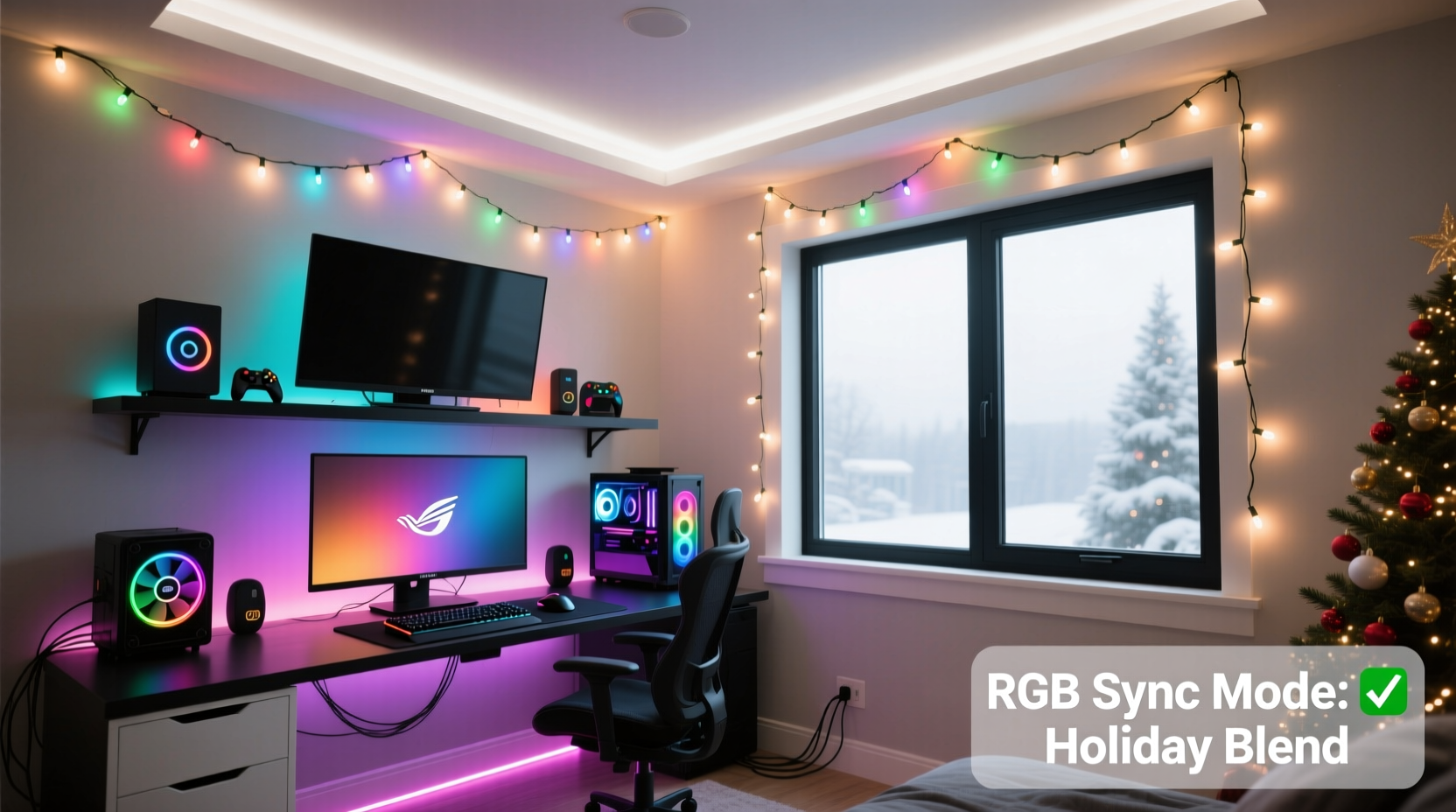
Most RGB sync failures during holiday integration stem from three overlapping causes—not faulty bulbs or poor wiring, but protocol collisions:
- USB bandwidth saturation: Many addressable LED controllers (especially budget USB-connected ones) flood the host controller with constant HID or serial polling requests—even when idle. On a system already running Razer Synapse, OpenRGB, and a USB audio interface, this pushes the xHCI controller past its interrupt threshold.
- Shared GPIO contention: Motherboards with onboard 5V ARGB headers (e.g., ASUS ROG Strix B650E-E) often route those pins through the same microcontroller managing fan curves and voltage regulation. Adding a high-pulse-rate light strip (e.g., 400Hz PWM) can introduce electrical noise that destabilizes sensor readings—triggering false thermal throttling or erratic fan speed jumps.
- Software-level hijacking: Some “smart” Christmas light apps (particularly Android/iOS-based Bluetooth controllers) auto-launch background services that scan for BLE devices, interfering with Windows’ HID driver stack and causing brief USB device resets—visible as momentary keyboard/mouse disconnects or Aura Sync profile drops.
Understanding these root causes shifts the focus from “avoiding lights” to “designing around constraints.” The goal isn’t zero interference—it’s *predictable, bounded, and recoverable* interference.
Hardware Selection: The Foundation of Coexistence
Not all Christmas lights are created equal—and compatibility starts at the component level. Prioritize lights that operate outside your gaming rig’s primary control plane.
| Light Type | Sync Risk Level | Why It Works (or Doesn’t) | Recommended Use Case |
|---|---|---|---|
| Wi-Fi–enabled smart bulbs (e.g., Nanoleaf Shapes, Govee Mesh) | Low | No USB dependency; controlled via local network API. No driver conflicts. Requires separate 2.4GHz band or VLAN isolation. | Wall sconces, ceiling accents, non-reactive ambient zones |
| Dedicated 2.4GHz RF remote kits (e.g., MINGER 300LED, Jinhong IR) | Negligible | No computer interface required. Uses analog radio signals—zero USB, zero software overhead. | Baseboard strips, shelf edging, non-interactive perimeter lighting |
| USB-powered addressable strips with built-in microcontroller (e.g., DreamColor Pro, Luminous Labs NanoStrip) | Moderate (if configured correctly) | Runs firmware locally; only polls PC once per second for profile updates. Avoids constant HID chatter. | Monitor bezel, desk underside, behind monitor mounts |
| Bluetooth mesh strings controlled via phone app | High | BLE scanning disrupts Windows HID stack. Causes intermittent input lag and sync drops. Not recommended for active gaming zones. | Avoid entirely during core gaming hours |
| DMX512-controlled fixtures (e.g., Enttec Open DMX + LED par cans) | Very Low (with proper setup) | Fully isolated digital protocol. Requires dedicated USB-to-DMX adapter—but operates on its own timing domain, independent of motherboard RGB headers. | Professional-grade setups; ceiling coves, stage-style backlighting |
Software Architecture: Segregating Control Domains
Your RGB ecosystem should behave like a city with zoning laws: residential (gaming gear), commercial (peripherals), and industrial (holiday lighting)—each with defined boundaries and traffic rules.
Start by auditing your current stack. Open Device Manager → Universal Serial Bus controllers. Look for:
- “USB Composite Device” entries with unknown vendor IDs (often generic LED controllers masquerading as HID devices)
- Multiple “HID-compliant mouse/keyboard” listings beyond your actual peripherals (a red flag for rogue light firmware)
- “USB Serial Device” entries tied to unknown COM ports (common with Arduino-based DIY light controllers)
If you find anomalies, disable them—not uninstall. Disabling preserves configuration while eliminating polling. Then implement this layered control hierarchy:
- Layer 1 (Core Gaming): Keep Aura Sync, iCUE, or SignalRGB exclusively for components inside your case, on your desk, and directly interacting with gameplay (mouse, headset, GPU). Set these to “hardware mode” where possible—offloading processing from CPU to onboard MCU.
- Layer 2 (Ambient Environment): Assign Wi-Fi or RF lights to a dedicated 2.4GHz SSID (e.g., “GAMING_AMBIENT”) on your router. If using OpenRGB, configure it to ignore networked devices by editing
openrgb.jsonand setting\"network_devices\": false. - Layer 3 (Festive Overlay): Use physical remotes or scheduled automations (e.g., Home Assistant routines triggered at sunset) instead of real-time PC sync. A simple $12 RF timer switch lets you activate warm-white baseboard lights at 4:30 PM daily—no software involved.
“The biggest mistake I see is treating holiday lighting as ‘just more RGB.’ It’s not. It’s environmental theater. Your GPU doesn’t need to know the tree lights are twinkling—your eyes do. Offload that cognitive load from the system.” — Marcus Chen, Senior Systems Architect at NZXT and co-author of *Immersive Hardware Design*, 2023
A Real-World Integration: The “North Pole Rig” Case Study
Consider Alex, a competitive Apex Legends player in Toronto. His setup includes an ASUS ROG Maximus Z790 Hero, 3x Lian Li O11 Dynamic EVO case fans, Corsair K100 RGB keyboard, and Elgato Key Light Air for streaming. In November, he wanted to add lights without sacrificing his 240Hz monitor’s tear-free sync or his mic’s noise-gated clarity.
His solution wasn’t minimalism—it was segmentation:
- Desk Perimeter: 5m of MINGER RF-controlled warm white LEDs, powered by a wall wart, triggered by a $9 programmable timer (on at 4 PM, off at 1 AM).
- Monitor Bezel: A 2m DreamColor Pro USB strip, connected to a dedicated USB 3.0 port on the rear I/O panel (not front-panel headers), configured in OpenRGB to run a static “soft glow” profile—never reactive mode.
- Wall Art Zone: Four Nanoleaf Hexagons mounted behind the desk, running on a separate 2.4GHz Wi-Fi network (isolated via VLAN on his Asus RT-AX86U router), synced to Spotify via Nanoleaf’s native API—not through OpenRGB.
- Tree Lighting: A 7ft pre-lit tree with built-in Bluetooth speaker and non-addressable incandescent bulbs—zero digital interface.
Result? Zero sync drops across 8 weeks of ranked play. His iCUE profiles remained stable. The only change players noticed was improved stream aesthetics—and a subtle, consistent warmth that reduced eye strain during late-night sessions.
Step-by-Step Integration Protocol (Under 30 Minutes)
Follow this sequence to integrate lights without rebooting mid-process or triggering sync failures:
- Power down and unplug your PC, monitors, and all peripherals. Do not skip this—static discharge near sensitive ARGB headers risks MCU corruption.
- Identify your weakest link: Check your motherboard manual for ARGB header specs (e.g., “Max 3A per header, 60 LEDs @ 60mA”). Subtract your current LED count. If headroom is under 10%, skip USB-connected lights entirely.
- Assign dedicated power: For any new strip, use a standalone 5V/10A PSU with a 3-pin JST-SM connector. Solder or crimp a Y-splitter if powering multiple segments.
- Isolate USB endpoints: Plug new controllers into rear-panel USB 3.0 ports only. Disable front-panel USB headers in BIOS if unused (ASUS: Advanced → USB Configuration → “Front Panel USB” → Disabled).
- Configure software last: Boot into Windows. Install light controller software *only if necessary*. In OpenRGB: go to Settings → Devices → uncheck “Auto-detect devices” and manually add only the controller you just installed. Restart OpenRGB—not the PC.
- Validate stability: Run MSI Afterburner + RivaTuner Statistics Server overlay. Monitor USB device enumeration (in HWiNFO64 under “SMBus”) for spikes during 10 minutes of sustained gameplay. If no new devices appear, you’re clean.
FAQ: Addressing Common Concerns
Can I use Philips Hue with my gaming RGB setup?
Yes—with caveats. Hue bridges communicate over Ethernet or 2.4GHz Wi-Fi, so they avoid USB conflicts entirely. However, avoid using the Hue Sync app alongside iCUE or Aura Sync. Instead, use Hue’s native “Entertainment Areas” with a dedicated HDMI capture card (e.g., Elgato Cam Link 4K) feeding video *only* to Hue—bypassing your PC’s GPU output path entirely. This prevents frame timing conflicts.
My lights flicker only during GPU-intensive games. What’s wrong?
This points to insufficient 5V rail capacity—not software. Your PSU’s +5V line powers both ARGB headers and SATA peripherals. During heavy GPU loads, transient voltage drops occur. Solution: Replace your PSU’s main 24-pin ATX cable with a high-quality, 18AWG version (e.g., CableMod) and ensure your ARGB PSU is rated for continuous 5V load, not peak.
Do I need to disable Windows Fast Startup for stable lighting?
Yes. Fast Startup performs a hybrid shutdown that leaves USB controllers in a suspended state, causing inconsistent enumeration on boot. Disable it: Control Panel → Power Options → Choose what the power buttons do → Change settings currently unavailable → Uncheck “Turn on fast startup.” Reboot afterward.
Conclusion: Festivity as Intentional Design
Integrating Christmas lights into a gaming room isn’t about compromise—it’s about expanding your definition of immersion. The most compelling setups don’t just react to gameplay; they respond to context, season, and human rhythm. A softly pulsing warm glow beneath your desk doesn’t distract from a clutch final circle—it deepens presence. A silent, RF-triggered tree light doesn’t compete with your headset’s spatial audio—it anchors you in the physical space where virtual battles unfold.
You don’t need to choose between performance and joy. You need architecture: clear boundaries between control domains, hardware selected for coexistence over convenience, and software configured with surgical precision. Start small—add one RF-powered strip this weekend. Observe how your system behaves. Measure stability, not just brightness. Tune for resilience, not just spectacle.
Your rig is more than silicon and solder. It’s where focus meets celebration, where milliseconds matter and moments linger. This December, let your lights enhance—not interrupt—the experience you’ve engineered with such care.




 浙公网安备
33010002000092号
浙公网安备
33010002000092号 浙B2-20120091-4
Comments
No comments yet. Why don't you start the discussion?