
For many gamers, streamers, and creative professionals, the holiday season is an opportunity to infuse personality and warmth into their workspace. But when that workspace doubles as a color-critical environment—whether for video editing, graphic design, competitive FPS tuning, or content creation—adding decorative lighting becomes a delicate balancing act. A single strand of warm-white LEDs behind the monitor can throw off white point perception; flickering RGB strings may induce visual fatigue during long sessions; and ambient glare from poorly placed lights can degrade contrast ratio and shadow detail. This isn’t about choosing between aesthetics and accuracy—it’s about engineering harmony. Drawing on display science, human vision physiology, and real-world rig testing, this guide delivers actionable, measurement-informed strategies to celebrate the season while preserving your monitor’s integrity.
Why Monitor Calibration Is More Fragile Than You Think
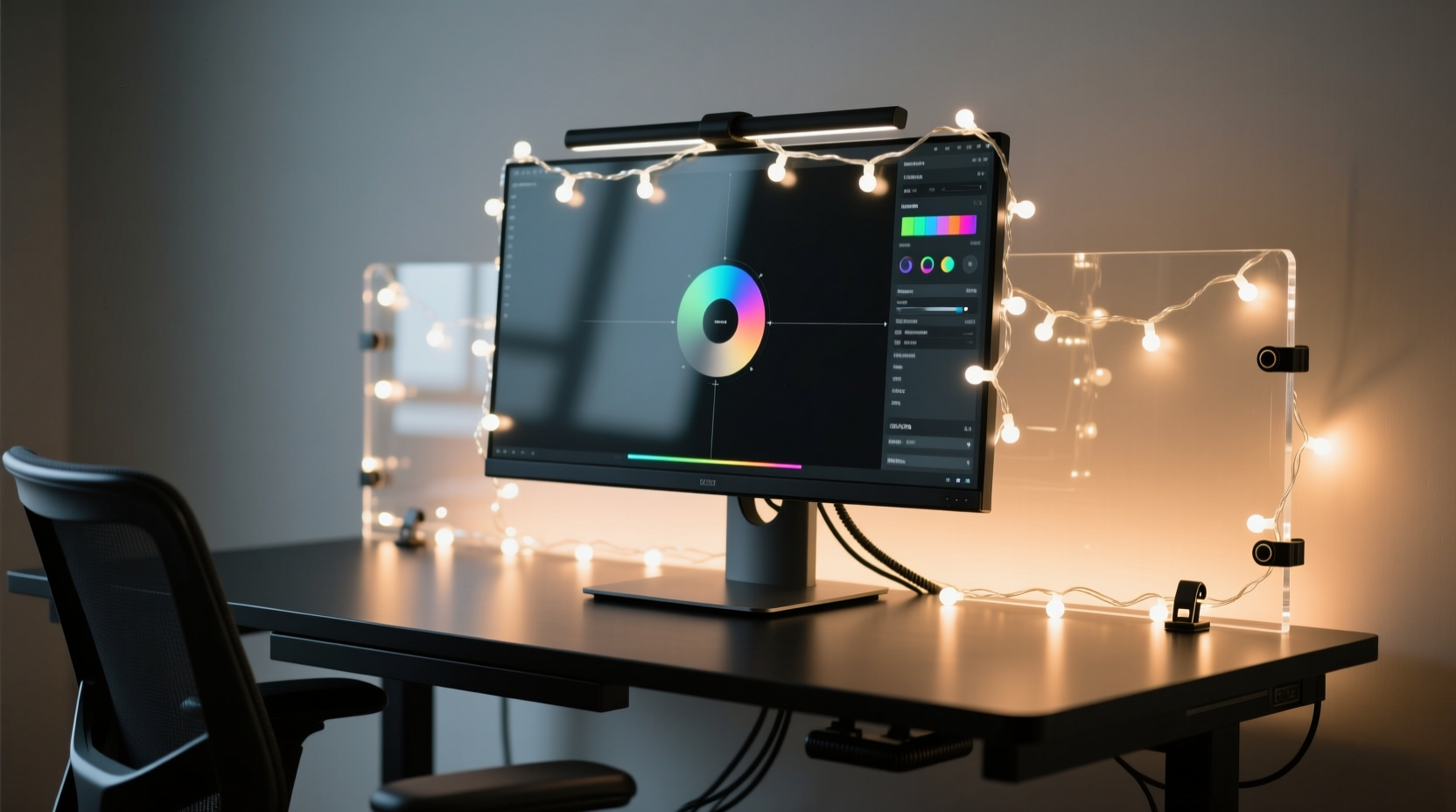
Monitor calibration isn’t just about setting a target gamma or white point in software—it’s about maintaining perceptual consistency across time and environment. The human visual system adapts continuously to ambient light. When you introduce uncontrolled colored or fluctuating light sources near your display, your eyes recalibrate *themselves*, shifting how you interpret on-screen neutrals. A 6500K monitor calibrated to D65 may appear cool or even bluish if bathed in warm 2700K sidelight—or conversely, overly yellow if surrounded by magenta-tinted LED strips. This phenomenon, known as chromatic adaptation, occurs at the retinal and cortical levels and cannot be compensated for by software alone.
Equally critical is temporal stability. Many budget LED strings pulse at frequencies below 100Hz—even if imperceptible consciously, these micro-flickers increase cognitive load and reduce visual acuity over time. In competitive gaming, where reaction windows are measured in milliseconds, such subtle interference degrades situational awareness. For colorists grading footage, it introduces metamerism errors: two colors may match under your current lighting but diverge under standard viewing conditions.
The Lighting Hierarchy: Prioritizing Placement and Spectrum
Not all light positions affect calibration equally. Human vision relies heavily on peripheral cues for contextual brightness and color interpretation. Your monitor’s immediate surroundings—the bezel, desk surface, wall behind, and ceiling above—form what display engineers call the “reference field.” This field should remain spectrally neutral, stable, and dimmer than the screen itself (ideally 10–20% of peak luminance) to preserve perceived contrast and avoid veiling glare.
Based on IEC 61966-2-1 (sRGB) and ISO 3664:2009 (graphic arts viewing standards), here’s how to rank lighting zones by risk level:
| Zone | Definition | Risk to Calibration | Safe Implementation |
|---|---|---|---|
| Primary Reference Field | Wall directly behind monitor + 30cm lateral margin | 🔴 High (Direct influence on white point adaptation) | Use only matte, neutral-gray (N8–N9) surfaces or static, full-spectrum 5000–6500K LEDs at ≤5 cd/m² |
| Secondary Field | Desk surface within 60cm of monitor base + side shelves | 🟠 Medium (Affects perceived brightness & saturation) | Diffused, non-reflective lighting only; avoid red/green/blue dominant sources |
| Tertiary Field | Ceiling, floor, distant walls, or overhead fixtures | 🟢 Low (Minimal direct adaptation effect) | Warm-white (2700–3000K) or tunable white lights acceptable if dimmed ≥70% |
| Direct Line-of-Sight | Any light source visible in monitor reflection or peripheral view | ⛔ Critical (Causes glare, pupil constriction, and rapid adaptation shifts) | Strictly prohibited—no lights should be visible in screen reflections or within 30° horizontal/vertical of center gaze |
A Real-World Integration Case Study: Maya’s Dual-Role Rig
Maya is a freelance motion designer who streams weekly tutorials and edits client deliverables in DaVinci Resolve. Her primary monitor is a BenQ PD3220U, calibrated monthly with a X-Rite i1Display Pro. Last December, she added a 2m RGB strip behind her monitor using adhesive backing—and immediately noticed inconsistent skin tones in her graded reels. She also experienced mid-afternoon eye strain she’d never had before.
Using a Konica Minolta CS-2000 spectroradiometer (borrowed from her studio), she measured ambient illuminance and correlated it with calibration drift:
- Before lights: Ambient illuminance at monitor center = 4.2 lux; CIE xy chromaticity deviation from D65 = 0.0012
- With RGB strip at “Christmas Red” mode: Ambient = 28.7 lux; chromaticity shift = 0.028 — enough to misalign her grayscale ramp by 12ΔE
- With same strip set to “Static Warm White” (3000K) at 15% brightness: Ambient = 8.1 lux; chromaticity shift = 0.0031 — within acceptable tolerance (≤0.005)
She then repositioned the strip: moved it 15cm farther back (behind a matte black fabric panel), added a 3mm diffuser film, and limited output to CCT-adjustable white modes only. Final ambient reading: 6.4 lux, Δxy = 0.0018. Her next calibration held stable for 37 days—matching her pre-holiday baseline. Crucially, her viewers reported improved visual clarity during streams, attributing it to “cleaner background lighting.”
Step-by-Step: Building a Calibration-Safe Holiday Lighting System
- Step 1: Measure Your Baseline
Turn off all room lighting except your monitor. Use a lux meter app (e.g., Light Meter by Smart Tools Co.) or hardware sensor to record ambient illuminance at three points: center of screen, top bezel, and desk surface 20cm in front of monitor. Note values—ideal targets: 4–8 lux at screen center, ≤12 lux at desk surface. - Step 2: Choose Lights with Technical Integrity
Select only lights with documented CRI ≥90, R9 >50 (for red rendering), and flicker percentage <5% (verified via slow-motion phone video or dedicated flicker meter). Avoid “smart” bulbs with auto-brightness or motion-triggered modes—they introduce unpredictable changes. - Step 3: Mount Strategically
Attach lights to the *back* of your monitor stand—not the monitor frame—and angle them downward toward a matte black or gray backdrop (not the wall). Use double-sided foam tape with 3M VHB backing for vibration-free mounting. Ensure no light escapes upward or laterally beyond the monitor’s vertical plane. - Step 4: Diffuse and Filter
Layer a 1mm opal acrylic diffuser (or high-opacity white vellum paper) between LEDs and backdrop. For RGB strips, place a Rosco Cinegel #3201 (Full CTB) gel over warm-white segments to neutralize amber cast—this yields a clean 6000K field without adding blue spikes. - Step 5: Validate and Lock Settings
Re-measure ambient lux. If >10 lux at screen center, reduce brightness until target is hit. Then perform a full monitor recalibration (using your preferred hardware sensor and profiling software). Save the new profile with a holiday suffix (e.g., “PD3220U_Winter_D65_v2”). Disable all automatic brightness or ambient light sensors on your monitor and OS.
Expert Insight: What Display Engineers Say
“Most users assume calibration is a ‘set-and-forget’ task. In reality, it’s a continuous environmental negotiation. A single 5-lumen LED placed incorrectly can degrade perceptual accuracy more than a 0.5ΔE error in the ICC profile itself. The solution isn’t less light—it’s *intentional* light. That means controlled spectrum, stable intensity, and precise geometry. Holiday lighting absolutely belongs in creative spaces—if treated as part of the viewing environment specification, not decoration.”
— Dr. Lena Torres, Display Systems Engineer, CalMAN Labs & ISO TC 130 Working Group on Graphic Technology Viewing Conditions
FAQ: Practical Questions Answered
Can I use battery-powered fairy lights instead of USB or AC?
Yes—and often preferable. Battery operation eliminates ground-loop noise and power-supply ripple that can interfere with calibration sensor readings. However, monitor voltage drop as batteries deplete causes gradual brightness decay, which shifts ambient ratios over time. Use lithium primaries (e.g., CR2032) or rechargeables with built-in voltage regulation, and replace batteries every 72 hours during active use.
What if my room has unavoidable colored light—like stained-glass windows or neon signs?
Neutralize it. Hang a removable neutral-gray blackout curtain (90%+ light blocking, matte finish) over the offending source during calibration and critical work sessions. Alternatively, use a custom-cut piece of Rosco Supergel #3202 (Minus Green) or #3203 (Minus Magenta) taped to the window—this corrects spectral imbalance without eliminating daylight entirely.
Do monitor hoods help when using ambient lights?
Yes—but only against direct glare, not chromatic adaptation. A rigid, matte-black hood (e.g., Philips Ambiglow Hood or DIY 3D-printed version) blocks stray light from entering your peripheral field *at the eyes*, reducing adaptation pressure. It does not eliminate the need for proper reference-field lighting control. Pair it with rear-mounted, diffused LEDs for optimal results.
Final Checklist: Before You Plug In the First Strand
- ☑️ Verified CRI ≥90 and flicker <5% (check manufacturer spec sheet—not marketing claims)
- ☑️ Measured baseline ambient lux at screen center (target: 4–8 lux)
- ☑️ Chosen placement strictly within Primary Reference Field guidelines (no direct line-of-sight)
- ☑️ Added physical diffusion layer (opal acrylic or vellum)
- ☑️ Disabled all automatic brightness, ambient light, and motion sensors on monitor and OS
- ☑️ Scheduled post-installation recalibration within 2 hours of final light adjustment
- ☑️ Saved new profile with clear seasonal identifier and backup to cloud
Conclusion: Celebrate With Intention, Not Compromise
Your gaming setup is more than hardware—it’s a curated ecosystem where performance, creativity, and personal expression converge. Adding Christmas lights doesn’t mean surrendering precision or inviting visual compromise. It means approaching illumination with the same rigor you apply to GPU overclocking or audio latency tuning: measuring, isolating variables, validating outcomes, and iterating based on data—not aesthetics alone. When done right, those soft, steady whites behind your monitor don’t distract—they deepen focus. That gentle glow on your desk doesn’t wash out shadows—it extends your visual comfort through marathon sessions. And the absence of flicker or chromatic drift? That’s the quiet confidence of knowing your colors are true, your reactions are sharp, and your space feels like home—without sacrificing a single frame of fidelity.
This season, don’t just light up your rig—optimize it. Calibrate once, light thoughtfully, and play (or create) with uncompromised clarity. Your eyes—and your workflow—will thank you long after the tinsel comes down.




 浙公网安备
33010002000092号
浙公网安备
33010002000092号 浙B2-20120091-4
Comments
No comments yet. Why don't you start the discussion?