
For many gamers, the holiday season is more than just a time for family—it's an opportunity to elevate the atmosphere of their gaming space. Adding Christmas lights can transform a standard setup into a festive, immersive environment. However, poorly placed lighting can introduce screen glare, disrupt visibility, or even interfere with sensitive electronics. The key lies in strategic integration: balancing ambiance with functionality. With careful planning, you can enjoy seasonal cheer without sacrificing performance or visual comfort.
Understanding the Risks: Glare and Interference
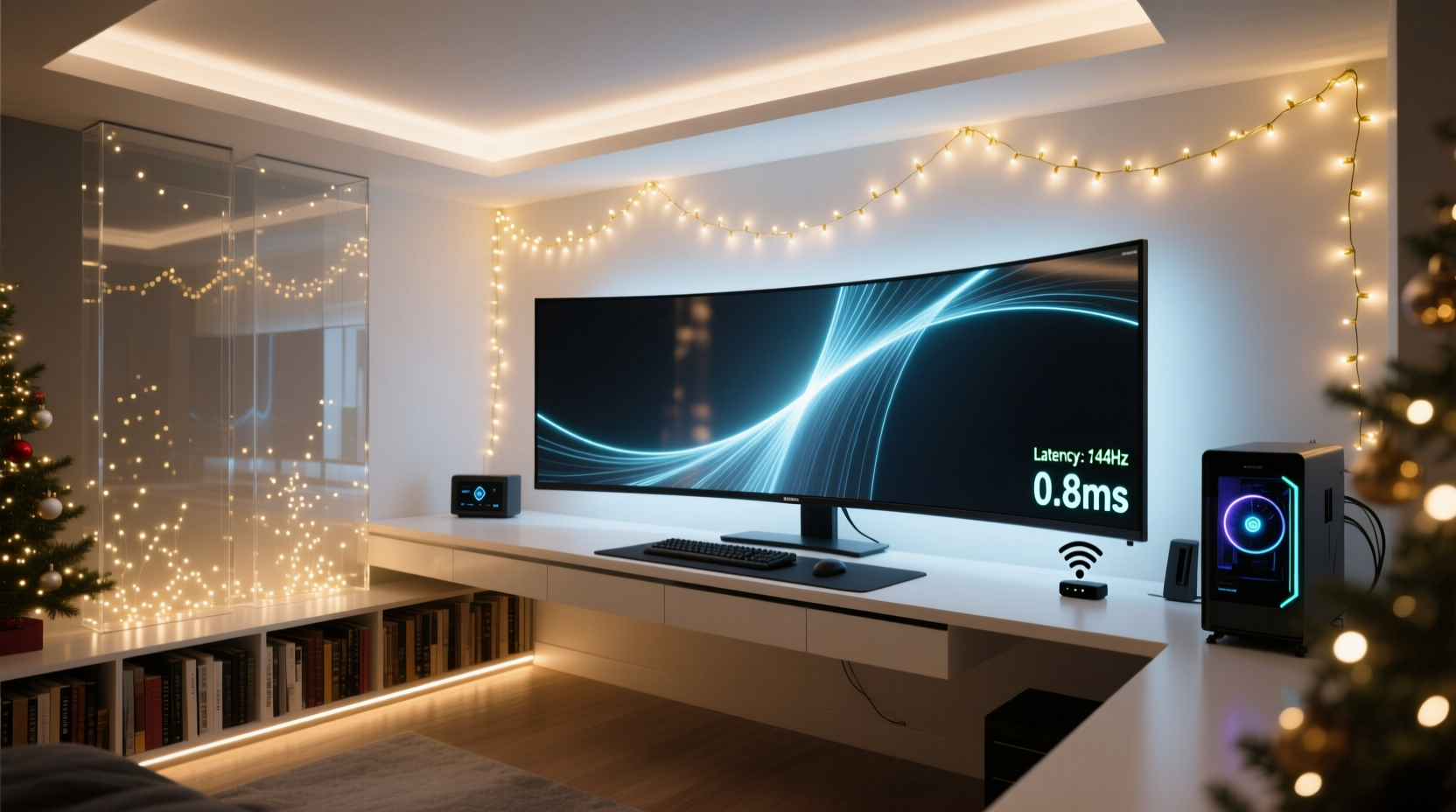
Before installing any decorative lighting, it’s essential to understand what makes certain placements problematic. Screen glare occurs when light reflects directly off a monitor’s surface, reducing contrast and making on-screen content harder to see. This is especially disruptive during fast-paced games where split-second decisions matter. Input lag—the delay between a controller action and its response on screen—is typically tied to hardware and software, but electromagnetic interference (EMI) from low-quality LED strips or power supplies can occasionally affect signal transmission in wireless peripherals.
Most modern gaming monitors use anti-glare coatings, but these aren’t foolproof. Ambient lighting behind or beside the screen tends to be safer than frontal sources. Additionally, while EMI from Christmas lights is rare, cheaply made LEDs with unshielded wiring may emit radio frequency noise that interferes with 2.4GHz wireless devices like mice or headsets.
Strategic Placement: Where to Install Lights Safely
The goal isn’t to eliminate ambient lighting—it’s to enhance depth perception and reduce eye strain by providing soft background illumination. Research from display ergonomics experts shows that rear-mounted bias lighting improves perceived contrast and reduces fatigue during extended viewing sessions. Christmas lights can fulfill this role if installed correctly.
Focus on areas that contribute to ambient glow without shining directly toward the screen:
- Behind the monitor: Mount string lights vertically along the wall behind your desk. Use adhesive clips to keep wires tidy and aim the glow away from reflective surfaces.
- Above shelves or cabinets: Place lights above storage units to create indirect ceiling wash effects.
- Under-desk edges: LED strips under the front lip of your desk provide subtle footwell lighting without contributing to screen reflections.
- Along baseboards: Low-level lighting around the room perimeter adds dimension without drawing attention upward.
Avoid placing lights above or beside monitors at eye level, as overhead strings often reflect in glossy screens. If you must install lights near the front of the desk, choose warm-white bulbs instead of cool-white or RGB modes set to bright blues—these are less likely to cause visual discomfort.
“Proper ambient lighting not only enhances viewing comfort but also reduces perceived latency. When your eyes aren’t struggling with contrast, reaction times improve.” — Dr. Alan Reeves, Human Factors & Ergonomics Research Lab, University of Waterloo
Choosing the Right Lights: Quality Matters
Not all Christmas lights are created equal. For gaming environments, prioritize products designed for indoor use with stable power delivery and minimal electromagnetic emissions.
Look for:
- Low-voltage LED strings (5V or 12V): These generate less heat and EMI compared to high-voltage AC-powered options.
- FCC-compliant certification: Ensures the product meets electromagnetic interference standards.
- Diffused bulbs or covered strips: Soften the point-source brightness of individual LEDs, reducing harshness and reflection intensity.
- Remote-controlled or app-based dimming: Allows real-time adjustment of brightness based on game genre or time of day.
Smart lighting systems like Philips Hue Play Bars or Nanoleaf Shapes offer precise control over color temperature and intensity, integrating seamlessly into existing smart home ecosystems. While pricier than traditional string lights, they eliminate guesswork through preset “gaming modes” that automatically adjust to avoid disruptive colors.
| Light Type | Glare Risk | EMI Risk | Best Use Case |
|---|---|---|---|
| Cheap mini incandescent strings | High | Low | Decorative trees (not near desk) |
| Basic 120V LED strings | Medium | Medium | Wall borders with diffusers |
| USB-powered LED strips (5V) | Low | Very Low | Under-desk, behind monitor |
| Smart RGB strips (e.g., Govee, LIFX Z) | Adjustable | Low (if certified) | Dynamic bias lighting |
Step-by-Step: Installing Glare-Free Christmas Lighting
Follow this sequence to integrate lights safely and effectively:
- Assess your current lighting environment: Turn off all room lights and play a dark scene game. Note where shadows fall and where screen reflections appear.
- Plan your layout: Sketch a rough diagram of your room, marking potential light zones. Focus on areas behind or below eye level.
- Select appropriate fixtures: Choose lights with adjustable brightness and warm-white capability. Avoid strobing or flashing modes during gameplay.
- Mount lights using non-damaging methods: Use Command™ strips, adhesive clips, or magnetic rails to secure wires without drilling.
- Test before finalizing: Plug in the lights and observe the screen in both daylight and night settings. Adjust angles or add diffusion material (like parchment paper sleeves) if needed.
- Integrate with automation: Set schedules via smart hubs so lights turn on at dusk and dim during late-night sessions.
This method ensures that aesthetics don’t compromise usability. It also allows for seasonal flexibility—you can easily remove or reconfigure the setup post-holidays.
Mitigating Electromagnetic Interference (EMI)
While rare, EMI from lighting circuits has been documented to affect wireless gaming gear. Symptoms include cursor jitter, audio dropouts in wireless headsets, or delayed keystrokes. These issues usually stem from poor shielding in power adapters or daisy-chained extensions.
To minimize risk:
- Keep power bricks and transformers at least 12 inches away from wireless receivers.
- Use ferrite cores on USB or power cables near sensitive equipment.
- Avoid running lighting wires parallel to HDMI, DisplayPort, or audio cables—cross them at 90-degree angles instead.
- Power lights from a separate outlet circuit if possible, especially if using long runs of LEDs.
If you notice performance hiccups after installing lights, conduct a simple isolation test: unplug the lights and monitor whether the issue resolves. If it does, consider upgrading to shielded, regulated power supplies or switching to battery-operated alternatives for shorter displays.
Real-World Example: A Streamer’s Holiday Setup Upgrade
Mark, a full-time Twitch streamer based in Portland, wanted to add holiday spirit to his studio without affecting viewer experience. His dual-monitor rig had previously suffered glare from overhead fairy lights, making streams look washed out. After researching bias lighting principles, he replaced the old strings with addressable 5V LED strips mounted vertically behind his center display.
He programmed the lights to emit a soft 2700K white glow at 30% brightness, syncing them to fade in 30 minutes before sunset. Using a Zigbee hub, he created a “Game Mode” profile that disables colorful animations during live broadcasts. Viewers immediately noticed improved video quality, and Mark reported reduced eye strain during six-hour marathon sessions.
The upgrade cost under $60 and took less than an hour to install. Most importantly, there were no instances of input lag or peripheral interference—an outcome he confirmed using a latency testing tool integrated into his streaming software.
Checklist: Safe Holiday Lighting Integration
✅ Pre-Installation Checklist:
- Identify primary glare zones on your screen
- Choose low-voltage, FCC-certified lights
- Verify compatibility with dimmers or controllers
- Map wire routes to avoid tripping hazards
- Ensure outlets are grounded and not overloaded
- Test wireless device performance near proposed light locations
- Prepare mounting tools (clips, tape, cable ties)
Frequently Asked Questions
Can Christmas lights really cause input lag?
Directly, no—lights do not interact with GPU rendering or display refresh rates. However, poorly shielded LED drivers can emit electromagnetic interference that disrupts 2.4GHz wireless signals used by mice, keyboards, or headsets. This may result in temporary stuttering or delays. Using high-quality, certified lighting minimizes this risk significantly.
What color temperature is best for gaming rooms?
Warm white (2700K–3000K) is ideal for ambient lighting. It reduces blue light exposure, which helps maintain melatonin levels and supports better sleep hygiene—especially important for late-night gamers. Avoid cool white (5000K+) or vibrant RGB hues during gameplay, as they increase visual noise and can cause eye fatigue.
Are smart lights worth the investment for seasonal decor?
For frequent decorators or streamers, yes. Smart lights offer scheduling, remote control, and scene presets that make seasonal transitions effortless. You can program \"Holiday Mode\" to activate automatically each year and switch back to neutral tones afterward. Over time, reusable smart systems prove more cost-effective and environmentally friendly than disposable string lights.
Final Thoughts: Celebrate Without Compromise
Integrating Christmas lights into a gaming room doesn't require sacrificing performance for festivity. By understanding the science of ambient lighting, selecting quality components, and applying thoughtful placement strategies, you can craft a space that feels joyful and functions flawlessly. The best setups blend practicality with personality—offering immersive experiences both in-game and in-room.
As technology evolves, so too should our approach to environmental design. Lighting is no longer just decorative; it’s part of the user interface. Whether you're streaming to thousands or playing solo campaigns, your surroundings shape your experience. This holiday season, take the extra step to ensure your lights enhance—not hinder—your passion for gaming.




 浙公网安备
33010002000092号
浙公网安备
33010002000092号 浙B2-20120091-4
Comments
No comments yet. Why don't you start the discussion?